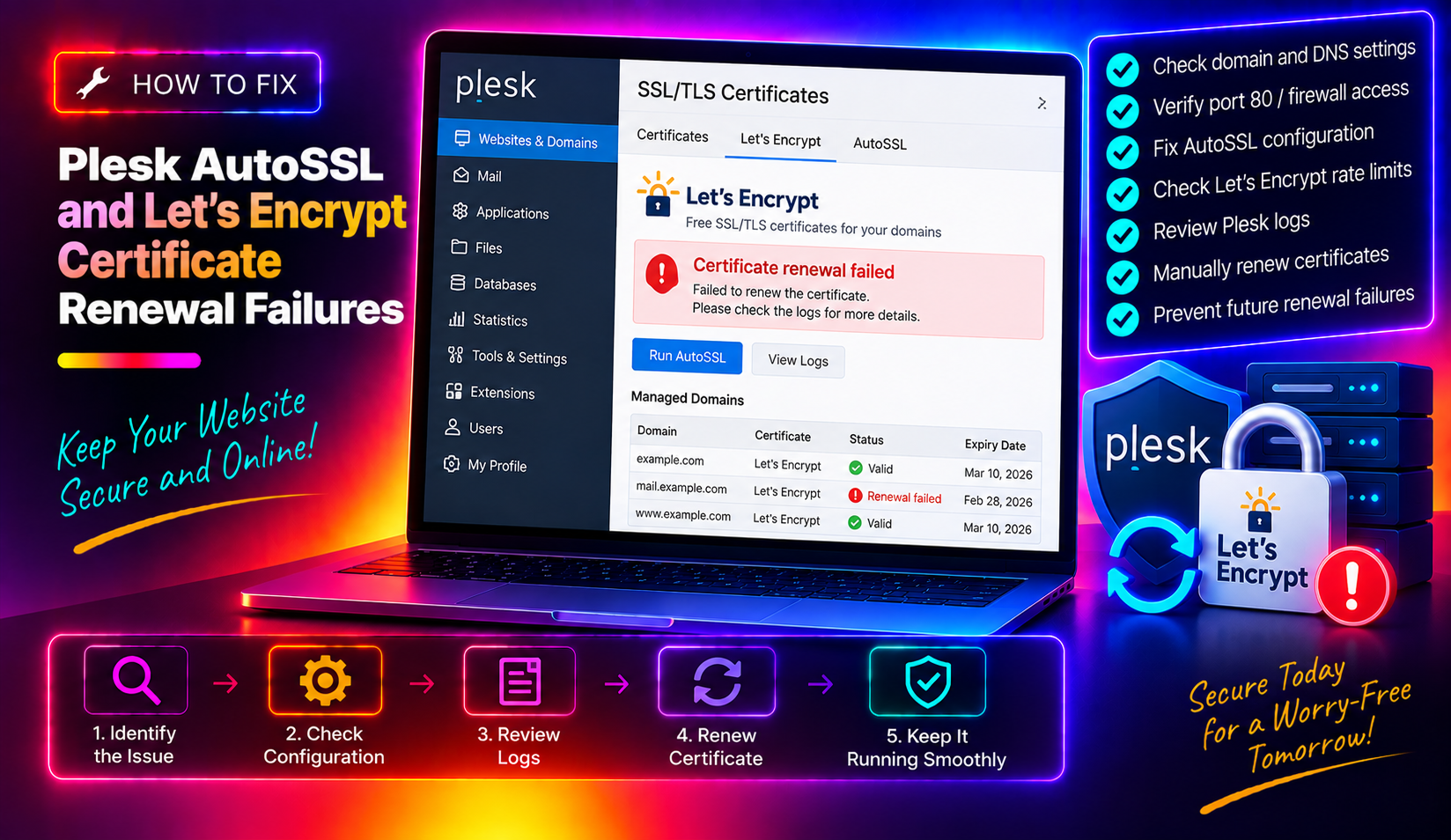
If your Plesk server's SSL certificates are expiring without renewing, or you're seeing errors when trying to issue a Let's Encrypt certificate through Plesk AutoSSL, you're not alone. Plesk AutoSSL renewal failed errors are one of the most common support tickets for managed hosting providers — and the root cause is almost never what the error message suggests. This guide covers every failure mode, from port 80 firewall blocks to ACME rate limits, with exact commands and log paths to diagnose and fix the problem fast.
How Plesk AutoSSL and Let's Encrypt Work
Plesk's AutoSSL feature automatically issues and renews Let's Encrypt certificates for all hosted domains. Under the hood it uses the ACME protocol with HTTP-01 domain validation: Let's Encrypt's servers make an HTTP request to http://yourdomain.com/.well-known/acme-challenge/TOKEN. If that request succeeds and returns the expected token, the certificate is issued. If anything blocks that HTTP request, the challenge fails and the certificate is not renewed.
AutoSSL runs nightly by default. When renewal fails, Plesk logs the error but doesn't always send visible alerts — which means certificates can expire silently until clients start seeing browser warnings.
Common Plesk AutoSSL Error Messages and What They Mean
Knowing the exact error is the fastest path to the fix. Check the Plesk panel log:
grep -i "letsencrypt\|autossl\|acme" /var/log/plesk/panel.log | tail -50Common errors and their root causes:
- "Timeout during connect (likely firewall problem)" — Port 80 is blocked at the server firewall, hosting provider security group, or CDN
- "Connection refused" — The web server (Apache/Nginx) is not listening on port 80, or a process is binding to port 80 unexpectedly
- "Incorrect TXT record found at _acme-challenge" — The DNS-01 challenge is in use but the TXT record wasn't updated or hasn't propagated
- "Could not issue a certificate: website content loading from another server" — The domain's A record points to a different server than the one running Plesk
- "Too many certificates already issued" — Let's Encrypt rate limit hit (5 duplicate certificates per week per domain)
- "SSL/TLS support is disabled for this domain" — Hosting settings have SSL/TLS turned off for the domain
- "CAA record restricts issuance" — A DNS CAA record exists for the domain but doesn't include
letsencrypt.org
Fix 1 — Verify Port 80 Is Open and Accessible
This is the most common cause of Plesk AutoSSL renewal failures. Let's Encrypt's HTTP-01 challenge requires port 80 to be reachable from the internet.
Check port 80 from the server itself:
curl -v http://yourdomain.com/.well-known/acme-challenge/test 2>&1 | head -20Check the Plesk built-in firewall:
Go to Tools & Settings → Security → Firewall. Verify that incoming TCP port 80 is set to Allow. If Plesk Firewall is managing iptables, check directly:
iptables -L INPUT -n | grep -E "80|ACCEPT|DROP"Check your cloud provider's security group or firewall: If your server is on AWS, DigitalOcean, Azure, Hetzner, or similar, port 80 must also be open in the cloud-level firewall — Plesk's firewall doesn't control that. Log in to your provider's console and verify the security group/firewall rules allow inbound TCP 80 from anywhere (0.0.0.0/0).
Check if something is listening on port 80:
ss -tlnp | grep :80
# or
netstat -tlnp | grep :80
If nothing is listening, Apache or Nginx may be stopped:
# Check web server status
systemctl status httpd   # CentOS/RHEL
systemctl status apache2  # Debian/Ubuntu
systemctl status nginx

# Restart if stopped
systemctl restart httpd
Fix 2 — Remove HTTP-to-HTTPS Redirects Before the ACME Challenge
A blanket HTTP→HTTPS redirect in .htaccess, nginx.conf, or Plesk's redirect settings will intercept the ACME HTTP-01 challenge and redirect it to HTTPS — which means Let's Encrypt's HTTP request never gets the expected token response.
Check for redirects in .htaccess:
cat /var/www/vhosts/yourdomain.com/httpdocs/.htaccess | grep -i redirectTemporarily comment out the redirect rule during certificate issuance, for example changing:
RewriteRule ^ https://%{HTTP_HOST}%{REQUEST_URI} [L,R=301]to:
# RewriteRule ^ https://%{HTTP_HOST}%{REQUEST_URI} [L,R=301]Re-issue the certificate, then restore the redirect.
In Plesk: Go to Websites & Domains → your domain → Hosting Settings. Uncheck Redirect from http to https, re-issue the certificate, then re-enable it.
Fix 3 — Verify the Domain's DNS Points to This Server
If the domain's A record points to a different IP than the Plesk server, Let's Encrypt's challenge request will reach the wrong machine and fail.
# Get the server's public IP
curl -s https://api.ipify.org

# Check what IP the domain resolves to
dig A yourdomain.com +short
dig A www.yourdomain.com +short
Both values must match. If the domain is behind Cloudflare or another CDN proxy, the HTTP-01 challenge will be routed through the CDN and may fail. Options:
- Temporarily disable Cloudflare proxying (orange cloud → grey cloud) on the domain A record, issue the certificate, then re-enable proxying
- Use DNS-01 challenge instead — requires a Plesk DNS-01 plugin for your DNS provider (Cloudflare, Route 53, etc.) that can create and delete TXT records automatically
💡 None of these worked? Skip the guesswork.
Get Expert Help →Fix 4 — Enable SSL/TLS Support for the Domain
In some cases, SSL/TLS hosting support is disabled for the domain in Plesk, which blocks certificate issuance entirely.
1. Go to Websites & Domains → the domain → Hosting Settings
2. Check that SSL/TLS support is enabled
3. Click OK to save, then retry the certificate issuance
From the command line (Plesk CLI):
plesk bin subscription --update yourdomain.com -ssl trueFix 5 — Fix CAA DNS Record Restrictions
A DNS CAA (Certification Authority Authorization) record restricts which CAs can issue certificates for your domain. If a CAA record exists but doesn't list letsencrypt.org, Let's Encrypt will refuse to issue a certificate.
dig CAA yourdomain.com +shortIf you see a CAA record like 0 issue "digicert.com" without a matching Let's Encrypt entry, add the following TXT record in your DNS:
yourdomain.com. CAA 0 issue "letsencrypt.org"If there are no CAA records, Let's Encrypt can issue freely — no action needed.
Fix 6 — Handle Let's Encrypt Rate Limits
Let's Encrypt enforces rate limits: a maximum of 5 duplicate certificates (same set of domain names) per week per registered domain. If you've been repeatedly attempting to issue or renew the same certificate due to earlier failures, you may hit this limit.
Check if you've hit a rate limit:
grep -i "rate limit\|too many" /var/log/plesk/panel.log | tail -20If rate limited:
- Wait 7 days for the limit window to reset — no workaround exists
- Use Let's Encrypt's staging environment to test certificate issuance without consuming rate limit quota (requires manual CLI testing with certbot)
- For immediate production use while waiting for the limit to reset, install a paid certificate temporarily via Plesk's SSL/TLS Certificates interface
Fix 7 — Manually Trigger AutoSSL Renewal from the Command Line
After resolving the underlying issue, trigger an immediate renewal without waiting for the nightly AutoSSL run:
# Trigger AutoSSL for all domains
plesk bin autossl --start-check

# Trigger for a specific domain
plesk bin autossl --start-check -domain yourdomain.com

# Check the result
grep -i "autossl\|letsencrypt" /var/log/plesk/panel.log | tail -30
You can also re-issue via the Plesk UI: Websites & Domains → your domain → SSL/TLS Certificates → Let's Encrypt → click Get it free or Reissue.
Fix 8 — Check the Plesk Renewal Agent Service
Plesk's AutoSSL runs via the plesk-cert-renewer or sw-cp-server service. If the service is stuck or crashed, renewals won't run.
# Check Plesk service status
systemctl status sw-cp-server psa

# Restart Plesk services
plesk repair web

# Force cert renewal check
/usr/local/psa/admin/bin/autossl_control.php --start-check 2>/dev/null || true
Quick Diagnosis Checklist
- ☑ Check the error:
grep -i letsencrypt /var/log/plesk/panel.log | tail -50 - ☑ Port 80 open in Plesk Firewall and cloud security groups
- ☑ Web server (Apache/Nginx) is running and listening on port 80
- ☑ Domain A record points to this server's IP
- ☑ No HTTP→HTTPS redirect blocking the ACME challenge
- ☑ SSL/TLS support enabled in domain Hosting Settings
- ☑ No CAA record blocking Let's Encrypt
- ☑ Not hitting Let's Encrypt rate limits (5 duplicates/week)
- ☑ Run:
plesk bin autossl --start-check -domain yourdomain.com
Managing AutoSSL and certificate renewals across dozens of Plesk domains is time-consuming, especially when each failure requires digging through logs and checking firewall rules. CloudHouse Technologies' server management service handles proactive certificate monitoring, AutoSSL failure remediation, and full SSL/TLS stack configuration so your hosted domains never go down with an expired certificate.