
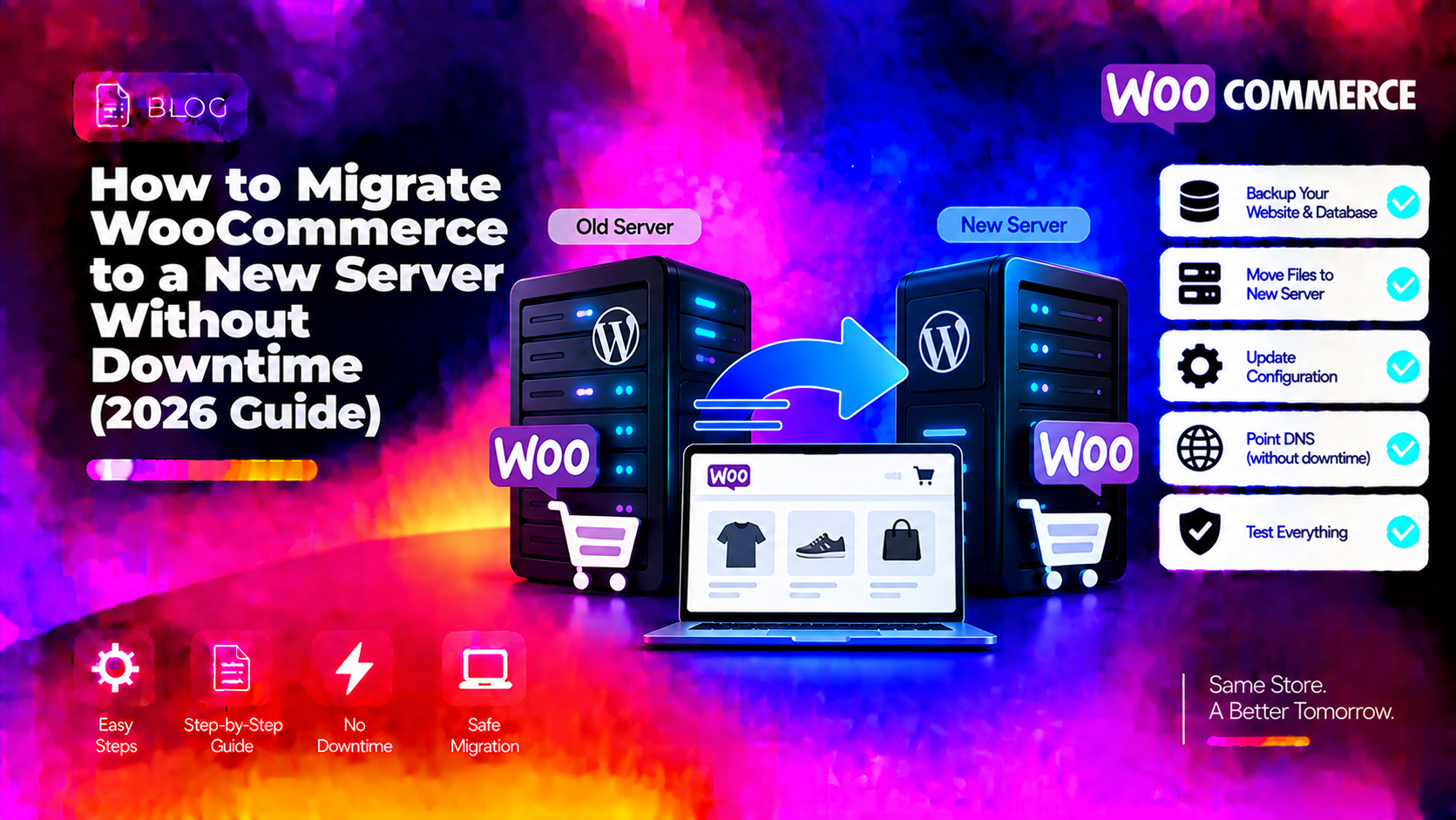
Migrating a WooCommerce store to a new server is one of the highest-stakes operations in web hosting. One wrong step can result in lost orders, broken checkout, or hours of downtime during peak sales. Done correctly, you can complete the entire migration with zero downtime — customers can browse and purchase right up until the moment DNS switches over, and resume immediately after. This guide covers the complete process: pre-migration preparation, file and database transfer, search-replace, DNS cutover, SSL setup, and how to fix the most common post-migration errors.
Pre-Migration Checklist
Before touching anything, complete these steps to make recovery fast if something goes wrong.
- Lower your DNS TTL now. Log into your DNS provider and reduce the A record TTL to 300 seconds (5 minutes). Do this 24–48 hours before your planned cutover. When you flip DNS, propagation will complete in under 5 minutes instead of up to 48 hours.
- Check PHP version compatibility. Confirm your new server runs the same PHP major version as the old one. WooCommerce 8.x requires PHP 7.4+ but strongly recommends PHP 8.1+. A version mismatch causes fatal errors after migration.
- Install matching PHP extensions:
php-mysql,php-curl,php-gd,php-mbstring,php-xml,php-zip. Missing extensions cause silent plugin failures. - Set PHP memory limit. WooCommerce recommends 256 MB minimum. Check your current setting:
php -r "echo ini_get('memory_limit');" - Note your database credentials from the old server's
wp-config.php— you'll needDB_NAME,DB_USER,DB_PASSWORD.
Step 1 — Export the Database from the Old Server
Use mysqldump with --single-transaction to take a consistent snapshot without locking tables (critical for a live store with active orders):
mysqldump --single-transaction --quick -u DB_USER -p DB_NAME > woo_backup.sqlTransfer the dump to the new server:
scp woo_backup.sql user@NEW_SERVER_IP:~/On the new server, create the database and import:
mysql -u root -p -e "
  CREATE DATABASE new_db;
  CREATE USER 'new_user'@'localhost' IDENTIFIED BY 'strong_password';
  GRANT ALL ON new_db.* TO 'new_user'@'localhost';
  FLUSH PRIVILEGES;
"
mysql -u new_user -p new_db < ~/woo_backup.sql
Step 2 — Transfer WordPress Files
Archive the full WordPress directory on the old server and transfer it:
# On old server
tar -czf site.tar.gz /var/www/html/

# Transfer to new server
scp site.tar.gz user@NEW_SERVER_IP:/var/www/html/

# Extract on new server
cd /var/www/html && tar -xzf site.tar.gz
For the uploads directory specifically, use rsync — it's faster for large media libraries and skips files that already exist:
rsync -avz /var/www/html/wp-content/uploads/ user@NEW_SERVER_IP:/var/www/html/wp-content/uploads/After transfer, set correct ownership and permissions on the new server:
chown -R www-data:www-data /var/www/html/
find /var/www/html/ -type d -exec chmod 755 {} \;
find /var/www/html/ -type f -exec chmod 644 {} \;
Step 3 — Update wp-config.php on the New Server
Open /var/www/html/wp-config.php on the new server and update the database connection constants to match the new database you created:
define('DB_NAME',     'new_db');
define('DB_USER',     'new_user');
define('DB_PASSWORD', 'strong_password');
define('DB_HOST',     'localhost');
Keep all other constants (auth keys, salts, table prefix) exactly as they were from the old server. Do not regenerate salts — doing so will log out all active sessions and invalidate all existing cookies.
Step 4 — Run WP-CLI Search-Replace
If you're migrating to the same domain, you only need to update siteurl and home in the database. If you're also changing the domain, use WP-CLI search-replace — never raw SQL REPLACE() across the whole database, as it silently corrupts serialized PHP data (widget settings, ACF fields, WooCommerce product metadata).
First, update siteurl and home to the new server (use temporary IP or test domain if you haven't flipped DNS yet):
wp option update siteurl 'https://yourdomain.com'
wp option update home    'https://yourdomain.com'
If migrating to a new domain, run search-replace with a dry run first:
# Dry run — shows what would change without making changes
wp search-replace 'https://olddomain.com' 'https://newdomain.com' --skip-columns=guid --dry-run

# Execute with --all-tables to cover WooCommerce's custom order and product tables
wp search-replace 'https://olddomain.com' 'https://newdomain.com' --skip-columns=guid --all-tables
After search-replace, regenerate WooCommerce product lookup tables:
wp wc tool run regenerate_product_lookup_tables --user=1Step 5 — Set Up SSL on the New Server Before Cutover
Issue your SSL certificate before flipping DNS, using a DNS challenge (works without traffic reaching the new server yet):
certbot certonly --manual --preferred-challenges dns -d yourdomain.com -d www.yourdomain.comCertbot will give you a TXT record to add to your DNS. Add it, wait for propagation, then confirm the challenge. This ensures HTTPS is live from the very first request after DNS cutover — no SSL warning, no redirect issues.
Step 6 — Test on the New Server Before DNS Cutover
Browse the new server fully before exposing it to live traffic. Add a temporary entry to your local /etc/hosts file (Linux/Mac) or C:\Windows\System32\drivers\etc\hosts (Windows):
NEW.SERVER.IP yourdomain.com www.yourdomain.comWith this entry in place, your browser routes to the new server while everyone else still sees the old one. Test:
- Homepage, category pages, product pages load correctly
- Add to cart and WooCommerce checkout flow works end-to-end
- WordPress admin (
/wp-admin) is accessible - SSL certificate is valid (green padlock)
- Media images load without broken links
- Payment gateway test mode transaction completes
Remove the /etc/hosts entry when testing is complete.
💡 None of these worked? Skip the guesswork.
Get Expert Help →Step 7 — DNS Cutover
Execute the cutover during your lowest-traffic window (typically 2–4 AM local time):
1. Freeze new orders briefly. In WooCommerce → Settings → General, disable checkout or enable catalog mode. This prevents orders being placed mid-cutover that could end up split between old and new databases.
2. Take a final database snapshot. On the old server: mysqldump --single-transaction -u DB_USER -p DB_NAME > final_backup.sql. Import this to the new server to catch any orders placed since your initial export.
3. Flip the DNS A record to the new server's IP. With TTL already at 300 seconds, propagation completes in under 5 minutes.
4. Verify propagation: dig +short yourdomain.com @8.8.8.8
5. Re-enable WooCommerce checkout once DNS propagation is confirmed.
6. Keep the old server online for 24–48 hours as a rollback option. Do not destroy it until you've confirmed everything is working under real traffic.
Post-Migration Checklist
- Regenerate thumbnails: Install the "Regenerate Thumbnails" plugin and run it — image sizes may differ between servers.
- Regenerate .htaccess: Go to WordPress Settings → Permalinks → click Save Changes. This regenerates the
.htaccessfile for the new server environment. - Verify payment gateway keys: Stripe, PayPal, and other payment plugins store API keys in the database — they carry over, but confirm they're still active and not rate-limited.
- Check WooCommerce order emails: Place a test order and verify the confirmation email arrives. SMTP configuration may need updating for the new server's hostname.
- Confirm WooCommerce subscriptions: If you use WooCommerce Subscriptions, verify existing subscriptions are active and renewal dates are intact.
- Disable WP_DEBUG: Remove or set to false any debug constants added during migration testing.
Common Post-Migration Errors and Fixes
- 500 Internal Server Error: Rename
.htaccessto.htaccess.bak, then go to Settings → Permalinks → Save to regenerate. If that doesn't help, set PHP memory limit to 256M inwp-config.php:define('WP_MEMORY_LIMIT', '256M'); - White Screen of Death: Rename
/wp-content/plugins/to/wp-content/plugins.bak/via SSH to deactivate all plugins at once, then re-enable one by one to find the culprit. Usually caused by a plugin incompatible with the new PHP version. - Broken images / media not loading: Search-replace didn't cover all URL references in the database. Run
wp search-replaceagain with--all-tables. Also re-run Regenerate Thumbnails. - Redirect loop: The
siteurlandhomeoptions don't match the domain in your server-level redirect rules. Check bothwp_optionsrows and your Nginx/Apache config for conflicting redirects. - WooCommerce orders missing: You imported an old database snapshot before the final cutover export. Re-import the final
final_backup.sqlyou took just before flipping DNS.
Migrating a live WooCommerce store requires careful coordination across multiple systems. If you'd rather hand it off to a team that's done this hundreds of times, CloudHouse's server migration service handles the full migration with guaranteed zero downtime and a rollback plan in place.