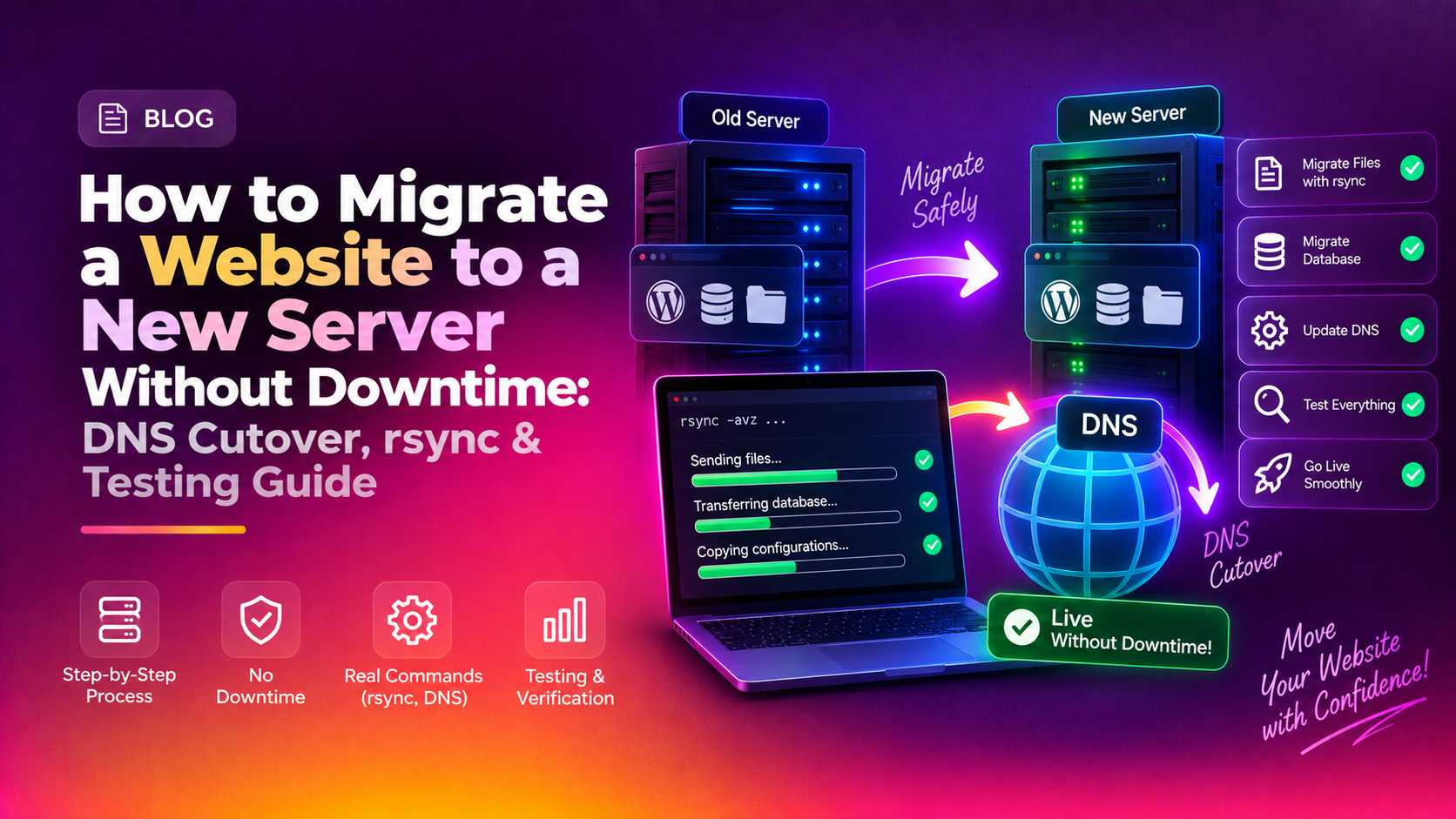
Moving a live website to a new server is one of the highest-risk tasks in hosting management — done wrong, it means hours of downtime, lost traffic, and angry clients. Done right, visitors never notice the move at all. This guide covers the complete zero-downtime migration workflow: syncing files and databases, testing on the new server before going live, and executing a clean DNS cutover.
The Core Strategy: Run Both Servers in Parallel
The secret to zero-downtime migration is never switching until you're 100% ready. The old server stays live and serving real traffic the entire time you set up, sync, and test the new server. You only flip DNS when the new server is verified and working. If something breaks, you revert DNS — visitors are back on the old server within minutes.
The workflow in brief:
- Lower DNS TTL 24-48 hours before migration
- Sync files and databases to the new server
- Test the new server using your
/etc/hostsfile - Run a final rsync to catch changes made during testing
- Update DNS to the new server's IP
- Monitor for 48 hours before decommissioning the old server
Step 1: Lower DNS TTL Before You Start
DNS TTL (Time To Live) controls how long resolvers cache your DNS records. If it's set to 86400 seconds (24 hours) and you change your A record, visitors worldwide can be stuck on the old IP for up to 24 hours.
At least 48 hours before your migration window, lower all DNS TTLs to 300 seconds (5 minutes):
# Check current TTL
dig +short YOUR_DOMAIN.COM A
# The number beside the IP is remaining TTL in seconds

# Log into your DNS provider (Cloudflare, Route53, etc.)
# Change the TTL on all A, AAAA, CNAME, and MX records to 300
After the migration, you can raise TTLs back to 3600 or higher once you've confirmed the new server is stable.
Step 2: Set Up the New Server
Before copying any data, get the new server ready:
- Install the same web stack (Nginx, Apache, PHP version, MySQL/MariaDB)
- Install SSL handling (Let's Encrypt / certbot, or your panel's SSL manager)
- Create matching user accounts and directory structures
- Configure the same virtual hosts / domain configs
- Install and configure any required PHP extensions
Verify the new server can serve a test page before copying production data:
curl -I http://NEW_SERVER_IP/
# Should return 200 or the expected response
Step 3: Sync Files with rsync
rsync is ideal for server-to-server file sync: it's incremental, SSH-encrypted, and can be run repeatedly to catch changes. Run the initial sync from the old server:
# From the OLD server, push files to the NEW server
rsync -avz --progress   /var/www/html/your-site/   root@NEW_SERVER_IP:/var/www/html/your-site/

# For cPanel accounts — sync the full home directory
rsync -avz --progress   /home/username/   root@NEW_SERVER_IP:/home/username/
For WordPress or other CMSes with uploads:
rsync -avz --progress /var/www/html/your-site/wp-content/uploads/ root@NEW_SERVER_IP:/var/www/html/your-site/wp-content/uploads/rsync compresses data in transit and skips files that haven't changed, so the initial sync may take time but subsequent syncs are fast. Run it multiple times until the output shows very few files transferred.
Step 4: Export and Import Databases
Export the database on the old server and import it on the new one:
# On the OLD server — export
mysqldump -u root -p   --single-transaction   --routines   --triggers   YOUR_DATABASE_NAME > /tmp/db_backup.sql

# Transfer the dump to the new server
rsync -avz /tmp/db_backup.sql root@NEW_SERVER_IP:/tmp/

# On the NEW server — create the database and import
mysql -u root -p -e "CREATE DATABASE YOUR_DATABASE_NAME CHARACTER SET utf8mb4 COLLATE utf8mb4_unicode_ci;"
mysql -u root -p YOUR_DATABASE_NAME < /tmp/db_backup.sql

# Recreate the database user and grant permissions
mysql -u root -p -e "CREATE USER 'db_user'@'localhost' IDENTIFIED BY 'password';"
mysql -u root -p -e "GRANT ALL PRIVILEGES ON YOUR_DATABASE_NAME.* TO 'db_user'@'localhost';"
mysql -u root -p -e "FLUSH PRIVILEGES;"
For large databases (>5GB), use --compress with mysqldump and pipe directly through SSH to avoid storing a large local file:
mysqldump -u root -p YOUR_DATABASE_NAME | gzip | ssh root@NEW_SERVER_IP "gunzip | mysql -u root -p YOUR_DATABASE_NAME"Step 5: Update Application Config Files
If the new server has a different database host, username, or path structure, update your application config before testing:
# WordPress — update wp-config.php
DB_HOST = 'localhost'
DB_NAME = 'YOUR_DATABASE_NAME'
DB_USER = 'db_user'
DB_PASSWORD = 'password'

# Laravel — update .env
DB_HOST=127.0.0.1
DB_DATABASE=your_database
DB_USERNAME=db_user
DB_PASSWORD=password
Also update any hard-coded file paths or server-specific configuration in your app.
Step 6: Test on the New Server Using /etc/hosts
Before touching DNS, test the entire site on the new server by temporarily overriding DNS on your local machine. This makes your computer resolve the domain to the new server IP while the rest of the world still hits the old server.
On your local machine (Mac/Linux):
sudo nano /etc/hosts
# Add this line at the bottom:
NEW_SERVER_IP  yourdomain.com www.yourdomain.com
On Windows, edit C:\Windows\System32\drivers\etc\hosts with Notepad as Administrator and add the same line.
Now open your browser and visit your domain. You're seeing the new server. Test thoroughly:
- Home page loads and images display correctly
- User login works
- Forms submit successfully
- Checkout / payments flow (if applicable)
- SSL certificate is valid (padlock shows)
- Any email sending works (SMTP / PHP mail)
- Cron jobs are configured
When you're done testing, remove the /etc/hosts override or you'll keep hitting the new server even after others are still on the old one — which can confuse your final sync.
Step 7: Final rsync Before DNS Cutover
Run rsync one last time to catch any files that changed during your testing window:
rsync -avz --progress /var/www/html/your-site/ root@NEW_SERVER_IP:/var/www/html/your-site/If the site accepts user uploads or file writes, put it in maintenance mode briefly during this final sync to prevent data loss between the last rsync and DNS cutover.
For WordPress, you can use a maintenance plugin or create a temporary maintenance.php file. For custom apps, add a flag to your config.
Step 8: DNS Cutover
Log into your DNS provider and update the A record (and AAAA if using IPv6) to point to the new server's IP:
yourdomain.com.   300   IN   A   NEW_SERVER_IP
www.yourdomain.com. 300 IN   A   NEW_SERVER_IP
With a 300-second TTL, most resolvers will pick up the change within 5 minutes. Use a global DNS checker to monitor propagation:
# Check from multiple locations
dig +short yourdomain.com @8.8.8.8        # Google DNS
dig +short yourdomain.com @1.1.1.1        # Cloudflare DNS
dig +short yourdomain.com @208.67.222.222 # OpenDNS
When all three return the new server's IP, global propagation is essentially complete.
Step 9: Post-Migration Monitoring
Keep the old server running for at least 48 hours after the cutover. Monitor:
# New server — watch for errors in real time
tail -f /var/log/nginx/error.log
tail -f /var/log/apache2/error.log
tail -f /var/log/mysql/error.log

# Check 200 response rate
watch -n 30 "curl -o /dev/null -s -w '%{http_code}' https://yourdomain.com/"
If you see errors, compare the old and new server configs side by side to identify missing PHP extensions, different file permissions, or config differences.
Only decommission or repurpose the old server after you're confident the new one is stable. If you need a managed migration from start to finish, CloudHouse's server migration service handles the entire process with zero-downtime guarantees.
Conclusion
A zero-downtime server migration is entirely achievable with the right sequence: lower TTL early, sync with rsync, test using /etc/hosts, and flip DNS only when you're confident the new server works. The old server stays live as your fallback throughout the process — remove it only when you're sure. If you'd rather not manage the risk yourself, CloudHouse migrates servers every day with no downtime and no data loss.