Why macOS Sequoia Feels Slow in 2026
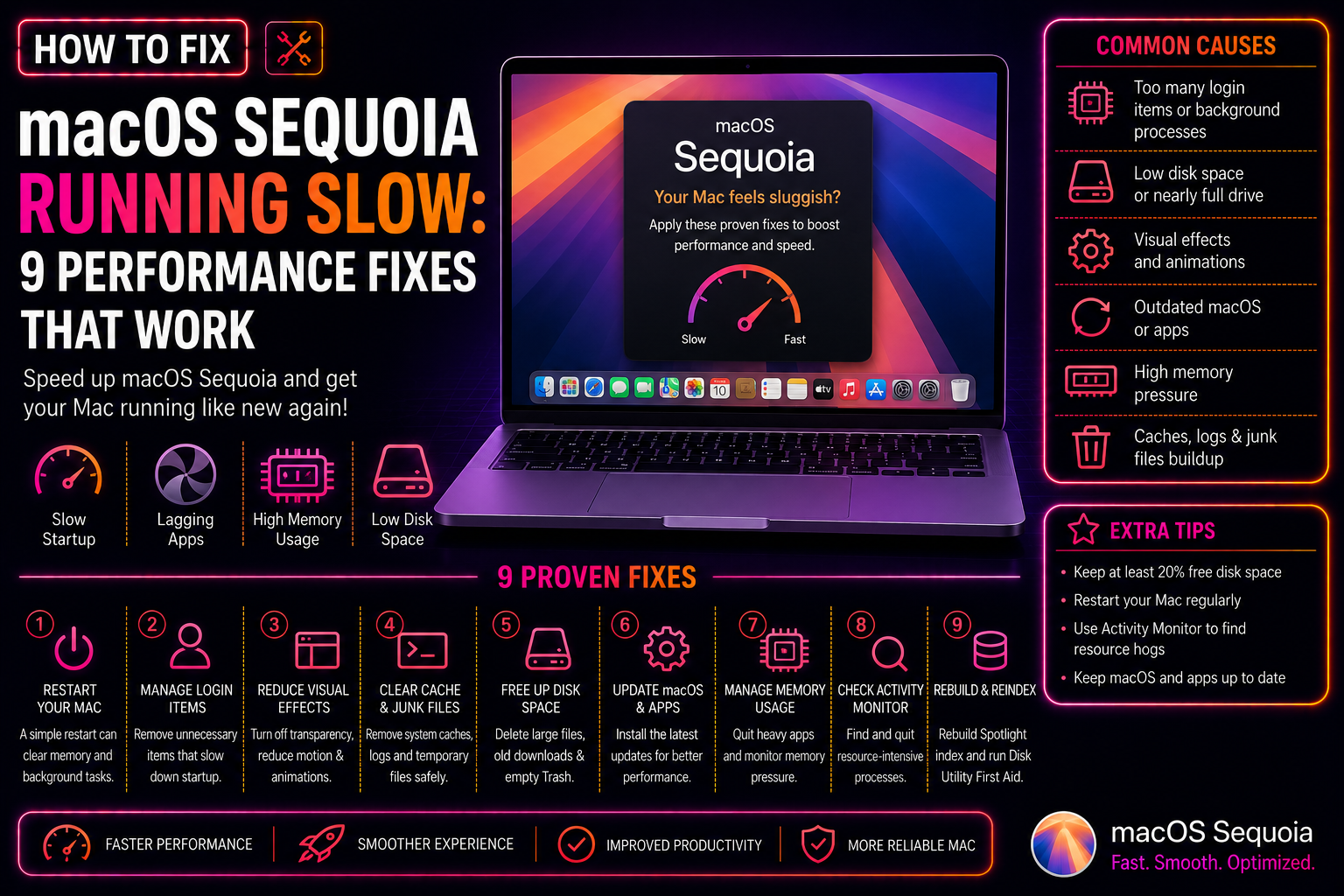
macOS Sequoia (15.x) brought iPhone Mirroring, a redesigned Passwords app, and deeper Continuity Camera integration — but also a wave of performance complaints. The common culprits are: a memory leak in the WindowServer process that accumulates RAM until the machine grinds to a halt, Spotlight re-indexing an entire drive after an upgrade, mds_stores pegging a CPU core for hours, and login items from apps that auto-update silently and add background processes.
This guide diagnoses the actual bottleneck first, then fixes it — rather than running a generic checklist of tips.
Step 1: Diagnose — Find What's Actually Slow
Before changing settings, open Activity Monitor (Applications → Utilities → Activity Monitor) and sort by CPU and Memory to identify the real culprit:
# From Terminal, quick snapshot of top CPU consumers
top -o cpu -n 10 -l 1 | head -20

# Memory pressure check
vm_stat | awk '/Pages free/ || /Pages wired/ || /Pages active/ || /compressor/'

# Check if swapping is happening (bad for SSDs)
sysctl vm.swapusage
Common high-CPU offenders and their fixes:
- mds_stores — Spotlight indexing (Fix 3)
- WindowServer — visual effects + memory leak (Fix 4)
- kernel_task — thermal throttling (Fix 7)
- com.apple.metald — Metal GPU driver compilation (wait it out, usually finishes)
- idleassetsd — downloading screensaver/wallpaper assets (Fix 2)
Fix 1: Restart and Check Login Items
If you haven't restarted your Mac in more than a few days, a restart alone often recovers 1–2 GB of leaked RAM and clears zombie processes. After restarting:
- System Settings → General → Login Items & Extensions.
- Under "Open at Login" — disable everything you don't need starting at login: Spotify, Discord, Dropbox, Adobe Creative Cloud auto-updater, Teams auto-start, etc.
- Under "Allow in Background" — disable background permissions for apps that don't need to run when you're not actively using them.
Fix 2: Stop idleassetsd from Downloading Aerial Videos
On Sequoia, idleassetsd downloads screensaver aerial videos in the background, consuming bandwidth and CPU. If you don't use the aerial screensaver, disable it:
sudo launchctl unload -w /System/Library/LaunchDaemons/com.apple.idleassetsd.plistTo re-enable if needed later:
sudo launchctl load -w /System/Library/LaunchDaemons/com.apple.idleassetsd.plistFix 3: Fix Spotlight Indexing (mds_stores High CPU)
After an OS upgrade, Spotlight re-indexes the entire drive. This is normal but can take several hours on large drives and pegs one CPU core during that time.
Check indexing progress:
mdutil -s /If you see "Indexing enabled" and CPU remains high for more than 2–3 hours, the index is likely corrupted. Rebuild it:
# Disable then re-enable indexing to force a clean rebuild
sudo mdutil -i off /
sudo mdutil -E /
sudo mdutil -i on /
To temporarily pause Spotlight indexing while working:
- System Settings → Siri & Search → turn off Search in Spotlight.
- Re-enable it after overnight indexing.
You can also exclude large external drives from indexing: System Settings → Siri & Search → scroll down → add external drives under "Search Privacy".
Fix 4: Fix WindowServer Memory Leak
macOS Sequoia has a confirmed WindowServer memory leak that causes 8–20 GB of memory to fill up over several days of uptime. The fix is a combination of reducing visual effects and restarting the WindowServer:
Reduce Transparency (biggest impact):
- System Settings → Accessibility → Display.
- Enable Reduce Transparency.
- Enable Reduce Motion (also helps).
Kill and restart WindowServer (equivalent to logging out and back in):
sudo killall WindowServerThis logs you out of your session and back in. Save all open work first.
Disable Stage Manager if enabled (System Settings → Desktop & Dock → Stage Manager) — this feature is a known memory consumer in Sequoia.
Fix 5: Free Up Storage (Virtual Memory Space)
macOS needs free SSD space to create swap files (virtual memory). When storage is above 90% full, performance collapses.
# Check storage usage
df -h /
Quick wins to free space:
# Delete system and app caches (safe to delete — they rebuild)
sudo rm -rf ~/Library/Caches/*
sudo rm -rf /Library/Caches/*

# Remove old iOS device backups (can be multi-GB)
# Open Finder → ~/Library/Application Support/MobileSync/Backup/

# Check what's large
du -sh ~/Downloads/* | sort -rh | head -10
Also use System Settings → General → Storage → Recommendations to find large files and old Time Machine local snapshots Apple can remove.
Fix 6: Update macOS and All Apps
Apple released macOS 15.4 in April 2026 with specific performance fixes for the WindowServer leak, Spotlight indexing stability, and iCloud Drive sync CPU overhead. Install it:
- System Settings → General → Software Update.
- Install all available updates.
Also update all App Store apps and any third-party apps that auto-update — outdated apps often have resource leaks fixed in newer versions.
Fix 7: Diagnose Thermal Throttling (kernel_task High CPU)
If kernel_task is consuming 200–400% CPU, your Mac is thermally throttling — intentionally slowing the CPU to reduce heat. This is common on MacBooks with blocked vents or in a hot environment.
Check CPU temperature:
# Install osx-cpu-temp via Homebrew
brew install osx-cpu-temp
osx-cpu-temp
If temps are above 90°C (195°F), the Mac is throttling. Fixes:
- Elevate the laptop on a stand to improve airflow.
- Clean the vents with compressed air.
- Set "Low Power Mode" in System Settings → Battery for sustained tasks.
- Close all unused apps to reduce heat output.
Fix 8: Reset NVRAM and SMC
Corrupted NVRAM or System Management Controller (SMC) settings cause sluggish startup and incorrect power management — both of which manifest as slow performance.
Reset NVRAM (Intel Macs):
- Shut down your Mac.
- Power on and immediately hold Option + Command + P + R for 20 seconds.
- Release and let the Mac boot normally.
Reset SMC (Intel MacBooks with T2 chip):
- Shut down.
- Hold Shift + Control + Option on the left side, then press the Power button for 10 seconds.
- Release all keys and power on normally.
On Apple Silicon Macs, simply shutting down fully (not sleep) for 30 seconds resets the equivalent functions — there is no separate SMC reset procedure.
Fix 9: Rebuild the Dynamic Linker Cache
The macOS dynamic linker cache (dyld) optimises app launch times. A corrupted or outdated cache causes slow app launches. Rebuild it:
sudo update_dyld_shared_cache -forceThis takes a few minutes. Reboot after it completes.
Quick Performance Checklist
# All-in-one quick diagnostic
echo "=== CPU ===" && top -o cpu -n 5 -l 1 | head -15
echo "=== Memory ===" && vm_stat | grep "Pages\|Swap"
echo "=== Storage ===" && df -h / | tail -1
echo "=== Uptime ===" && uptime
If slowness persists after all these fixes, it may be hardware-related — a failing SSD, dying RAM, or an overheating GPU. Our professional desktop support team can run a full macOS performance audit remotely and identify the root cause.
Frequently Asked Questions
Why is my Mac suddenly slow after upgrading to macOS Sequoia?
The most common causes are Spotlight re-indexing (takes several hours and pegs a CPU core), a WindowServer memory leak that fills RAM over days of uptime, and login items from apps that auto-updated during the upgrade. Restarting clears the memory leak, and Spotlight indexing finishes on its own within a few hours.
How do I know if my Mac is thermally throttling?
When kernel_task shows 200%+ CPU usage in Activity Monitor, your Mac is throttling to reduce heat. Install osx-cpu-temp via Homebrew to check the actual temperature. Above 90°C means the Mac is under thermal stress. Improve airflow, clean vents, and close unused apps.
Is mds_stores safe to kill from Activity Monitor?
Yes — it will restart automatically. Killing it pauses Spotlight indexing temporarily. If mds_stores restarts and immediately goes back to high CPU, the Spotlight index is corrupted and needs a full rebuild using mdutil -E /.
How much free storage do I need for macOS to run smoothly?
Apple recommends keeping at least 10–20% of your total storage free. With less than 10 GB free on modern macOS, virtual memory (swap) creation becomes slow, iCloud sync stalls, and Time Machine local snapshots fail — all causing noticeable slowdowns.
Does reducing transparency actually make macOS faster?
Yes, significantly. Reducing transparency disables GPU-composited blur effects on windows, menu bars, and sidebars. On machines with less than 16 GB RAM, this alone can recover 200–500 MB of RAM and reduce WindowServer CPU usage by 10–30%.