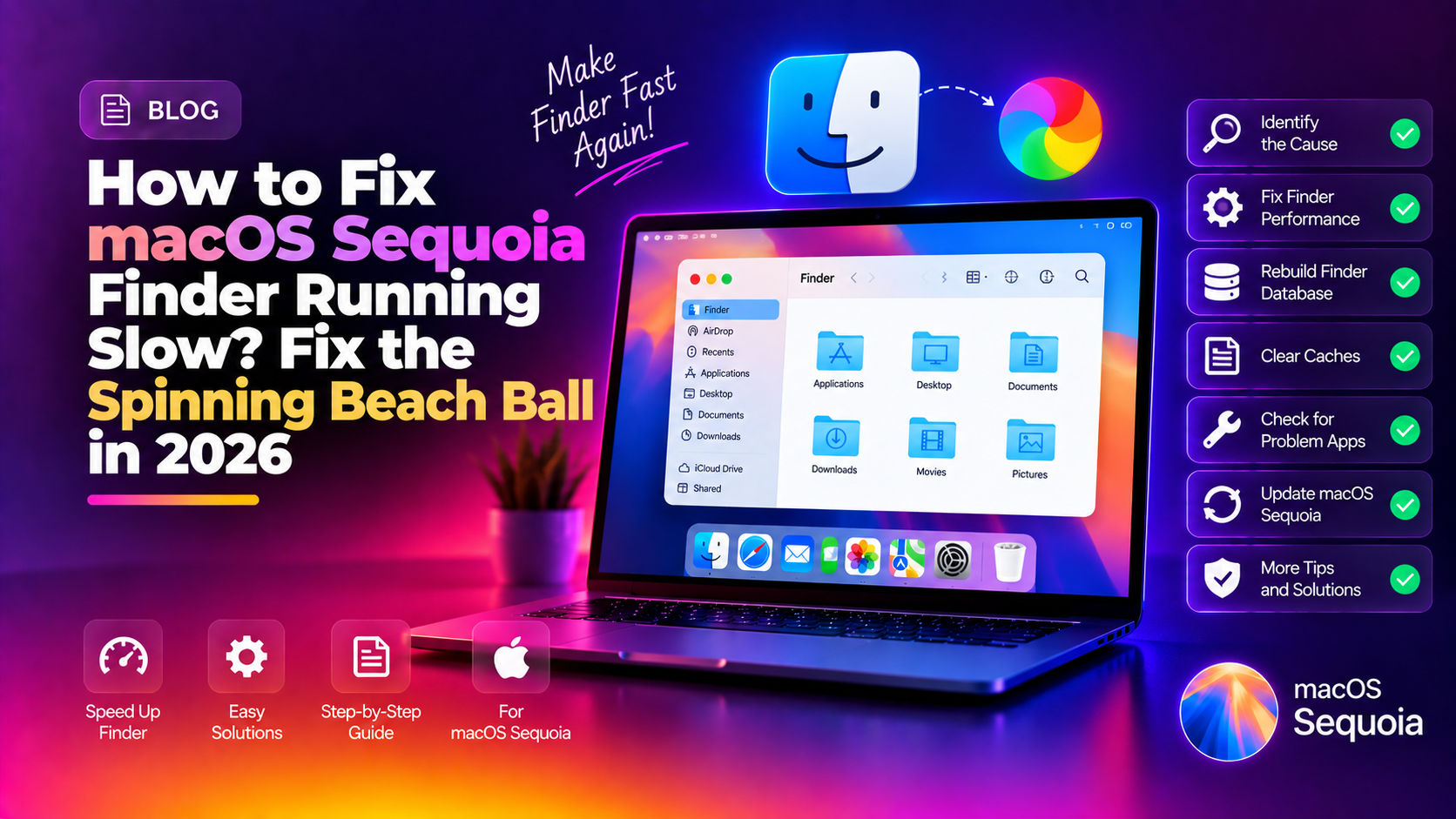
You upgraded to macOS Sequoia, and now your Mac feels like it's wading through mud. Folders take five seconds to open. The spinning beach ball — officially called the Spinning Wait Cursor, but universally known as the SPOD (Spinning Pizza of Death) — appears every time you click something in Finder. If this sounds familiar, you're not alone.
macOS Sequoia (macOS 15) introduced significant architectural changes that can disrupt Finder's smooth operation, especially on older Intel Macs and even on some M-series machines running macOS 15.4 and 15.5. This guide covers the real causes behind macOS Sequoia Finder slow performance and gives you three proven, step-by-step fixes to get your Mac back to full speed in 2026.
Why Is macOS Sequoia Finder So Slow? The Real Causes Behind the Beach Ball
Before jumping to fixes, it helps to understand what's actually causing the slowdown. Finder slowing to a crawl on macOS Sequoia almost always traces back to one or more of these root causes:
1. Corrupted or Outdated Finder Preference Files
Finder stores its settings in a .plist file in your user Library. After a major OS upgrade, these preference files can become corrupt or incompatible, causing Finder to stall each time it tries to read them. This is one of the most common yet overlooked causes.
2. iCloud Drive Sync Conflicts
macOS Sequoia's deeper iCloud Drive integration means Finder is constantly talking to Apple's servers. If your internet connection is slow, if iCloud is mid-sync, or if there are sync conflicts, Finder will lock up waiting for a response from the cloud — triggering the beach ball.
3. Spotlight Reindexing in the Background
After a macOS upgrade, Spotlight automatically rebuilds its entire search index. This process — called mds_stores in Activity Monitor — consumes significant CPU and disk I/O, which directly starves Finder of the resources it needs to respond instantly.
4. Runaway Background Processes
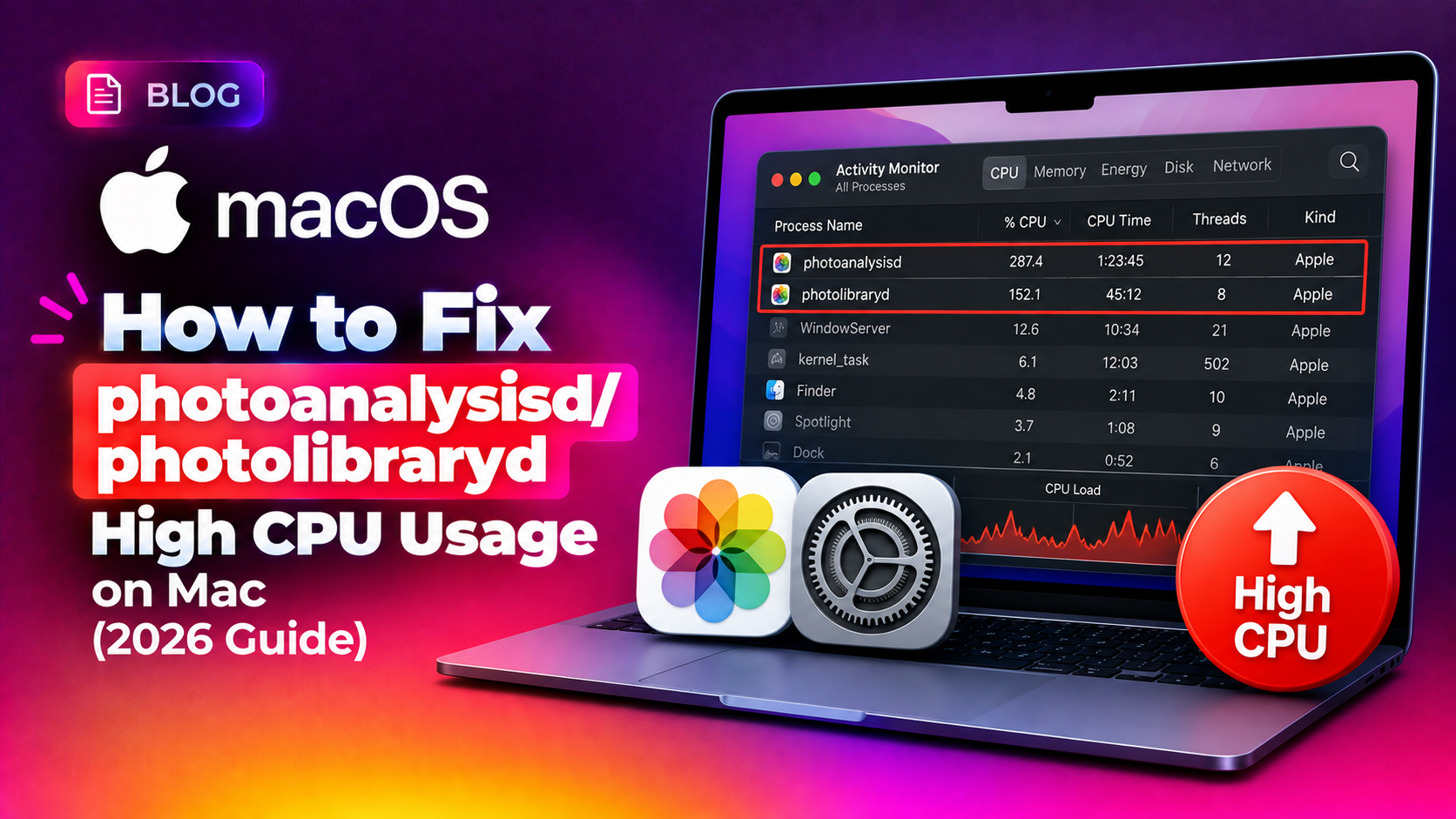
Processes like kernel_task, mds_stores, bird (iCloud daemon), photoanalysisd, and backupd (Time Machine) routinely spike to 80–200% CPU on macOS Sequoia. When the CPU is throttled, every UI interaction — including Finder — slows to a crawl.
5. Stale System Cache
macOS maintains a large cache for icons, thumbnails, and metadata. After an upgrade, much of this cache is stale and forces Finder to regenerate it on demand — causing noticeable lag when browsing folders you haven't opened since the upgrade.
Fix 1: Reset Finder Preferences and Clear System Cache
This fix addresses corrupted preference files and stale cache data — two of the most common causes of a slow Finder on macOS Sequoia.
Step 1: Quit Finder
Hold Option and right-click the Finder icon in the Dock, then select Relaunch. Alternatively, open Terminal and run:
killall FinderStep 2: Delete the Finder Preferences File
Open Terminal (Applications > Utilities > Terminal) and run these commands:
# Remove the Finder preference file
rm ~/Library/Preferences/com.apple.finder.plist

# Remove Finder saved state
rm -rf ~/Library/Saved Application State/com.apple.finder.savedState
Step 3: Clear the System and User Cache
# Clear user cache
rm -rf ~/Library/Caches/*

# Clear icon cache (requires restart to fully take effect)
sudo find /private/var/folders/ -name com.apple.dock.iconcache -exec rm {} \;
sudo find /private/var/folders/ -name com.apple.iconservices -exec rm -rf {} \;
Step 4: Restart and Rebuild
After running these commands, restart your Mac. On the next boot, macOS will create fresh preference files for Finder and rebuild the icon and thumbnail cache. Finder should feel significantly more responsive immediately after reboot.
What to expect: The first reboot after clearing caches may take slightly longer than usual as macOS rebuilds them. After that, Finder will be noticeably snappier.
Fix 2: Disable iCloud Drive Sync and Spotlight Reindexing Conflicts
If Fix 1 didn't fully resolve the issue, iCloud Drive or Spotlight is likely the culprit. Here's how to isolate and fix both.
Temporarily Disable iCloud Drive Sync
- Open System Settings (Apple menu > System Settings)
- Click your Apple ID at the top
- Select iCloud
- Click iCloud Drive and toggle it Off
- Open Finder and test its responsiveness
If Finder immediately becomes fast again, iCloud Drive was the culprit. You can re-enable it, but also check for sync conflicts by looking for files with a cloud icon displaying a warning symbol in Finder's sidebar.
Check if iCloud Daemon (bird) Is Spinning
Open Terminal and run:
ps aux | grep birdIf bird shows CPU usage above 10% consistently, kill it and let it restart cleanly:
killall birdForce Spotlight to Stop and Reindex
Rather than letting Spotlight index indefinitely in the background, you can force it to complete its reindex quickly by excluding and re-including your drive:
- Go to System Settings > Siri & Spotlight > Spotlight Privacy
- Click the + button and add your startup disk (usually Macintosh HD)
- Wait 30 seconds, then remove the drive from the Privacy list
- This forces Spotlight to restart its index cleanly
Alternatively, use Terminal to disable and re-enable Spotlight indexing:
# Disable Spotlight indexing
sudo mdutil -a -i off

# Wait 10 seconds, then re-enable
sudo mdutil -a -i on

# Force a fresh reindex
sudo mdutil -E /
The reindex will run in the background and typically completes within 1–3 hours depending on how many files you have. During this time, avoid CPU-intensive tasks.
Fix 3: Identify and Kill CPU-Hogging Processes in Activity Monitor
If Finder is still slow after Fixes 1 and 2, a background process is consuming so many CPU cycles that your entire system — including Finder — is being throttled.
Step 1: Open Activity Monitor
Go to Applications > Utilities > Activity Monitor, or use Spotlight (Cmd+Space) and type "Activity Monitor".
Step 2: Sort by CPU Usage
Click the CPU tab at the top of Activity Monitor, then click the % CPU column header to sort processes by CPU usage (highest first).
Step 3: Identify the Culprits
Look for these common offenders on macOS Sequoia:
mds_stores— Spotlight indexing. High CPU is normal right after an upgrade but should subside within a few hours.bird— iCloud Drive daemon. If it's consuming 50%+ CPU, force-quit it (it will restart automatically).photoanalysisd— Photos machine learning analysis. Safe to leave running; it will complete on its own.backupd— Time Machine backup. Pause Time Machine temporarily: Apple menu > System Settings > General > Time Machine > Options > Back Up Automatically (off temporarily).kernel_task— If this is extremely high (500%+), your CPU is being thermally throttled. Ensure your Mac's vents are clear and the ambient temperature is reasonable.
Step 4: Kill Non-Essential Processes
Select a process and click the X button in the toolbar to force-quit it. For iCloud and Spotlight daemons, they will automatically restart. For third-party processes, check if they are from apps you can temporarily quit.
Command-Line Alternative
You can also identify heavy processes from Terminal:
# Show top 10 CPU-consuming processes
top -l 1 -s 0 | head -20

# Kill a specific process by name (example: mds_stores)
sudo killall mds_stores
If none of these processes stand out and Finder is still slow, consider running Apple Diagnostics: restart your Mac and hold D during startup to check for hardware issues.
How to Prevent Finder Slowdowns and Beach Balls on macOS Sequoia
Once you've fixed the immediate problem, these practices will keep Finder running fast on macOS Sequoia:
Keep at Least 15% of Your Disk Free
macOS uses free disk space for virtual memory swap and temporary files. When your disk is more than 85% full, system performance degrades significantly. Check your storage: Apple menu > System Settings > General > Storage.
Regularly Clear Finder's Recent Items
A very long Recents folder forces Finder to resolve thousands of file aliases on launch. Clear it via Finder > Settings > General > "Remove items from the Recents folder": After 1 Day (or Never for maximum speed).
Limit Finder Sidebar Items
Every item in Finder's sidebar is a live mount point that Finder polls. Remove network shares and external drives you don't use regularly: Finder > Settings > Sidebar.
Schedule Regular Cache Clears
macOS doesn't automatically clear all caches. Run the following monthly to keep things clean:
sudo periodic daily weekly monthlyKeep macOS Sequoia Updated
Apple regularly releases point updates (15.1, 15.2, 15.3, 15.4, 15.5) that address Finder performance bugs. Always install the latest update: System Settings > General > Software Update.
If you continue to experience persistent performance issues after trying all these fixes, it may be time to get expert eyes on your system. Our professional PC support team at CloudHouse Technologies can diagnose and resolve deep macOS performance issues remotely — fast and affordably, with no appointment needed.
Frequently Asked Questions About Mac Spinning Beach Ball in 2026
Why does the spinning beach ball appear so often on macOS Sequoia?
The spinning beach ball (SPOD) appears when macOS Sequoia is waiting for a process to respond. After upgrading to Sequoia, background tasks like Spotlight reindexing, iCloud Drive syncing, and cache rebuilding compete for CPU and disk resources, causing Finder to stall temporarily. The beach ball is macOS's way of showing that an app is unresponsive. Most post-upgrade beach balls resolve within 24–48 hours as background tasks complete.
Will resetting Finder preferences delete my files?
No. Finder preferences only store settings like view mode, sidebar configuration, and window positions — not your actual files. Deleting com.apple.finder.plist simply resets Finder to its default settings, which macOS will recreate on next launch. Your documents, photos, and other files are completely unaffected.
How do I know if Spotlight is causing my slow Mac?
Open Activity Monitor and look for mds_stores in the CPU tab. If it's consuming 50% or more CPU, Spotlight indexing is actively running. You can also run sudo mdutil -s / in Terminal to see the current indexing status. If it says "Indexing enabled. Index is current", Spotlight has finished and is not the cause.
Is macOS Sequoia slow on M1 and M2 Macs too?
Yes, though less commonly than on Intel Macs. Even M-series Macs can experience slow Finder behavior if iCloud Drive has sync conflicts, if the Spotlight index is corrupted, or if third-party security or backup software is running heavy scans in the background. The same fixes apply regardless of chip architecture.
What is kernel_task and why is it using so much CPU?
kernel_task is the macOS kernel process that, among other things, actively throttles CPU performance to prevent overheating. If it shows very high CPU usage (200–500%+), your Mac is thermally throttling. This is common when your Mac is on a soft surface blocking vents, when ambient temperature is high, or when a background app is generating excessive heat. Cleaning your Mac's vents, ensuring good airflow, and addressing the root thermal cause will bring kernel_task back to normal and restore Finder speed.