
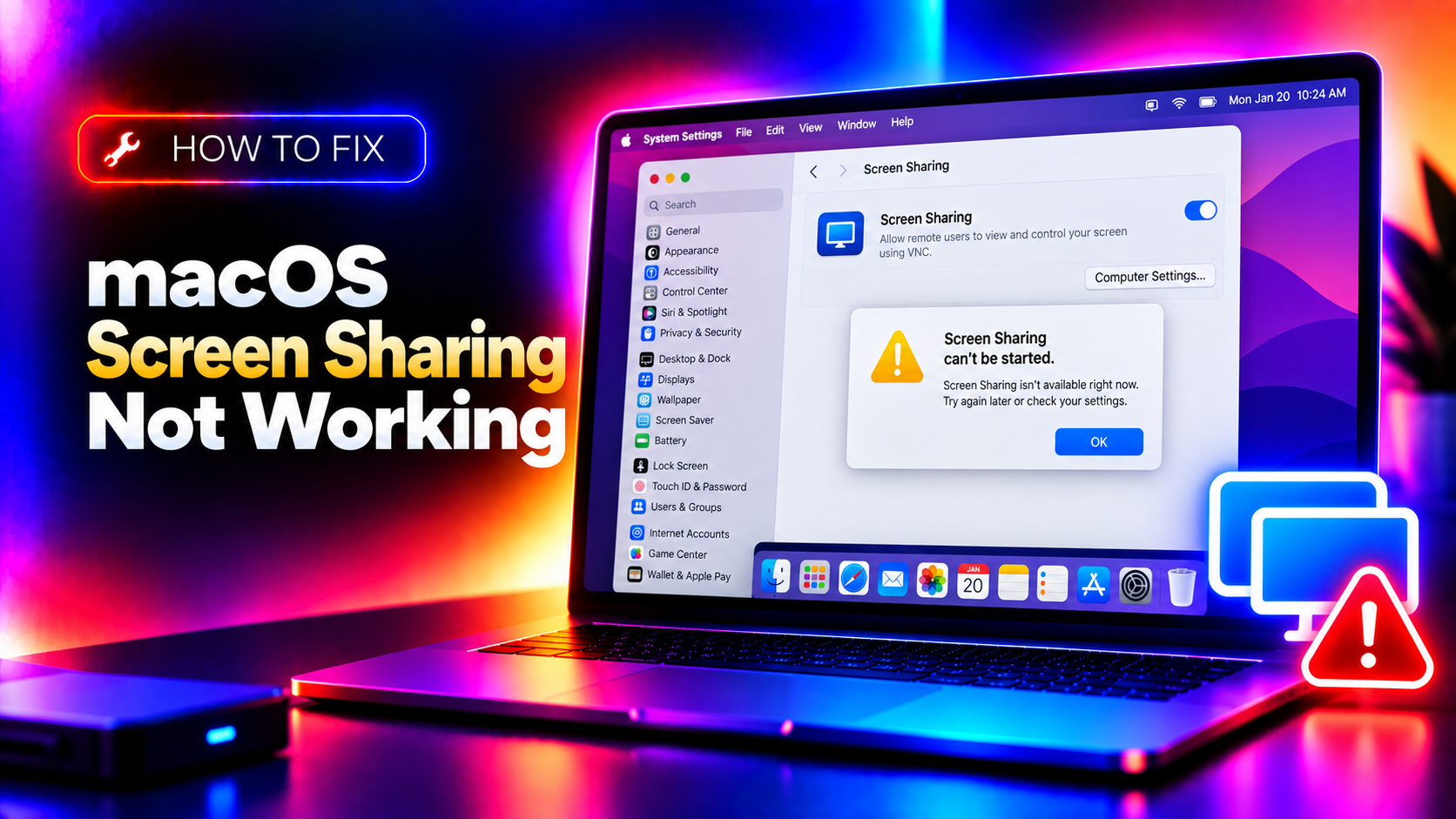
Why macOS Screen Sharing Stops Working
macOS Screen Sharing (Apple Remote Desktop / VNC) is the built-in way to view and control another Mac remotely. When it fails in 2026, the errors fall into four main categories: Screen Sharing is disabled in System Settings, a Screen Recording permission was revoked by a macOS Sequoia or Tahoe privacy update, Remote Management is running and conflicts with Screen Sharing (they cannot both be active), or a firewall rule is blocking TCP port 5900 (VNC).
For app-based screen sharing (Zoom, Teams, Google Meet), the most common cause is a missing Screen Recording permission for the specific app — a privacy change in macOS Sequoia 15.x made this more granular, requiring explicit re-approval after macOS updates.
Fix 1: Enable Screen Sharing in System Settings
Screen Sharing must be explicitly enabled on the Mac being accessed remotely. It is off by default.
Step 1. On the host Mac (the one you want to connect to), open System Settings (Apple menu → System Settings).
Step 2. Click General → Sharing.
Step 3. Toggle Screen Sharing to On.
Step 4. Click the i (info) button next to Screen Sharing to configure access: choose either All users or specific user accounts.
Step 5. Note the hostname shown (e.g., MacBook-Pro.local) — use this to connect from the other Mac via Finder → Go → Connect to Server → vnc://MacBook-Pro.local.
Fix 2: Disable Remote Management (It Conflicts with Screen Sharing)
Remote Management and Screen Sharing cannot run simultaneously. If Remote Management is on, Screen Sharing is automatically disabled, even if the toggle appears on in System Settings.
Step 1. Open System Settings → General → Sharing.
Step 2. If Remote Management is toggled On, turn it Off first.
Step 3. Now toggle Screen Sharing to On.
Step 4. If you need Apple Remote Desktop features (Remote Management), use that instead of Screen Sharing — it includes all Screen Sharing functionality plus additional management tools.
Fix 3: Grant Screen Recording Permission
In macOS Sequoia 15.x and Tahoe 26.x, every app that shares screens (Zoom, Teams, Slack, Google Meet) requires explicit Screen Recording permission. This permission is revoked on macOS upgrades.
Step 1. Open System Settings → Privacy & Security → Screen Recording.
Step 2. Find the app that is failing to share the screen and ensure its toggle is On.
Step 3. If the app is not listed, you may need to grant it: launch the app, attempt to share the screen, and when prompted click Allow. Some apps require you to quit and relaunch after granting permission.
Step 4. For Camera access (required for webcam-based meetings alongside screen sharing): go to Privacy & Security → Camera and ensure the app's toggle is On.
Fix 4: Check the macOS Firewall
The macOS Application Firewall can block incoming Screen Sharing connections. This is particularly common after a macOS update resets firewall rules.
Step 1. Open System Settings → Network → Firewall.
Step 2. Ensure Firewall is On. Click Options.
Step 3. Find Screen Sharing in the app list and ensure it is set to Allow incoming connections.
Step 4. If Screen Sharing is not in the list, add it manually: click the + button → navigate to /System/Library/CoreServices/RemoteManagement/ARDAgent.app → click Add.
Step 5. Verify port 5900 is not blocked by an external firewall or router (required for connections from outside your local network).
Fix 5: Reset Screen Sharing via Terminal
A corrupted Screen Sharing daemon can be restarted via Terminal without a full system restart.
Step 1. Open Terminal on the host Mac.
Step 2. Disable then re-enable Screen Sharing:
sudo /System/Library/CoreServices/RemoteManagement/ARDAgent.app/Contents/Resources/kickstart -deactivate -stop
sudo /System/Library/CoreServices/RemoteManagement/ARDAgent.app/Contents/Resources/kickstart -activate -configure -access -on -users admin -privs -all -restart -agent -menu
Step 3. Test the connection from the other Mac via Finder → Go → Connect to Server → vnc://target-mac-ip.
Fix 6: Fix Screen Sharing via Finder (macOS-to-macOS)
When connecting Mac-to-Mac within the same network, use Finder's built-in Screen Sharing instead of third-party VNC apps.
Step 1. On the connecting Mac, open Finder → Network (in the sidebar) or press Cmd+K.
Step 2. Enter vnc://HOSTNAME.local or vnc://192.168.x.x (the target Mac's IP).
Step 3. Click Connect, then authenticate with the target Mac's username and password.
Step 4. If the host does not appear in Network, ensure both Macs are on the same local network and Bonjour is not blocked.
Fix 7: Update macOS
Apple has released several Screen Sharing and privacy framework patches in macOS Sequoia 15.3 through 15.5.1 and macOS Tahoe 26.0 to address connection failures and permission regressions. Installing the latest macOS update is the simplest fix if none of the above work.
Step 1. Open System Settings → General → Software Update.
Step 2. Install all available updates.
Step 3. After the update, re-check Screen Sharing in System Settings → General → Sharing and re-enable it if it was reset.
If macOS Screen Sharing is still not working after these fixes, book a CloudHouse Pay-Per-Ticket Support session — our macOS engineers diagnose remote access and permission issues quickly.