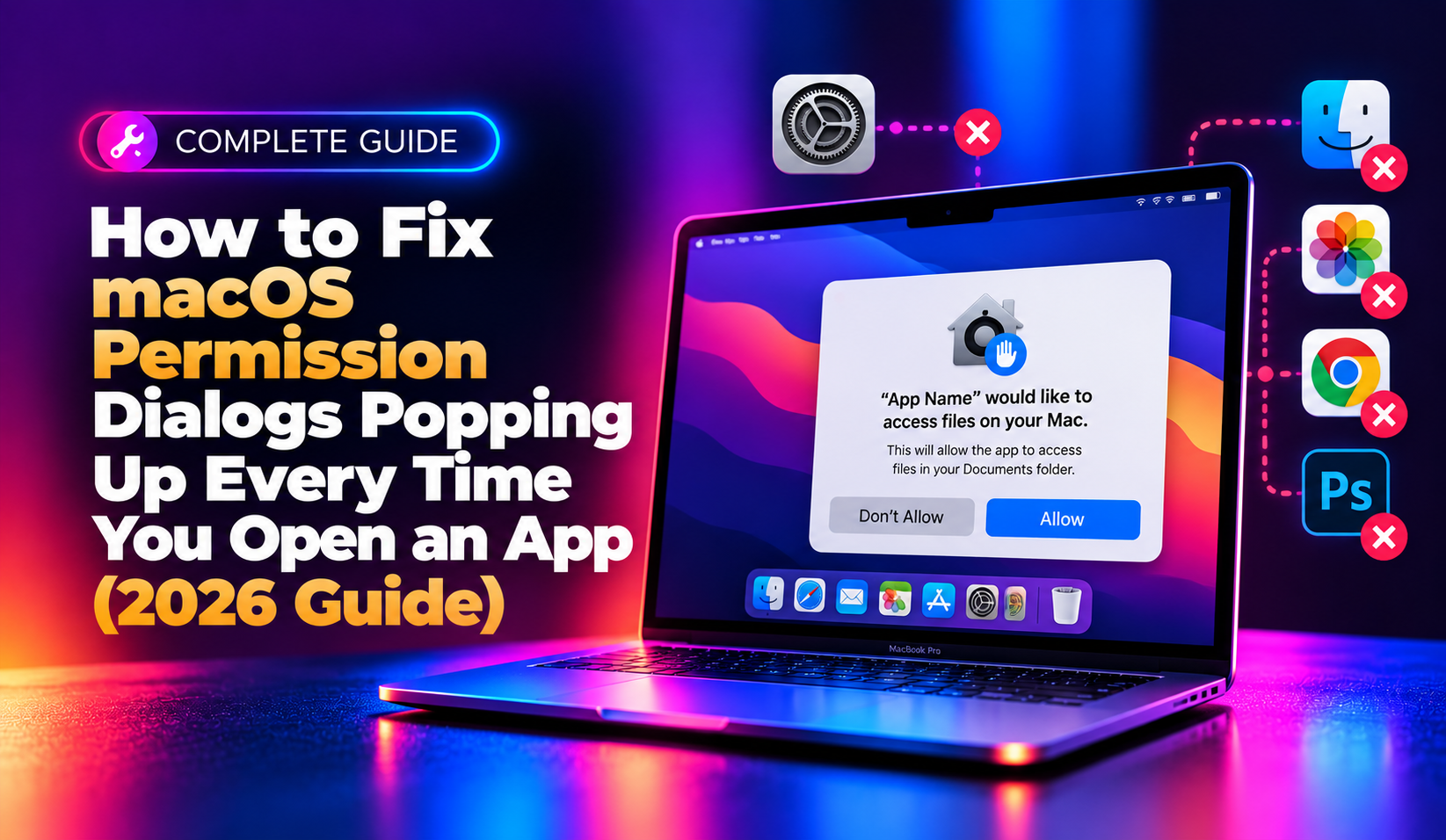
If a Mac app asks for the same permission every single time you open it — Full Disk Access, Screen Recording, Accessibility, Camera, Microphone, or Automation — even though you already clicked "Allow," you are dealing with a broken TCC (Transparency, Consent, and Control) database entry, not a bug in the app itself. This has become far more common on macOS Sequoia and macOS Tahoe (26.x), where Apple tightened privacy enforcement and added new permission categories that many older apps were not built to handle gracefully.
This guide walks through exactly why the macOS permission dialog keeps appearing after every relaunch or reboot, and gives you the real fixes — from a simple toggle reset to a full TCC database rebuild — used by IT support teams to resolve this permanently.
Why macOS Keeps Asking for the Same Permission
Every time you grant an app access to something sensitive — your files, screen, microphone, camera, or the ability to control another app — macOS records that decision in a protected database managed by TCC. Normally that decision sticks forever. When it doesn't, one of these is usually the cause:
- App re-signing or updates — when a developer updates an app and its code signature or bundle identifier changes, macOS treats it as a "new" app and forgets the old permission.
- Corrupted TCC database — the SQLite file that stores permission decisions (
TCC.db) can become corrupted after a forced shutdown, disk error, or interrupted macOS update. - Third-party security or MDM profiles — some endpoint management tools silently reset permission entries on every login.
- macOS Tahoe's stricter enforcement — macOS 26 introduced additional granular permission prompts (for example, separate prompts for local network access and background activity) that older apps trigger repeatedly because they were never updated to request permissions the "new" way.
- Apps launched from external drives, network shares, or duplicated bundles — macOS ties permissions to the exact file path in some cases, so moving or duplicating the app resets the grant.
💡 None of these worked? Skip the guesswork.
Get Expert Help →Quick Fix: Toggle the Permission Off and Back On
Before touching Terminal, try the simplest fix first — it resolves the issue in a large share of cases, especially the well-documented macOS 26 bug affecting apps like Microsoft Teams and Zoom.
Click the Apple menu and choose System Settings, then go to Privacy & Security.
Click the category the app keeps asking about — Full Disk Access, Screen Recording, Accessibility, Camera, Microphone, or Local Network.
Locate the misbehaving app in the list. Switch its toggle off, wait five seconds, then switch it back on. If the app isn't listed at all, click the + button and add it manually from your Applications folder.
Right-click the app's Dock icon and choose Quit (not just close the window), then reopen it. A restart of the Mac afterward makes the fix stick more reliably.
Go to Applications > Utilities > Terminal, or search for it with Spotlight (Cmd + Space).
Run one of the following, depending on which prompt keeps repeating:
tccutil reset ScreenCapture
tccutil reset Accessibility
tccutil reset SystemPolicyAllFiles
tccutil reset Camera
tccutil reset MicrophoneTo avoid resetting the permission for every app on your Mac, add the app's bundle identifier:
tccutil reset ScreenCapture com.microsoft.teams2
tccutil reset Accessibility com.zoom.xos
You can find an app's bundle identifier by running osascript -e 'id of app "AppName"' in Terminal.
Restart your Mac, open the app, and grant the permission one more time when prompted. This time the decision should persist across launches and reboots.
sudo tccutil reset AllGive this a couple of minutes to propagate before deciding you need the next step.
On Apple Silicon Macs, shut down completely, then press and hold the power button until "Loading startup options" appears. On Intel Macs, restart and immediately hold Cmd + R.
From the menu bar, choose Utilities > Terminal.
Rather than deleting the file outright, rename it so macOS rebuilds a fresh one on next boot:
mv "/Library/Application Support/com.apple.TCC/TCC.db" "/Library/Application Support/com.apple.TCC/TCC.db.bak"Reboot out of Recovery Mode. macOS will generate a brand-new, healthy TCC database, and every app will prompt for permissions again from a clean slate — but this time the grants should stick.
App-Specific Fixes for Microsoft Teams, Zoom, and Slack
If the repeating prompt is tied to one specific app rather than macOS in general, check for a known compatibility issue first:
- Microsoft Teams — a confirmed Microsoft incident on macOS Tahoe and Sequoia stops the system from saving Location Services choices for Teams. The workaround is to toggle Location Services off and back on for both Microsoft Teams and Microsoft Teams ModuleHost in Privacy & Security settings, then relaunch.
- Zoom — update to the latest version; older Zoom builds pre-date macOS 26's new local network and camera prompt behavior and will re-ask indefinitely until updated.
- Slack, Discord, and Electron-based apps — these apps sometimes ship with duplicate helper processes that each need separate permission grants. Check Activity Monitor for multiple "Helper" processes and grant permission to each one listed under Full Disk Access.
When It's a Deeper System Problem
Occasionally the repeated prompt isn't really about permissions at all — it's a symptom of a corrupted app bundle, a failed macOS update, or a misconfigured MDM/security profile pushed by an employer. If you've reset TCC, rebuilt the database, and updated every app involved but the dialogs keep coming back, it's worth having a technician check for:
- A stuck or partially-applied macOS update
- Configuration profiles installed under System Settings > Profiles that silently override privacy settings
- Disk-level corruption caught by
diskutil verifyVolume /
If you'd rather not spend an afternoon in Terminal and Recovery Mode, CloudHouse Technologies offers pay-per-ticket Mac support where a technician remotes in, diagnoses the exact TCC or profile conflict, and fixes it in one session — no subscription required.
How to Prevent This from Happening Again
- Keep macOS and all apps fully updated — most repeated-prompt bugs get patched within a few point releases.
- Avoid moving app bundles after installing them; keep everything inside
/Applications. - Don't duplicate or rename
.appbundles — macOS ties some permissions to file location. - If you manage multiple Macs, audit MDM configuration profiles for privacy-payload conflicts before rolling out macOS updates fleet-wide.
Repeated permission prompts are frustrating but rarely a sign of a "broken" Mac — they almost always trace back to a stale or corrupted TCC entry that a targeted reset can fix. Start with the toggle method, escalate to tccutil, and only rebuild the full database if the problem survives a reboot with a clean permission grant.