
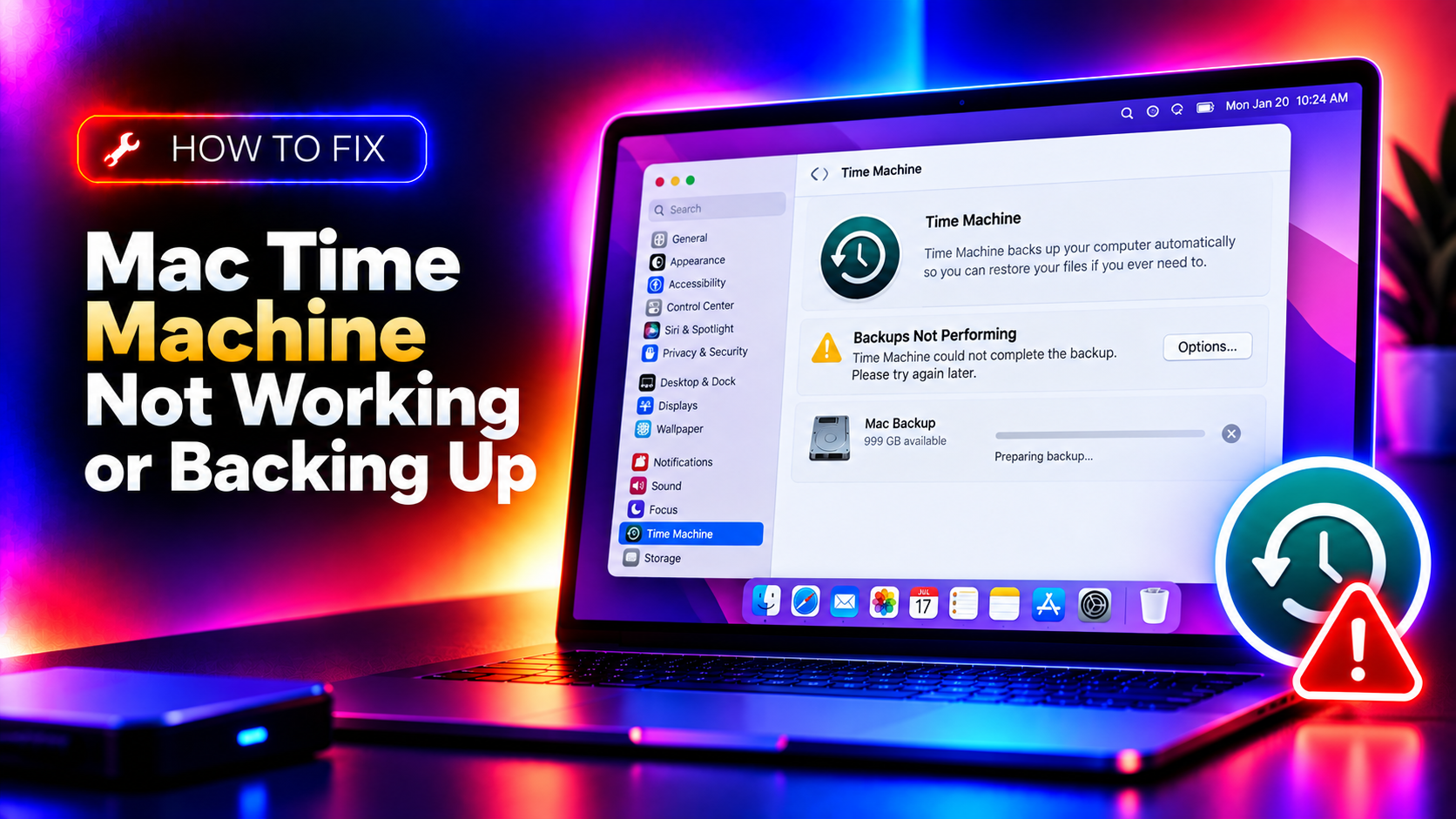
Why Time Machine Stops Working on Mac
Time Machine is macOS's built-in backup system — and when it fails, it almost always fails silently, showing nothing more than "Last backup: failed" in the menu bar. The root causes in 2026 fall into four categories: disk issues (not enough space, APFS vs HFS+ format mismatch), backup destination unreachable (USB disconnect, wrong NAS credentials, AirPort Time Capsule replaced by third-party NAS), local APFS snapshot corruption from a macOS Sequoia or Tahoe upgrade, and antivirus software scanning the backup volume mid-write.
This guide covers every scenario with exact Terminal commands, updated for macOS Sequoia 15.x and macOS Tahoe 26.x.
Fix 1: Check Backup Disk Space
Time Machine needs at least twice the capacity of your Mac's storage to maintain a full backup history. Running out of space causes silent failures with no clear error message.
Step 1. Click the Time Machine menu bar icon → Open Time Machine preferences.
Step 2. Check the disk usage bar. If it shows red, the backup disk is too full.
Step 3. On an APFS-formatted backup volume, Time Machine purges old snapshots automatically when space is low. If it is not purging, manually force a purge:
sudo tmutil thinBackupsByAgeStep 4. List and delete specific old snapshots:
tmutil listbackups
sudo tmutil delete /Volumes/BackupDiskName/Backups.backupdb/MacName/YYYY-MM-DD-HHMMSS
Fix 2: Fix the "Backup Disk Not Available" Error
Time Machine loses track of its backup disk after a USB reconnect, a NAS IP address change, or a macOS update that resets network preferences.
Step 1. Open System Settings → General → Time Machine.
Step 2. Click the backup disk and select Remove Backup Disk.
Step 3. Reconnect or remount the backup disk. For NAS: ensure the NAS is reachable — ping it from Terminal (ping nas-hostname) and remount the share if needed.
Step 4. Click Add Backup Disk and re-select the disk. Time Machine will resume the existing backup chain rather than starting over.
Step 5. If the disk is a USB drive, verify it is formatted as APFS or HFS+ (Mac OS Extended Journaled). exFAT and NTFS are not supported by Time Machine. Check in Disk Utility → select disk → check the Format field.
Fix 3: Delete and Rebuild Corrupted Local Snapshots
macOS Sequoia 15.x and Tahoe 26.x create local APFS snapshots on your internal drive before syncing to the backup disk. Corrupted local snapshots block all Time Machine backups until cleared.
Step 1. List all local snapshots:
tmutil listlocalsnapshots /Step 2. Delete snapshots older than 24 hours that might be corrupted:
tmutil deletelocalsnapshots YYYY-MM-DDReplace YYYY-MM-DD with the date shown in the snapshot list.
Step 3. Delete ALL local snapshots if you want a clean state:
for d in $(tmutil listlocalsnapshots / | grep com.apple); do sudo tmutil deletelocalsnapshots $d; doneStep 4. Trigger a new backup manually:
tmutil startbackupFix 4: Exclude Antivirus from Backup Volume
If you have antivirus software (Malwarebytes, Norton, Bitdefender, ClamAV) installed, it may scan each file being written to the backup disk, causing backups to slow to a crawl or time out mid-backup.
Step 1. Open your antivirus application and navigate to its exclusions or real-time protection settings.
Step 2. Add the backup disk volume path to the exclusions list (e.g., /Volumes/BackupDiskName).
Step 3. Also exclude the local snapshot directory: /.MobileBackups.
Step 4. Restart Time Machine and monitor whether the backup completes.
Fix 5: Force a Verification and Repair
Time Machine periodically verifies backup integrity. If it detects errors, it marks the backup as "corrupted" and stops. You can force a repair from Terminal.
Step 1. Stop Time Machine:
sudo tmutil stopbackupStep 2. Verify the backup disk with Disk Utility: open Disk Utility → select the backup volume → click First Aid.
Step 3. If Disk Utility reports errors it cannot repair, the backup disk may have failing hardware. Run a SMART status check:
diskutil info /dev/disk2 | grep SMARTStep 4. If SMART status is Failing, replace the disk immediately. Back up using a different method (Carbon Copy Cloner, iCloud, manual copy) until the new disk arrives.
Fix 6: Reset Time Machine Preferences
A corrupted Time Machine preference file causes repeated failures and missing backup disks even when the disk is healthy.
Step 1. Stop Time Machine: System Settings → General → Time Machine → toggle off (or via sudo tmutil disable).
Step 2. Quit System Settings and remove the preference file:
sudo rm /Library/Preferences/com.apple.TimeMachine.plistStep 3. Restart your Mac.
Step 4. Re-open System Settings → Time Machine → re-add your backup disk. Time Machine generates a fresh preference file and resumes backing up to the existing backup chain.
Fix 7: Fix Time Machine on NAS (Synology, QNAP, TrueNAS)
If your backup destination is a NAS rather than a USB drive, additional steps are needed — particularly after a NAS firmware update or an IP address change.
Step 1. Verify the NAS is accessible: ping NAS-IP and try mounting the SMB/AFP share manually via Finder → Go → Connect to Server.
Step 2. On Synology NAS, ensure the Time Machine share has the correct quota set: Synology DSM → Control Panel → Shared Folder → edit the Time Machine folder → check the Time Machine quota.
Step 3. If credentials changed on the NAS, update them in Keychain Access on your Mac: search for the NAS hostname, delete the old entry, and reconnect via Time Machine to enter new credentials.
Step 4. Some NAS devices require AFP instead of SMB for Time Machine. Verify in your NAS control panel that AFP is enabled or that the Time Machine share is explicitly set to SMB Time Machine mode.
If Mac Time Machine is still failing after these fixes, book a CloudHouse Pay-Per-Ticket Support session — our macOS engineers diagnose backup failures and prevent data loss.