
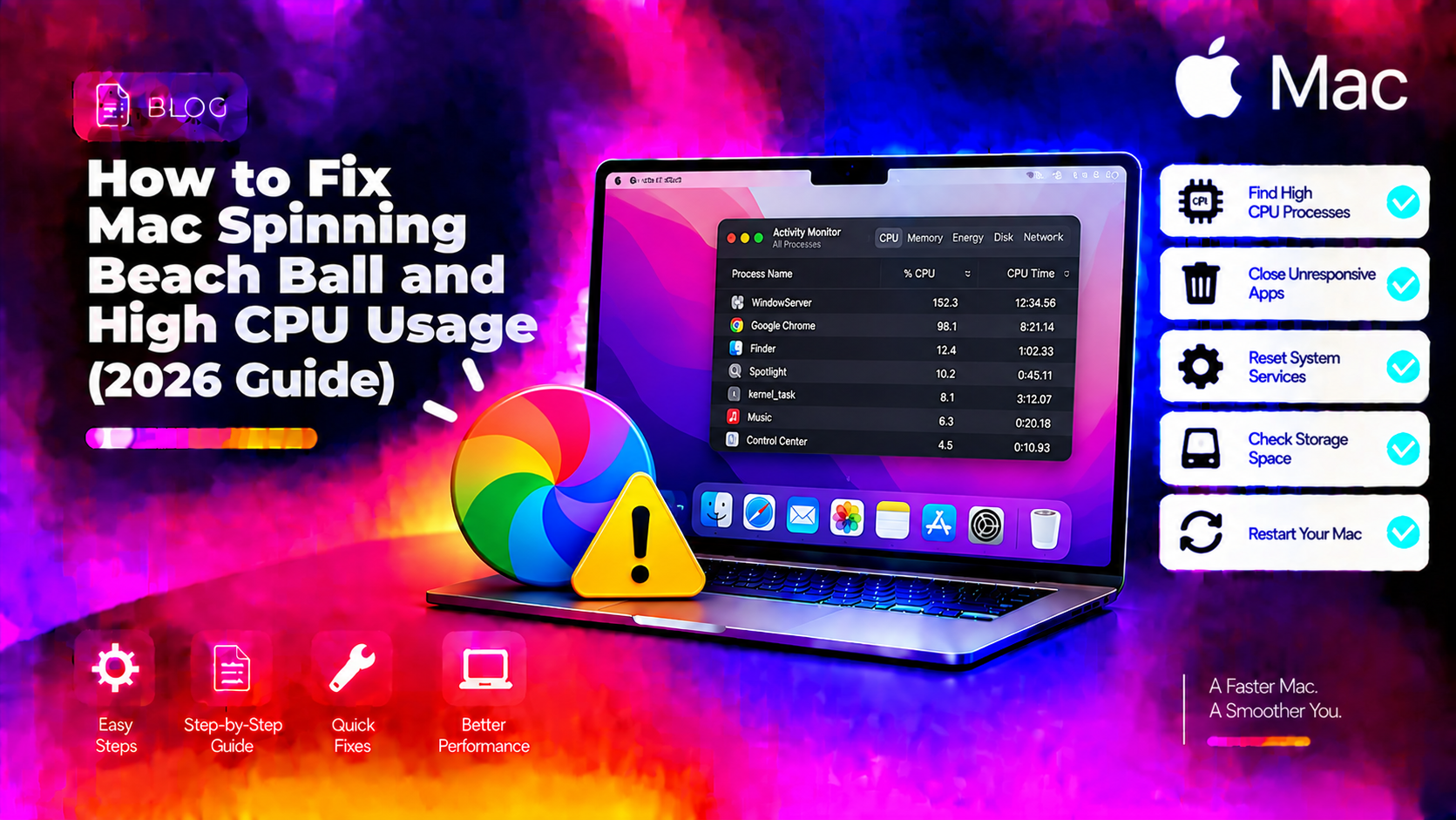
What the Spinning Beach Ball Really Means on Mac
The spinning beach ball — officially called the Spinning Wait Cursor or SPOD — is macOS telling you an application is waiting for CPU or memory resources that aren't currently available. It's not a crash. It's a queue. But if it appears frequently or never goes away, it signals that your Mac is under sustained resource pressure — too many apps competing for RAM, a CPU-intensive background process running unchecked, or a failing drive forcing everything to slow down. This guide walks through every fix, ordered by impact.
Step 1: Identify the Culprit in Activity Monitor
Before changing anything, find what's actually consuming resources.
- Open Activity Monitor (Applications > Utilities > Activity Monitor, or Spotlight: Cmd+Space, type Activity Monitor).
- Click the CPU tab. Click the %CPU column header to sort highest first.
- Any process over 80–100% CPU is a problem. Note the process name.
- Click the Memory tab. Check the Memory Pressure graph at the bottom — red or sustained yellow means RAM is exhausted and macOS is swapping to disk.
- Click the Disk tab. Extremely high reads/writes (hundreds of MB/s) with no obvious cause suggests a failing drive or excessive disk swapping.
Once you've identified the culprit, you can target the fix precisely.
Method 1: Force Quit the Frozen or CPU-Heavy Application
If one specific app is spinning, force quitting it clears the beach ball immediately.
- Press Cmd + Option + Esc to open Force Quit Applications.
- Select the app marked (not responding) and click Force Quit.
- Alternatively, in Activity Monitor: select the process and click the X button at the top left of the window, then Force Quit.
After force quitting, relaunch the app. If it immediately becomes unresponsive again, the app itself has a bug — check for an update or reinstall it.
Method 2: Free Up RAM by Closing Unused Apps
macOS manages memory aggressively, but when physical RAM is full, it uses virtual memory (swap) on the SSD. Swap is significantly slower than RAM — this is the most common cause of persistent beach balling on Macs with 8GB RAM.
- Quit apps you're not actively using. Even minimised app windows hold memory.
- Close unused browser tabs — each tab in Chrome or Firefox is a separate process consuming 100–500MB each.
- Check Memory Pressure in Activity Monitor — if it's consistently yellow or red with your normal workflow, your Mac needs more RAM or fewer background apps.
Method 3: Identify and Kill Runaway Background Processes
Some background services enter a runaway state — consuming 100%+ CPU for hours without producing any visible output. Common offenders in 2026 include:
- mds_stores — Spotlight indexing. Runs high CPU for 15–60 minutes after a macOS update or large file operation. Temporary — wait for it to complete, or run
sudo mdutil -d /to pause indexing. - kernel_task — macOS's thermal governor. If this shows 100%+ CPU, your Mac is overheating. Clean the vents, use a flat hard surface, and check for blocked airflow.
- cloudd / bird — iCloud sync. High CPU while syncing large files. Check iCloud Drive status in System Settings > Apple ID > iCloud.
- WindowServer — display compositor. High CPU often means too many open windows or a GPU-intensive app running in the background.
To kill a runaway process from Terminal: sudo kill -9 [PID] (replace [PID] with the Process ID shown in Activity Monitor).
Method 4: Free Up Disk Space
macOS needs at least 10–15 GB free on the system volume for virtual memory swap files and system operations. When the drive is nearly full, swap performance collapses and the beach ball becomes constant.
- Go to Apple menu > About This Mac > More Info > Storage.
- Click Storage Settings to see what's using space.
- Enable Optimize Storage — this moves rarely used files to iCloud automatically.
- Empty Trash: right-click the Trash icon in the Dock and choose Empty Trash.
- Delete large files in Downloads — sort by size in Finder (View > Show View Options > Sort by Size).
Method 5: Reset SMC (Intel Macs) or NVRAM/PRAM
On Intel-based Macs, the System Management Controller (SMC) manages power, thermals, and hardware performance. A corrupted SMC can cause persistent beach balling and performance degradation.
Reset SMC (Intel MacBook with T2 chip):
- Shut down your Mac.
- Hold Control + Option + Shift for 7 seconds.
- Keep holding those keys and also press the Power button for another 7 seconds.
- Release all keys, wait a few seconds, then turn on the Mac normally.
On Apple Silicon (M1/M2/M3/M4): SMC doesn't exist — restart your Mac instead. Apple Silicon Macs manage power entirely through the chip itself.
Method 6: Reduce Login Items and Launch Agents
Apps that launch at login consume memory and CPU before you even open them. Too many startup items degrade performance from the moment macOS boots.
- Go to System Settings > General > Login Items & Extensions.
- Review the list and toggle off anything you don't need at startup.
- Also check Allow in Background — disable background processing for non-essential apps.
A clean login saves 500MB–2GB of RAM on a typical Mac with multiple apps set to launch at startup.
Method 7: Check Storage Health and Run First Aid
A failing SSD or HDD causes I/O delays that manifest as persistent beach balls — especially during disk-intensive tasks like opening apps, saving files, or browsing.
- Open Disk Utility (Applications > Utilities > Disk Utility).
- Select your main volume (usually Macintosh HD).
- Click First Aid > Run.
- Disk Utility checks for and repairs filesystem errors. If First Aid reports errors it cannot repair, back up your data immediately — the drive may be failing.
When Mac Performance Issues Are Hardware-Related
If beach balls persist after trying all methods, particularly on a Mac older than 5 years, the issue may be aging RAM modules, a failing SSD, or thermal paste degradation. For a definitive diagnosis, our team at CloudHouse Technologies Pay-Per-Ticket Support offers remote Mac performance troubleshooting to pinpoint hardware vs. software causes.
FAQ
Why does the spinning beach ball appear constantly on my Mac even with only a few apps open?
The most common cause on Macs with 8GB RAM is RAM exhaustion leading to heavy disk swapping. Check Activity Monitor > Memory tab — if Memory Pressure is consistently yellow or red, your Mac is swapping to disk. Close browser tabs, quit background apps, and consider upgrading RAM if your model supports it.
Why is kernel_task using 100% CPU on my Mac?
kernel_task is macOS's thermal management process — it deliberately consumes CPU to generate less heat and protect the chip. If kernel_task is running high, your Mac is overheating. Place it on a hard flat surface, clean vents, and check for ventilation blockage. The high kernel_task usage is a symptom of overheating, not a cause.
Can too many browser tabs cause the spinning beach ball on Mac?
Yes. Each browser tab in Chrome or Firefox is a separate process using 100–500MB of RAM. 20 open tabs can consume 2–5GB of RAM on their own. Reducing tabs to 5–10 active ones often eliminates beach balling on 8GB and 16GB Macs.
Does running on battery vs. plugged in affect beach ball frequency on Mac?
Yes. macOS throttles CPU performance on battery to extend life. If beach balls only appear on battery, this is normal power management behavior. Enable High Performance mode: System Settings > Battery > uncheck "Enable Power Nap" and set Energy Mode to "High Performance" when plugged in.
Why does the spinning beach ball appear immediately after a macOS update?
After a macOS update, Spotlight re-indexes the entire drive (mds_stores process), Time Machine runs a full backup, and iCloud syncs changes. This creates a CPU and disk spike that can last 30–120 minutes on large drives. It's normal — wait for indexing to complete before concluding something is wrong.