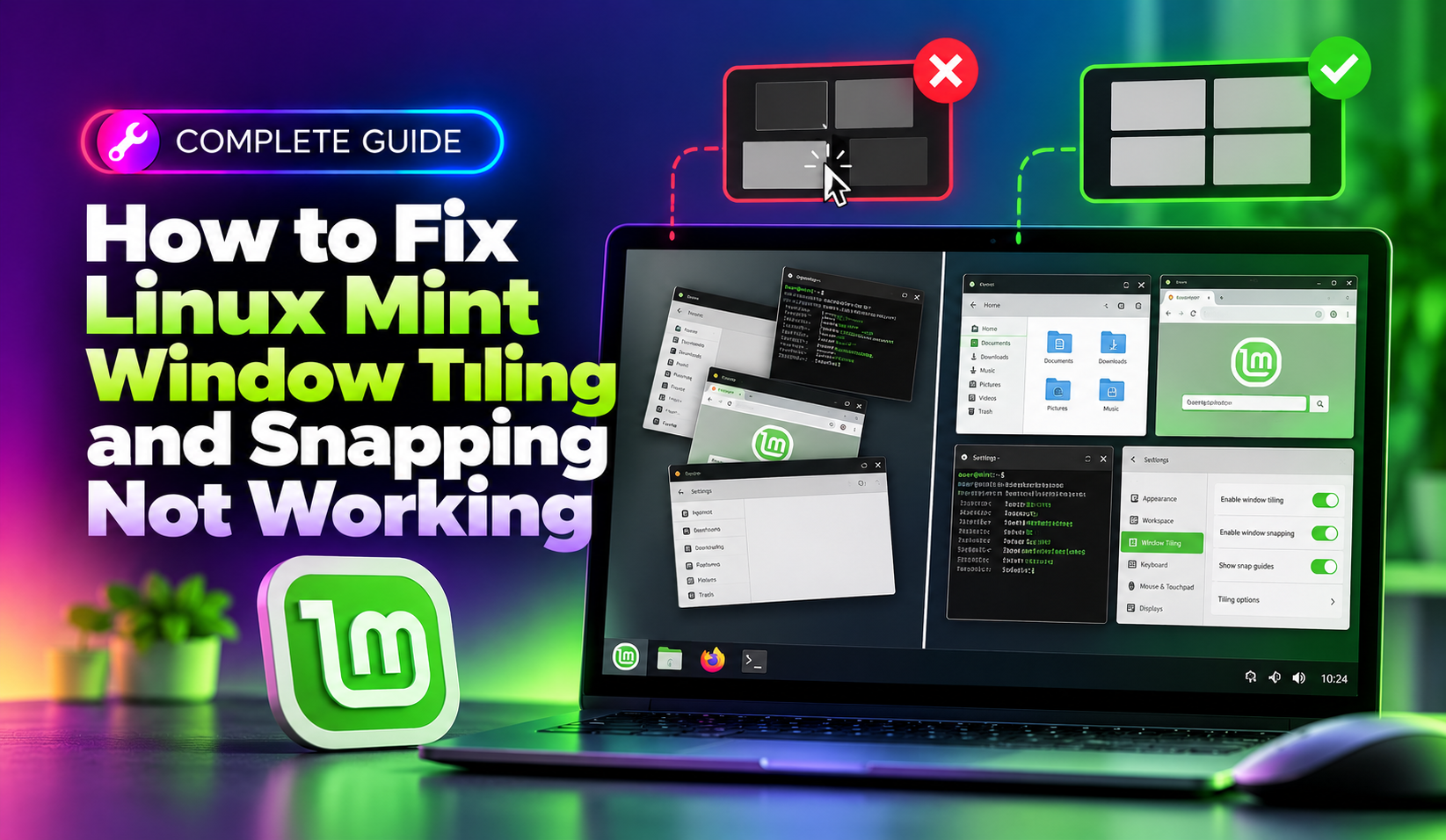
If dragging a window to the edge of your screen in Linux Mint no longer triggers the familiar tiling preview, or your Super+Left / Super+Right shortcuts have quietly stopped snapping windows into place, you are not imagining things. Window tiling and snapping breakage is one of the most common Cinnamon desktop complaints reported after point releases and Cinnamon version upgrades in Linux Mint 21.x and 22.x. The good news is that almost every case traces back to a handful of settings, a corrupted keybinding, or a Muffin (Cinnamon's window manager) configuration flag that got flipped during an update.
This guide walks through every known cause of Linux Mint window tiling and snapping not working, from the quickest one-click fix to deep gsettings and dconf-editor repairs, so you can get half-screen and quarter-screen snapping back without reinstalling anything.
Why Window Tiling and Snapping Break in Cinnamon
Cinnamon's tiling and edge-snapping behavior is handled by Muffin, the window manager forked from GNOME's Mutter. Tiling settings live in three separate places — the graphical System Settings panel, the underlying org.cinnamon.muffin gsettings schema, and per-user keybinding overrides — and an update can touch any one of them without touching the others. That mismatch is why re-enabling a setting in the GUI sometimes "does nothing": the GUI toggle and the actual gsettings key have gone out of sync.
Common triggers include:
- A Cinnamon version upgrade (for example 6.2 to 6.4) resetting
edge-tilingto its schema default - A third-party extension (window effects, "Maximus", or a custom tiling extension like gTile) conflicting with native Muffin tiling
- Keyboard shortcut conflicts introduced by a newly installed application that grabs Super+Arrow globally
- A corrupted
~/.cinnamonordconfuser profile after an unclean shutdown - Display rotation or multi-monitor setups, where tiling and edge-snap detection can misfire near screen borders
💡 None of these worked? Skip the guesswork.
Get Expert Help →Step 1: Confirm Tiling Is Actually Enabled
Before touching any config files, check the obvious setting first.
Click the Cinnamon menu, search for "Window Tiling", and open it. On older Mint releases this may appear as "Windows" > "Tiling and Snapping" inside System Settings.
This sounds trivial, but the community-reported fix for "tiling stopped working after update" is almost always to uncheck every box in this panel, apply, then re-check them. The GUI writes fresh values to the gsettings schema, which clears the stale state left behind by the update.
Open a terminal and confirm the underlying key actually matches what the GUI shows:
gsettings get org.cinnamon.muffin edge-tilingIf this returns false even though the GUI checkbox is ticked, the two are desynced. Force it back on directly:
gsettings set org.cinnamon.muffin edge-tiling truesudo apt update
sudo apt install dconf-editorOpen dconf-editor and go to org > cinnamon > muffin. Look for edge-tiling, tile-hud-threshold, and toggle-tiled-left / toggle-tiled-right.
If a key shows in bold (meaning it has a user-set override), right-click and choose "Reset Key" to restore the schema default. This clears leftover values from a broken theme or extension that modified tiling behavior.
For a clean slate on everything tiling-related in one command:
dconf reset -f /org/cinnamon/muffin/Log out and back in afterward so Cinnamon reloads the window manager with default tiling behavior.
Menu > Preferences > Keyboard > Shortcuts tab > Windows section, then scroll to "Tile window to the left/right of screen" and "Maximize window".
Recently installed apps (window managers, remote desktop clients, some games) sometimes register their own global Super+Arrow hooks. If the shortcut field shows empty or a conflicting combo, click it and re-assign Super+Left and Super+Right manually.
gsettings reset org.cinnamon.desktop.keybindings.wm tile-to-side
gsettings reset org.cinnamon.desktop.keybindings.wm tile-to-corner-ne
This restores only the tiling-related shortcuts without wiping every custom keybinding you've configured elsewhere.
System Settings > Extensions, and temporarily disable any window-management related extension.
Drag a window to the left edge. If snapping now works, the extension is the cause — check Cinnamon Spices for an updated version compatible with your Cinnamon release, or leave it disabled.
After disabling an extension, press Alt+F2, type r, and hit Enter to reload the Cinnamon shell instantly and re-test.
In your file manager (Nemo), press Ctrl+H to reveal hidden folders in your home directory.
mv ~/.cinnamon ~/.cinnamon.bakCinnamon will regenerate a fresh default configuration folder on next login, including default tiling behavior.
Test tiling and snapping again. If it now works, your custom applets, panel layout, and effects settings are preserved in the backup folder if you need to restore anything selectively later.
Step 6: Handle Tiling Issues on Multi-Monitor and Rotated Displays
Tiling and edge-snap detection can misbehave specifically at the shared border between two monitors, or on a rotated display, because Muffin calculates screen edges based on the virtual desktop geometry rather than each physical monitor.
- Use
xrandr --listmonitorsto confirm your monitor layout matches what's configured in Display Settings - In multi-monitor setups, snap to the outer edges of the full virtual desktop rather than the inner edge between monitors, which is a known Muffin limitation rather than a bug you can configure away
- If you rely heavily on precise window layouts across monitors, consider the gTile extension, which offers keyboard-driven grid placement independent of Muffin's native edge detection
Multi-monitor edge-snap quirks are one of several display-related Cinnamon issues we handle regularly for clients migrating multi-screen workstations to Linux Mint — inconsistent behavior between monitor edges is rarely fixable from the user side alone and often needs a driver or compositor-level adjustment.
When to Get Hands-On Help
Most window tiling and snapping problems are resolved by the gsettings reset in Step 1 or the dconf reset in Step 2. But if you're running a business workstation fleet on Linux Mint and can't afford to spend an afternoon per machine chasing desktop environment quirks, it's often faster to have a professional handle it. CloudHouse Technologies' pay-per-ticket IT support service lets you submit exactly this kind of desktop issue and get it fixed by a technician without committing to a monthly support contract — ideal for one-off Cinnamon configuration problems across a handful of machines.
Preventing Tiling Issues After Future Updates
- Before a major Cinnamon version upgrade, note your current tiling and keybinding settings so you can quickly compare afterward
- Keep window-management extensions updated via Cinnamon Spices, and disable any extension immediately after an update until you confirm compatibility
- Avoid manually editing
~/.config/dconf/userdirectly — always go throughdconf-editororgsettingsto avoid corrupting the binary database - Periodically back up your
.cinnamonfolder so a corrupted profile is a one-command restore instead of a full config folder wipe
Window tiling and snapping issues in Linux Mint are almost never hardware problems — they're configuration drift between the GUI, gsettings, and dconf layers that Cinnamon uses to store window manager state. Working through the gsettings check, dconf reset, keybinding fix, and extension isolation steps above resolves the overwhelming majority of cases without a reinstall.