
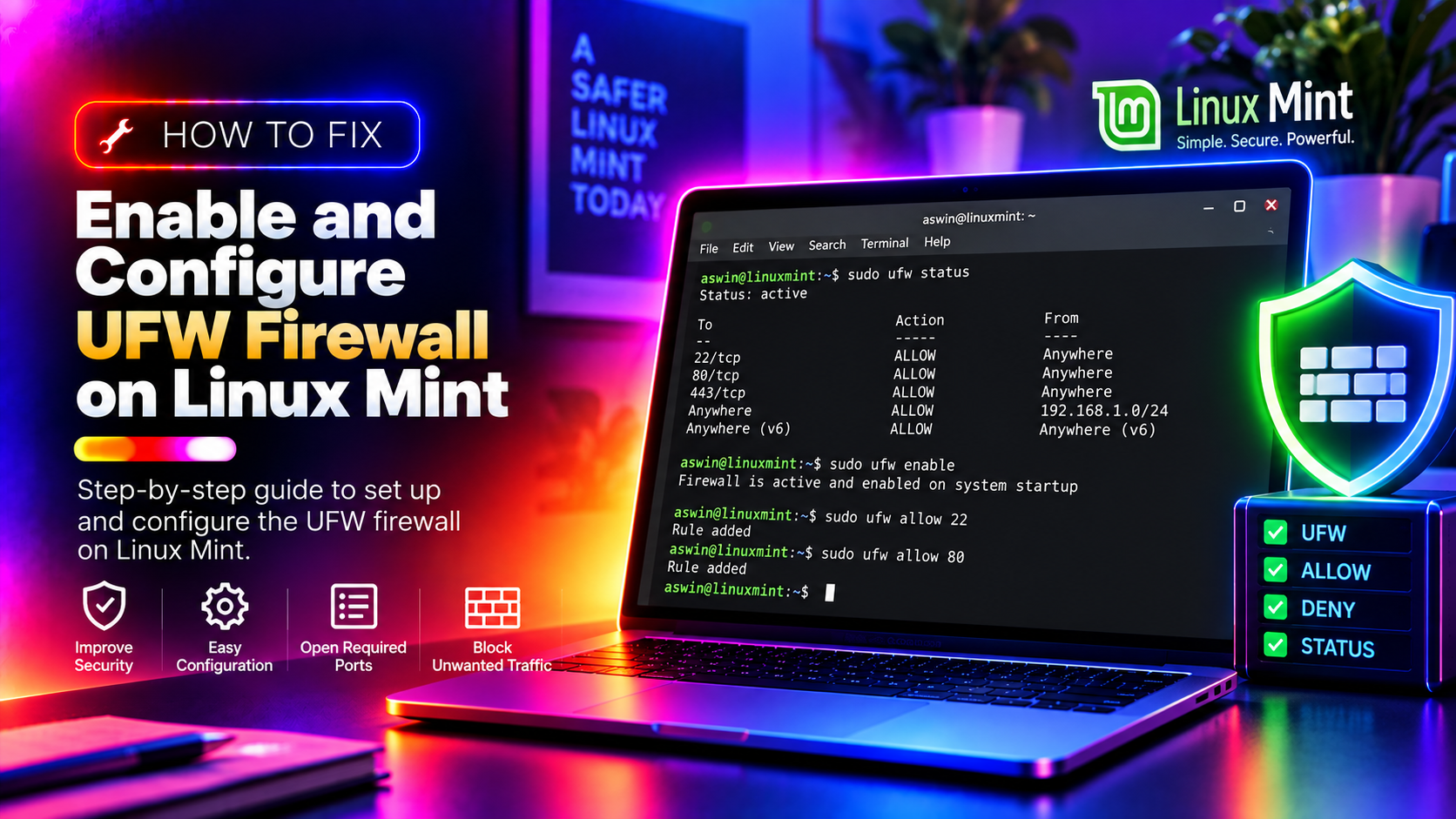
Why Linux Mint Users Need a Firewall in 2026
Many Linux Mint users assume their router's firewall is sufficient protection. It isn't. Router firewalls block inbound connections from the internet, but they do nothing to stop malicious processes already running on your machine from phoning home, nor do they protect you on public Wi-Fi. Linux Mint ships with UFW (Uncomplicated Firewall) installed but disabled by default. This guide shows you how to enable it, configure it correctly, and verify it's working — in under 10 minutes.
What Is UFW?
UFW (Uncomplicated Firewall) is the default firewall management tool on Ubuntu-based systems, including Linux Mint. It sits on top of iptables and provides a simple command-line interface. Linux Mint also includes GUFW, a graphical front-end, but the terminal gives you more control and is faster for most tasks.
Step 1: Check if UFW Is Installed
Open a terminal (Ctrl+Alt+T) and run:
ufw --versionYou should see output like ufw 0.36.2. If you get "command not found", install it:
sudo apt install ufwStep 2: Check the Current Status
sudo ufw status verboseOn a fresh Linux Mint install this will show Status: inactive. That means no firewall is active, even though UFW is installed.
Step 3: Set Default Policies (Critical — Do This Before Enabling)
Before you enable UFW, set the default deny policy. This blocks all inbound connections except those you explicitly allow:
sudo ufw default deny incoming
sudo ufw default allow outgoing
Important: Setting defaults before enabling prevents you from accidentally locking yourself out of SSH if you're on a remote machine.
Step 4: Allow Essential Services
Before enabling, allow any services you need. Most desktop users only need to open ports for specific applications they actually use:
# Allow SSH (only if you use remote access)
sudo ufw allow ssh

# Allow Samba (only if you share files on a local network)
sudo ufw allow samba

# Allow a specific port (e.g., a local web server on port 8080)
sudo ufw allow 8080/tcp

# Allow a port from a specific IP only (more secure)
sudo ufw allow from 192.168.1.100 to any port 22
For most home desktop users, you don't need to open any ports at all — just set the defaults and enable.
Step 5: Enable UFW
sudo ufw enableYou'll see a warning that existing SSH connections may be disrupted. Type y to confirm. The firewall is now active and will start automatically on every boot.
Step 6: Verify It's Working
sudo ufw status verboseYou should now see Status: active with your rules listed. To see rules with numbered lines (useful for deleting specific rules later):
sudo ufw status numberedUsing the GUFW Graphical Interface
If you prefer a GUI, Linux Mint includes GUFW. Open it from the Start Menu → Administration → Firewall Configuration, or install it:
sudo apt install gufwGUFW lets you toggle the firewall on/off, add rules with a click, and view active connections — useful for non-technical users or quick visual checks.
Advanced: Block Specific IPs or Ranges
# Block a specific IP address
sudo ufw deny from 203.0.113.5

# Block an entire IP range (CIDR notation)
sudo ufw deny from 203.0.113.0/24

# Block a country's IP range (requires ipset — advanced)
sudo apt install ipset
Advanced: Disable Unnecessary Services That Expose Attack Surface
UFW is only part of good security hygiene. Services like Avahi (mDNS) and CUPS (printer daemon) often listen on network interfaces by default, creating unnecessary attack surface. If you don't use network printing or Bonjour service discovery, disable them:
# Disable Avahi mDNS daemon
sudo systemctl disable avahi-daemon
sudo systemctl stop avahi-daemon

# Disable CUPS (printer service) if you don't print
sudo systemctl disable cups
sudo systemctl stop cups
How to Delete a UFW Rule
# First list rules with numbers
sudo ufw status numbered

# Delete rule number 3
sudo ufw delete 3

# Or delete by specifying the rule
sudo ufw delete allow ssh
Logging and Monitoring
# Enable UFW logging (low, medium, high, full)
sudo ufw logging medium

# View the UFW log
sudo tail -f /var/log/ufw.log
How to Disable UFW (If Needed)
sudo ufw disableThis turns off the firewall but keeps your rules saved for next time you enable it. To reset all rules to defaults:
sudo ufw resetUFW Firewall Checklist for Linux Mint
After setup, verify you've done all of these:
- ✅
sudo ufw default deny incoming— set before enabling - ✅
sudo ufw default allow outgoing— standard outbound policy - ✅ Only opened ports you actually need
- ✅
sudo ufw enable— firewall is active - ✅
sudo ufw status verbose— shows Status: active - ✅ Disabled Avahi/CUPS if not needed
When the Firewall Blocks Something You Need
If an application stops working after you enable UFW, check the UFW log first (/var/log/ufw.log) to see what's being blocked. Lines marked [UFW BLOCK] show the source IP, destination port, and protocol. Add an allow rule for the port shown and the application will work again.
Get Expert Help
If your Linux Mint firewall isn't behaving as expected, or you need a professional security audit of your system, CloudHouse Technologies' Pay-Per-Ticket Support connects you with a Linux security expert in minutes — no subscription required.