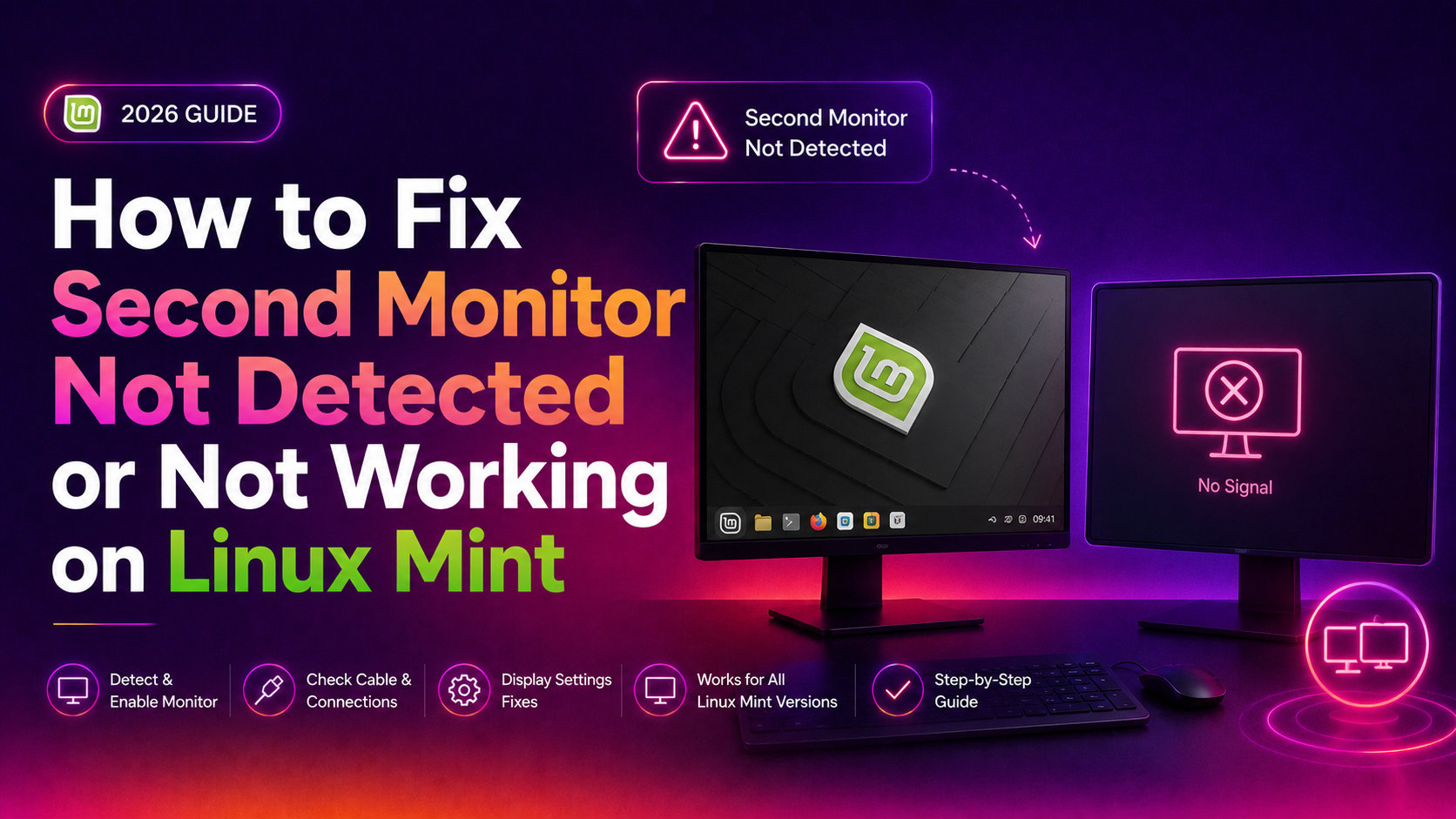
You've plugged in your second monitor, but Linux Mint stares back at you with a blank screen or simply refuses to acknowledge it exists. You're not alone — dual monitor detection is one of the most common frustrations on Linux Mint, affecting everything from budget HDMI setups to high-refresh-rate DisplayPort rigs. The good news: in the vast majority of cases, this is a software or configuration issue with a clear fix.
This 2026 guide covers every layer of the problem — physical connections, the Displays GUI, xrandr terminal commands, GPU driver installation, and kernel upgrades — so you can work through it systematically and get both screens running.
Why Linux Mint Fails to Detect a Second Monitor
Before diving into fixes, it helps to understand what can go wrong. Linux Mint uses the X.Org display server (or Wayland on newer installs) to manage output devices. Detection failures typically fall into one of these categories:
- Driver mismatch: The open-source Nouveau or generic VESA driver doesn't expose all outputs on NVIDIA hardware. AMD and Intel users can also hit this with very new GPUs.
- Kernel too old: Hardware released in 2024–2026 often needs kernel 6.5 or later for full GPU and display engine support.
- X server not re-probing: The display was connected after login, so X hasn't scanned for it yet.
- Cable or port incompatibility: USB-C DisplayPort Alt Mode, active vs. passive adapters, and HDMI 2.1 vs. 2.0 mismatches all cause silent failures.
- Monitor not enabled in settings: The display is detected but turned off in the Displays configuration panel.
Step 1: Check Physical Connections and Cable Compatibility
Start with the basics before any software work — a surprising number of "detection" failures are hardware issues that look like software problems.
Cable and port checklist
- Unplug and firmly re-seat both ends of the video cable. HDMI and DisplayPort connectors can appear seated when they aren't making full contact.
- Try a different cable if available. Low-quality or damaged HDMI cables often cause handshake failures.
- If using a USB-C to DisplayPort or USB-C to HDMI adapter, confirm it supports DisplayPort Alternate Mode — not all USB-C cables carry video signals.
- Test the monitor with another device (a laptop, console, or desktop) to rule out a faulty display panel or cable.
- If your GPU has multiple output ports (e.g., two HDMI and one DisplayPort), try a different port. Some GPU models disable certain outputs when specific driver modes are active.
- For desktop GPUs, plug the cable directly into the GPU's rear ports — not the motherboard's integrated video outputs — unless you are explicitly using integrated graphics.
Once you've confirmed the hardware is sound, move to software diagnosis.
Step 2: Use the Displays Tool to Enable the Second Screen
Linux Mint includes a graphical Displays configuration tool that is the easiest first stop after ruling out hardware issues.
- Go to Menu > Preferences > Display (or search "Display" in the Menu).
- The Displays window shows all detected outputs. If your second monitor appears (even greyed out), click on it and toggle it On.
- If it doesn't appear, click Detect Displays in the lower-left corner. Linux Mint will re-probe all outputs.
- Set the desired arrangement — side by side, mirrored, or extended — then click Apply.
- Confirm the change when prompted within the 15-second countdown.
If the monitor still doesn't appear in the Displays tool, the issue lies deeper — in the X server configuration or GPU driver. Continue to Step 3.
Step 3: Diagnose with xrandr and Force Detection from the Terminal
xrandr is the command-line interface to X.Org's RandR extension, giving you direct control over output detection and configuration. It's often the fastest path to a working dual-monitor setup.
List all outputs and their status
Open a Terminal (Ctrl + Alt + T) and run:
xrandrYou'll see output like this:
Screen 0: minimum 320 x 200, current 1920 x 1080, maximum 16384 x 16384
eDP-1 connected primary 1920x1080+0+0 (normal left inverted right x axis y axis) 344mm x 194mm
   1920x1080     60.03*+  40.04
HDMI-1 disconnected (normal left inverted right x axis y axis)
DP-1 disconnected (normal left inverted right x axis y axis)
If your second monitor shows connected but isn't displaying anything, it's detected but not enabled. If it shows disconnected when you know it's plugged in, there's a driver or signalling issue.
Auto-detect and enable all connected displays
xrandr --autoThis tells the X server to re-probe all outputs and apply optimal modes. It works immediately without a reboot.
Manually enable and position a specific output
Replace HDMI-1 and eDP-1 with the actual output names from your xrandr output:
xrandr --output HDMI-1 --auto --right-of eDP-1To place it to the left instead:
xrandr --output HDMI-1 --auto --left-of eDP-1To mirror (duplicate) the display:
xrandr --output HDMI-1 --same-as eDP-1 --autoSet a specific resolution and refresh rate
xrandr --output HDMI-1 --mode 1920x1080 --rate 60.00 --right-of eDP-1Force-enable a port that shows as disconnected
If the monitor is connected but xrandr reports it as disconnected, you can force the port on with a GRUB kernel parameter. Edit /etc/default/grub:
sudo nano /etc/default/grubFind the line starting with GRUB_CMDLINE_LINUX_DEFAULT and add video=HDMI-A-1:e (adjust port name to match your hardware):
GRUB_CMDLINE_LINUX_DEFAULT="quiet splash video=HDMI-A-1:e"Save, then update GRUB and reboot:
sudo update-grub
sudo reboot
For hybrid GPU systems (Intel + NVIDIA Optimus / AMD)
If your laptop has dual GPUs, you may need to set the provider output source so the second GPU's outputs are routed through the primary:
xrandr --setprovideroutputsource 1 0
xrandr --auto
To make this persistent across logins, create a startup script at /etc/X11/Xsession.d/10custom-initialize-xrandr:
sudo nano /etc/X11/Xsession.d/10custom-initialize-xrandrAdd these lines:
xrandr --setprovideroutputsource 1 0
xrandr --auto
Save and make it executable:
sudo chmod +x /etc/X11/Xsession.d/10custom-initialize-xrandrStep 4: Install or Update the Correct GPU Driver via Driver Manager
The default open-source drivers (Nouveau for NVIDIA, Mesa for AMD/Intel) work well for most tasks, but they don't always expose every display output on every card — especially NVIDIA hardware. Installing the proprietary driver often resolves second-monitor detection instantly.
For NVIDIA GPUs
- Open Menu > Administration > Driver Manager.
- Wait for the scan to complete. You'll see a list of available drivers for your NVIDIA card.
- Select the recommended proprietary driver (typically the highest version marked "recommended").
- Click Apply Changes and enter your password.
- Reboot when prompted.
After rebooting with the proprietary driver, open NVIDIA X Server Settings (search in the Menu). This app gives you a full multi-monitor layout editor that's more powerful than the standard Displays tool. Go to X Server Display Configuration, click Detect Displays, arrange your monitors, and click Apply.
For AMD GPUs
AMD GPUs are well-supported by the open-source AMDGPU driver included with Linux Mint. If you're having issues, check that the Mesa driver is current:
sudo apt update
sudo apt install --install-recommends linux-generic-hwe-22.04
For very new AMD cards (RX 7000 series and later), you may also need the AMD firmware package:
sudo apt install firmware-amd-graphicsFor Intel GPUs
Intel integrated graphics use the i915 driver, which ships with the kernel. If detection fails, the fix is usually a kernel upgrade (see Step 5) rather than a driver swap.
Step 5: Upgrade the Kernel for Newer Intel or AMD Hardware
If your hardware was released in 2024 or 2025, it may require a newer kernel than the one Linux Mint ships by default. Kernel 6.5 and later include substantially improved support for recent Intel Arc GPUs, AMD RDNA 3/4, and various DisplayPort 2.1 and USB4 display controllers.
How to upgrade the kernel in Linux Mint
- Open Update Manager (Menu > Administration > Update Manager).
- Click View > Linux Kernels and confirm the dialog.
- In the left panel, select kernel version 6.5 or higher (choose the highest stable version available).
- In the right panel, click the top entry (the meta-package) to select it.
- Click Install and then reboot.
Alternatively, install from the terminal:
sudo apt update
sudo apt install linux-image-6.5.0-generic linux-headers-6.5.0-generic
sudo reboot
After rebooting into the new kernel, verify it's active:
uname -rThen re-run xrandr to check if your second monitor is now detected.
Roll back if needed
If the new kernel causes other issues, hold Shift during boot to access the GRUB menu, select Advanced options for Linux Mint, and boot from your previous kernel version. You can then remove the new kernel from Update Manager.
Still Not Working? When to Get Expert Help
If you've worked through all five steps and your second monitor still isn't detected, you're likely dealing with one of these more complex scenarios:
- Hardware-level incompatibility — certain USB-C dock chipsets or MST (Multi-Stream Transport) hubs require specific kernel patches not yet in stable releases.
- Wayland vs. X11 conflicts — if you're running a Wayland session,
xrandrcommands won't work. Switch to an X11 session from the login screen (click the gear icon before logging in). - BIOS/UEFI output routing — some systems have a BIOS option to force video output to the dedicated GPU or the integrated GPU. Check your firmware settings under Display or Graphics configuration.
- Optimus Prime mode — NVIDIA Optimus laptops sometimes require switching between "Integrated", "Hybrid", or "NVIDIA (Performance)" mode via
prime-selector the NVIDIA settings panel.
Rather than spending hours debugging edge cases, you can get this resolved quickly with professional help. CloudHouse Pay-Per-Ticket Support connects you with Linux desktop technicians who handle multi-monitor, GPU driver, and kernel issues daily — no subscription, no retainer, just expert help for the problem at hand.
Frequently Asked Questions
Why is my second monitor not detected on Linux Mint?
The most common causes are a missing or incorrect GPU driver (especially on NVIDIA hardware using Nouveau), a cable or port compatibility issue, the display not being enabled in the Displays settings tool, or an outdated kernel that lacks support for your GPU model. Work through the steps above to isolate which layer is the problem.
How do I force detect a second monitor on Linux Mint?
Open Terminal and run xrandr --auto. This instructs the X server to re-probe all connected outputs and apply the best available mode. If the monitor appears in xrandr output but still isn't active, manually enable it with:
xrandr --output HDMI-1 --auto --right-of eDP-1Replace HDMI-1 and eDP-1 with the actual output names shown by running xrandr alone.
How do I check which monitors are connected in the Linux Mint terminal?
Run xrandr in Terminal. Each detected output shows "connected" or "disconnected" next to its name (e.g., HDMI-1 connected, DP-1 disconnected). Outputs showing "connected" but with no active resolution are detected but not enabled. Use those output names in your xrandr configuration commands.
Will installing the NVIDIA proprietary driver fix my second monitor?
Often yes for NVIDIA users. The open-source Nouveau driver doesn't always expose all display outputs. Open Driver Manager (Menu > Administration > Driver Manager), select the recommended proprietary NVIDIA driver, apply, and reboot. The NVIDIA X Server Settings app that installs alongside it provides a full multi-monitor layout editor with more options than the standard Displays tool.
Does Linux Mint support dual monitors out of the box?
Yes, Linux Mint fully supports dual and multi-monitor setups. Use Menu > Preferences > Display to arrange, enable, and configure resolution for each screen. For more control, use xrandr in Terminal or, for NVIDIA GPUs, the NVIDIA X Server Settings application. Most setups work automatically once the correct driver is installed and the display is enabled.