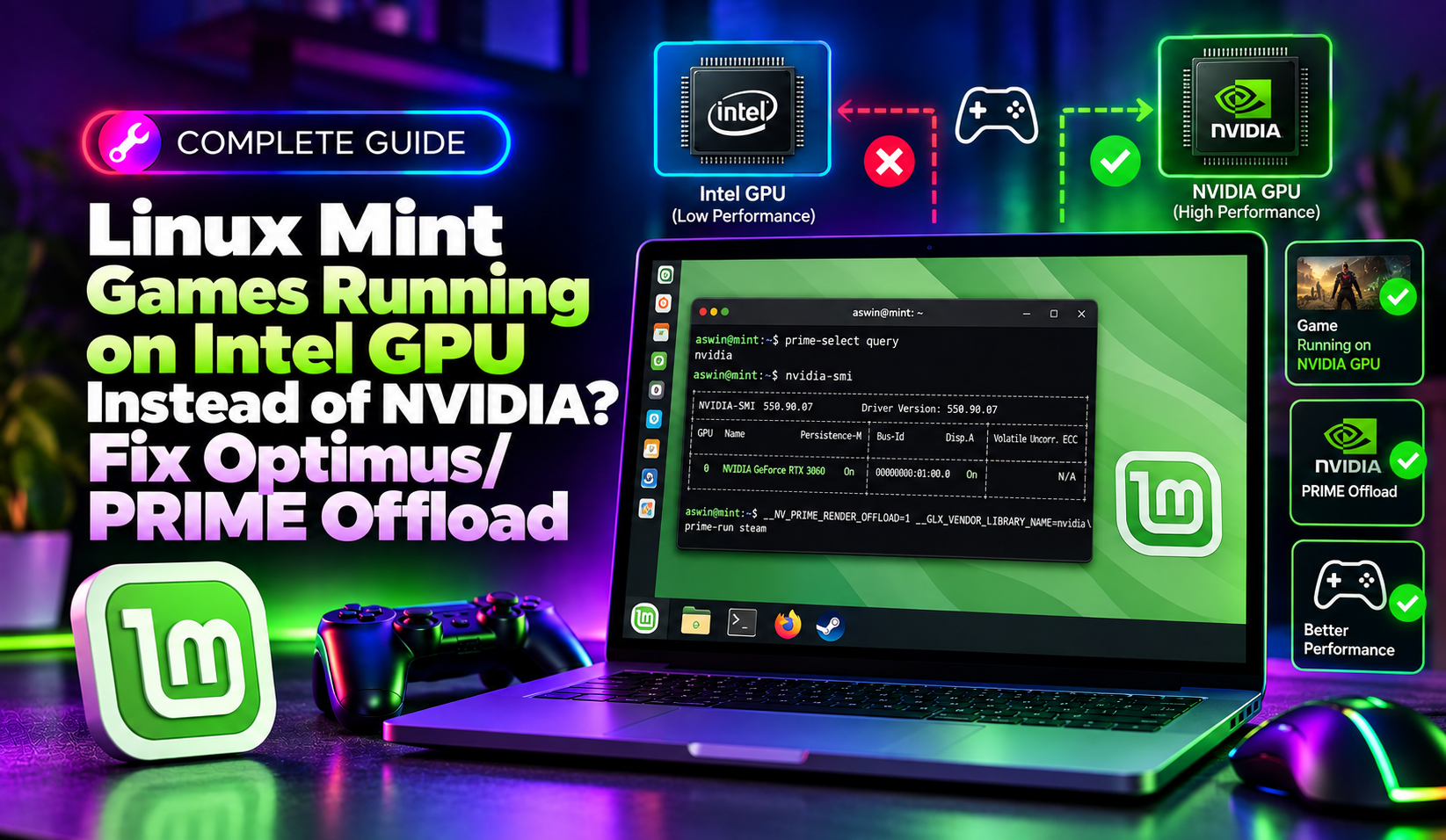
If you own a laptop with both an Intel/AMD integrated GPU and a dedicated NVIDIA GPU, you have probably noticed your games running at surprisingly low frame rates on Linux Mint — even though the same games ran fine on Windows. Nine times out of ten, the culprit is NVIDIA Optimus/PRIME silently routing your games to the weaker integrated GPU instead of the dedicated card. This guide walks through exactly how to detect the problem and force every game to render on your NVIDIA GPU.
Why Linux Mint Games Default to the Integrated GPU
Hybrid graphics laptops use a technology called NVIDIA Optimus (branded as PRIME on Linux) to switch between the low-power integrated GPU and the dedicated NVIDIA GPU. On Linux Mint, unlike Windows, applications do not automatically detect and use the dedicated GPU. Instead, everything runs on the integrated GPU by default, and you must explicitly tell each application to "offload" its rendering to the NVIDIA card.
This causes several common symptoms:
- Steam games launch but run at 15-30 FPS in titles that should easily hit 60+
nvidia-smishows 0% GPU utilization while a game is running- Games feel "laggy" or stutter constantly, especially in 3D-heavy titles
- The laptop fan barely spins up during gameplay because the NVIDIA GPU is idle
glxinforeports the Intel/Mesa renderer instead of your GeForce card
💡 None of these worked? Skip the guesswork.
Get Expert Help →Step 1: Confirm Which GPU Is Actually Rendering Your Games
Open a terminal and run:
prime-select queryThis should return nvidia, intel, or on-demand. If it returns intel, every application — including your games — is being forced onto the integrated GPU.
Install mesa-utils if you don't already have it, then run:
sudo apt update
sudo apt install mesa-utils
glxinfo | grep "OpenGL renderer"
If you see something like Mesa Intel(R) UHD Graphics, your system is defaulting to the integrated chip. To confirm the NVIDIA card can be reached at all, run:
__NV_PRIME_RENDER_OFFLOAD=1 __GLX_VENDOR_LIBRARY_NAME=nvidia glxinfo | grep "OpenGL renderer"This should now report your GeForce model. If it does, the NVIDIA driver is installed correctly and the fix is purely about telling each game to offload.
on-demand mode keeps the integrated GPU for everyday tasks (battery-friendly) but lets you offload specific apps to the NVIDIA GPU on request — this is the recommended setting for gaming laptops:
sudo prime-select on-demand
sudo reboot
If you'd rather force the NVIDIA GPU to render everything (better performance, worse battery life), use:
sudo prime-select nvidia
sudo rebootOlder Linux Mint installs sometimes still have Bumblebee, which conflicts directly with PRIME and NVIDIA's own offload system. Purge it completely:
sudo apt-get purge bumblebee* primus*
sudo apt autoremoveIn Steam, right-click the game → Properties → General → Launch Options, and enter:
__NV_PRIME_RENDER_OFFLOAD=1 __GLX_VENDOR_LIBRARY_NAME=nvidia __VK_LAYER_NV_optimus=NVIDIA_only %command%The first two variables force OpenGL/GLX titles onto the NVIDIA card; the third ensures Vulkan titles (and Proton, which relies heavily on Vulkan/DXVK) pick the discrete GPU as well.
For games launched outside Steam, prefix the command manually in a terminal or in your launcher's environment variables field:
__NV_PRIME_RENDER_OFFLOAD=1 __GLX_VENDOR_LIBRARY_NAME=nvidia ./game-executableIn Lutris, go to the game's Configure → System options tab and add the same three variables under "Environment variables". Note that if Lutris has "Prime render offload" enabled at the system level alongside DXVK, some users report the game still falls back to the iGPU — disabling one or the other usually resolves the conflict.
While the game is running, open a second terminal and run:
nvidia-smiYou should now see the game's process listed under GPU processes with non-zero utilization. If nvidia-smi still shows 0%, double-check the launch options were saved and that you rebooted after changing the PRIME mode.
Step 4: Make Sure You Have the Right NVIDIA Driver
An outdated or incompatible NVIDIA driver is the second most common reason PRIME offload silently fails. Check what's currently installed and available:
ubuntu-drivers devices
sudo apt install nvidia-driver-550
sudo reboot
Use the "recommended" driver version reported by ubuntu-drivers devices rather than always picking the newest — on some hybrid laptops the very latest driver introduces regressions with PRIME offload, and a slightly older stable release performs better.
If you regularly deal with driver conflicts, dual-GPU quirks, or need someone to remotely diagnose why a specific machine won't offload correctly, CloudHouse Technologies' pay-per-ticket IT support can take care of the whole troubleshooting process for you.
Preventing This Issue in the Future
- Stick to
on-demandPRIME mode on laptops so you get both battery savings and easy GPU offload when needed - Always add the three offload environment variables as a habit whenever you install a new game
- Avoid mixing Bumblebee and PRIME — pick one offload method and remove the other completely
- After every major kernel or NVIDIA driver update, re-run
glxinfo | grep "OpenGL renderer"with offload variables set to confirm nothing broke - Keep a GameMode or MangoHud overlay running during play — an idle NVIDIA GPU shown in the overlay is an instant sign the offload isn't active
Conclusion
Low FPS on a Linux Mint gaming laptop is rarely a "the game is just badly optimized" problem — it's almost always the integrated GPU quietly doing all the work while your NVIDIA card sits idle. By confirming your PRIME mode, purging conflicting tools like Bumblebee, and explicitly setting the offload environment variables in Steam and Lutris, you can get your dedicated GPU handling every game the way it should.