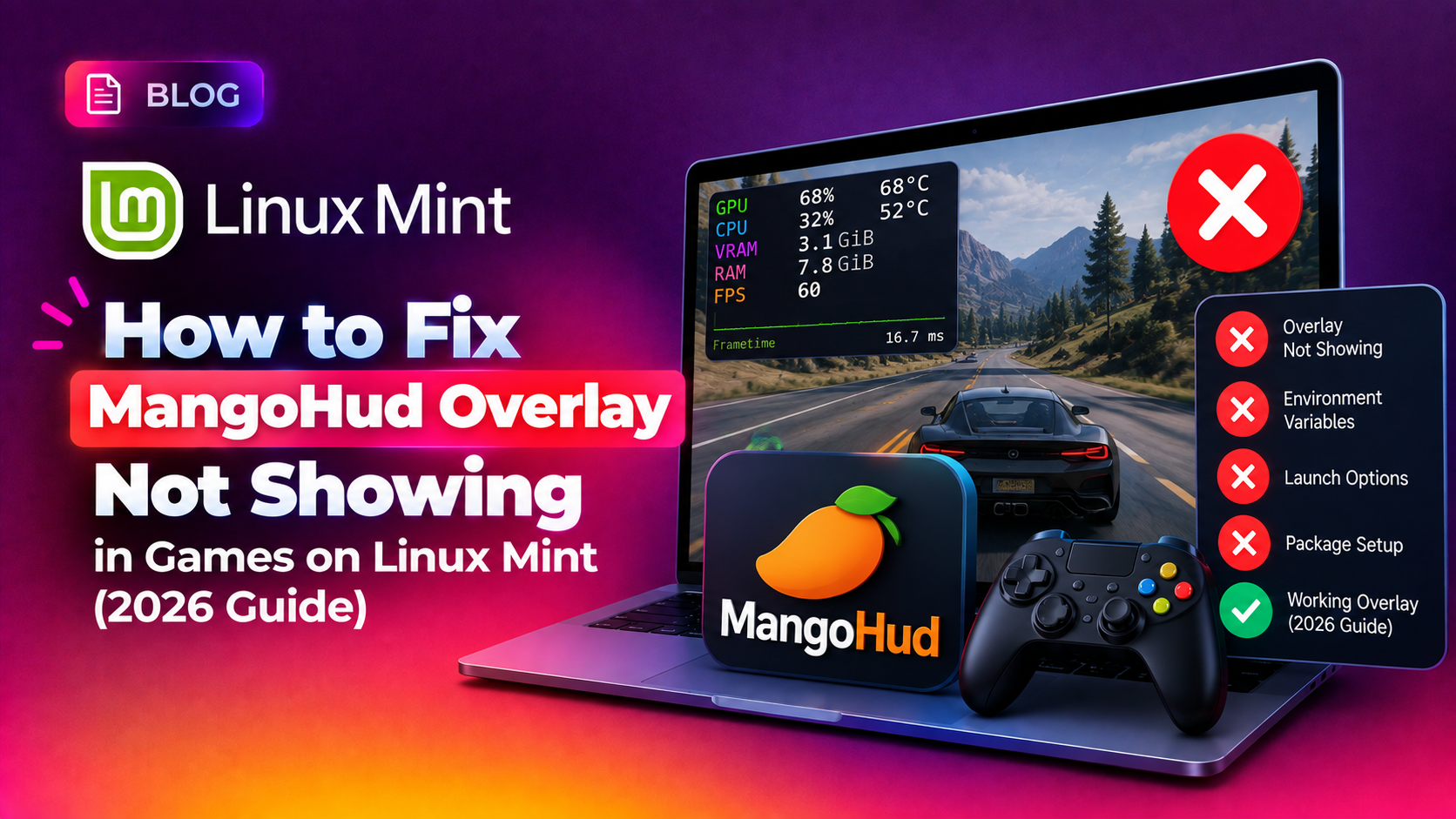
If you installed MangoHud on Linux Mint to track your FPS, GPU temperature, and frame times while gaming, but the overlay simply refuses to appear, you are not alone. This is one of the most common frustrations reported on the Linux Mint forums in 2026, and it usually comes down to one of three things: a Steam Overlay conflict, a Vulkan vs OpenGL rendering mismatch, or a broken GOverlay dependency. This guide walks through every real fix, in order of likelihood, so you can get your performance overlay working again.
Why MangoHud Overlay Doesn't Show Up on Linux Mint
MangoHud is a Vulkan and OpenGL overlay layer. Unlike RivaTuner on Windows, it does not hook into DirectX directly — instead, it only renders on top of applications that draw through the Vulkan or OpenGL graphics APIs. Understanding this single fact solves a huge percentage of "MangoHud not showing" reports:
- Vulkan-native games (id Tech, most modern AAA Linux ports) — MangoHud works out of the box
- OpenGL-native games — MangoHud works, but overlay position/detection can be flaky depending on the Mesa driver version
- DirectX games via Proton — MangoHud only shows if the DXVK/VKD3D-Proton translation layer is actively converting DirectX calls to Vulkan; some Proton compatibility modes bypass this
- Native DirectX or non-translated titles — MangoHud cannot render here at all; this is a hard technical limitation, not a bug
💡 None of these worked? Skip the guesswork.
Get Expert Help →Step 1: Confirm MangoHud Is Actually Installed and Loaded
Open a terminal and run:
mangohud --versionIf this returns "command not found," install it fresh on Linux Mint:
sudo apt update
sudo apt install mangohud mesa-utilsTest with a lightweight OpenGL benchmark to confirm the overlay renders at all:
mangohud glxgearsYou should see a small FPS counter appear in the top-left corner of the glxgears window. If it doesn't appear here, the problem is with your MangoHud installation or GPU driver — not a specific game.
MANGOHUD=1 vkgearsIf the Vulkan test works but the OpenGL test (or vice versa) doesn't, you've isolated the issue to a specific rendering backend, which points to a Mesa driver version mismatch.
The version shipped in the Mint/Ubuntu repositories can lag behind upstream. Check your current version and, if needed, install the latest release manually:
mangohud --version
# If older than 0.8.4, download the latest release:
wget https://github.com/flightlessmango/MangoHud/releases/latest/download/mangohud-installer.tar.gz
tar -xvf mangohud-installer.tar.gz
cd MangoHud
./mangohud-setup.sh installIn Steam, right-click the game > Properties > General > Launch Options, and set:
mangohud %command%Do not combine this with gamemoderun mangohud %command% unless GameMode is also installed and configured — a missing GameMode binary in a chained launch command will silently fail the entire launch string, which looks identical to "overlay not showing."
sudo apt install libqt6pas1Multiple Linux Mint forum threads confirm GOverlay fails to start or silently fails to save configuration changes without this package installed, since Mint's default repositories don't always pull it in automatically as a dependency of the GOverlay Flatpak or .deb package.
If GOverlay still won't cooperate, you can bypass it entirely and edit the MangoHud config directly:
mkdir -p ~/.config/MangoHud
nano ~/.config/MangoHud/MangoHud.conf
A minimal working config to confirm visibility looks like this:
fps
frametime
gpu_stats
cpu_stats
position=top-left
background_alpha=0.5
font_size=24
Save the file, then relaunch your game through Steam with the mangohud %command% launch option.
glxinfo | grep "OpenGL version"sudo add-apt-repository ppa:kisak/kisak-mesa
sudo apt update
sudo apt upgradeThis PPA is the standard way Linux Mint and Ubuntu gamers keep Mesa current without waiting for the next full distro release, and it resolves most OpenGL overlay rendering inconsistencies.
Step 5: Check GPU Driver as the Root Cause
If none of the above works, the underlying GPU driver itself may be the real culprit — MangoHud depends on the driver correctly exposing Vulkan/OpenGL capability layers:
- NVIDIA: confirm you're on the proprietary driver, not Nouveau, via
nvidia-smi - AMD: confirm the open-source
amdgpudriver is active vialspci -k | grep -A 2 VGA - Intel: ensure your kernel and Mesa versions are recent enough to support the integrated GPU's Vulkan ICD
This is a broader hardware-driver troubleshooting area. If you're not comfortable making driver-level changes on a system you rely on daily for work or gaming, it's worth having a professional confirm the fix rather than risk an unbootable desktop. CloudHouse Technologies' pay-per-ticket IT support can diagnose and resolve GPU driver and overlay conflicts remotely without a subscription commitment.
Step 6: Prevent the Problem From Coming Back
- Pin MangoHud to a specific known-good version if you've had repeated regressions across updates
- Keep a backup copy of a working
MangoHud.confbefore making changes - Avoid stacking multiple overlay tools (MangoHud + Steam overlay + Discord overlay + GPU vendor overlay) simultaneously — layered overlays are the single most common cause of "nothing renders" reports
- Check the MangoHud GitHub releases page before major Mint or kernel upgrades to confirm compatibility
Most MangoHud visibility issues on Linux Mint trace back to one of these five causes: an outdated MangoHud build predating the v0.8.4 Steam overlay fix, a missing GOverlay dependency, an OpenGL/Mesa driver mismatch, an incorrect Steam launch command, or a game that genuinely doesn't route through Vulkan or OpenGL at all. Work through the steps in order and you'll isolate the exact cause rather than guessing.