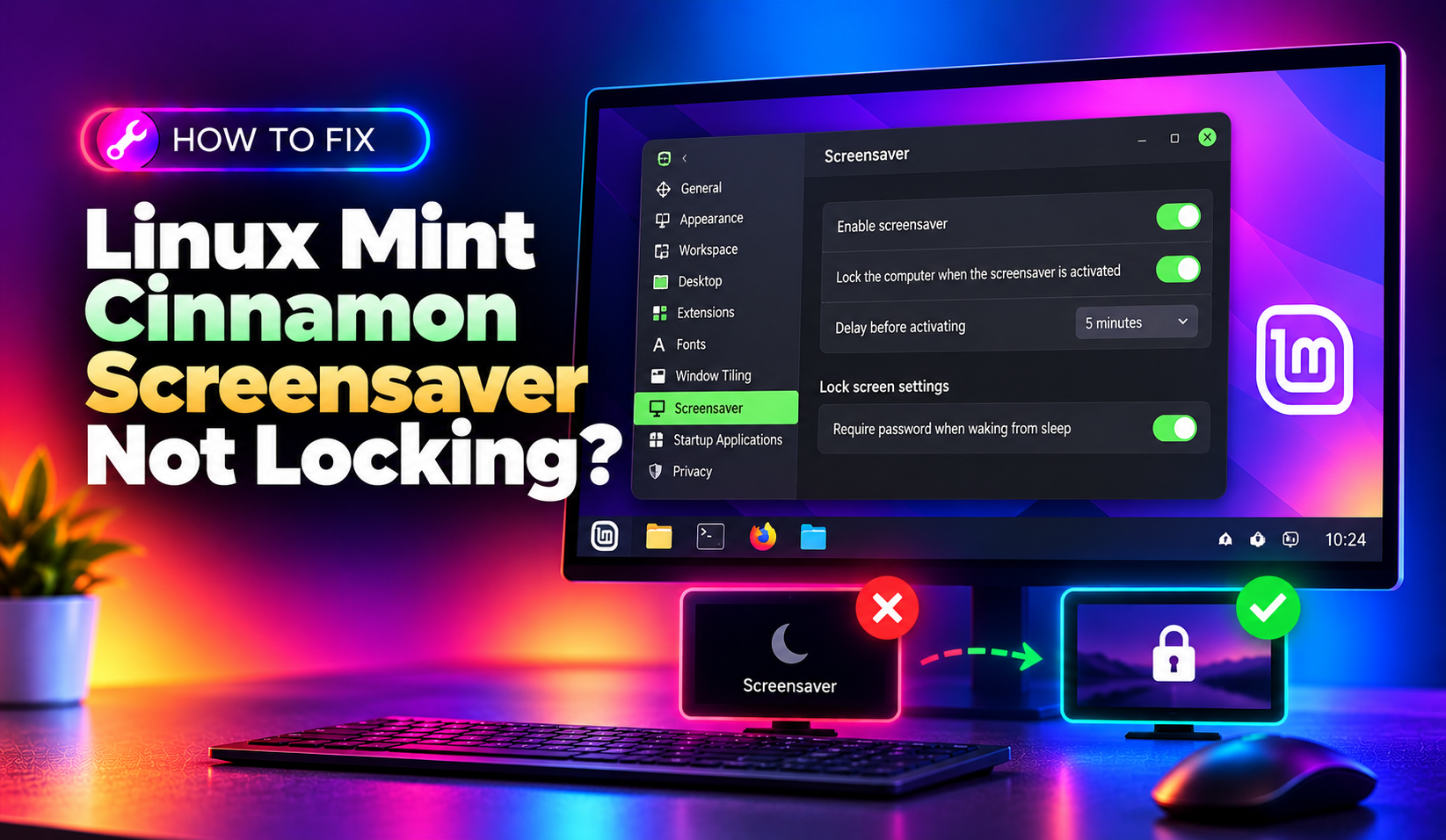
You lock your Linux Mint laptop before walking away, and the desktop is still sitting there in full view a minute later — or worse, the screen goes black but never asks for a password when you try to log back in. This is one of the most persistent bugs in cinnamon-screensaver, and it affects everything from Linux Mint 21.x to the newest 22.x/26.04-based Cinnamon releases. Because it's a security-relevant bug (an unlocked screen defeats the whole point of a lock screen), it's worth fixing properly rather than just rebooting and hoping it goes away.
This guide walks through why the Cinnamon lock screen fails, and gives you several confirmed fixes — from a simple process restart to permanent startup-script workarounds — so your screen actually locks every time.
Why the Cinnamon Screensaver Fails to Lock
The cinnamon-screensaver daemon is a separate background process from the Cinnamon desktop itself, and it communicates with Cinnamon over D-Bus. When something disrupts that connection — a crashed process, a stuck menu, a GPU driver issue, or a corrupted dconf key — the lock screen either doesn't trigger at all, or it renders a black screen without the password prompt. Common root causes include:
- A crashed or hung cinnamon-screensaver process that never restarts automatically
- An open panel menu, applet popup, or context menu left on screen, which is a known bug that blocks the idle timer
- Incorrect home directory permissions after a botched update or manual file edit as root
- Conflicting dconf/gsettings keys between
org.cinnamon.desktop.screensaverandorg.cinnamon.screensaverschemas - A background video or GPU-accelerated web page keeping the system from registering as idle
- NVIDIA driver or compositor conflicts that prevent the lock screen surface from rendering (this is what causes the black-screen-with-no-prompt variant)
If you're managing several machines and this keeps recurring across your fleet, it's often faster to have a dedicated technician standardize the fix once and roll it out everywhere — this is exactly the kind of recurring desktop issue covered under CloudHouse's pay-per-ticket IT support plans, where you only pay for the tickets you actually raise.
💡 None of these worked? Skip the guesswork.
Get Expert Help →Method 1: Restart the Screensaver Process
Before touching any settings, confirm the daemon itself isn't just stuck. This is the fastest fix and resolves the issue for most users temporarily.
Open a terminal (Ctrl+Alt+T) and run:
pkill cinnamon-screensavercinnamon-screensaver &Press Super+L or use the menu's lock option. If the screen now locks correctly and shows a password prompt, the daemon had simply crashed or hung — you'll need Method 3 below to stop it happening again after every login.
gsettings list-recursively org.cinnamon.desktop.screensaver
gsettings list-recursively org.cinnamon.screensavergsettings set org.cinnamon.desktop.screensaver lock-enabled true
gsettings set org.cinnamon.desktop.screensaver idle-activation-enabled true
gsettings set org.cinnamon.desktop.session idle-delay 300gsettings set org.cinnamon.screensaver lock-delay 0A non-zero lock delay is one of the most common reasons users think locking is "not working" — it's actually just waiting the configured number of seconds after the screen blanks before it engages the password prompt.
dconf reset -f /org/cinnamon/desktop/screensaver/
dconf reset -f /org/cinnamon/screensaver/
Log out and back in after resetting, then reconfigure your preferred delay through Settings > Screensaver.
A previous sudo command run inside your home folder can leave files owned by root, which silently breaks screensaver config writes:
sudo chown -R $USER:$USER $HOMEsudo apt install --reinstall cinnamon-screensaver cinnamon-settings-daemon
sudo rebootCorrupted session caching can also interfere with the screensaver's D-Bus registration:
rm -rf ~/.cache/cinnamon
rm -rf ~/.cache/dconf
Log out and back in for a fresh session (this does not delete your saved settings, only cached state).
nano ~/fix-screensaver.shPaste the following:
#!/bin/bash
sleep 5
pkill cinnamon-screensaver
cinnamon-screensaver --no-fallback --hold &chmod +x ~/fix-screensaver.shOpen Menu > Startup Applications > Add, and point the command field to /home/YOUR_USERNAME/fix-screensaver.sh. This forces the daemon to relaunch cleanly a few seconds after every login, before you ever need to lock the screen.
Fixing the "Black Screen, No Password Prompt" Variant
If your screen locks (goes black) but never shows the password field when you move the mouse or press a key, this is usually a compositor rendering conflict rather than a locking failure — the session is actually locked, it's just not drawing the UI.
- Try switching to a virtual terminal with
Ctrl+Alt+F3and back withCtrl+Alt+F1orF2to force a redraw - If you're on NVIDIA drivers, disable hardware compositing in Settings > Effects and re-test
- Update to the latest driver stack:
sudo apt update && sudo apt install nvidia-driver-using the version shown in Driver Manager
Preventing This from Happening Again
- Keep Cinnamon and NVIDIA drivers updated together — mismatched versions are the leading cause of screensaver rendering bugs
- Avoid closing your laptop lid or suspending while a context menu or applet popup is open, which can leave the idle timer stuck
- Run
sudo chown -R $USER:$USER $HOMEas a routine check any time you've usedsudoto edit files inside your home directory - If you manage multiple Mint desktops in an office, standardize the startup-script workaround across all machines rather than fixing them one by one after complaints
Screen locking isn't optional on any machine that handles work data, so don't leave this half-fixed. Once the password prompt reliably appears every time you step away, your Linux Mint desktop is as secure as any other locked workstation.