
What Causes Broken Packages on Linux Mint
Linux Mint's apt package manager is generally robust, but broken packages are a common headache — especially after a partial upgrade, a PPA that went stale, or a power cut mid-install. The four most common causes in 2026 are: broken dependency chains (a package requires a version that conflicts with what's installed), locked APT/dpkg databases (another process is using the database), corrupted repository lists (a PPA or source URL is unreachable or has changed), and interrupted upgrades that left packages in a half-configured state.
This guide walks through every fix with exact terminal commands, tested on Linux Mint 21.x (Ubuntu Jammy base) and Linux Mint 22.x (Ubuntu Noble base).
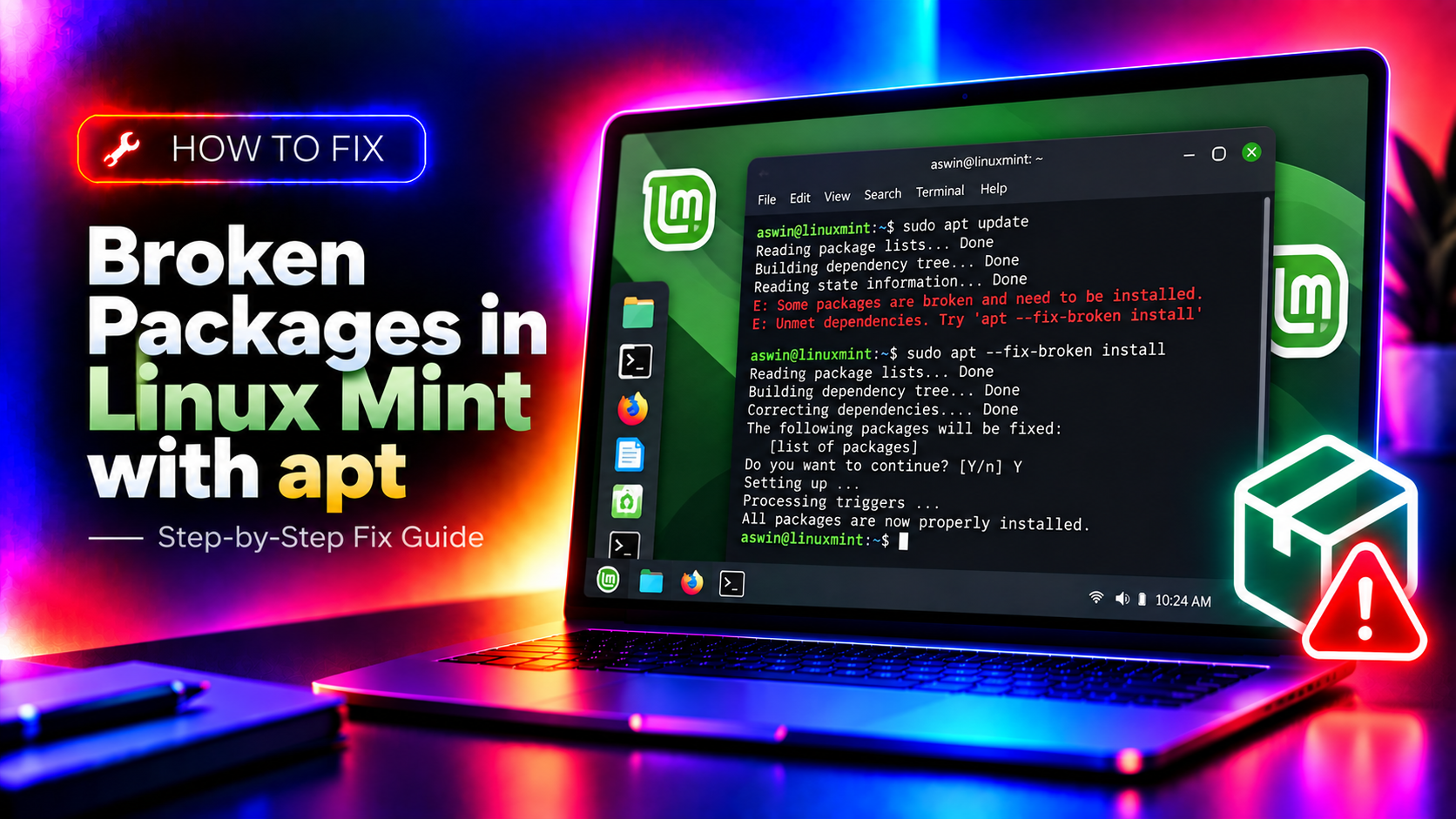
Fix 1: Run apt --fix-broken install
This is always the first command to run. APT scans your system for unmet dependencies and broken packages, then automatically resolves them by installing missing packages, removing conflicting ones, or finishing an interrupted installation.
Step 1. Open Terminal (Ctrl+Alt+T).
Step 2. Run:
sudo apt --fix-broken installStep 3. Review the proposed changes before confirming. APT will show what it plans to install, remove, or upgrade. If the plan looks correct, type Y and press Enter.
Step 4. After the command completes, run a full upgrade to catch any remaining issues:
sudo apt update && sudo apt upgradeFix 2: Fix the dpkg Lock File
If you get the error E: Could not get lock /var/lib/dpkg/lock-frontend, another APT process is running (or crashed while holding the lock).
Step 1. Find the process holding the lock:
sudo lsof /var/lib/dpkg/lock-frontendStep 2. If a legitimate process is running (Update Manager, Synaptic), wait for it to finish.
Step 3. If the process crashed and left a stale lock, remove it:
sudo rm /var/lib/apt/lists/lock
sudo rm /var/cache/apt/archives/lock
sudo rm /var/lib/dpkg/lock-frontend
sudo rm /var/lib/dpkg/lock
Step 4. Reconfigure any partially installed packages:
sudo dpkg --configure -aStep 5. Re-run the fix:
sudo apt --fix-broken installFix 3: Fix Corrupted Repository Lists
A PPA that has been archived, a repository that changed its URL, or a third-party source with an expired GPG key causes apt update to fail with errors like Failed to fetch or NO_PUBKEY.
Step 1. Open Software Sources: open the Mint Menu → search for Software Sources and launch it.
Step 2. Go to the Additional repositories tab. Uncheck any PPA that shows an error or that you no longer need.
Step 3. Run sudo apt update. If it still fails, identify the broken source from the error output (the URL is shown in the error message).
Step 4. Remove the broken source file:
ls /etc/apt/sources.list.d/Find the file corresponding to the broken PPA and remove it:
sudo rm /etc/apt/sources.list.d/broken-ppa-name.listStep 5. Clear the package lists cache and re-fetch:
sudo rm -rf /var/lib/apt/lists/*
sudo apt update
Fix 4: Fix a Half-Configured Package with dpkg
When a package installation is interrupted mid-way, dpkg marks it as Half-Installed or Half-Configured. This blocks all future apt operations until fixed.
Step 1. Check for half-configured packages:
dpkg --auditStep 2. Finish configuring them:
sudo dpkg --configure -aStep 3. If dpkg --configure -a fails for a specific package, force-remove it and reinstall:
sudo dpkg --remove --force-remove-reinstreq PACKAGE_NAME
sudo apt install PACKAGE_NAME
Replace PACKAGE_NAME with the package name shown in the dpkg --audit output.
Fix 5: Fix GPG Key Errors (NO_PUBKEY)
Repository GPG key errors prevent apt update from trusting a repository. This commonly happens when a PPA rotates its GPG key.
Step 1. Note the missing key ID from the apt update error (e.g., NO_PUBKEY A1B2C3D4E5F6).
Step 2. Add the missing key:
sudo apt-key adv --keyserver keyserver.ubuntu.com --recv-keys A1B2C3D4E5F6Step 3. If apt-key is deprecated on your Mint version (22.x), use the modern method:
curl -fsSL https://REPO_URL/gpg | sudo gpg --dearmor -o /etc/apt/trusted.gpg.d/repo-name.gpgStep 4. Run sudo apt update to verify the key is accepted.
Fix 6: Use Synaptic Package Manager for Visual Repair
Synaptic provides a graphical view of broken packages, held-back packages, and dependency conflicts — making it easier to identify exactly what is broken without reading terminal output.
Step 1. Install Synaptic if not already installed:
sudo apt install synapticStep 2. Open Synaptic (Mint Menu → Synaptic Package Manager).
Step 3. Click Edit → Fix Broken Packages.
Step 4. Use the Status filter in the bottom-left to filter by Broken and review each package individually.
Step 5. Click Apply to execute all pending fixes.
Fix 7: Purge and Reinstall a Specific Broken Package
If a specific package is permanently broken (appears in every apt run with the same error), purge it completely and reinstall from scratch.
Step 1. Purge the package and its configuration files:
sudo apt purge PACKAGE_NAMEStep 2. Remove any residual package files:
sudo apt autoremove --purgeStep 3. Clear the apt cache:
sudo apt cleanStep 4. Reinstall the package:
sudo apt install PACKAGE_NAMEFix 8: Fix Broken Packages After a Partial Release Upgrade
Upgrading from Linux Mint 21 to 22 (or from one Ubuntu LTS base to another) via an incomplete process leaves packages in a mixed state — some from the old base, some from the new.
Step 1. Run the upgrade fixer:
sudo apt full-upgradeUnlike apt upgrade, full-upgrade is allowed to remove packages to resolve conflicts — necessary during a release upgrade.
Step 2. After full-upgrade completes, remove obsolete packages from the old release:
sudo apt autoremove --purgeStep 3. Run a final check:
dpkg --audit
sudo apt --fix-broken install
If Linux Mint broken packages are still causing errors after these fixes, book a CloudHouse Pay-Per-Ticket Support session — our Linux engineers diagnose complex apt dependency failures remotely.