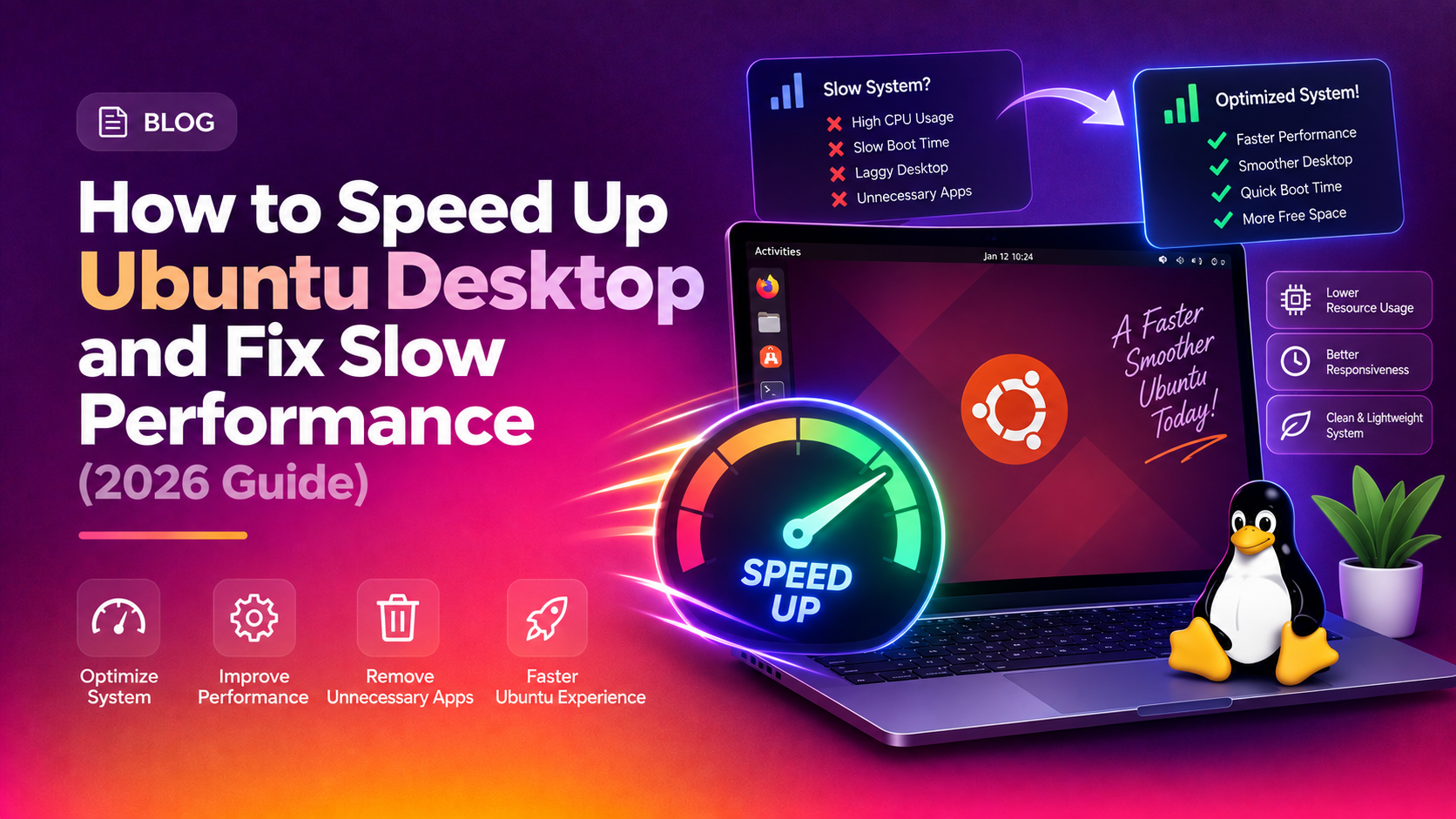
Is your Ubuntu desktop crawling along, freezing on simple tasks, or taking forever to open applications? You are not alone. Thousands of Ubuntu users in 2026 face slow performance — especially after a system update, when running older hardware, or when GNOME's default settings are eating more resources than needed.
This guide walks you through the most effective, real-world fixes to speed up Ubuntu desktop performance in 2026 — from quick terminal commands to swapping out the entire desktop environment. Every step is tested on Ubuntu 22.04 and Ubuntu 24.04 LTS.
Why Ubuntu Desktop Runs Slow (Common Causes)
Before jumping into fixes, it helps to understand why Ubuntu is running slow. Common culprits include:
- Too many startup applications — programs launching at login consume RAM and CPU before you have opened a single app.
- GNOME desktop animations and effects — beautiful but resource-heavy, especially on integrated graphics.
- Swap thrashing — when Ubuntu exhausts RAM and falls back to slow disk-based swap repeatedly.
- Bloated Snap packages — Snap applications mount individual squashfs images, adding overhead at startup and runtime.
- Outdated drivers or kernel — missing hardware acceleration, especially for AMD/NVIDIA GPUs.
- Low swappiness not configured — the default value of 60 causes Ubuntu to move data to swap too aggressively.
Run htop or the GNOME System Monitor to identify which process is consuming the most CPU and RAM:
sudo apt install htop -y
htop
Sort by CPU or MEM and look for the top consumers. This tells you where to focus first.
Quick Fix: Free Up RAM with One Command
Before diving into permanent fixes, this single command drops cached memory and frees up RAM immediately without rebooting:
sudo sync && echo 3 | sudo tee /proc/sys/vm/drop_cachesThis flushes the page cache, dentries, and inodes. You will typically free several hundred MB instantly. Use this when your system feels sluggish mid-session. Note: this is a temporary fix — the cache will rebuild as you use the system.
Also kill any zombie or runaway processes:
ps aux --sort=-%cpu | head -20Find the PID of the offending process and terminate it:
sudo kill -9 PID_NUMBERFix 1: Disable Unnecessary Startup Applications
Every application that launches at login takes a slice of your startup time and keeps consuming resources. Ubuntu loads many of these silently.
Step 1: Open the Startup Applications manager via the terminal:
gnome-session-propertiesOr search "Startup Applications" in your app launcher.
Step 2: Review the list. Uncheck anything you do not need immediately on login — Bluetooth managers, cloud sync clients, screen readers if unused, update notifiers.
Step 3: For hidden startup services, reveal them first:
sudo sed -i 's/NoDisplay=true/NoDisplay=false/g' /etc/xdg/autostart/*.desktopNow reopen Startup Applications and you will see the full list.
Step 4: Disable startup services via systemctl for system-level daemons:
systemctl list-unit-files --state=enabled --type=service
sudo systemctl disable bluetooth.service
sudo systemctl disable cups.service
Step 5: Reboot and measure the difference. Systems with 8+ startup items often see 20-40 second improvements in boot time.
Fix 2: Reduce GNOME Desktop Effects
GNOME's animations and visual effects look polished but stress your GPU and CPU — particularly on integrated graphics or older cards. Reducing or disabling them yields a noticeably snappier feel.
Step 1: Install GNOME Tweaks if not already installed:
sudo apt install gnome-tweaks -yStep 2: Open GNOME Tweaks:
gnome-tweaksStep 3: Navigate to General and toggle off "Animations." This disables window open/close and workspace switch animations.
Step 4: For deeper control, install the GNOME Extensions app:
sudo apt install gnome-shell-extensions -yStep 5: You can also use gsettings directly from the terminal to toggle animations:
# Disable animations
gsettings set org.gnome.desktop.interface enable-animations false

# Re-enable later if desired
gsettings set org.gnome.desktop.interface enable-animations true
Step 6: Reduce the number of active GNOME extensions. Each extension runs JavaScript in the GNOME Shell process. Open GNOME Extensions manager and disable any you do not actively use.
Fix 3: Install a Lightweight Desktop Environment (XFCE or MATE)
If your machine has 2GB or less of RAM — or is over 7 years old — switching away from GNOME entirely is the single biggest performance win available. XFCE uses roughly 300-400 MB of RAM at idle versus GNOME's 700-1000 MB.
Option A: Install XFCE (Xubuntu desktop)
sudo apt install xfce4 xfce4-goodies -yOption B: Install MATE desktop
sudo apt install ubuntu-mate-desktop -yOption C: Install LXQt (lightest option)
sudo apt install lxqt -yAfter installation, log out. On the login screen, click the gear icon next to your username and select the new desktop environment. Log in and experience the difference immediately.
To remove GNOME after switching (optional, frees significant disk space):
sudo apt remove ubuntu-gnome-desktop gnome-shell -y
sudo apt autoremove -y
Warning: Only remove GNOME after confirming your new desktop environment works correctly. Keep a terminal open as a fallback.
Fix 4: Enable ZRAM for Better Memory Compression
ZRAM creates a compressed block device in RAM, acting as a much faster alternative to disk-based swap. On systems with 4-8GB RAM, ZRAM can dramatically reduce slowdowns caused by swap thrashing.
Step 1: Check if ZRAM is already active:
zramctlIf you see entries like /dev/zram0, ZRAM is running. Ubuntu 22.04 and 24.04 both ship with ZRAM enabled by default via the zram-config package — but it may not be optimally sized.
Step 2: Install or reinstall zram-config:
sudo apt install zram-config -yStep 3: For manual control, install zram-tools:
sudo apt install zram-tools -yStep 4: Configure ZRAM size. Edit the configuration:
sudo nano /etc/default/zramswapSet the percentage of RAM to use for ZRAM (50% is a good balance):
PERCENTAGE=50Step 5: Restart the ZRAM swap service:
sudo systemctl restart zramswapStep 6: Verify ZRAM is working:
zramctl
free -h
You should see /dev/zram0 listed with a compressed size. Systems using ZRAM typically see 30-60% better performance during memory-intensive tasks compared to disk swap.
Fix 5: Clean Up Snap Packages
Snap packages are convenient but carry significant overhead. Each Snap mounts a squashfs image, and multiple Snaps running simultaneously multiply that overhead. On slower storage (HDD or older SSD), this is especially painful.
Step 1: List all installed Snap packages:
snap listStep 2: Remove any Snaps you do not actively use:
sudo snap remove snap-store
sudo snap remove gnome-calculator
sudo snap remove gnome-characters
Replace these with native apt alternatives where available:
sudo apt install gnome-calculator gnome-characters -yStep 3: Remove old/disabled Snap revisions that accumulate and waste disk space:
snap list --all | awk '/disabled/{print $1, $3}' | while read snapname revision; do
    sudo snap remove "$snapname" --revision="$revision"
done
Step 4: Disable Snap autorefresh to prevent background updates from slowing the system at random times:
sudo snap set system refresh.hold="$(date --date='today + 60 days' +%Y-%m-%dT%H:%M:%S+00:00)"Step 5: If you want to remove Snap entirely and switch to Flatpak or native apt packages:
sudo systemctl stop snapd
sudo apt purge snapd -y
sudo apt-mark hold snapd
Warning: Removing Snap removes Firefox on Ubuntu 22.04+ since it ships as a Snap. Install the Mozilla PPA version instead:
sudo add-apt-repository ppa:mozillateam/ppa -y
sudo apt install firefox -y
Fix 6: Optimize the Swappiness Value
Swappiness is a Linux kernel parameter that controls how eagerly Ubuntu moves data from RAM to swap space. The default value is 60, meaning Ubuntu starts using swap when RAM is 40% free — which is far too aggressive for desktop use.
Step 1: Check your current swappiness value:
cat /proc/sys/vm/swappinessDefault output: 60
Step 2: Temporarily set swappiness to 10 (takes effect immediately, resets on reboot):
sudo sysctl vm.swappiness=10Step 3: Make the change permanent across reboots:
sudo nano /etc/sysctl.confAdd or edit this line at the bottom:
vm.swappiness=10Save and exit (Ctrl+O, Enter, Ctrl+X).
Step 4: Apply without rebooting:
sudo sysctl -pStep 5: If you have ZRAM enabled, set swappiness even lower since ZRAM is far faster than disk:
vm.swappiness=5This single change often produces the most noticeable speed improvement on systems with 4GB+ RAM, as Ubuntu will keep data in fast RAM instead of falling back to slow disk swap.
Fix 7: Update System and Drivers
Outdated kernels and drivers frequently cause performance regressions, especially after hardware changes or Ubuntu major version upgrades. Keeping your system current is both a security and performance requirement in 2026.
Step 1: Update all packages and the kernel:
sudo apt update && sudo apt upgrade -y
sudo apt dist-upgrade -y
Step 2: Install the latest available kernel (Ubuntu 24.04 ships with kernel 6.8+):
sudo apt install linux-generic-hwe-24.04 -yThe HWE (Hardware Enablement) kernel includes updated drivers and performance improvements for newer hardware.
Step 3: Install proprietary GPU drivers if you have NVIDIA or AMD hardware. Open Additional Drivers:
sudo ubuntu-drivers autoinstallOr install NVIDIA drivers manually for a specific version:
sudo apt install nvidia-driver-550 -yStep 4: For AMD GPU users, ensure Mesa is up to date:
sudo add-apt-repository ppa:kisak/kisak-mesa -y
sudo apt update && sudo apt upgrade -y
Step 5: Remove old kernels that accumulate and consume disk space:
sudo apt autoremove --purge -yStep 6: Reboot after kernel or driver updates:
sudo rebootAfter rebooting, verify the running kernel version:
uname -rSystems running outdated kernels often see 15-30% performance improvements in I/O and memory management after upgrading.
Putting It All Together
For the best results, apply these fixes in combination. Here is a recommended sequence for a freshly sluggish Ubuntu system:
- Run
htopto identify the biggest resource consumers. - Free RAM with the drop_caches command.
- Disable unused startup applications via
gnome-session-properties. - Set
vm.swappiness=10permanently in/etc/sysctl.conf. - Enable and configure ZRAM via
zram-tools. - Remove unused Snap packages and old Snap revisions.
- Disable GNOME animations using
gsettingsor GNOME Tweaks. - Run
sudo apt update && sudo apt upgrade -yto update all packages. - Install HWE kernel and appropriate GPU drivers.
- Consider switching to XFCE or MATE if hardware is older than 7 years.
Most users report Ubuntu feeling dramatically faster after applying even three or four of these fixes. The combination of ZRAM, reduced swappiness, and disabled startup apps typically yields the biggest gains on 4-8GB RAM machines.
If you have followed all these steps and your Ubuntu desktop is still underperforming, the issue may be hardware-level — failing storage, degraded RAM, or thermal throttling from dust buildup. These require professional diagnosis. CloudHouse Pay-Per-Ticket Support connects you with a certified Linux engineer who can remotely diagnose your specific system and identify the exact cause — without a long-term contract or subscription.
FAQ
Why is Ubuntu so slow on my computer?
Ubuntu can run slowly due to too many startup applications, insufficient RAM being consumed by GNOME effects, high swap usage, outdated drivers, or background Snap services running. Identify the bottleneck using the System Monitor or htop before applying fixes.
How do I make Ubuntu run faster?
Key steps: disable unused startup apps (gnome-session-properties), set vm.swappiness=10 in /etc/sysctl.conf, enable ZRAM, remove unused Snap packages with snap remove, and reduce GNOME animations using gnome-tweaks or gsettings.
Does Ubuntu 24.04 run faster than 22.04?
Ubuntu 24.04 LTS introduced improvements in GNOME 46 and kernel 6.8 that improve performance on modern hardware. However, on older hardware with 2-4GB RAM, Ubuntu 22.04 with XFCE or MATE can be significantly faster due to the lower baseline resource usage.
What is the fastest Ubuntu desktop environment?
XFCE is the lightest full-featured Ubuntu desktop (available as Xubuntu), followed by MATE (Ubuntu MATE) and LXQt (Lubuntu). GNOME is the heaviest but most feature-rich. For old or low-RAM hardware, install XFCE with: sudo apt install xfce4.
What is swappiness in Ubuntu and should I change it?
Swappiness (vm.swappiness) controls how aggressively Ubuntu uses swap space. The default is 60. Setting it to 10 tells Ubuntu to keep more data in RAM and only use swap when necessary — this speeds up systems with 4GB+ RAM by reducing slow disk I/O.