
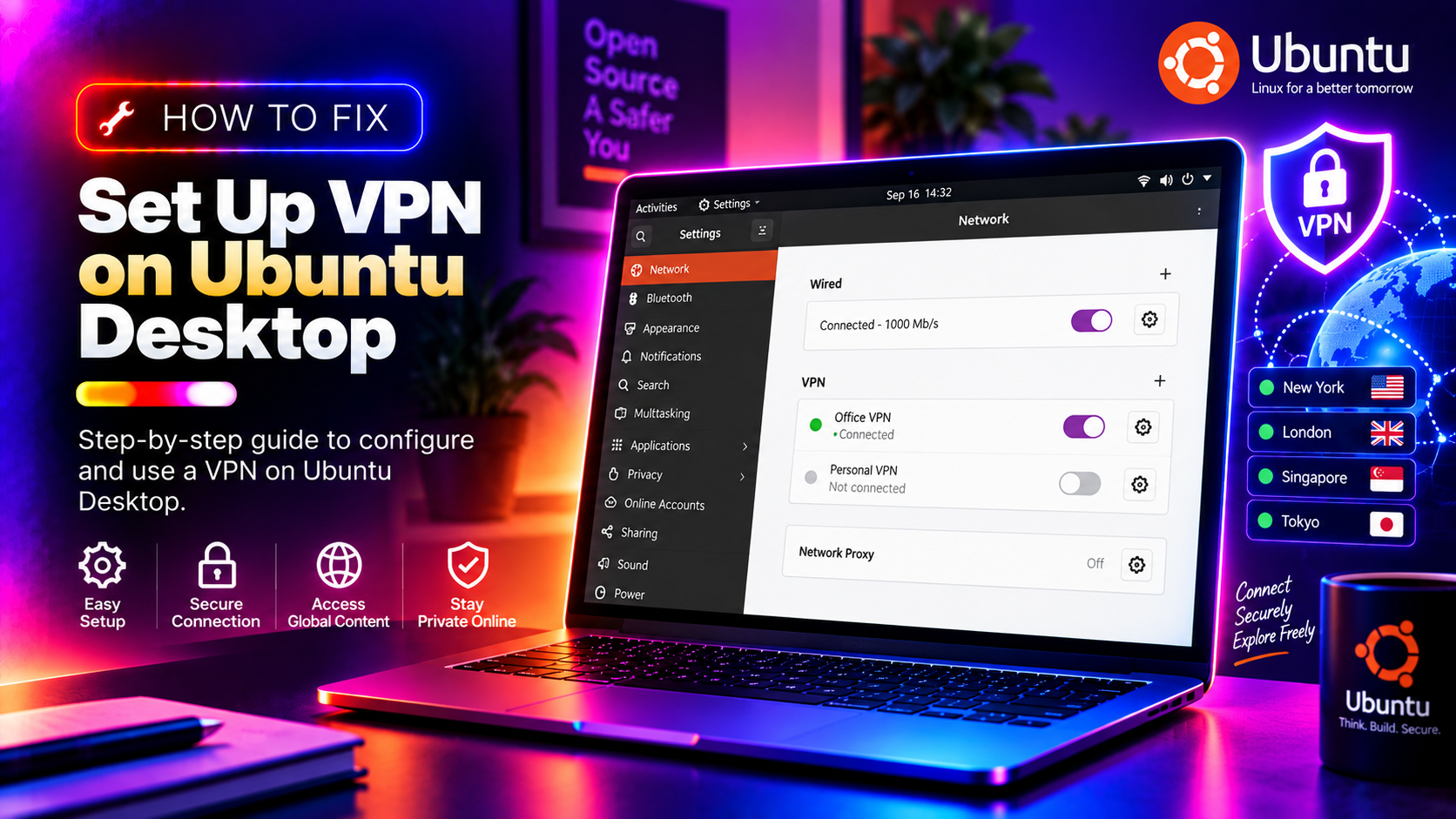
Why Set Up a VPN on Ubuntu Desktop?
VPN usage on Ubuntu Desktop has grown significantly in 2026, driven by remote work, public Wi-Fi risks, and increased interest in privacy. Whether you need to connect to a corporate network, bypass geographic restrictions, or encrypt your traffic on a coffee shop Wi-Fi, this guide covers the three main approaches: GUI setup via Network Manager, WireGuard (modern and fast), and OpenVPN (widely supported).
Method 1: Set Up a VPN Using Network Manager (GUI — Easiest)
Ubuntu Desktop's built-in Network Manager supports OpenVPN, WireGuard, L2TP/IPsec, and PPTP through plugins. This is the fastest method for most users.
Install the Required Plugin
# For OpenVPN (most commercial VPN providers)
sudo apt install network-manager-openvpn-gnome

# For WireGuard
sudo apt install wireguard network-manager-wireguard-gnome

# For L2TP/IPsec (common in corporate environments)
sudo apt install network-manager-l2tp-gnome
After installing, restart Network Manager: sudo systemctl restart NetworkManager
Import an OpenVPN Config File
- Download the
.ovpnconfig file from your VPN provider. - Open Settings → Network → VPN → + button.
- Select Import from file and choose your
.ovpnfile. - Enter your VPN username and password.
- Click Add, then toggle the VPN on.
Method 2: Set Up WireGuard VPN (Fastest Protocol)
WireGuard is a modern VPN protocol built into the Linux kernel since 5.6. It's significantly faster than OpenVPN and is natively supported on Ubuntu 20.04+.
Install WireGuard
sudo apt install wireguardConfigure WireGuard (CLI Method)
Your VPN provider will give you a WireGuard config file (e.g., wg0.conf). Place it in the right directory:
sudo cp wg0.conf /etc/wireguard/wg0.conf
sudo chmod 600 /etc/wireguard/wg0.conf
Start the VPN:
sudo wg-quick up wg0Check it's connected:
sudo wg showTo connect automatically on boot:
sudo systemctl enable wg-quick@wg0To disconnect:
sudo wg-quick down wg0Method 3: Set Up OpenVPN (CLI Method)
For corporate VPNs or maximum compatibility:
sudo apt install openvpnConnect using your provider's config file:
sudo openvpn --config /path/to/your-config.ovpnTo run OpenVPN as a service:
sudo cp your-config.ovpn /etc/openvpn/client/client.conf
sudo systemctl start openvpn-client@client
sudo systemctl enable openvpn-client@client
Fix: DNS Leaks After Connecting to VPN
The most common Ubuntu VPN problem in 2026: the VPN connects successfully but DNS queries still go through your ISP (a DNS leak). Fix it:
# Check for DNS leaks — visit dnsleaktest.com or run:
resolvectl status
If DNS isn't routing through the VPN, edit your WireGuard config and add the DNS setting:
[Interface]
DNS = 1.1.1.1, 1.0.0.1
For OpenVPN, add to your config file:
dhcp-option DNS 1.1.1.1Then update resolv.conf:
sudo resolvectl dns wg0 1.1.1.1 1.0.0.1Fix: Internet Stops Working When VPN Connects
This happens when the VPN pushes a default route that blocks all traffic. For WireGuard, check your AllowedIPs setting. Change from:
AllowedIPs = 0.0.0.0/0To route only VPN traffic (split tunneling):
AllowedIPs = 10.0.0.0/8, 172.16.0.0/12, 192.168.0.0/16Fix: VPN Disconnects After System Sleep/Hibernate
Create a systemd hook to reconnect after resume:
sudo nano /etc/systemd/system-sleep/vpn-restart.shAdd:
#!/bin/bash
case $1 in
  post) sudo wg-quick up wg0 ;;
esac
sudo chmod +x /etc/systemd/system-sleep/vpn-restart.shFix: Cisco AnyConnect / GlobalProtect on Ubuntu 24.04
Enterprise VPN clients like Cisco AnyConnect and GlobalProtect have compatibility issues with Ubuntu 24.04 LTS. Use the open-source alternatives:
- Cisco AnyConnect replacement:
sudo apt install openconnect network-manager-openconnect-gnome - GlobalProtect replacement: GlobalProtect-openconnect from GitHub
Verify Your VPN Is Working
# Check your public IP (should show VPN server's IP)
curl ifconfig.me

# Check WireGuard connection stats
sudo wg show

# Check if traffic is routing through VPN
traceroute 8.8.8.8
Need Help With VPN Setup?
Corporate VPN configurations can be complex. If you're struggling with certificate authentication, split tunneling, or enterprise VPN clients on Ubuntu, CloudHouse Technologies' Pay-Per-Ticket Support has Linux network engineers ready to help remotely.