
How to Check Your Mac's Storage
Before you start deleting files, see exactly what's taking up space. On macOS in 2026:
Apple Menu → System Settings → General → Storage
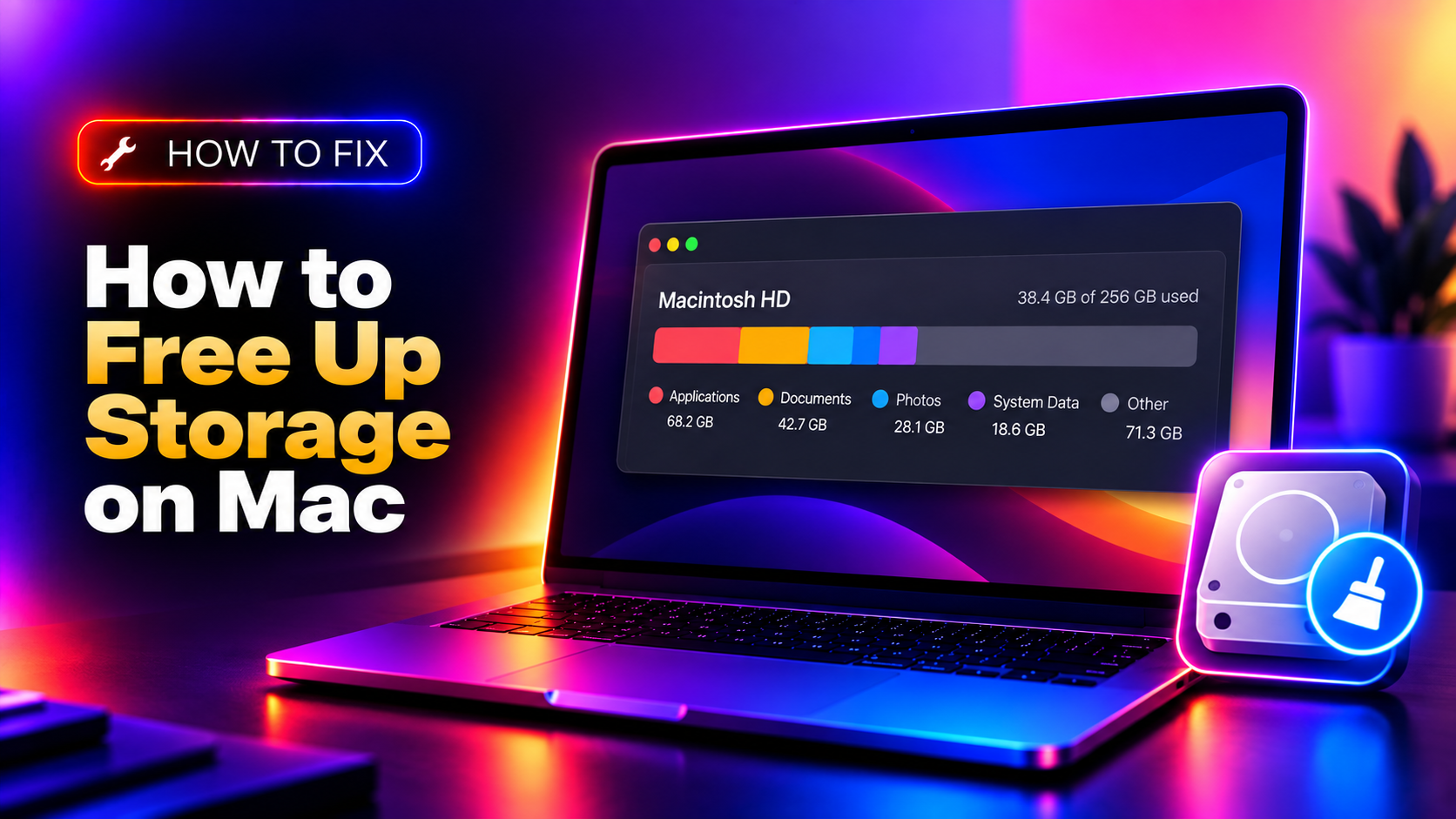
You'll see a breakdown by category: Applications, Documents, Photos, System Data, iCloud Drive, and "Other". The bar chart tells you where the biggest gains are. This guide targets each category with specific cleanup methods.
1. Empty the Trash
Obvious, but often overlooked: deleted files stay in the Trash until you empty it. Right-click the Trash icon in the Dock → Empty Trash. Also enable auto-empty:
Finder → Settings → Advanced → Remove items from the Trash after 30 days
2. Clear System Data and Cache Files
"System Data" in the Storage menu can balloon to 20–100GB. A significant portion is safe to delete:
# Clear system-level caches
sudo rm -rf /Library/Caches/*

# Clear user-level caches (safe to delete)
rm -rf ~/Library/Caches/*

# Clear browser caches (Safari)
rm -rf ~/Library/Safari/Webpage\ Previews/*
After clearing caches, restart your Mac. Caches will be rebuilt automatically — this is safe and won't break anything.
3. Find and Delete Large Files
# Find files larger than 1GB
find ~ -size +1G -not -path "*/Library/*" 2>/dev/null
Or use the built-in storage tool: System Settings → General → Storage → click the "i" icon next to Documents → Large Files. This shows your biggest files sorted by size — review and delete what you no longer need.
4. Clean Up Time Machine Local Snapshots
Time Machine stores local snapshots on your Mac that can consume 20–50GB. If backup space is tight:
# List local snapshots
tmutil listlocalsnapshots /

# Delete a specific snapshot (replace date with actual snapshot name)
tmutil deletelocalsnapshots 2026-06-15-101234

# Delete ALL local snapshots (they'll be recreated on next backup)
tmutil listlocalsnapshots / | grep "com.apple.TimeMachine" | while read snap; do tmutil deletelocalsnapshots "${snap##*=}"; done
5. Remove Duplicate Files
Duplicate photos, documents, and downloads are a hidden storage drain. Use macOS Photos' built-in duplicate detection:
Photos → Albums → Duplicates (macOS Ventura+)
For files and documents, use the free app dupeGuru or search manually:
# Find duplicate files in Downloads (same size = potential duplicate)
find ~/Downloads -type f | xargs md5 | sort | awk -F' ' 'seen[$1]++ {print $2}'
6. Optimize iCloud Storage
Enable "Optimize Mac Storage" to store files in iCloud and keep only recent ones locally:
System Settings → [Your Name] → iCloud → iCloud Drive → Optimize Mac Storage
This is particularly effective if you have a large iCloud subscription — older files move to iCloud while recent ones stay local. Note: files need an internet connection to open when they're in iCloud only.
7. Uninstall Unused Applications
# Find all .app bundles and their sizes
du -sh /Applications/* | sort -rh | head -20
To properly uninstall apps on macOS (removing all associated files, not just the .app bundle), use AppCleaner (free) — drag the app into AppCleaner and it finds and removes all related preference files, caches, and support files that Finder's "Move to Trash" misses.
8. Clear Xcode and Developer Tool Caches
If you're a developer, Xcode's derived data, archives, and simulators can consume 50–100GB:
# Remove Xcode derived data (safe — rebuilds on next compile)
rm -rf ~/Library/Developer/Xcode/DerivedData/*

# Remove old device support files (keep latest only)
ls ~/Library/Developer/Xcode/iOS\ DeviceSupport/

# Remove old iOS Simulator runtimes
xcrun simctl delete unavailable
In Xcode: Window → Organizer → Archives — delete old app archives you no longer need to submit.
9. Remove Old iOS Backups
iTunes/Finder backups of old iPhones and iPads take up significant space:
Finder → [Your iPhone] when connected → Manage Backups → Delete old ones
Or manually at:
ls ~/Library/Application\ Support/MobileSync/Backup/10. Use Storage Recommendations (Built-In)
macOS has built-in storage optimization tools:
System Settings → General → Storage → click each item
- Store in iCloud: Moves Desktop and Documents to iCloud
- Optimize Storage: Removes watched iTunes content
- Empty Trash Automatically: Removes items after 30 days
- Reduce Clutter: Shows large files with easy delete buttons
Need More Help?
If your Mac storage is still critically low after trying all these steps, or System Data keeps growing back, CloudHouse Technologies' Pay-Per-Ticket Support can do a deep-dive audit of your Mac storage and safely recover gigabytes of space.