
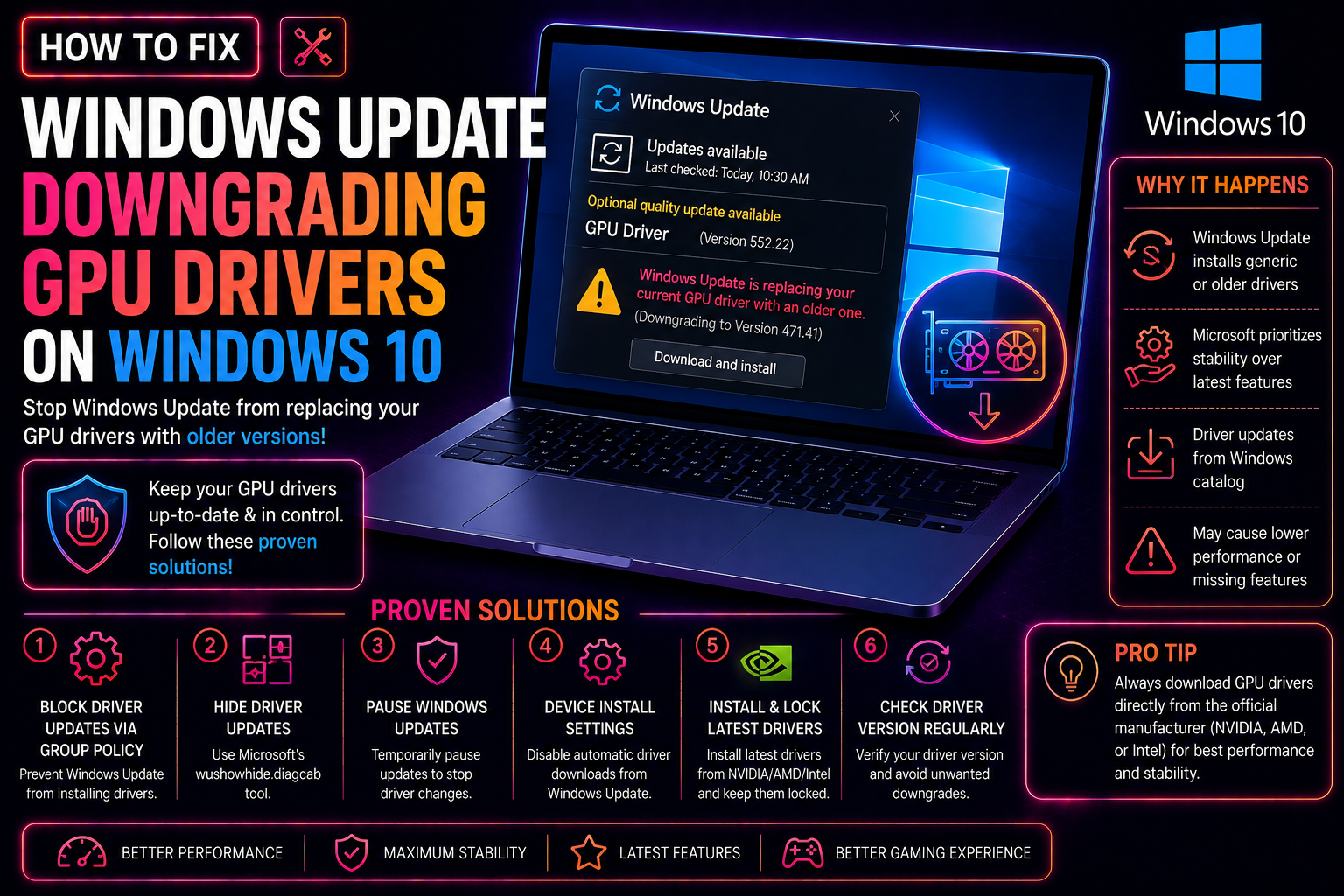
You spend time downloading the latest NVIDIA, AMD, or Intel GPU driver — then Windows Update silently replaces it with an older version. Your frame rates drop, games crash, and driver features you relied on simply vanish. This is not a glitch; it is a confirmed behaviour in Windows 10, and Microsoft officially acknowledged it in May 2026. The root cause is a flaw in how Windows Update ranks drivers using Hardware IDs (HWIDs) and Computer Hardware IDs (CHIDs) — the system can treat an older OEM-published driver as "best ranked" even when a newer one is already installed. Until Microsoft's full CHID targeting fix rolls out in Q4 2026–Q1 2027, you need to take matters into your own hands. This guide covers every reliable method to stop Windows 10 from downgrading your GPU driver — including steps most other articles skip.
Why Does Windows Update Keep Downgrading Your GPU Driver?
Windows Update uses a 4-part Hardware ID (HWID) ranking system to decide which driver to install. When an OEM submits a driver package to Microsoft's update catalog, it can be tagged with a CHID (Computer Hardware ID) that targets specific system configurations. The problem: if that OEM driver has a lower version number than what you manually installed, the CHID match can still make Windows treat it as the "correct" driver — and it overwrites yours silently.
Microsoft confirmed this as a targeting defect in May 2026. The planned fix involves stricter two-part HWID + CHID scoping for new display driver submissions, with a pilot running April–September 2026 and broader enforcement planned for Q4 2026 to Q1 2027. Existing drivers are not yet covered by this fix, which means Windows 10 users need a manual solution right now.
Common symptoms include:
- GPU driver version reverts after every Windows Update cycle
- Game performance drops or crashes after an update
- NVIDIA Control Panel or AMD Radeon Software loses settings
- Device Manager shows an older driver date and version after a reboot
Quick Fix: Block Driver Updates via Windows Update Settings
This is the fastest starting point for all Windows 10 editions.
Step 1 — Open Advanced System Settings
Press Win + R, type sysdm.cpl, and press Enter. Click the Hardware tab, then click Device Installation Settings.
Step 2 — Disable Automatic Driver Downloads
Select "No (your device might not work as expected)" and click Save Changes. This prevents Windows Update from automatically fetching and applying driver updates — including GPU downgrades — going forward.
Note: This setting blocks all automatic driver updates, not just GPU ones. You will need to update other drivers manually if needed. It does not affect security updates.
Method 2: Use the Show or Hide Updates Troubleshooter to Block Specific Drivers
If you want to block only your GPU driver update while allowing other Windows Updates to proceed normally, use Microsoft's official Show or Hide Updates tool.
Step 1 — Download the Tool
Go to the Microsoft support page and download wushowhide.diagcab (search "Microsoft Show or Hide Updates Troubleshooter" on support.microsoft.com). Run the file directly — no installation needed.
Step 2 — Hide the Problem Driver
- Click Next on the troubleshooter welcome screen.
- Select Hide updates.
- The tool scans for available updates. Look for your GPU driver entry — it typically appears as "NVIDIA — Display — [version]" or "Advanced Micro Devices — Display — [version]".
- Check the box next to the driver update you want to block and click Next.
The update will now be hidden and Windows Update will skip it. To re-enable it later, run the same tool and choose Show hidden updates.
Method 3: Exclude GPU Drivers Using Group Policy (Windows 10 Pro)
Windows 10 Pro, Education, and Enterprise users can enforce driver exclusion via Group Policy — a more permanent and system-level solution.
Step 1 — Open Group Policy Editor
Press Win + R, type gpedit.msc, and press Enter.
Step 2 — Navigate to the Driver Policy
Go to: Computer Configuration → Administrative Templates → Windows Components → Windows Update
Find the policy named "Do not include drivers with Windows Updates" and double-click it.
Step 3 — Enable the Policy
Select Enabled and click OK. This applies a machine-wide rule that prevents Windows Update from delivering any driver updates — it will continue to deliver security patches, feature updates, and cumulative updates as normal.
Alternative: Registry Method for Windows 10 Home
Home edition users do not have Group Policy Editor. Use this registry equivalent instead:
- Press Win + R, type
regedit, and press Enter. - Navigate to:
HKEY_LOCAL_MACHINE\SOFTWARE\Policies\Microsoft\Windows\WindowsUpdate
(Create theWindowsUpdatekey if it does not exist.) - Right-click the right pane → New → DWORD (32-bit) Value.
- Name it ExcludeWUDriversInQualityUpdate.
- Double-click it and set the value to 1.
- Click OK and restart your PC.
To undo this change, delete the DWORD value or set it back to 0.
Method 4: Use DDU and Reinstall the Correct Driver After Blocking Updates
If Windows Update has already downgraded your GPU driver, you need to clean-install the correct version. A partial reinstall often leaves registry traces that cause the old driver to resurface.
Step 1 — Download Display Driver Uninstaller (DDU)
Download DDU from guru3d.com/files-details/display-driver-uninstaller-download.html. This free tool performs a complete driver wipe with no leftovers.
Step 2 — Boot into Safe Mode
Press Win + R, type msconfig, go to the Boot tab, check Safe boot → Minimal, and restart. Running DDU in Safe Mode ensures Windows does not reinstall drivers automatically during the process.
Step 3 — Run DDU
Open DDU, select your GPU type (NVIDIA / AMD / Intel) from the dropdown, and click "Clean and restart". DDU will remove all driver files, registry entries, and leftover packages.
Step 4 — Install the Correct Driver
After reboot (back into normal mode), download the latest driver directly from:
- NVIDIA: nvidia.com/drivers
- AMD: amd.com/en/support
- Intel: intel.com/content/www/us/en/download-center/home.html
Run the installer and choose Custom Installation → Clean Installation to overwrite any residual components.
Important: Apply the Group Policy or Registry block (Method 3) before rebooting after DDU — otherwise Windows Update may push the old driver before you can install the new one.
How to Verify Which GPU Driver Version Is Currently Installed
After applying any fix, confirm your intended driver version is active — not the downgraded one Windows Update pushed.
Via Device Manager
- Press Win + X → Device Manager.
- Expand Display adapters and right-click your GPU.
- Select Properties → Driver tab.
- Check Driver Version and Driver Date.
Via PowerShell (most reliable)
Open PowerShell as Administrator and run:
Get-WmiObject Win32_VideoController | Select-Object Name, DriverVersion, DriverDateThis outputs the exact installed driver version. Cross-reference it with the version number shown on NVIDIA's or AMD's download page to confirm you have the right one.
Recheck After Each Reboot
After a Windows Update cycle, rerun the PowerShell command or check Device Manager again. If the version changed, your block did not apply correctly — revisit Method 3 and ensure the Group Policy or Registry value is set.
Prevention Tips to Keep Your GPU Driver from Being Overwritten Again
- Use manufacturer software with update lock: NVIDIA App and AMD Adrenalin Edition both have options to manage driver updates. Enabling their update manager can prevent Windows Update from interfering.
- Pause Windows Update temporarily after installing a driver: Go to Settings → Windows Update → Advanced Options → Pause Updates for up to 35 days while you confirm driver stability.
- Check Windows Update history after every reboot: Go to Settings → Windows Update → View update history. Look for any driver updates listed — if you see a GPU driver entry you did not approve, your block has a gap.
- Avoid OEM utility software conflicts: Some laptop manufacturers (Dell, HP, Lenovo) push their own GPU driver packages via Windows Update using CHID targeting. If you are on a laptop, the OEM driver may be required for certain hardware features — test carefully before permanently blocking it.
- Monitor Microsoft's CHID fix rollout: Microsoft's corrected targeting system is scheduled for Q4 2026–Q1 2027. Once released, new driver submissions will use stricter scoping — but you may still need to manually update to a post-fix driver package to benefit.
Need expert help? CloudHouse Technologies offers Pay-Per-Ticket Support — get a specialist to fix this for you.
Frequently Asked Questions
Why does Windows Update keep replacing my NVIDIA driver with an older version?
Windows Update uses a Hardware ID (HWID) and CHID ranking system that can treat an older OEM-submitted driver as the best match for your hardware configuration. Microsoft confirmed this is a targeting defect in May 2026 and is rolling out a fix in Q4 2026–Q1 2027, but until that fix reaches your system, you need to block the downgrade manually using the Group Policy or Registry methods described in this guide.
Will blocking driver updates in Windows Update stop security patches too?
No. The "Do not include drivers with Windows Updates" Group Policy and the ExcludeWUDriversInQualityUpdate registry value only block driver packages. Security updates, cumulative updates, and feature updates are delivered through separate channels and are not affected. Your system will continue to receive all critical patches.
How do I know if Windows Update downgraded my GPU driver after a reboot?
Open PowerShell as Administrator and run Get-WmiObject Win32_VideoController | Select-Object Name, DriverVersion, DriverDate. Note the driver version before and after a Windows Update cycle. Alternatively, go to Settings → Windows Update → View update history and look for any display driver entries that were installed automatically.
Does the Show or Hide Updates troubleshooter work on Windows 10 Home?
Yes. The wushowhide.diagcab troubleshooter works on all editions of Windows 10, including Home. It is the best option if you want to block only a specific GPU driver update while allowing all other Windows Updates to proceed normally. Download it from the Microsoft support website and run it before the next update cycle.
Is it safe to use DDU (Display Driver Uninstaller) to remove my GPU driver?
Yes, DDU is widely trusted and recommended by NVIDIA and AMD support communities. Run it in Safe Mode for the cleanest result. Always download DDU directly from guru3d.com to avoid unofficial versions. After using DDU, install your preferred driver version immediately and apply the update block before rebooting to prevent Windows Update from re-applying the old driver.