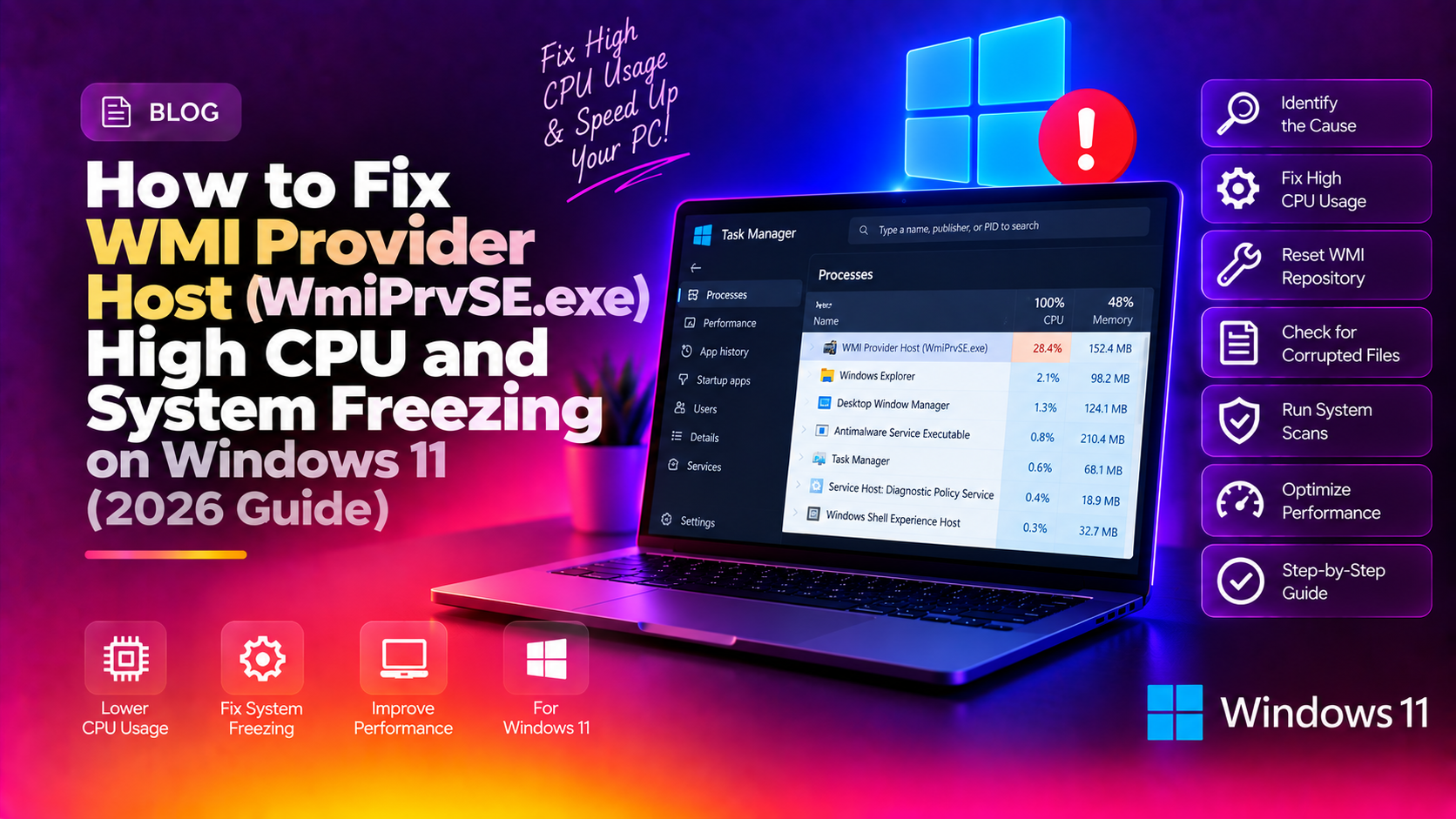
If you've opened Task Manager on your Windows 11 PC and spotted WMI Provider Host (WmiPrvSE.exe) consuming 50–100% of your CPU — especially after a Windows Update or when waking from sleep — you're not alone. This is one of the most reported performance issues on Windows 11 in 2025 and 2026, leaving machines unresponsive for minutes at a time. The good news: it's almost always fixable without reinstalling Windows.
This guide walks you through exactly what WmiPrvSE.exe is, what triggers the spike, and three proven fixes to permanently resolve it — plus how to stop it from coming back.
What Is WMI Provider Host and Why Does It Cause High CPU and Freezing on Windows 11?
Windows Management Instrumentation (WMI) is a core Windows subsystem that lets applications, scripts, and system tools query hardware and software information — things like CPU temperature, installed programs, disk health, and network adapters. WMI Provider Host (WmiPrvSE.exe), located at C:\Windows\System32\wbem\WmiPrvSE.exe, is the process that runs on behalf of those requesting applications.
Here's the key insight: WmiPrvSE.exe itself is almost never the root cause. It's a relay process. When it pegs your CPU, it means something else — an application, a driver, a Windows service, or even malware — is bombarding WMI with requests it can't complete fast enough.
Common Triggers
- Broken or outdated drivers repeatedly querying hardware state via WMI
- Corrupt WMI repository causing failed queries that loop endlessly
- Third-party software (antivirus, monitoring tools, HP/Dell management software) making aggressive WMI calls
- Windows Update components scanning system inventory post-patch
- Wake-from-sleep events triggering a burst of WMI activity before the system stabilises
- Malware disguised as or exploiting WMI subscriptions
The freezing you experience happens because WmiPrvSE.exe is single-threaded by design — when it saturates a CPU core, other system processes starve for resources, causing the entire UI to lock up.
Fix 1: Identify and Stop the Rogue WMI Consumer Triggering the Spike
Before applying blanket fixes, identify exactly which process is the culprit. This takes under five minutes and targets the real problem.
Step 1 — Find the WmiPrvSE.exe Process ID (PID)
- Open Task Manager (Ctrl + Shift + Esc)
- Click the Details tab
- Locate
WmiPrvSE.exe— note its PID number (e.g., 3456)
Step 2 — Trace the Caller via Event Viewer
- Press Win + R, type
eventvwr.msc, press Enter - Navigate to: Applications and Services Logs > Microsoft > Windows > WMI-Activity > Operational
- Look for Error or Warning events — each entry shows the ClientProcessId of the application making the problematic WMI query
- Cross-reference that PID in Task Manager's Details tab to find the offending application
Step 3 — Kill or Disable the Offending Application
Once identified:
- If it's a third-party app (e.g., HP Support Assistant, Dell SupportAssist, antivirus monitor): right-click the process in Task Manager → End Task. Then uninstall or update the application.
- If it's a Windows service: open
services.msc, locate the service, right-click → Restart - If it's a driver: open Device Manager (
devmgmt.msc), find the device, right-click → Update driver or roll back to a previous version
In many cases, simply terminating the rogue process stops the WmiPrvSE.exe spike immediately and permanently once the offending app is updated or removed.
Fix 2: Rebuild the Corrupt WMI Repository Using Command Prompt
A corrupt WMI repository is one of the most common reasons for persistent WmiPrvSE.exe CPU spikes, especially after a failed Windows Update or a system crash. Rebuilding it forces Windows to recreate the entire WMI database from scratch.
Step 1 — Open Elevated Command Prompt
Press Win + S, type cmd, right-click Command Prompt → Run as administrator
Step 2 — Stop the WMI Service
net stop winmgmtIf prompted that other services will also stop, type Y and press Enter.
Step 3 — Check Repository Consistency
winmgmt /verifyrepositoryIf the output says "WMI repository is inconsistent", proceed to the next step. If it says consistent but you still have issues, skip to Step 5.
Step 4 — Reset the WMI Repository
winmgmt /resetrepositoryThis command rebuilds the repository from the built-in MOF files. The process takes 30–90 seconds.
Step 5 — Run DISM and SFC to Repair System Files
DISM.exe /Online /Cleanup-image /RestorehealthWait for DISM to complete (it may take 10–20 minutes), then run:
sfc /scannowDo not close the Command Prompt window until you see "Windows Resource Protection did not find any integrity violations" or the repair completes.
Step 6 — Restart the WMI Service and Reboot
net start winmgmtThen restart your PC. Monitor Task Manager for 10–15 minutes after reboot — the WmiPrvSE.exe CPU usage should be negligible (under 1%).
Fix 3: Disable or Restart the Windows Management Instrumentation Service
If the spike is intermittent or appeared after a specific Windows Update, restarting (not permanently disabling) the WMI service often clears the backlog and restores normal operation.
Option A — Restart via Services Manager (Recommended)
- Press Win + R, type
services.msc, press Enter - Scroll to Windows Management Instrumentation
- Right-click → Restart
- Also restart these dependent services if visible: IP Helper, Windows Update, Windows Defender
Option B — Restart via Command Prompt
net stop winmgmt && net start winmgmtOption C — Check for Permanent WMI Subscriptions (Malware / Persistence)
Malware frequently uses WMI subscriptions to persist across reboots. To audit active subscriptions, open PowerShell as Administrator and run:
Get-WMIObject -Namespace root\subscription -Class __EventFilter
Get-WMIObject -Namespace root\subscription -Class __EventConsumer
Get-WMIObject -Namespace root\subscription -Class __FilterToConsumerBinding
If these commands return unexpected entries (anything not from Microsoft or a known security product), you likely have a malware WMI subscription. Run a full scan with Windows Defender Offline or Malwarebytes immediately.
To remove a malicious WMI subscription (replace "MaliciousFilterName" with the actual Name field from the output above):
Get-WMIObject -Namespace root\subscription -Class __EventFilter -Filter "Name='MaliciousFilterName'" | Remove-WMIObjectIf you need deeper diagnostics or aren't comfortable running these commands, our team can handle it remotely — see our professional PC support service for fast, affordable help.
How to Prevent WmiPrvSE.exe From Spiking CPU Again in the Future
Once you've resolved the immediate issue, these practices will stop it from recurring:
1. Keep Windows and Drivers Updated
Go to Settings > Windows Update > Advanced Options > Optional Updates and install all pending driver updates. Outdated drivers are the #1 trigger for recurring WMI spikes. Use Device Manager to scan for driver updates after every major Windows Update.
2. Audit Startup and Background Applications
Open Task Manager → Startup Apps tab. Disable any manufacturer bloatware (HP Support Assistant, Dell SupportAssist, Lenovo Vantage) that you don't actively need — these are notorious WMI heavy-hitters. You can always re-enable them if needed.
3. Schedule Regular SFC Scans
Create a monthly scheduled task to run sfc /scannow automatically. A corrupt system file caught early prevents the WMI repository from becoming inconsistent.
4. Monitor with WMI Activity Logs Enabled
Keep the WMI-Activity/Operational log enabled in Event Viewer (it should be on by default in Windows 11). If a spike recurs, you'll have a timestamped log of exactly which process triggered it — no guesswork needed.
5. Avoid WMI-Heavy Monitoring Tools
Some system monitoring utilities (especially older versions of HWiNFO, Speccy, or network management suites) poll WMI dozens of times per second. If you use these, check for updates or switch to tools that use direct hardware APIs instead.
Frequently Asked Questions About WMI Provider Host on Windows 11
Is WmiPrvSE.exe a virus?
The legitimate WmiPrvSE.exe lives at C:\Windows\System32\wbem\WmiPrvSE.exe. If you see it running from any other location (e.g., your Desktop, Temp folder, or AppData), treat it as malware and run an immediate full scan. The real process is digitally signed by Microsoft and cannot be deleted — only services calling it can be controlled.
Can I safely disable WMI Provider Host?
No. WMI is a core Windows component used by Windows Update, Windows Defender, Remote Desktop, PowerShell, and countless system services. Disabling it will break those features. The correct approach is to identify and fix whatever is driving it to spike — not to disable WMI itself.
Why does WmiPrvSE.exe spike after sleep or hibernate?
When Windows wakes from sleep, several services restart and perform WMI inventory queries simultaneously — Windows Update, Defender, and hardware drivers all check system state at once. This burst is usually temporary (under 2 minutes). If it persists beyond 5 minutes after wake, use Event Viewer to identify the lingering caller as described in Fix 1.
Does WMI Provider Host high CPU affect gaming performance?
Yes. A WmiPrvSE.exe spike consuming even 20–30% CPU during a game will cause noticeable frame drops, stuttering, and input lag — especially on systems with 4-core or 6-core processors where one core being saturated represents a significant resource loss.
How long does rebuilding the WMI repository take?
The winmgmt /resetrepository command typically takes 30–90 seconds on a modern NVMe drive. The subsequent DISM repair can take 10–25 minutes depending on your internet speed (it downloads replacement files from Windows Update). A full system restart is required after, adding another 1–3 minutes. Total time: approximately 15–30 minutes from start to verified fix.