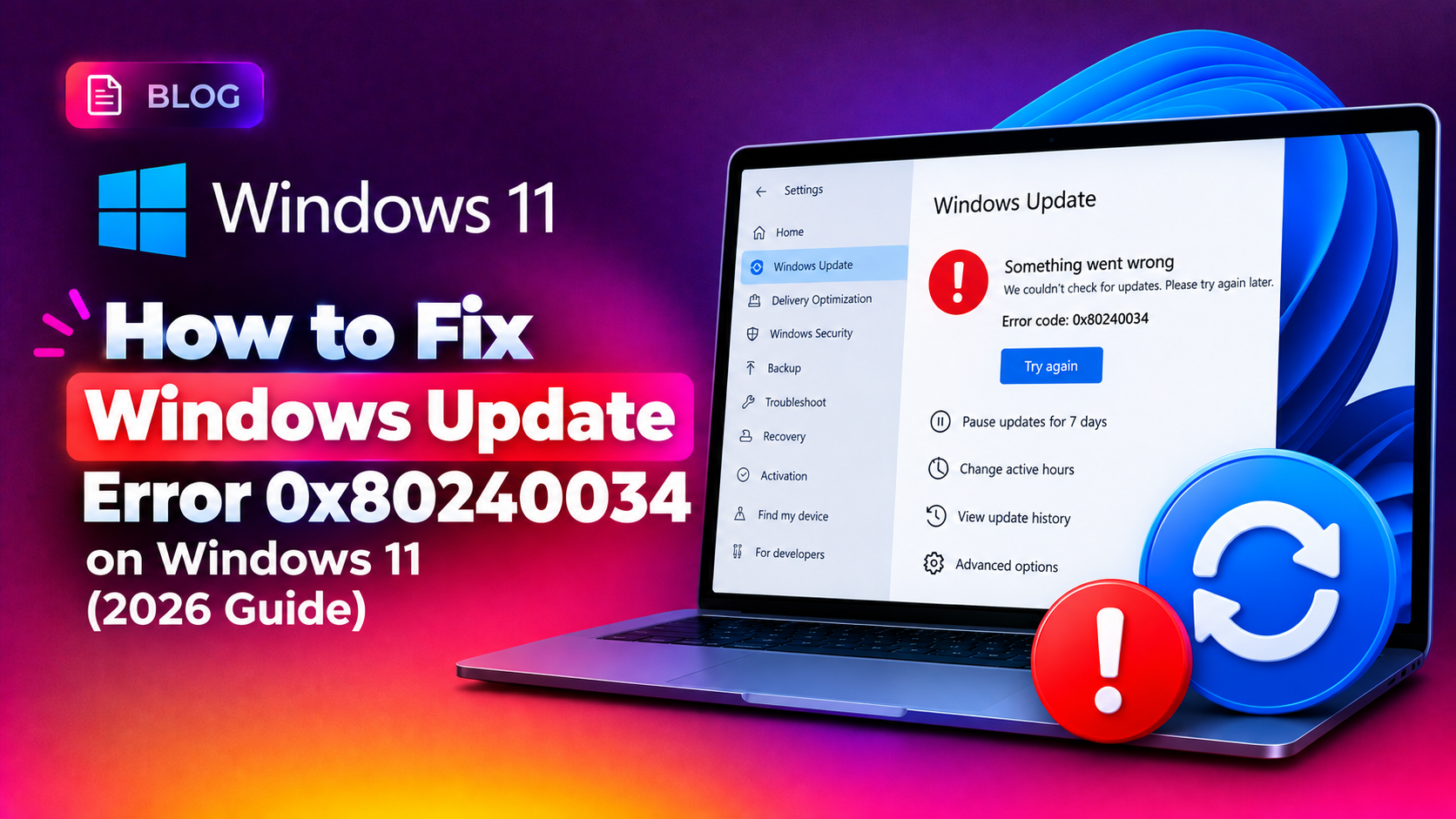
Seeing Windows Update error 0x80240034 every time your Windows 11 PC tries to download a cumulative update, feature update, or driver package? This error — internally known as WU_E_DOWNLOAD_FAILED — means Windows Update started the download but could not finish retrieving the update files. It leaves your PC stuck on an outdated, potentially insecure build and blocks every subsequent KB from installing until it's resolved. This 2026 guide walks through every real fix, from the quickest one-click options to a full Windows Update component reset and manual KB installation.
What Causes Windows Update Error 0x80240034 on Windows 11
Error 0x80240034 usually points to one of the following root causes:
- A corrupted or bloated SoftwareDistribution cache folder holding damaged partial downloads
- Corrupted catroot2 signature store used to validate update packages
- Stopped, disabled, or misconfigured Windows Update, BITS, or Cryptographic services
- Interrupted internet connection or an overly aggressive firewall/proxy blocking Microsoft's update servers
- Corrupted system files affecting the update client (fixed by DISM and SFC)
- Developer Mode enabled, which occasionally interferes with update delivery on Windows 11 24H2
- Insufficient free disk space on the system drive to stage the downloaded update
Because the error can be triggered by several different underlying issues, the fastest path to a permanent fix is to work through the solutions below in order — from least to most invasive.
💡 None of these worked? Skip the guesswork.
Get Expert Help →Quick Fixes to Try First
A large share of 0x80240034 failures are transient — caused by a dropped connection to Microsoft's update servers mid-download. Restart Windows 11, open Settings > Windows Update, and click Check for updates again.
Confirm you have at least 20 GB of free space on the system drive (feature updates can require more), and that you're not behind a restrictive VPN, proxy, or corporate firewall blocking *.windowsupdate.com and *.delivery.mp.microsoft.com.
Go to Settings > Privacy & security > For developers and toggle Developer Mode off, then reboot before retrying the update.
Go to Settings > System > Troubleshoot > Other troubleshooters, then click Run next to Windows Update.
Let the tool scan and apply any fixes it finds, then restart your PC and check for updates again.
If the failing update is an optional preview build (common with KB updates released mid-month), use the Show or Hide Updates troubleshooter from Microsoft's Update Catalog page to skip it safely — preview updates are non-critical and the fix will arrive in the next month's cumulative rollup.
Search for cmd, right-click Command Prompt, and choose Run as administrator.
net stop wuauserv
net stop cryptsvc
net stop bits
net stop msiserverren C:\Windows\SoftwareDistribution SoftwareDistribution.old
ren C:\Windows\System32\catroot2 catroot2.oldRenaming (rather than deleting) lets Windows rebuild clean folders automatically while preserving the old ones as a backup.
net start wuauserv
net start cryptsvc
net start bits
net start msiserverIf updates still fail to download, the Background Intelligent Transfer Service (BITS) permissions may be corrupted. Reset them with:
sc.exe sdset bits D:(A;;CCLCSWRPWPDTLOCRRC;;;SY)(A;;CCDCLCSWRPWPDTLOCRSDRCWDWO;;;BA)(A;;CCLCSWLOCRRC;;;AU)(A;;CCLCSWRPWPDTLOCRRC;;;PU)Then restart your PC and retry the update.
DISM /Online /Cleanup-Image /CheckHealth
DISM /Online /Cleanup-Image /ScanHealth
DISM /Online /Cleanup-Image /RestoreHealth
The /RestoreHealth pass downloads replacement files from Windows Update itself, so it needs a working internet connection. This can take 10-20 minutes — let it finish even if the progress bar appears to stall near 20% or 60%.
sfc /scannowSFC will report either "did not find any integrity violations" or "successfully repaired." If it reports files it could not fix, re-run DISM /RestoreHealth once more, then run SFC again.
Restart your PC after both tools complete, then check for updates again.
Go to Settings > Windows Update > Update history and note the exact KB number shown next to the failed update.
Visit the Microsoft Update Catalog, search the KB number, and download the package matching your Windows 11 build (x64 or ARM64).
wusa.exe C:\Downloads\windows11.0-kbXXXXXXX-x64.msu /quiet /norestartReplace the filename with the actual downloaded file, then restart your PC to complete installation.
After reboot, go back to Update history and confirm the KB now shows as successfully installed.
If the manual install also fails, or the same error resurfaces on every update cycle, the issue may point to deeper disk, driver, or firmware conflicts that are faster to diagnose with a professional set of eyes than by trial and error. CloudHouse Technologies' pay-per-ticket IT support can remotely diagnose and resolve stubborn Windows Update failures without a subscription commitment.
Preventing 0x80240034 From Coming Back
- Keep at least 20-30 GB of free space on your system drive at all times
- Avoid interrupting updates mid-download — let your laptop stay plugged in and awake during installs
- Periodically run
DISM /Online /Cleanup-Image /StartComponentCleanupto trim the update backup store - Keep antivirus and firewall exclusions configured for Windows Update endpoints if you use third-party security software
- Install optional preview updates only if you specifically need an early fix — skip them otherwise to avoid unnecessary download failures
Windows Update error 0x80240034 is almost always fixable without a clean install. Start with a restart and the built-in troubleshooter, escalate to a Windows Update component reset, repair system files with DISM and SFC, and fall back to a manual KB install from the Update Catalog if all else fails. Working through these steps in order resolves the vast majority of WU_E_DOWNLOAD_FAILED cases on Windows 11.
Frequently Asked Questions
What does error 0x80240034 mean on Windows 11?
It's the WU_E_DOWNLOAD_FAILED code, meaning Windows Update started downloading an update but the download did not complete successfully. It can be caused by network interruptions, a corrupted SoftwareDistribution cache, damaged system files, or blocked update servers.
Is it safe to delete the SoftwareDistribution folder?
Yes. Renaming or deleting the SoftwareDistribution folder only removes cached update files and download history — it does not affect installed programs or personal data. Windows automatically recreates the folder and re-downloads any pending updates.
Why does Windows 11 update fail to download even with a good internet connection?
Even with fast, stable internet, downloads can fail due to corrupted BITS service permissions, a full or damaged SoftwareDistribution cache, firewall/proxy rules blocking Microsoft's update domains, or insufficient disk space to stage the update package.
How do I fix Windows Update error 0x80240034 without losing my files?
All the fixes in this guide — resetting update components, running DISM/SFC, and manually installing via the Update Catalog — are non-destructive and do not touch personal files or installed applications.
Should I skip an optional update if it keeps failing with 0x80240034?
Yes, if it's an optional preview update (usually released mid-month), it's safe to hide it using the Show or Hide Updates troubleshooter. The same fixes are typically rolled into the following month's mandatory cumulative update, which installs normally.