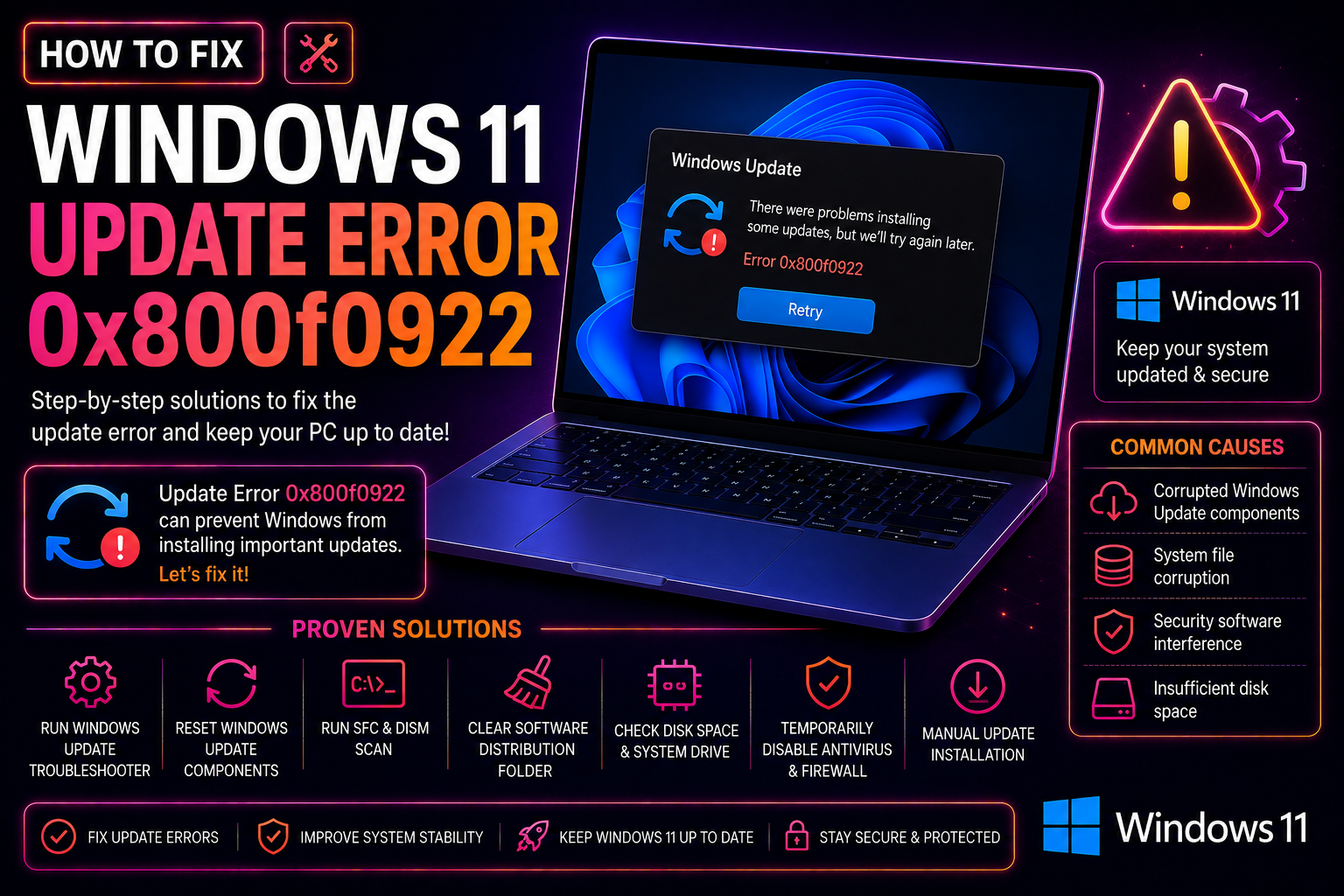
You kick off the latest Windows 11 security update — KB5089549 or a similar monthly patch — and watch the progress bar crawl to around 35%. Then the machine reboots, you see "Something didn't go as planned," and Windows rolls everything back. The culprit is error code 0x800f0922, and it has been trapping thousands of Windows 11 users in a frustrating update loop since early 2026. The good news: the root cause is well-documented, and every fix below is specific, actionable, and safe to run without reinstalling Windows.
What Is Error 0x800f0922 and Why Does It Happen on Windows 11
Error 0x800f0922 means Windows Update was unable to stage or apply a component-based update — the installer started, committed changes to disk during the reboot phase, and then failed before it could finalize. Microsoft officially confirmed in May 2026 that the primary trigger on Windows 11 versions 24H2 and 25H2 is an undersized EFI System Partition (ESP).
During servicing, Windows reserves a percentage of EFI partition space as padding for the bootloader files it needs to place there. If your ESP has 10 MB or less of free space, the reservation cannot be satisfied and the update aborts at approximately 35–36% — right at the point where the bootloader swap occurs. This is especially common on:
- PCs originally configured with a 100 MB EFI partition (the Windows 10 default) that has been filled up over years of cumulative updates
- OEM factory images that created an ESP as small as 50 MB
- Machines upgraded from Windows 7 or 8 where the layout was never modernised
Secondary causes include corrupted Windows Update component store files, network timeouts preventing the update manifest from downloading, and a damaged .NET Framework installation.
Quick Fix: Free Up Space on the EFI System Partition
This is the fix Microsoft recommends first because it resolves the issue without resizing partitions. It lowers the EFI padding reservation Windows uses during servicing to zero, giving the update room to complete.
Step 1 — Apply the Registry workaround
Open Command Prompt as Administrator (right-click Start → Terminal (Admin)) and run:
reg add "HKLM\SYSTEM\CurrentControlSet\Control\Bfsvc" /v EspPaddingPercent /t REG_DWORD /d 0 /fYou should see The operation completed successfully. Restart your PC and retry Windows Update.
Step 2 — Install KB5089573 (the permanent fix)
Microsoft released optional update KB5089573 (Build 26200.8524, available from 26 May 2026) which resolves the root cause and ships an automatic non-destructive ESP repair tool. To get it:
- Go to Settings → Windows Update → Advanced options → Optional updates
- Select KB5089573 and click Download & install
- After installation, the ESP is extended automatically — no manual partition work required
If KB5089573 is not listed, open Windows Update and click Check for updates to pull the latest catalog.
Step 3 — Manually check ESP free space
Open an elevated Command Prompt and run DiskPart to inspect your ESP:
diskpart
list disk
select disk 0
list partition
Identify the partition of type System (typically Partition 1, around 100–260 MB). If the used space nearly equals the total size, the partition is full — proceed to Method 3 below or contact a specialist for a safe resize.
Method 2: Run Windows Update Troubleshooter
Before diving into manual repairs, let Windows attempt its own automated diagnosis. This catches component store corruption and stuck download locks in a single pass.
- Open Settings → System → Troubleshoot → Other troubleshooters
- Next to Windows Update, click Run
- Let the scan complete — apply any fixes it suggests
- Navigate back to Settings → Windows Update and click Check for updates
The troubleshooter clears the Software Distribution download cache, resets the Cryptographic Services state, and re-registers update DLLs — steps that would otherwise require six separate commands.
Method 3: Manually Install the Update Using the Microsoft Update Catalog
Bypassing the Windows Update agent entirely often succeeds when the agent itself is the problem. This method downloads the standalone .msu installer directly.
- Visit catalog.update.microsoft.com
- Search for the KB number shown in your Windows Update history (e.g., KB5089549)
- Select the correct architecture row — x64 for most PCs, ARM64 for Surface Pro X and Snapdragon devices
- Click Download and run the .msu file as Administrator
- Restart when prompted and verify in Settings → Windows Update → Update history that the KB is listed as Successfully installed
If the standalone installer also fails with 0x800f0922, the component store is likely damaged — continue to Method 5.
Method 4: Reset Windows Update Components via Command Prompt
Stale or locked update service state can block installation even when disk space is fine. This sequence stops every update-related service, clears the cached download queue, and restarts clean.
Open Command Prompt as Administrator and run each line in order:
net stop wuauserv
net stop cryptSvc
net stop bits
net stop msiserver
ren C:\Windows\SoftwareDistribution SoftwareDistribution.old
ren C:\Windows\System32\catroot2 catroot2.old
net start wuauserv
net start cryptSvc
net start bits
net start msiserver
After all services restart, go to Settings → Windows Update and click Check for updates. Windows will rebuild the SoftwareDistribution folder from scratch, which eliminates any partial or corrupted download that was blocking the install.
Method 5: Use DISM and SFC to Repair Corrupted System Files
If the Windows component store itself is damaged, neither the troubleshooter nor a manual reset will help. DISM restores the store from Windows Update servers, and SFC then validates every protected system file against the repaired baseline.
Run DISM first
Open Command Prompt as Administrator and run:
DISM /Online /Cleanup-Image /CheckHealthIf it reports corruption, continue with:
DISM /Online /Cleanup-Image /ScanHealth
DISM /Online /Cleanup-Image /RestoreHealth
The RestoreHealth pass contacts Windows Update servers to download replacement files — it can take 15–30 minutes on slower connections. Wait for The restore operation completed successfully before continuing.
Run SFC immediately after DISM
sfc /scannowSFC will scan all 3,500+ protected files and replace any that do not match the restored component store. When the scan finishes, restart your PC and attempt Windows Update again.
How to Prevent 0x800f0922 Errors After Future Updates
Once you are back on a patched system, a few habits will keep the error from returning:
- Keep KB5089573 installed — it includes Microsoft's automatic ESP maintenance tool, which proactively reclaims space before each future update cycle
- Run Disk Cleanup on the System drive monthly — navigate to This PC → right-click C: → Properties → Disk Cleanup → Clean up system files and remove Windows Update delivery remnants
- Monitor EFI partition health with DiskPart every few months on older hardware — if free space drops below 30 MB, engage a technician to resize it before the next major feature update
- Do not disable Windows Update delivery optimization — peer-to-peer delivery reduces the chance of a partial download that triggers update component errors
- Create a system restore point before each major update — Settings → System → About → System protection → Create — so a rollback failure has a clean snapshot to revert to
Need expert help? CloudHouse Technologies offers Pay-Per-Ticket Support — get a specialist to fix this for you.
Frequently Asked Questions
Why does Windows 11 update error 0x800f0922 happen at exactly 35%?
The 35% mark is when Windows begins writing bootloader files to the EFI System Partition during the reboot phase. If the ESP has less than the reserved padding space (triggered when free space is 10 MB or below), the write fails and Windows aborts and rolls back the entire update, landing at 0x800f0922.
Is it safe to apply the EspPaddingPercent registry fix?
Yes. The registry key HKLM\SYSTEM\CurrentControlSet\Control\Bfsvc\EspPaddingPercent only controls how much extra headroom Windows reserves on the EFI partition during servicing. Setting it to 0 removes the padding reservation without removing any actual boot files — your system remains fully bootable.
What is KB5089573 and do I need it?
KB5089573 is the May 26, 2026 optional cumulative update for Windows 11 24H2 and 25H2. Microsoft engineered it specifically to fix the 0x800f0922 EFI space issue and includes an automated ESP resize tool. If you have been hit by this error, installing KB5089573 is the recommended permanent resolution.
Can DISM and SFC break my system if something goes wrong?
DISM and SFC are read-then-restore tools — they do not delete files, they only replace files that are already corrupt. DISM /RestoreHealth downloads replacements from Microsoft's servers, so the only risk is a dropped connection mid-repair. If that happens, simply re-run the same command; it will resume. Always run DISM before SFC, not the other way around.
My EFI partition is only 50 MB and already full — what should I do?
You have two options. First, try the registry workaround (EspPaddingPercent = 0) and install KB5089573's automated repair tool, which can reclaim space from within the existing partition. If that is not enough, the ESP needs to be physically resized — this requires shrinking the adjacent partition with a live boot tool. Because an incorrect resize can make the PC unbootable, this task is best handled by a technician with a current full-disk backup in hand.