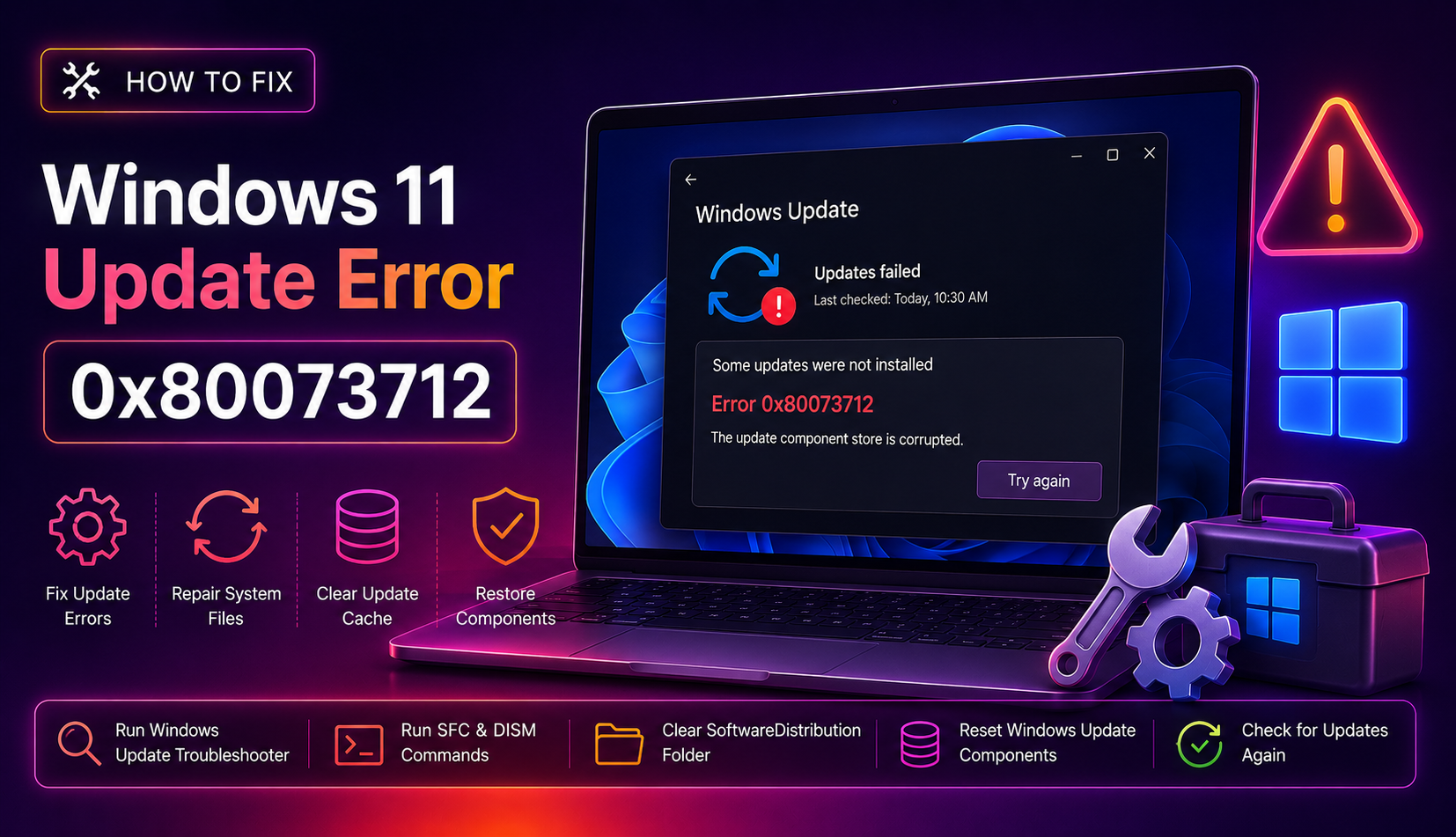
How to Fix Windows 11 Update Error 0x80073712 (2026 Guide)
You clicked Check for updates, watched the progress bar crawl to about 30 percent, and then — nothing. Windows Update rolls back and leaves you staring at error code 0x80073712. The message reads: "Some update files are missing or have problems. We'll try to download the update again later. Error code: (0x80073712)."
This error means your Windows Component Store (the WinSxS folder) is corrupted or contains missing manifests, so the servicing stack cannot install the cumulative update. Left unresolved, your system stays on an outdated build that may be missing critical security patches. This 2026 guide walks you through every fix in the correct order — from a one-click troubleshooter all the way to an in-place upgrade using a Windows 11 ISO.
What Does Error 0x80073712 Mean on Windows 11?
Internally, 0x80073712 maps to ERROR_SXS_COMPONENT_STORE_CORRUPT. The Side-by-Side (SxS) component store is the database Windows uses to track every installed component, driver, and update manifest. When one or more manifest files inside C:\Windows\WinSxS are missing, truncated, or have a mismatched hash, the Windows Update servicing stack refuses to proceed and reports 0x80073712.
Common triggers in 2026 include:
- A previous cumulative update (such as KB5079391 released March 26, 2026) that left the component store in a partially applied state
- Antivirus software quarantining files inside the WinSxS folder
- Disk errors or bad sectors on the system drive
- A sudden power loss or forced shutdown during a previous update
- Insufficient free space on the system drive (Windows needs at least 10 GB free during servicing)
Note for 25H2 / 24H2 users: Microsoft acknowledged that KB5079391 caused 0x80073712 on some Windows 11 25H2 and 24H2 devices and released the out-of-band fix KB5086672 on March 31, 2026. Check Windows Update first — if KB5086672 is offered, install it before attempting the manual steps below.
Quick Checks Before You Start (5-Minute Wins)
Before diving into command-line repairs, run through these fast checks:
- Free up disk space. Open Settings → System → Storage. Ensure you have at least 10–15 GB free on the C: drive. Run Storage Sense or manually empty the Recycle Bin and delete temp files.
- Disable third-party antivirus temporarily. Right-click the antivirus tray icon and pause protection for 15 minutes. Many AV products incorrectly flag WinSxS operations. Re-enable after the update attempt.
- Check for KB5086672 in Windows Update. Go to Settings → Windows Update → Check for updates. If the out-of-band patch is offered, install it — this resolves the issue on many 25H2/24H2 machines without further steps.
- Restart and try again. A plain reboot clears the pending-reboot flag that sometimes blocks updates.
Fix 1: Run the Windows Update Troubleshooter
The built-in troubleshooter can automatically reset stuck update services and clear the download cache.
- Press Windows + I to open Settings.
- Go to System → Troubleshoot → Other troubleshooters.
- Find Windows Update and click Run.
- Follow the on-screen prompts. The tool will stop and restart update services, clear the SoftwareDistribution download folder, and report any issues it found.
- After the troubleshooter finishes, click Close, go back to Windows Update, and click Check for updates.
If the troubleshooter says it fixed something and the update still fails with 0x80073712, proceed to Fix 2 — the component store itself needs repair.
Fix 2: Repair System Files with DISM and SFC
This is the most effective fix for 0x80073712, but order matters. Most guides tell you to run SFC first — that is wrong. SFC uses the component store as its repair source. If the component store is corrupt, SFC will either fail or silently skip broken files. You must run DISM first to rebuild the store, then run SFC to repair individual system files.
Step 1 — Run DISM to restore the component store
Open Command Prompt as Administrator (search for cmd, right-click, Run as administrator) and run:
DISM.exe /Online /Cleanup-Image /RestoreHealthDISM will contact Windows Update to download clean replacement files. This can take 10–30 minutes. Do not close the window. When it finishes, you should see:
The restore operation completed successfully.
The operation completed successfully.
Step 2 — Run SFC to repair system files
Once DISM reports success, run:
sfc /scannowSFC will scan all protected system files and replace any that are corrupted using the now-repaired component store. When complete, restart your PC and try Windows Update again.
What if DISM itself fails?
If DISM exits with an error such as 0x800f081f (source files could not be found) or 0x800f0906 (source files could not be downloaded), the online repair source is unavailable. Use a mounted Windows 11 ISO as the repair source instead:
- Download the Windows 11 ISO that matches your current build from the Microsoft Download page.
- Double-click the ISO to mount it. Note the drive letter assigned (e.g., D:).
- Run DISM with the local source:
DISM.exe /Online /Cleanup-Image /RestoreHealth /Source:wim:D:\sources\install.wim:1 /LimitAccessReplace D: with your actual ISO drive letter. The /LimitAccess flag prevents DISM from falling back to Windows Update, ensuring all repair files come from the clean ISO.
Fix 3: Reset the Windows Update Component Store
If the update services themselves are stuck or the SoftwareDistribution cache is corrupt, resetting the update components clears the blockage.
Open Command Prompt as Administrator and run each command in order, pressing Enter after each and waiting for it to complete:
net stop bits
net stop wuauserv
net stop appidsvc
net stop cryptsvc
Now rename the corrupted cache folders:
ren %SystemRoot%\SoftwareDistribution SoftwareDistribution.old
ren %SystemRoot%\System32\catroot2 catroot2.old
Restart the services:
net start bits
net start wuauserv
net start appidsvc
net start cryptsvc
Restart your PC. Windows will recreate fresh SoftwareDistribution and catroot2 folders on next boot. Open Windows Update and check for updates again.
Fix 4: Install the Update Manually via Microsoft Update Catalog
If Windows Update still refuses to install the cumulative update with 0x80073712, you can bypass the update pipeline entirely by downloading the package directly.
- Note the KB number of the failed update (visible in Windows Update history, e.g., KB5058411).
- Go to Microsoft Update Catalog.
- Search for the KB number.
- Download the version matching your Windows 11 edition and architecture (x64 for most PCs, ARM64 for Surface Pro X and similar devices).
- Run the downloaded
.msufile as Administrator.
The standalone installer uses a different code path than Windows Update and often succeeds where the automatic update fails. After installation, restart and verify the build number in Settings → System → About.
Fix 5: Use Windows 11 ISO for a Clean In-Place Upgrade
When all of the above fixes fail — meaning the component store is so damaged that DISM cannot repair it even from an ISO — the most reliable solution is an in-place upgrade (also called a repair install). This reinstalls Windows 11 over itself, replacing all system files, while keeping your personal files, apps, and settings intact.
- Download the Windows 11 ISO for your current version (24H2 or 25H2) from Microsoft.
- Mount the ISO by double-clicking it.
- Run Setup.exe from the mounted drive.
- When prompted, choose Keep personal files and apps.
- Proceed through the wizard. The upgrade will take 30–60 minutes and will restart your PC several times.
After the in-place upgrade completes, Windows Update will apply any remaining patches cleanly because the component store has been fully rebuilt from scratch.
If you have tried all these steps and the error persists, or if you manage a fleet of business PCs that need fast remediation, get expert help from CloudHouse Technologies — our certified technicians diagnose and resolve Windows 11 update failures same day, with no fix, no fee.
FAQ
What is Windows 11 error 0x80073712?
Error 0x80073712 is a Windows servicing error that maps to ERROR_SXS_COMPONENT_STORE_CORRUPT. It means the Side-by-Side component store — the database of system component manifests stored in C:\Windows\WinSxS — is corrupted or has missing files, preventing Windows Update from installing new packages.
Do I need to run DISM before SFC to fix 0x80073712?
Yes. SFC depends on the component store as its repair source. If the store is corrupt, SFC cannot reliably fix anything. Always run DISM /Online /Cleanup-Image /RestoreHealth first to repair the store, then run sfc /scannow to repair individual system files.
What if DISM fails with error 0x800f081f?
Error 0x800f081f means DISM could not download repair files from Windows Update. Mount a Windows 11 ISO that matches your build and point DISM to it using the /Source:wim:D:\sources\install.wim:1 /LimitAccess flags. This gives DISM clean source files without needing an internet connection.
Will resetting the update components delete my files?
No. Resetting the update components only renames the SoftwareDistribution and catroot2 folders, which contain downloaded update packages and update certificates. Your personal files, installed programs, and Windows settings are not affected. Windows recreates these folders automatically.
Is an in-place upgrade safe for fixing 0x80073712?
Yes. When you run Windows 11 Setup and choose "Keep personal files and apps," the process replaces only system files while preserving your data and installed applications. It is the recommended Microsoft-supported method when DISM and SFC cannot fully repair the component store. Back up your important files before starting as a precaution.