
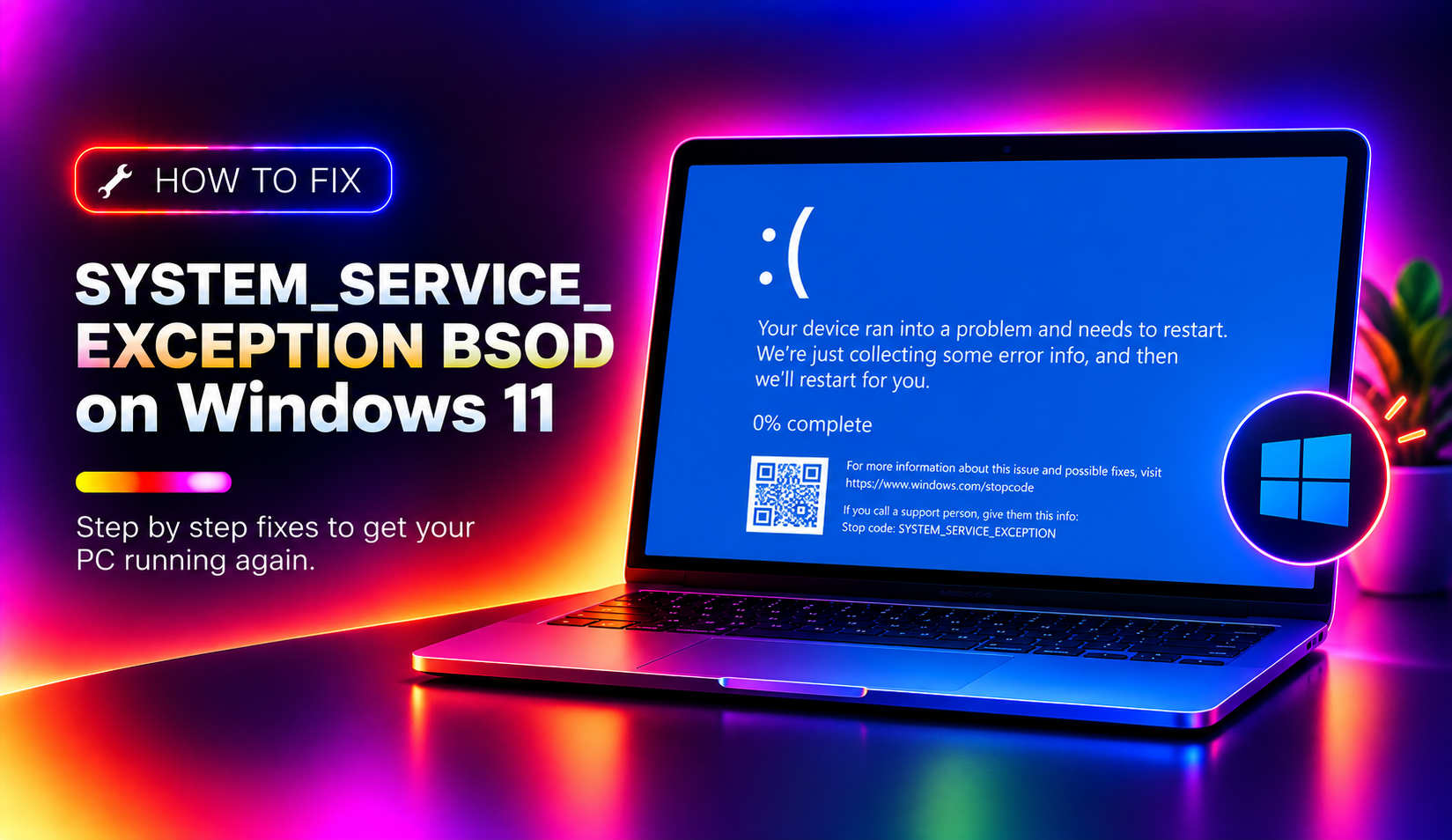
What Causes the SYSTEM_SERVICE_EXCEPTION BSOD on Windows 11?
The SYSTEM_SERVICE_EXCEPTION blue screen of death (BSOD) is one of the most frustrating errors Windows 11 users encounter. It appears when a system service or kernel-mode driver attempts an illegal or unexpected operation, forcing Windows to halt and restart to prevent data corruption.
In 2026, this error remains prevalent, especially after cumulative updates (such as KB5083769 and later patches) that can overwrite driver binaries or alter how services interact with hardware. The stop code is typically accompanied by a .sys filename — for example win32kfull.sys, ntfs.sys, ks.sys, or dxgmms2.sys — which is a critical clue pointing to the offending driver or component.
Common root causes include:
- Outdated or corrupt GPU/display drivers — particularly after Windows Update replaces a vendor driver with a generic Microsoft one
- Incompatible third-party antivirus or security software — kernel-level filters that conflict with Windows 11's security model
- Corrupted Windows system files — damaged protected OS files that fail at runtime
- Faulty or unseated RAM — memory errors that only surface under load
- Recently installed software or drivers — especially virtualisation tools, VPN clients, or audio drivers
- Disk errors — bad sectors on the system drive causing read failures mid-service
Fix 1: Identify the Faulty Driver Using the Crash Dump
Before applying any fix blindly, identify which driver is responsible. Windows saves a minidump file every time a BSOD occurs.
- Press Win + R, type
%SystemRoot%\Minidump, and press Enter. - You will see files named like
062326-12453-01.dmp. Note the most recent one. - Download the free WinDbg Preview from the Microsoft Store.
- Open WinDbg, go to File > Open crash dump, and select the latest
.dmpfile. - In the command box, type
!analyze -vand press Enter. - Look for the MODULE_NAME or IMAGE_NAME field — this identifies the exact driver that triggered the crash.
Once you know the offending .sys file (e.g. nvlddmkm.sys for NVIDIA, rtux64w10.sys for Realtek), you can target your fix precisely.
Fix 2: Update or Roll Back the Offending Driver
Driver conflicts are the single most common cause of SYSTEM_SERVICE_EXCEPTION on Windows 11 in 2026. If a Windows Update recently pushed a generic driver, rolling back often resolves the crash immediately.
- Right-click the Start button and select Device Manager.
- Expand the relevant category (e.g. Display adapters, Network adapters, or Sound, video and game controllers).
- Right-click the device and choose Properties.
- Click the Driver tab, then click Roll Back Driver if the option is available.
- If Roll Back is greyed out, go to the manufacturer's website and download the latest stable driver version — do not rely on Windows Update for GPU drivers.
- Uninstall the current driver completely using Display Driver Uninstaller (DDU) in Safe Mode before installing the fresh download.
For NVIDIA users: use nvlddmkm.sys crashes as a signal to download the latest Game Ready or Studio driver from nvidia.com directly.
For AMD users: download the Adrenalin Software package from amd.com and perform a clean install.
Fix 3: Run SFC and DISM to Repair Corrupted System Files
If the crash dump points to a core Windows file (such as win32kfull.sys, ntoskrnl.exe, or ntfs.sys), corrupted system files are likely. The System File Checker and DISM tools can repair them without reinstalling Windows.
- Press Win + S, type cmd, right-click Command Prompt, and select Run as administrator.
- Run SFC first:
sfc /scannow
Wait for it to complete — this can take 10–20 minutes. If it reports "Windows Resource Protection found corrupt files and repaired them," restart and test. - If SFC finds issues it cannot repair, run DISM to restore the Windows component store:
DISM.exe /Online /Cleanup-Image /CheckHealthDISM.exe /Online /Cleanup-Image /ScanHealthDISM.exe /Online /Cleanup-Image /RestoreHealth - After DISM completes, run SFC one more time:
sfc /scannow - Restart your PC and monitor for further BSODs.
Fix 4: Use Windows Memory Diagnostic to Test RAM
Faulty RAM can produce SYSTEM_SERVICE_EXCEPTION BSODs that appear random and intermittent. Windows 11 includes a built-in memory tester.
- Press Win + R, type
mdsched.exe, and press Enter. - Click Restart now and check for problems (recommended). Your PC will reboot into the diagnostic tool.
- The test runs automatically. When complete, Windows restarts and shows results in the notification area — check Event Viewer under Windows Logs > System and look for MemoryDiagnostics-Results.
- For a more thorough test, download MemTest86 (free, bootable USB) and run it for at least two full passes overnight.
- If errors are found, try reseating your RAM sticks, test modules one at a time, and consider replacement if faults persist.
Fix 5: Use Driver Verifier to Catch Hidden Driver Faults
If you cannot pinpoint the driver from the crash dump, the Windows Driver Verifier can stress-test all installed drivers and identify the unstable one — at the cost of making BSODs more frequent temporarily until the bad driver is caught.
- Press Win + R, type
verifier, and press Enter (run as administrator). - Select Create standard settings and click Next.
- Choose Automatically select all drivers installed on this computer, then click Finish.
- Restart your PC. Driver Verifier will now monitor every driver. When a violation occurs, you will get a BSOD with the exact driver name.
- Once you identify the culprit, open
verifier /resetin an elevated Command Prompt and restart to disable Driver Verifier, then uninstall or update the offending driver.
Important: Disable Driver Verifier after diagnosis — running it permanently degrades performance and causes intentional crashes.
Fix 6: Check for Disk Errors with CHKDSK
Bad sectors or file system corruption on your system drive can cause services to fail mid-read, triggering SYSTEM_SERVICE_EXCEPTION. Run a disk check to rule this out:
- Open an elevated Command Prompt.
- Type the following and press Enter:
chkdsk C: /f /r /x - You will be prompted to schedule it on the next restart. Type
Yand press Enter, then restart. - CHKDSK will run before Windows loads, checking for and repairing bad sectors. This can take 30–90 minutes on larger drives.
How to Prevent SYSTEM_SERVICE_EXCEPTION BSODs on Windows 11
Prevention is better than troubleshooting. Follow these best practices to keep your Windows 11 system stable:
- Keep drivers up to date from manufacturer websites — don't rely solely on Windows Update for GPU, network, or audio drivers.
- Create a System Restore point before major updates — go to Control Panel > System Protection > Create before installing Windows feature updates.
- Avoid running multiple kernel-level security tools — two antivirus programs or a third-party AV alongside Windows Defender's advanced features can clash at the kernel level.
- Monitor your system temperature — overheating causes driver instability. Use HWiNFO64 to track CPU and GPU temps under load.
- Keep Windows 11 updated — Microsoft regularly patches BSOD-triggering bugs in cumulative updates. Check Settings > Windows Update monthly.
- Avoid beta/unsigned drivers — stick to WHQL-certified drivers for production systems.
Still seeing BSODs after trying all the fixes above? Get expert Windows 11 support from CloudHouse Technologies — our certified technicians can analyse your crash dumps remotely and resolve the issue fast.
Frequently Asked Questions
What does SYSTEM_SERVICE_EXCEPTION mean on Windows 11?
It means a kernel-mode driver or system service attempted an illegal operation — such as accessing protected memory, performing an invalid instruction, or encountering an unhandled exception. Windows stops execution to prevent data corruption.
Which file is usually responsible for this BSOD?
Common culprits include win32kfull.sys (Windows GUI), nvlddmkm.sys (NVIDIA driver), ntfs.sys (file system), ks.sys (audio/streaming), and dxgmms2.sys (DirectX graphics). The crash dump file identifies the exact one on your system.
Can a Windows Update cause SYSTEM_SERVICE_EXCEPTION?
Yes. Cumulative updates sometimes replace vendor drivers with generic Microsoft drivers that are incompatible with certain hardware. If the BSOD started after an update, rolling back the update via Settings > Windows Update > Update History is a valid first step.
Is SYSTEM_SERVICE_EXCEPTION a hardware or software problem?
Usually software (drivers or corrupted system files), but it can be hardware — specifically faulty RAM or a failing storage drive. Run memory diagnostics and CHKDSK to rule out hardware causes.
Can antivirus software cause this BSOD?
Yes. Kernel-level antivirus drivers (especially older or incompatible versions) are a known cause. Try booting in Safe Mode with Networking — if no BSOD occurs, your security software is a prime suspect. Update or temporarily uninstall it to test.