Why Is Windows 11 Running Slow?
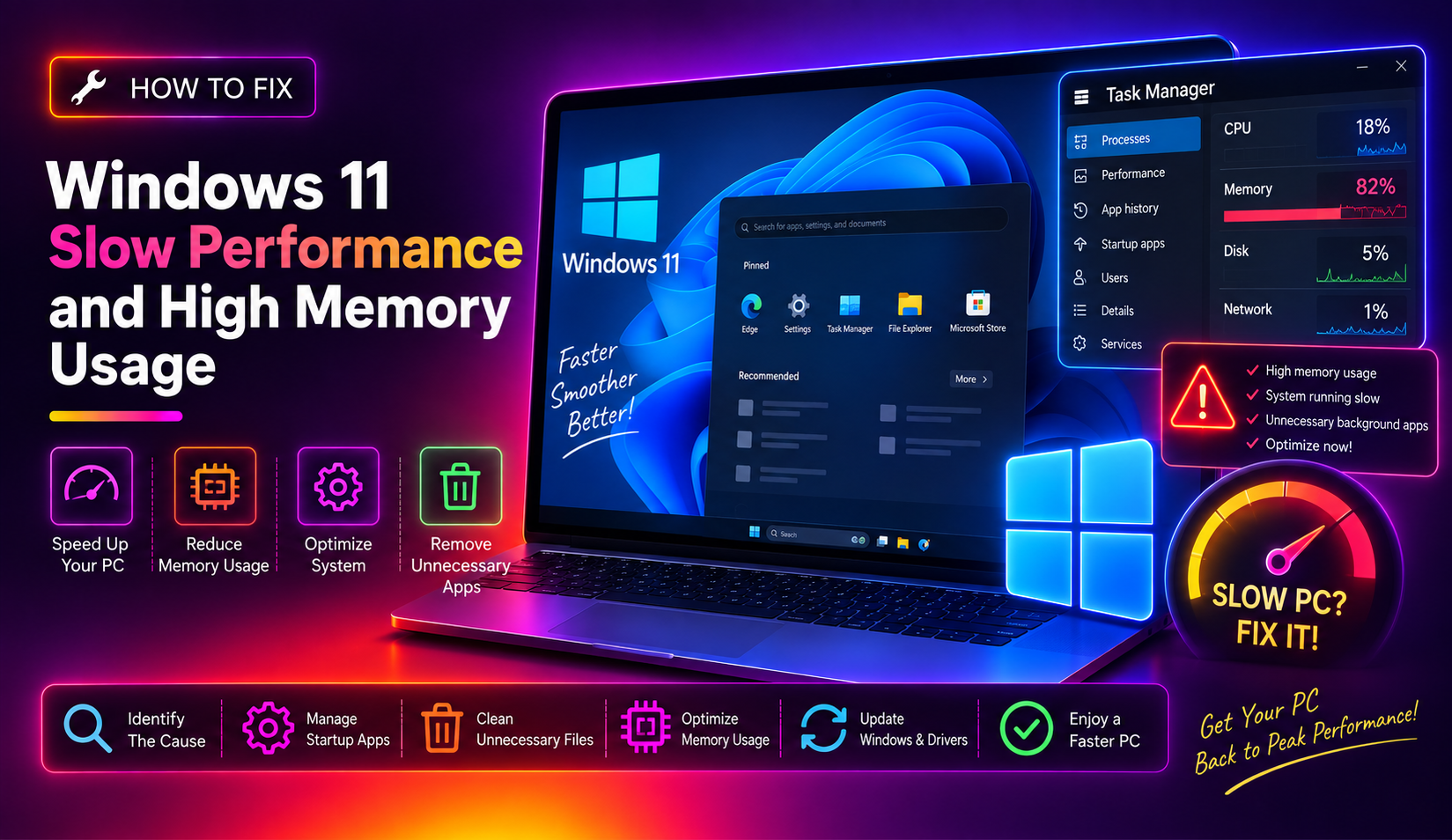
Windows 11 is a powerful operating system, but it can feel sluggish even on capable hardware. In 2026, Microsoft has been rolling out optimizations—but bugs, bloatware, startup overload, and misconfigured settings can still drag performance down significantly. High RAM usage from the ntoskrnl.exe, SysMain, or Delivery Optimization services are among the most-reported culprits.
This guide covers 10 targeted fixes to resolve Windows 11 slow performance and high memory usage — from quick wins to deeper system-level repairs.
Fix 1: Disable High-Impact Startup Programs
Startup apps are the single most common cause of a slow-booting, sluggish Windows 11 PC. Many programs add themselves to startup without asking.
- Press Ctrl + Shift + Esc to open Task Manager.
- Click the Startup apps tab.
- Sort by Startup impact.
- Right-click any High-impact app you don't need immediately on boot (e.g., Spotify, Discord, OneDrive, Teams) and select Disable.
Reboot and measure the difference. Most users see a 20–40% improvement in boot time.
Fix 2: Disable SysMain (Superfetch)
SysMain preloads frequently-used apps into RAM to speed up launches — but on systems with limited memory or older HDDs it can cause sustained high RAM and disk usage.
- Press Win + R, type
services.msc, press Enter. - Scroll to SysMain, double-click it.
- Set Startup type to Disabled.
- Click Stop, then OK.
This is particularly effective on PCs with 8 GB RAM or less, where SysMain competes with foreground apps.
Fix 3: Adjust Visual Effects for Best Performance
Windows 11 animations, shadows, and transparency effects look great but consume CPU and GPU resources constantly.
- Press Win + R, type
sysdm.cpl, press Enter. - Click the Advanced tab → Settings under Performance.
- Select Adjust for best performance.
- Click Apply and OK.
If you want a middle ground, keep "Show thumbnails instead of icons" and "Smooth edges of screen fonts" checked while disabling the rest.
Fix 4: Disable Background App Permissions
Many apps continue syncing, updating, or pushing notifications in the background even when you're not using them.
- Go to Settings → Apps → Installed apps.
- Click the three-dot menu next to an app → Advanced options.
- Under Background apps permissions, set it to Never.
Repeat for apps like Mail, News, Weather, Xbox, and any pre-installed Microsoft Store apps you don't actively use.
Fix 5: Run a Full Windows Memory Diagnostic
Faulty RAM can cause Windows to run slowly, crash, or report inflated memory usage as it keeps retrying reads on bad sectors.
- Press Win + R, type
mdsched.exe, press Enter. - Choose Restart now and check for problems.
- Windows will reboot and run a full memory test.
If errors are found, your RAM module may need to be reseated or replaced.
Fix 6: Kill the Delivery Optimization Service
Microsoft's April 2026 update (KB5083631) patched a memory leak in Delivery Optimization — but if you haven't updated yet, this service may be consuming hundreds of MB of RAM silently.
- Press Win + R, type
services.msc. - Find Delivery Optimization.
- Double-click → set to Manual.
- Click Stop, then OK.
Alternatively, apply the latest cumulative update via Settings → Windows Update to get the patched version.
Fix 7: Run SFC and DISM to Repair System Files
Corrupted system files silently degrade performance over time.
- Open Command Prompt as Administrator.
- Run:
sfc /scannow— wait for completion. - Then run:
DISM /Online /Cleanup-Image /RestoreHealth - Reboot after both scans complete.
SFC repairs corrupted Windows files; DISM fetches clean replacements from Microsoft's servers if needed.
Fix 8: Change Power Plan to High Performance
Windows 11 defaults to "Balanced" power mode, which throttles CPU speed to save energy — great for laptops, bad for performance.
- Press Win + R, type
powercfg.cpl, press Enter. - Click Show additional plans → select High performance.
For gaming or workstation PCs, you can also enable Ultimate Performance via an elevated PowerShell command: powercfg -duplicatescheme e9a42b02-d5df-448d-aa00-03f14749eb61
Fix 9: Clear Temporary Files and Free Up Disk Space
Windows needs at least 10–15% free disk space to page virtual memory efficiently. A full drive causes severe slowdowns.
- Press Win + R, type
cleanmgr, press Enter. - Select your system drive (C:) and click OK.
- Check Temporary files, Thumbnails, Recycle Bin, and Windows Update Cleanup.
- Click OK → Delete Files.
You can also run Storage Sense via Settings → System → Storage for automatic cleanup on a schedule.
Fix 10: Perform a Clean Boot
A clean boot starts Windows with only Microsoft services running — it's the definitive way to isolate whether a third-party app is causing the slowdown.
- Press Win + R, type
msconfig, press Enter. - Click Services tab → check Hide all Microsoft services → click Disable all.
- Click Startup → Open Task Manager → disable all startup items.
- Reboot.
If performance improves in clean boot, re-enable services one by one to find the culprit.
Prevention Tips for 2026
- Keep Windows 11 updated — 2026 cumulative updates include significant performance patches.
- Install apps from the Microsoft Store where possible — they respect background limits better.
- Keep at least 20 GB free on your system drive at all times.
- Consider upgrading to 16 GB RAM if your system regularly hits 80%+ memory usage.
Still Struggling? Get Expert Help
If your PC still feels slow after trying all these fixes, there may be a deeper hardware issue, driver conflict, or malware infection. CloudHouse Technologies' Pay-Per-Ticket Support gives you direct access to a Windows expert who can diagnose and fix the root cause — no subscription required.
FAQs
Why is Windows 11 using so much RAM even when idle?
Windows 11 pre-allocates RAM for services like SysMain, Delivery Optimization, and Search Indexer. Disabling unnecessary services and keeping fewer startup apps reduces idle RAM consumption significantly.
Does Windows 11 run better on 8GB or 16GB RAM?
Windows 11 officially supports 8 GB but runs noticeably better with 16 GB, especially if you run a browser, multiple apps, or any creative software simultaneously.
Will disabling SysMain cause problems?
No — SysMain is an optimization feature, not a critical service. Disabling it will not harm your system; it simply means apps won't be pre-loaded into RAM. Apps will still launch, just without the predictive caching.
Does Windows 11 slow down over time?
Yes — accumulated temporary files, fragmented storage, growing startup entries, and outdated drivers all contribute to gradual slowdowns. A periodic cleanup using the steps above keeps things running smoothly.
What is the fastest way to speed up Windows 11?
Disabling startup programs, switching to High Performance power mode, and running SFC /scannow together typically provide the biggest immediate improvement with the least risk.