
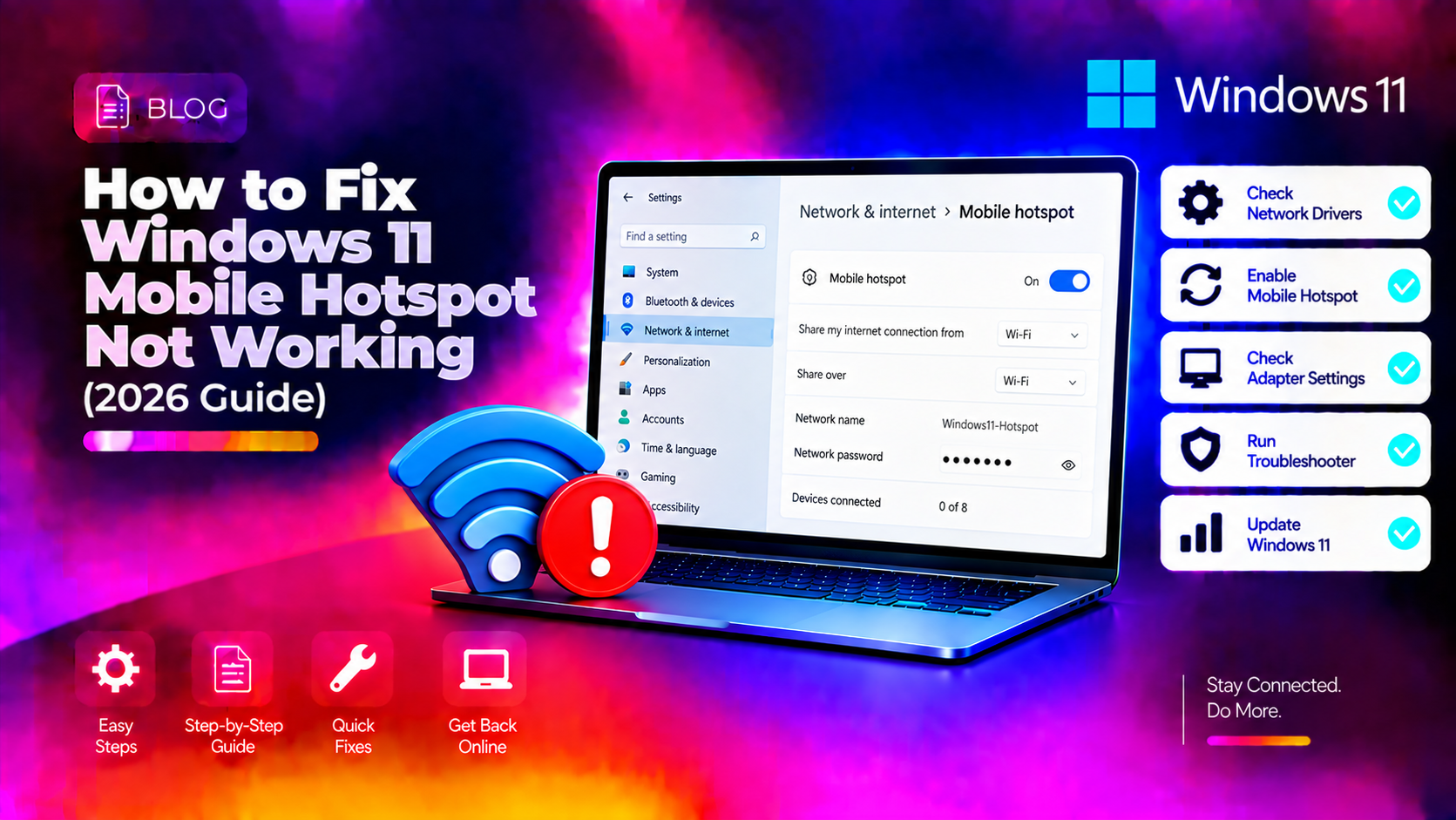
Why Is Your Windows 11 Mobile Hotspot Not Working?
The Windows 11 mobile hotspot is a handy feature that lets you share your PC's internet connection with phones, tablets, or other laptops. When it suddenly stops working — whether it won't turn on, devices can't connect, or it turns off by itself — the cause is almost always one of the following: a misconfigured Internet Connection Sharing (ICS) service, an outdated network driver, a Windows update conflict, or incorrect hotspot settings.
This guide covers every fix in the right order so you can get your hotspot working again without needing to reset the whole PC.
Fix 1: Check That Mobile Hotspot Is Enabled Correctly
First, confirm the hotspot is configured properly in Settings:
- Press Windows + I to open Settings.
- Go to Network & internet → Mobile hotspot.
- Toggle Mobile hotspot to On.
- Under Share my internet connection from, make sure the correct adapter is selected — typically your Wi-Fi or Ethernet connection.
- Under Share over, choose Wi-Fi (or Bluetooth if needed).
Note: If the hotspot toggle is grayed out, skip to Fix 4 (ICS Service) or Fix 5 (Driver Update) — this indicates a service or driver issue.
Fix 2: Restart the Windows Mobile Hotspot Service
The Windows Mobile Hotspot Service can stop running in the background, causing the hotspot toggle to appear non-functional:
- Press Windows + R, type
services.msc, press Enter. - Scroll to Windows Mobile Hotspot Service.
- Right-click it and select Restart. If it shows "Stopped," select Start.
- Also ensure its Startup type is set to Manual (not Disabled).
- Click OK and try enabling the hotspot again.
Fix 3: Run the Internet Connections Troubleshooter
- Press Windows + I → System → Troubleshoot → Other troubleshooters.
- Click Run next to Internet Connections.
- Follow the prompts and apply any suggested fixes.
- Also run the Network Adapter troubleshooter from the same page.
Fix 4: Re-enable Internet Connection Sharing (ICS)
Windows 11 Mobile Hotspot relies on Internet Connection Sharing. If this is disabled, the hotspot won't work even if the toggle appears on:
- Press Windows + R, type
services.msc, press Enter. - Find Internet Connection Sharing (ICS).
- Double-click it → set Startup type to Automatic.
- Click Start if the service is stopped.
- Click Apply → OK.
- Restart your PC and test the hotspot.
Fix 5: Update the Wi-Fi Network Adapter Driver
An outdated or corrupt Wi-Fi driver is the most common cause of hotspot issues after a Windows update:
- Press Windows + X → Device Manager.
- Expand Network Adapters.
- Right-click your Wi-Fi adapter (e.g., Intel Wi-Fi 6, Realtek RTL8821CE).
- Select Update driver → Search automatically for drivers.
- If no update is found, visit your laptop manufacturer's support page and download the latest Wi-Fi driver manually.
- Restart after installing.
Fix 6: Change the Hotspot Network Band to 2.4 GHz
Some older devices (phones, tablets) can't connect to a 5 GHz hotspot. If devices see your hotspot but can't connect, try switching to 2.4 GHz:
- Go to Settings → Network & internet → Mobile hotspot.
- Click Edit.
- Under Network band, change from Any available (5 GHz preferred) to 2.4 GHz.
- Click Save and try reconnecting the device.
Fix 7: Reset the Hotspot Password
If devices can see the hotspot but fail to connect or get stuck on "Authentication failed," resetting the password often resolves it:
- Go to Settings → Network & internet → Mobile hotspot.
- Click Edit.
- Enter a new Network name and Network password (8+ characters, alphanumeric).
- Click Save.
- On the device trying to connect, forget the hotspot network and reconnect with the new password.
Fix 8: Perform a Network Reset
If the hotspot still won't work, a network reset reinstalls all network adapters and returns networking components to their default state:
- Go to Settings → Network & internet → Advanced network settings.
- Click Network reset.
- Click Reset now and confirm.
- Your PC will restart automatically. After reboot, reconfigure your Wi-Fi connection and try the hotspot again.
Note: Network reset will remove all saved Wi-Fi passwords and VPN configurations. Write these down before proceeding.
Fix 9: Uninstall a Recent Windows Update
If your hotspot stopped working immediately after a Windows update, rolling back that update may restore functionality:
- Go to Settings → Windows Update → Update history.
- Click Uninstall updates.
- Find the most recent update (sorted by date) and click Uninstall.
- Restart your PC and test the hotspot.
You can reinstall the update later once Microsoft patches the issue — check the Windows Update history for any newer cumulative updates that may include the fix.
Still Can't Get the Windows 11 Hotspot Working?
If none of these fixes resolve the issue, the problem may be a deeper network stack corruption, a conflict with third-party VPN software, or an incompatibility between your specific Wi-Fi adapter and the current Windows 11 build. CloudHouse Technologies offers pay-per-ticket remote support — a technician can connect remotely, run advanced diagnostics, and fix your hotspot issue in a single session.
Frequently Asked Questions
Why is my Windows 11 mobile hotspot toggle grayed out?
A grayed-out hotspot toggle usually means the Internet Connection Sharing (ICS) service is disabled or the Wi-Fi driver is not working. Go to services.msc, enable and start the ICS service, then update your Wi-Fi adapter driver in Device Manager.
Why does my Windows 11 hotspot turn off automatically?
Windows 11 has a power-saving feature that disables the hotspot when no devices are connected for a period of time. To disable this: go to Settings → Network & internet → Mobile hotspot and turn off "When no devices are connected, automatically turn off mobile hotspot."
Can I use Windows 11 hotspot and Wi-Fi at the same time?
Yes — Windows 11 can share your wired Ethernet connection via the hotspot while your Wi-Fi adapter is also connected to a network. In Mobile hotspot settings, set "Share my internet connection from" to your Ethernet adapter.
Why can my phone see the Windows 11 hotspot but won't connect?
This is usually a band compatibility issue (5 GHz vs 2.4 GHz) or wrong password. Try switching the hotspot band to 2.4 GHz in hotspot Edit settings, and reset the password. Also ensure the connecting device's Wi-Fi is enabled and not in airplane mode.
Does Windows 11 hotspot work with Bluetooth?
Yes — in Mobile hotspot settings, change "Share over" from Wi-Fi to Bluetooth. However, Bluetooth hotspot is much slower than Wi-Fi and is best suited for sharing a connection to a single nearby device with low data needs.