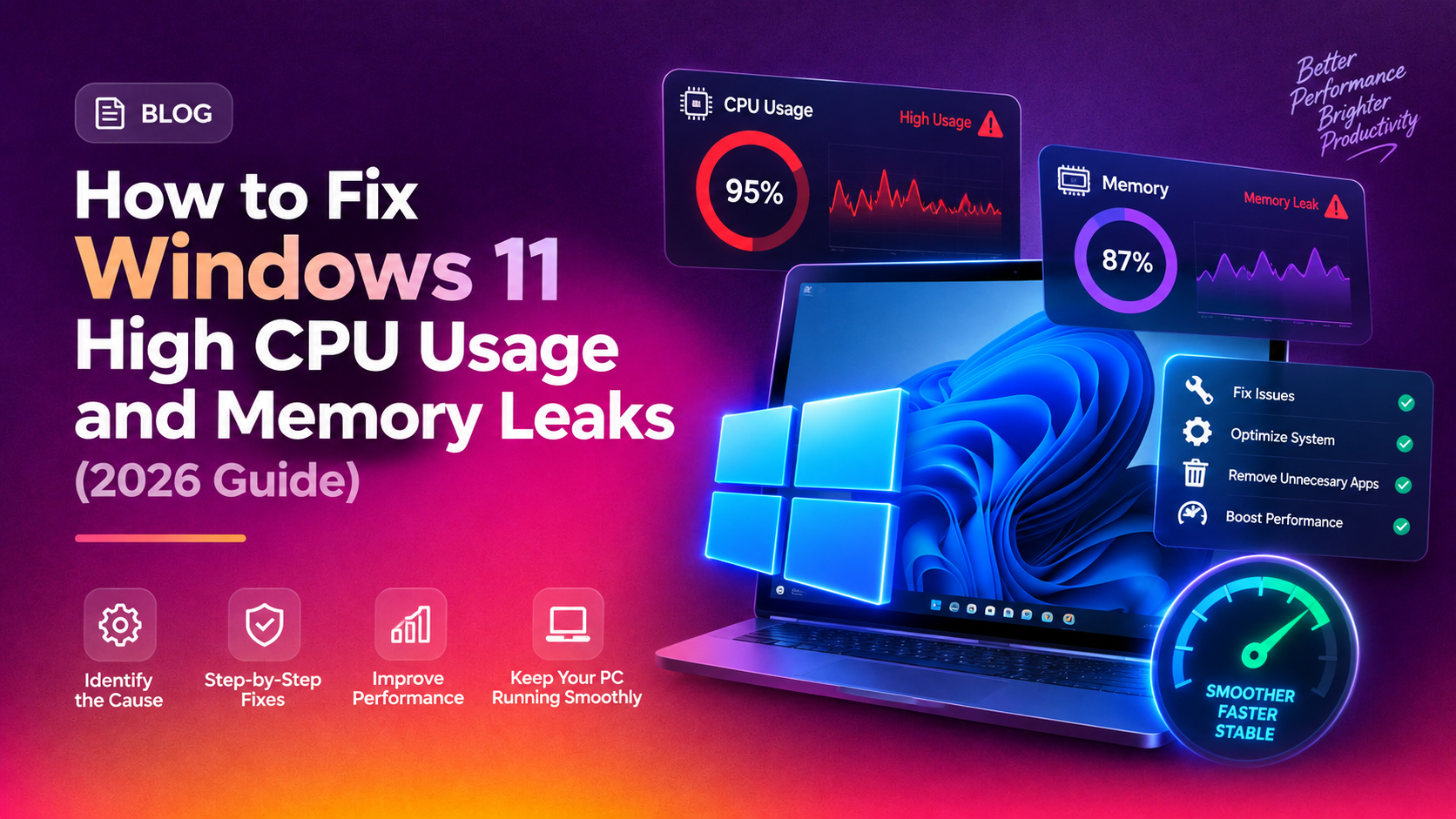
If your Windows 11 PC is crawling along with the CPU pegged at 100% or RAM being gobbled up by mystery processes, you are not alone. High CPU usage and memory leaks are among the most-reported Windows 11 problems in 2026 — and they can make even powerful hardware feel sluggish. The good news: most of these issues have clear, proven fixes you can apply yourself in under an hour.
This guide walks you through every major cause and solution, step by step, so you can get your machine back to full speed today.
What Causes High CPU Usage and Memory Leaks in Windows 11
Before diving into fixes, it helps to understand what is actually happening. High CPU usage means one or more processes are consuming more processor time than they should, leaving little headroom for everything else. A memory leak means a process allocates RAM and never releases it — over hours, this drains available memory until the system slows to a crawl.
Common culprits in Windows 11 (as of 2026) include:
- SysMain (Superfetch) — preloads apps into RAM but can thrash on low-spec or SSD systems
- Windows Update / Windows Update Medic Service — heavy background scanning after updates
- Antivirus real-time scans — Windows Defender or third-party AV indexing files in the background
- File Explorer memory leak — a known bug in certain Windows 11 builds that Microsoft has patched in 2025–2026 cumulative updates
- Delivery Optimization — peer-to-peer update sharing consuming bandwidth and CPU
- Faulty or outdated drivers — especially GPU, network, and chipset drivers that trigger kernel-level loops
- Third-party startup programs — apps that launch at boot and never fully idle
- Runtime Broker / COM Surrogate — UWP app permission checks that occasionally spiral
Identifying the exact culprit is step one — and Task Manager is your best first tool.
Quick Fix: End High-CPU Processes in Task Manager
This is your immediate triage step. It will not permanently fix anything, but it gives you breathing room and tells you what to investigate.
- Press
Ctrl + Shift + Escto open Task Manager directly. - Click the Processes tab (it opens here by default in Windows 11).
- Click the CPU column header to sort processes from highest to lowest usage.
- Identify any process consuming more than 20–30% CPU consistently.
- Right-click the offending process and select End Task.
- If the problem is RAM, click the Memory column header instead and look for processes with steadily growing memory usage over time (a hallmark of a leak).
Do not end System, LSASS, csrss.exe, or winlogon.exe — these are critical Windows processes. Focus on third-party apps, browser processes, or named Windows services like SysMain, WmiPrvSE, or SearchIndexer.
To get more detail on a suspicious Windows process: right-click it → Open file location to verify it is legitimate, or → Search online to look it up.
Fix 1: Disable SysMain (Superfetch) Service
SysMain is designed to speed up app launches by preloading frequently used applications into RAM. On systems with SSDs and 16 GB+ RAM, it often does more harm than good — consuming CPU cycles to manage a cache that modern hardware does not need.
Method A — via Services panel:
- Press
Win + R, typeservices.msc, press Enter. - Scroll down and double-click SysMain.
- Set Startup type to Disabled.
- Click Stop to halt it immediately, then click OK.
Method B — via PowerShell (run as Administrator):
Stop-Service -Name SysMain -Force
Set-Service -Name SysMain -StartupType Disabled
Restart your PC and check CPU usage. On most modern hardware, this alone can drop idle CPU usage by 10–25%.
Fix 2: Adjust Windows 11 Visual Effects for Performance
Windows 11 ships with animations, transparency, shadows, and blur effects that look great but tax the CPU and GPU — especially on machines without a dedicated graphics card.
- Press
Win + R, typesysdm.cpl, press Enter. - Click the Advanced tab, then click Settings under the Performance section.
- Select Adjust for best performance to disable all effects at once.
- Or, for a middle ground, choose Custom and tick only:
- Show thumbnails instead of icons
- Smooth edges of screen fonts
- Click Apply → OK.
Additionally, disable transparency effects via Settings → Personalisation → Colours → Transparency effects → Off. This specifically reduces GPU/CPU load from the blur compositing pipeline.
Fix 3: Disable Background Apps Consuming CPU
Many apps — including ones you never actively open — run in the background in Windows 11, refreshing data, syncing, and sending notifications.
Via Settings:
- Open Settings → Apps → Installed apps.
- Click the three-dot menu next to a suspicious app → Advanced options.
- Under Background apps permissions, select Never.
- Repeat for all non-essential apps.
Disable startup programs:
- Open Task Manager → Startup apps tab.
- Sort by Startup impact (High impact first).
- Right-click every non-essential app and select Disable.
- Common safe-to-disable entries: Spotify, Discord, OneDrive (if unused), Teams (personal), Adobe updaters, browser auto-launchers.
Disable Delivery Optimization:
- Open Settings → Windows Update → Advanced options → Delivery Optimisation.
- Toggle Allow downloads from other PCs to Off.
Fix 4: Update or Roll Back Faulty Drivers
Drivers run in kernel space, meaning a bug in a driver can consume 100% CPU through an interrupt loop that is invisible in Task Manager's normal process list. You may need Resource Monitor to spot it.
Check for driver-related CPU spikes:
- Press
Win + R, typeresmon, press Enter. - Click the CPU tab → expand Interrupts and DPCs.
- If Deferred Procedure Calls (DPC) are consistently above 1–2%, a driver is misbehaving.
Update drivers via Device Manager:
- Press
Win + X→ Device Manager. - Expand Display adapters, Network adapters, and IDE ATA/ATAPI controllers.
- Right-click each device → Update driver → Search automatically.
- For NVIDIA/AMD GPUs, download the latest driver directly from the manufacturer's site rather than relying on Windows Update.
Roll back a problematic driver:
- Right-click the device → Properties → Driver tab.
- Click Roll Back Driver if the option is available (greyed out means no previous version is stored).
Run this PowerShell command to export a list of all installed drivers with dates — helps identify recently installed drivers that may have introduced the problem:
Get-WmiObject Win32_PnPSignedDriver | Select-Object DeviceName, DriverVersion, DriverDate | Sort-Object DriverDate -Descending | Format-Table -AutoSizeFix 5: Run Windows Memory Diagnostic Tool
If you suspect the RAM itself is faulty — causing the OS to repeatedly retry failed memory operations — Windows has a built-in diagnostic tool.
- Press
Win + R, typemdsched.exe, press Enter. - Choose Restart now and check for problems (recommended).
- Windows will reboot, run a full memory test (takes 5–15 minutes), and display results after logging back in.
- To see results after the test: open Event Viewer (
eventvwr.msc) → Windows Logs → System → filter for source MemoryDiagnostics-Results.
If the tool reports errors, your RAM module(s) may be failing — a hardware replacement will be needed. If it reports no errors, the problem is software-side and the other fixes in this guide will resolve it.
For a more thorough test, download MemTest86 (free, boots from USB) and run it for at least two full passes.
Fix 6: Clean Boot to Identify the Culprit
A clean boot starts Windows with only Microsoft services and drivers — no third-party software. If CPU usage is normal after a clean boot, the problem is a third-party app or service. You then re-enable items in batches to pinpoint the exact culprit.
- Press
Win + R, typemsconfig, press Enter. - Click the Services tab → tick Hide all Microsoft services → click Disable all.
- Click the Startup tab → click Open Task Manager → disable all startup items.
- Close Task Manager, click OK in msconfig, and restart.
- Monitor CPU and RAM for 10–15 minutes. If usage is normal, start re-enabling services in groups of 5, restarting each time, until the spike returns.
- Once you find the group causing the issue, enable them one by one to isolate the exact service or app.
To restore normal boot after testing: open msconfig → General tab → select Normal startup → OK → Restart.
Prevention Tips for 2026
Once your system is running well, these habits will keep it that way:
- Keep Windows updated — Microsoft has shipped multiple memory leak and CPU bug patches in 2025–2026 cumulative updates. Go to Settings → Windows Update → Check for updates monthly.
- Audit startup programs quarterly — every app you install tries to add itself to startup. Review Task Manager's Startup apps tab every few months.
- Use a single antivirus — running two real-time AV tools simultaneously doubles the CPU load on file operations. Stick with one.
- Monitor with Task Manager regularly — set a habit of checking CPU and RAM usage once a week. Catching a creeping memory leak early is far easier than diagnosing it after the system has degraded.
- Upgrade RAM if consistently above 85% — if your system regularly uses more than 85% of available RAM, adding more is the most cost-effective performance upgrade in 2026.
- Run
sfc /scannowmonthly — open Command Prompt as Administrator and run this to catch and repair corrupted system files before they cause instability. - Schedule restarts — Windows accumulates memory fragmentation over long uptime. A weekly scheduled restart clears this automatically.
If you have applied all of these fixes and are still experiencing high CPU usage or memory leaks, the issue may be deeper — a corrupted Windows installation, a hardware fault, or a persistent driver conflict that requires expert diagnosis. CloudHouse Pay-Per-Ticket Support connects you with a certified Windows technician who can remotely diagnose and fix the problem — you only pay when the issue is resolved.
FAQ
Why is my Windows 11 CPU usage so high?
High CPU usage in Windows 11 is most commonly caused by background processes such as SysMain, Windows Update, antivirus real-time scans, or faulty drivers consuming excessive resources. Open Task Manager (Ctrl + Shift + Esc), sort by the CPU column, and identify which process is at the top. That gives you a specific target to investigate rather than applying fixes blindly.
How do I fix 100% CPU usage on Windows 11?
Start with Task Manager to end the high-CPU process temporarily, then apply permanent fixes: disable the SysMain service, turn off background apps, audit startup programs, and update or roll back drivers. For persistent 100% CPU usage, run a clean boot (msconfig) to isolate whether a third-party app or service is responsible.
Does Windows 11 have a memory leak problem?
Yes, certain Windows 11 builds have had documented memory leaks — particularly in File Explorer, Delivery Optimisation, and Runtime Broker processes. Microsoft addressed most of these in 2025–2026 cumulative updates. Keeping Windows fully updated via Settings → Windows Update is the first line of defence. If you are on a delayed update ring in a business environment, check with your IT team about applying the relevant patches.
How do I fix Windows 11 running slow?
Slow Windows 11 performance typically has multiple contributors. The most impactful steps in order: disable unnecessary startup programs, turn off SysMain if you have an SSD, reduce visual effects via Advanced System Settings, disable background app permissions, and ensure all drivers are current. If slowness only appeared after a specific Windows Update, rolling back that update via Settings → Windows Update → Update history → Uninstall updates may help.
Should I disable SysMain on Windows 11?
On modern PCs with SSDs and 16 GB or more of RAM, disabling SysMain is generally safe and often beneficial. SysMain was designed for spinning hard drives with 4–8 GB RAM, where preloading apps into RAM made a noticeable difference. On current hardware, the overhead of managing the prefetch cache outweighs the benefit, and disabling it frees up both CPU cycles and RAM for the apps you are actually running.