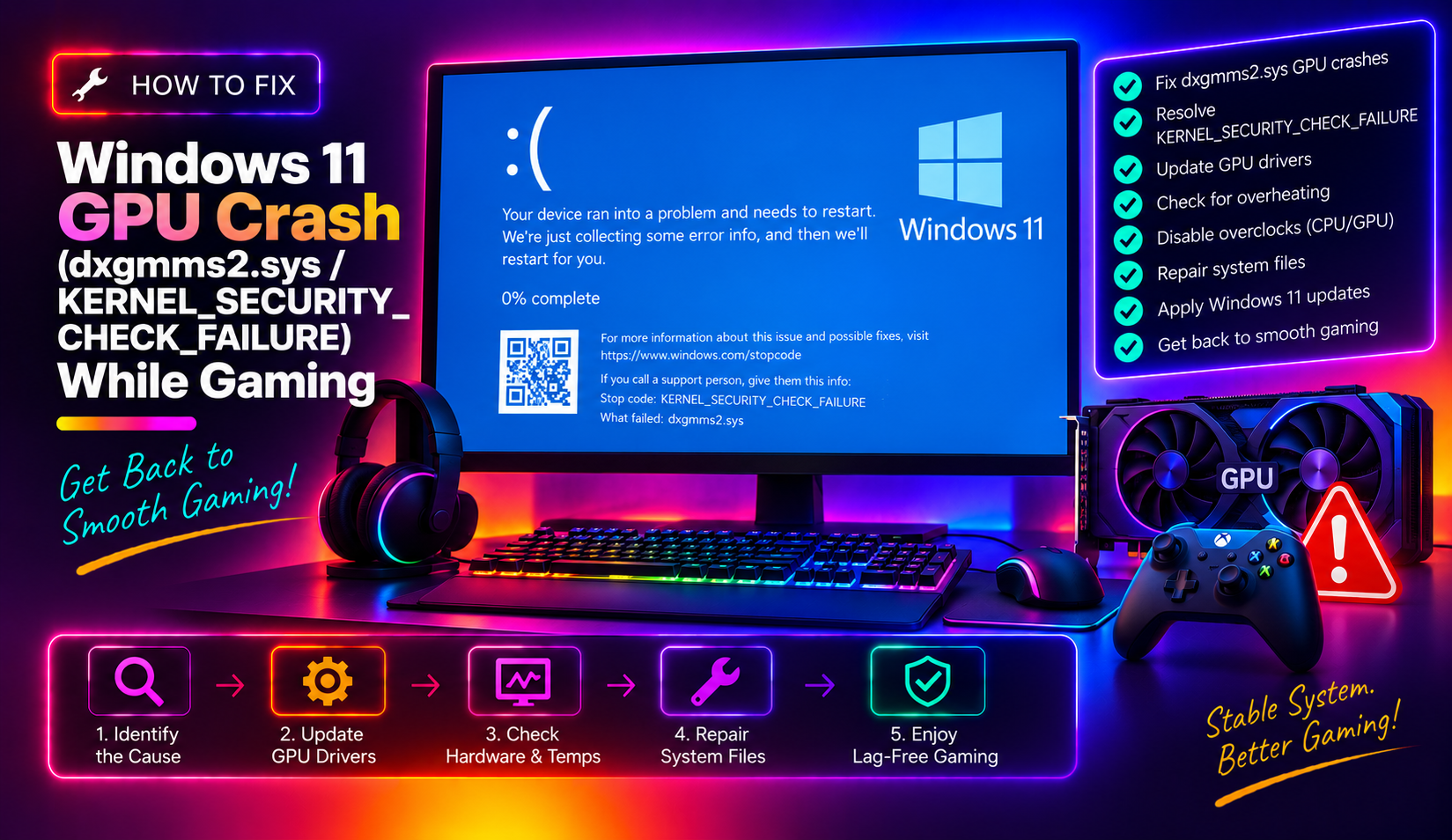
If you've been hit with a sudden blue screen mid-game on Windows 11 — specifically showing the stop code KERNEL_SECURITY_CHECK_FAILURE and pointing to dxgmms2.sys — you're not alone. Thousands of gamers across Reddit, Windows Forums, and Microsoft Q&A reported the exact same crash starting in January 2026. The good news: there's a confirmed fix. This 2026 guide walks you through the exact cause and three proven solutions to stop this GPU crash for good.
What Causes dxgmms2.sys KERNEL_SECURITY_CHECK_FAILURE Crashes While Gaming on Windows 11
dxgmms2.sys is the DirectX Graphics Memory Manager System driver — a critical kernel component responsible for managing how your GPU allocates and accesses video memory during rendering. When this driver crashes, Windows immediately triggers a blue screen (BSOD) to prevent deeper memory corruption.
The root cause of the 2026 wave of crashes was traced to KB5074105, the optional cumulative update Microsoft pushed in January 2026. This update introduced a race condition inside the DirectX graphics kernel subsystem. Specifically, when multiple threads simultaneously tried to access shared graphics memory resources — exactly the scenario that happens constantly in modern AAA games — the kernel's synchronization logic failed, resulting in memory corruption and an immediate system halt.
The crash manifests in several ways:
- Sudden black screen followed by a BSOD with stop code
KERNEL_SECURITY_CHECK_FAILURE (0x139) - The crash dump points to
dxgmms2.sysordxgkrnl.sysas the faulting module - Green or black screen freeze requiring a hard reboot
- Crashes reproducible in GPU-heavy titles including Forza Horizon 5, Marvel Rivals, Genshin Impact, and other DirectX 12 games
- Event Viewer logs showing a kernel-mode driver failure under System events
Games that use kernel-level anti-cheat hooks were especially prone to triggering the race condition, because anti-cheat drivers add extra threads that interact with GPU memory allocation pathways.
You can verify dxgmms2.sys is the culprit by opening Event Viewer after a crash: press Win + X → Event Viewer → Windows Logs → System. Look for a Critical event timestamped at the crash time, referencing dxgmms2.sys.
Fix 1: Install KB5077181 (February 2026 Cumulative Update) to Patch the Root Cause
Microsoft officially acknowledged the dxgmms2.sys crash in its February 10, 2026 Patch Tuesday release notes. The cumulative update KB5077181 (OS builds 26200.7840 and 26100.7840) directly patches the race condition and is the single most important fix to apply.
Microsoft's release notes state explicitly: "Addresses an issue where certain GPU configurations might recently have experienced a system error related to dxgmms2.sys, resulting in the KERNEL_SECURITY_CHECK_FAILURE error."
How to install KB5077181:
- Press Win + I to open Settings
- Go to Windows Update
- Click Check for updates
- Install all available updates — KB5077181 should appear under cumulative updates
- Restart your PC when prompted
If Windows Update doesn't show it automatically, you can install it manually via the Microsoft Update Catalog:
- Open a browser and go to
https://catalog.update.microsoft.com - Search for KB5077181
- Download the version matching your Windows 11 build (check your build under Settings → System → About)
- Run the downloaded
.msufile and follow the installer - Restart after installation completes
You can confirm the update installed successfully by running this in PowerShell (as Administrator):
Get-HotFix -Id KB5077181If it returns a result with an InstalledOn date, the patch is applied. After installing KB5077181, most users report the BSOD stops immediately.
Fix 2: Roll Back or Clean Install Your GPU Driver to Eliminate Driver Corruption
Even after patching Windows, a corrupted or incompatible GPU driver can keep dxgmms2.sys crashes alive. The interaction between the Windows kernel graphics layer and your GPU driver is tight — if the driver has been partially corrupted by repeated crashes, a clean reinstall is essential.
Step 1 — Check your current driver version
Press Win + X → Device Manager → expand Display adapters → right-click your GPU → Properties → Driver tab. Note the Driver Version and Driver Date.
Step 2 — Download DDU (Display Driver Uninstaller)
The standard Windows driver uninstall leaves registry remnants. Use the free tool DDU from wagnardsoft.com for a complete clean removal.
Step 3 — Boot into Safe Mode
- Press Win + R, type
msconfig, press Enter - Go to Boot tab → check Safe boot → Minimal
- Click OK and restart
Step 4 — Run DDU in Safe Mode
- Launch DDU
- Select your GPU manufacturer (NVIDIA or AMD) from the device type dropdown
- Click Clean and restart
Step 5 — Install the latest stable GPU driver
- NVIDIA: Download from
nvidia.com/drivers— the 560.xx series and later include compatibility enhancements for the KB5077181 patch. Perform a Custom installation and tick Perform a clean installation. - AMD: Download from
amd.com/support— AMD 24.12.1 or later is recommended. Use the Factory Reset option in the installer.
After the clean driver install, disable Safe Mode by going back to msconfig → Boot tab → uncheck Safe boot → restart normally.
If the crashes started after a specific driver update, you can also roll back: Device Manager → Display adapters → right-click GPU → Properties → Driver tab → Roll Back Driver. This reverts to the previously installed version.
Fix 3: Disable GPU Overlays and Reset Overclocks to Stabilise DirectX Rendering
Third-party overlays and GPU overclocks both inject into the DirectX rendering pipeline. Combined with the dxgmms2.sys race condition, they can push an otherwise borderline system over the edge into a crash. Even after patching, if you run an aggressive overclock or multiple overlays, crashes can persist.
Disable overlays:
- GeForce Experience overlay: Open GeForce Experience → gear icon → General → toggle off In-Game Overlay
- Steam overlay: Steam → Settings → In-Game → uncheck Enable the Steam Overlay while in-game
- Discord overlay: Discord → Settings → Game Overlay → toggle off Enable in-game overlay
- MSI Afterburner / RivaTuner OSD: Close both from the system tray entirely
- Xbox Game Bar: Settings → Gaming → Xbox Game Bar → toggle off
Reset GPU overclocks:
If you've applied a GPU overclock via MSI Afterburner, ASUS GPU Tweak, or AMD Adrenalin's Tuning section, reset all values to stock:
- Open your overclocking utility
- Click the Reset button (or set Core Clock and Memory Clock offsets back to 0)
- Apply and save as the default profile
Reset DirectX via DISM (optional deep clean):
Open Command Prompt as Administrator and run:
DISM /Online /Cleanup-Image /RestoreHealth
sfc /scannow
These commands repair any corrupted Windows system files — including DirectX components — that may have been damaged during repeated crash cycles.
Disable hardware-accelerated GPU scheduling (HAGS) if issues persist:
Press Win + I → Settings → System → Display → Graphics → Default graphics settings → toggle off Hardware-accelerated GPU scheduling. This feature, while beneficial in most cases, can interact poorly with the dxgmms2.sys bug on certain GPU models prior to the patch fully taking effect.
How to Prevent GPU BSOD Crashes on Windows 11 Going Forward
Once you've resolved the immediate crash, a few practices will keep your system stable through future Windows updates:
- Don't install optional updates immediately. KB5074105 — the January 2026 update that introduced this bug — was an optional update. Wait 1–2 weeks after optional updates release before installing them; Patch Tuesday cumulative updates (mandatory) go through more testing.
- Enable Windows Update history review. After any major update, search for known issues on the Windows Release Health dashboard before installing.
- Keep GPU drivers current but not bleeding-edge. Wait for the first minor version revision after a major GPU driver release — initial releases of major versions occasionally carry bugs. Check GPU vendor release notes for known gaming issues.
- Create a System Restore point before major updates. Press Win + S → search Create a restore point → select your system drive → Create. This lets you roll back if a future update causes instability.
- Monitor temperatures. Use HWiNFO64 or MSI Afterburner to log GPU temperatures during gaming. Sustained temps above 90°C can exacerbate kernel memory instability. Clean GPU heatsinks regularly.
- Run Windows Memory Diagnostic. Faulty RAM can mimic dxgmms2.sys crashes. Press Win + R → type
mdsched→ restart to run the memory test.
If you continue experiencing crashes after all three fixes above, the issue may involve deeper hardware-firmware interaction. In that case, consider reaching out to professional PC support — a certified technician can analyse your crash dumps remotely and pinpoint driver conflicts, firmware issues, or hardware faults that automated fixes can't catch.
Frequently Asked Questions About Windows 11 GPU Crashes While Gaming
Q: What is dxgmms2.sys and why does it crash?
A: dxgmms2.sys is the DirectX Graphics Memory Manager System driver, a Windows kernel component that manages GPU memory allocation during rendering. It crashes when a race condition or memory corruption occurs in the graphics subsystem — in 2026, this was directly caused by a bug introduced in the January optional update KB5074105, which was patched in KB5077181 on February 10, 2026.
Q: Will uninstalling KB5074105 fix the crash if I can't install KB5077181?
A: Yes, as a temporary workaround. Go to Settings → Windows Update → Update history → Uninstall updates, find KB5074105, and remove it. However, you should install KB5077181 as soon as possible since it contains other important security patches alongside the dxgmms2.sys fix.
Q: Does this crash affect both NVIDIA and AMD GPUs?
A: Yes. The bug is in the Windows DirectX kernel layer (dxgmms2.sys), not in vendor-specific drivers, so both NVIDIA and AMD GPU users are affected. However, NVIDIA users on certain driver versions reported higher crash rates due to additional thread contention in NVIDIA's kernel-mode driver component.
Q: My crash dump shows dxgkrnl.sys, not dxgmms2.sys — is this the same issue?
A: Very likely yes. dxgkrnl.sys is the DirectX Graphics Kernel driver, which works closely with dxgmms2.sys. Crashes in either component during gaming, especially after the January 2026 update, point to the same root cause. The same KB5077181 fix addresses both.
Q: I installed KB5077181 but still crash occasionally — what should I do?
A: First, perform a clean GPU driver reinstall using DDU as described in Fix 2 — crash cycles can corrupt driver files. Second, disable all GPU overlays and reset any overclocks (Fix 3). Third, run sfc /scannow in an elevated Command Prompt to repair any corrupted system files. If crashes persist, collect the minidump file from C:\Windows\Minidump\ and analyse it with WinDbg, or have a technician review it to rule out hardware faults.