If you use more than one monitor with Windows 11 — especially a laptop docked to an external display, or two screens with different resolutions — you've probably seen it: text that looks fuzzy, title bars that are the wrong size, or an app that looks perfectly sharp on one screen and blurry the instant you drag it to the other. This isn't a graphics driver failure or a bad monitor. It's almost always a DPI scaling mismatch, and Windows 11 still doesn't handle it perfectly out of the box, particularly for older desktop apps that were never rewritten to be "DPI-aware."
This guide walks through exactly why this happens and gives you four fixes, from the quickest built-in toggle to the per-app override that solves stubborn legacy-app blur that most tutorials never mention.
Why Windows 11 Apps Look Blurry Across Monitors
Every monitor in a multi-monitor setup can have its own scale factor — for example, a 4K monitor might be set to 150% scaling while a 1080p secondary monitor sits at 100%. Windows renders each app based on the DPI (dots per inch) of the monitor it currently lives on. When an app is DPI-aware, it redraws itself cleanly at the new scale the moment you move it. When it isn't, Windows has to fake the resize using bitmap stretching — the same trick used to blow up a small image — and that's what produces the blur.
This problem shows up in three common scenarios:
- Mixed-resolution multi-monitor setups, such as a 4K primary display next to a 1080p secondary display.
- Docked laptops, where the laptop panel uses a different scale than the external monitor.
- Legacy Win32 applications (older accounting software, internal line-of-business tools, some engineering and CAD apps) that were built before per-monitor DPI awareness existed.
The fix depends on whether the issue is system-wide (both monitors look slightly off) or app-specific (one program is always blurry no matter which screen it's on). The methods below cover both.
Quick Fix: Set Recommended Scale and Resolution Per Monitor
Before touching anything else, make sure each monitor is running at its own native resolution and Windows-recommended scale. Mismatched resolution is the single most common cause of blur, and it's the fastest thing to check.
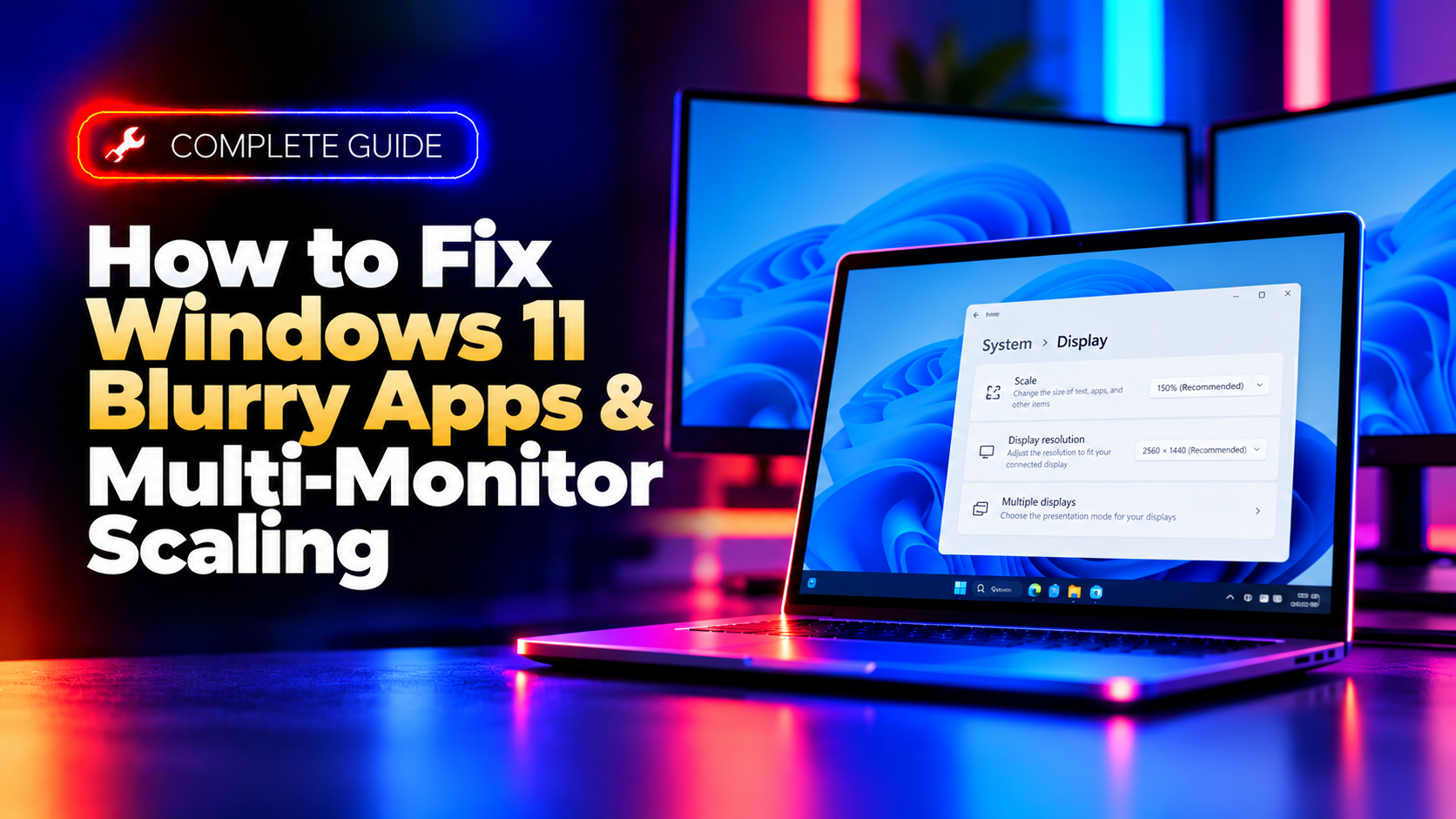
- Right-click the desktop and choose Display settings (or go to Settings > System > Display).
- Click on each monitor's numbered tile at the top to select it individually.
- Scroll down to Scale & layout and set Display resolution to the option labeled (Recommended) — this matches the monitor's native panel resolution.
- Under Scale, choose the value marked (Recommended) for that specific monitor. Don't assume both monitors should use the same percentage — a 27" 4K panel and a 24" 1080p panel need very different scale values to look equally sharp.
- Repeat for every connected display, then sign out and back in (or restart) to let all open apps re-render at the new settings.
If your monitors already show their recommended values and you're still seeing blur specifically when moving windows between them, move on to Method 2.
Method 2: Enable "Fix Scaling for Apps" Under Display Settings
Windows 11 has a dedicated toggle for the exact problem of apps looking blurry after being dragged from one monitor to another with a different scale. It forces Windows to ask the app to redraw at the correct DPI instead of just stretching the existing bitmap.
- Go to Settings > System > Display.
- Scroll to the Scale section and click Scale to expand it (on some builds this appears as a link directly under the scale percentage).
- Turn on Fix scaling for apps (Microsoft's official wording; on older builds this appeared as "Let Windows try to fix apps so they're not blurry").
- Restart the affected application (a toggle change won't retroactively fix an app that's already open).
This setting helps a lot of apps, but it's a system-wide, best-effort fix — Windows is essentially guessing at the correct redraw behavior. For apps that are still blurry after enabling it, especially older professional or internal software, you need the more precise per-app override in Method 3.
Method 3: Override DPI Behavior Per App (Compatibility Tab)
This is the fix most guides skip, and it's the one that actually resolves persistent blur in legacy apps that ignore the system-wide toggle. It tells Windows exactly how to hand DPI information to that one application.
- Find the application's shortcut or its
.exefile (right-click the app in the Start menu and choose Open file location if you're not sure where the executable lives). - Right-click the
.exeand select Properties. - Go to the Compatibility tab.
- Click Change high DPI settings.
- Under High DPI scaling override, check the box for Override high DPI scaling behavior.
- From the dropdown, select System (Enhanced) — this is the setting that produces the crispest text and UI elements for most older Win32 apps, because it uses per-monitor DPI awareness emulation with improved bitmap scaling rather than the plain "System" or "Application" modes.
- Click OK, then Apply, and relaunch the app.
If System (Enhanced) still looks slightly off for a particular app, try plain System or Application from the same dropdown — different apps respond differently depending on how their original developer built the UI. For business-critical software where this trial-and-error isn't a good use of your time, or if you manage this across a fleet of machines, it's often faster to have it handled for you — CloudHouse's Pay-Per-Ticket Support can diagnose and fix DPI and multi-monitor display issues remotely without a subscription commitment.
Method 4: Update Graphics Drivers
Outdated or generic graphics drivers can cause incorrect DPI reporting between monitors, especially after a Windows feature update. This is worth doing even if Methods 1–3 already helped, since a stale driver can cause the blur to return after sleep/wake cycles or reconnecting a dock.
- Press Windows key + R, type
devmgmt.msc, and press Enter to open Device Manager. - Expand Display adapters.
- Right-click your graphics card (Intel, NVIDIA, or AMD) and select Update driver.
- Choose Search automatically for drivers.
- If Windows finds an update, let it install, then restart your PC.
- For the most current driver (Windows' built-in search sometimes lags behind), download it directly from the manufacturer: Intel's Driver & Support Assistant, NVIDIA's GeForce Experience or nvidia.com/drivers, or AMD's Adrenalin software.
After the driver update and restart, revisit Settings > System > Display and confirm each monitor is still showing its correct recommended resolution and scale — driver updates occasionally reset these values.
Frequently Asked Questions
Why does an app look fine on my laptop screen but blurry on my external monitor?
This happens when the two displays use different scale percentages and the app isn't fully DPI-aware. The laptop panel and external monitor each report their own DPI to Windows, and a non-DPI-aware app renders using whichever monitor's settings were active when it launched, then gets stretched to fit the other screen. Use Method 3 to force that specific app to redraw correctly on both screens.
What's the difference between "System," "System (Enhanced)," and "Application" in the DPI override menu?
"Application" lets the app handle its own scaling (often blurry for older software). "System" scales the app based on the primary monitor only. "System (Enhanced)" uses an improved per-monitor scaling and bitmap-smoothing technique that Microsoft added specifically to sharpen older Win32 apps — it's the best starting point for most legacy software.
Does changing scaling settings affect all users on a shared PC?
Display resolution and scale settings in Settings > System > Display are per-user profile on most configurations, but the DPI override you set on an app's .exe in the Compatibility tab is tied to that shortcut or executable path and can affect any account launching it from the same location, unless each user has their own separate shortcut.
I updated my graphics driver and now scaling looks worse. What happened?
Driver updates sometimes reset display settings to default values or temporarily lose the "recommended" resolution association for each monitor. Go back to Settings > System > Display, select each monitor individually, and re-apply the recommended resolution and scale values listed in Method 1.
Can I just set all my monitors to the same scale percentage to avoid this entirely?
You can, but it usually creates a worse problem: forcing a 4K monitor and a 1080p monitor to the same percentage makes text and icons the wrong physical size on at least one of them. It's better to let each monitor use its own recommended scale and fix individual app blur with Method 3 rather than compromising overall sharpness.