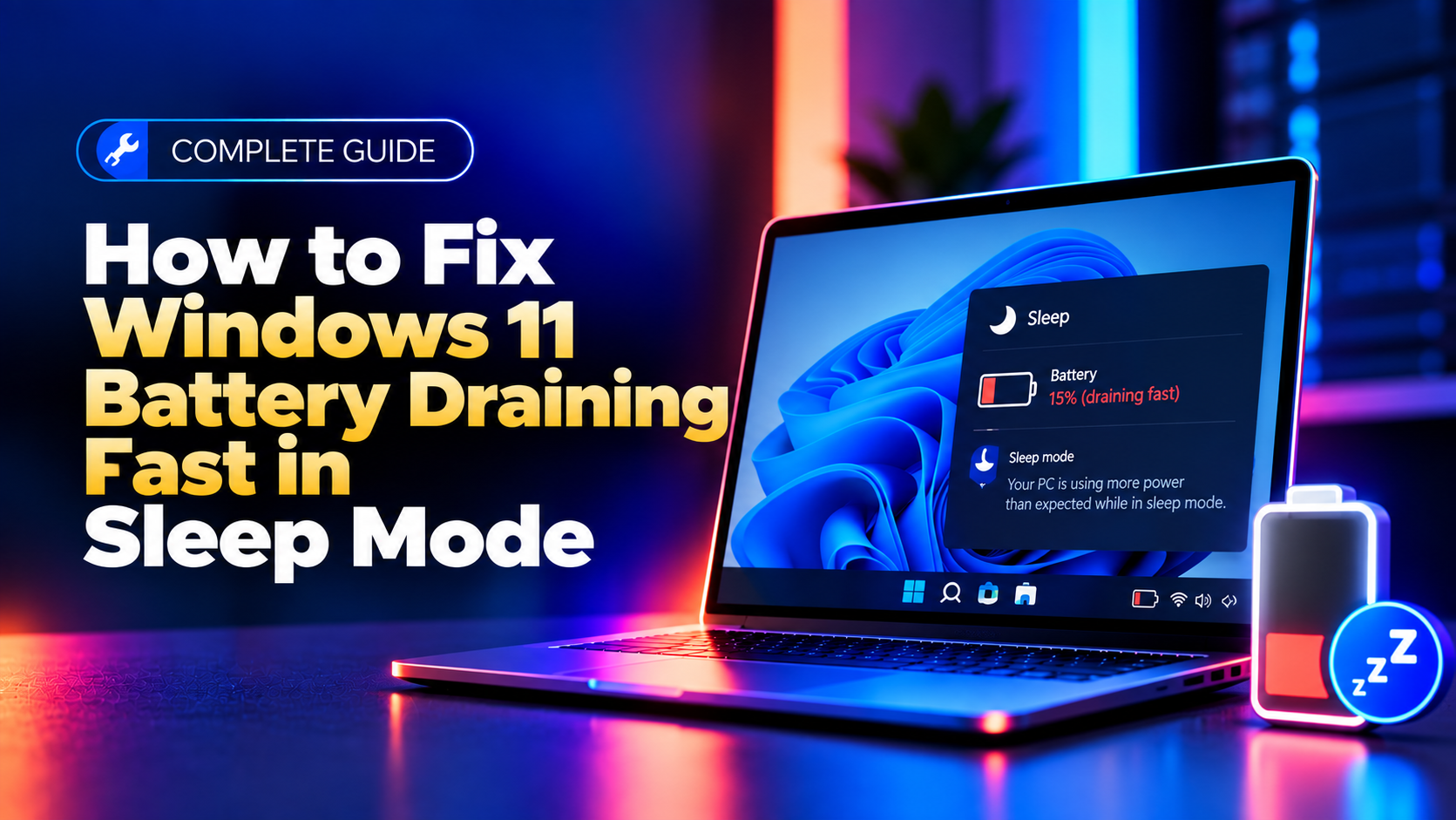
If your Windows 11 laptop battery drops 10%, 20%, or more overnight even though you closed the lid and put it to "sleep," you are not imagining it. This is one of the most common Windows 11 power complaints in 2026, and it almost always traces back to how Modern Standby handles sleep — plus a few background apps that refuse to actually go quiet. This guide explains why it happens and walks through the exact fixes, starting with the one most articles skip: the Windows 11 24H2 update that directly targets this bug.
Why Windows 11 Battery Drains During Sleep (Modern Standby Explained)
Most modern laptops running Windows 11 don't use the traditional "S3" sleep state that older PCs used, where the entire system powers down except for a trickle of RAM refresh current. Instead, they use Modern Standby (also called S0 low-power idle). Modern Standby keeps parts of the system semi-active so the laptop can quickly resume, check for notifications, sync email, and download updates — similar to how a smartphone behaves when its screen is off.
The problem is that this "always a little bit awake" design means:
- Wi-Fi radios periodically reconnect to sync mail, OneDrive, Teams, and Slack
- Windows Update can wake the device to check for and install patches
- Scheduled tasks and wake timers can bring the CPU fully active
- Poorly optimized background apps prevent the system from reaching its deepest low-power state at all
A healthy Windows 11 laptop should lose roughly 2-5% battery overnight in sleep. If you're seeing 10%, 20%, or a dead battery by morning, something is repeatedly waking the machine or blocking it from entering deep standby. You can confirm this yourself by generating an energy report — open an elevated Command Prompt and run:
powercfg /sleepstudyThis generates an HTML report (usually saved to C:\Windows\System32\sleepstudy-report.html) that breaks down every sleep session, how much battery was used, and which components or apps stayed active. It's the single most useful diagnostic step before you start changing settings blindly.
Quick Fix: Check the Windows 11 24H2 Fix and Update
Before doing any manual configuration, check for Windows updates. Microsoft has acknowledged excessive Modern Standby battery drain as a real issue and shipped a targeted fix in Windows 11 24H2. The update introduces smarter wake-source management: when the system detects unusually high battery consumption during sleep, it automatically restricts wake-ups to direct user actions only — opening the lid or pressing the power button — instead of allowing network activity, apps, or scheduled tasks to pull the device out of low-power idle.
To check your version and update status:
- Go to Settings > System > About and confirm you're on Windows 11, version 24H2 or later
- Go to Settings > Windows Update and click Check for updates
- Install any pending cumulative updates and restart the laptop
If you're still on 23H2 or an older build, upgrading is the single highest-impact fix available, since it addresses the root cause at the OS level rather than patching around it. If you're already on 24H2 with the latest patches and still seeing heavy drain, move on to the manual fixes below — you likely have a specific app or driver causing the wake-ups.
Method 2: Disable Wake Timers in Advanced Power Settings
Wake timers let scheduled tasks (like Windows Update or backup software) bring your laptop out of sleep at a set time. On battery power, this is rarely worth the drain. To disable them:
- Open Control Panel > Hardware and Sound > Power Options
- Click Change plan settings next to your active power plan
- Click Change advanced power settings
- Expand Sleep > Allow wake timers
- Set On battery to Disable (you can leave "Plugged in" enabled if desired)
- Click Apply, then OK
While you're in this menu, it's also worth checking USB settings > USB selective suspend setting and making sure it's enabled on battery, since some USB peripherals can also prevent deep sleep states.
Method 3: Restrict Background App Activity
Apps like OneDrive, Spotify, Teams, Dropbox, and antivirus software frequently keep network connections alive or run scheduled sync jobs, both of which can wake Modern Standby. To restrict them:
- Go to Settings > Apps > Installed apps
- Find the app you want to restrict, click the three-dot menu, and select Advanced options
- Under Background app permissions, set the option to Never
Repeat this for any app you don't need syncing or checking in overnight. Focus first on cloud storage clients (OneDrive, Google Drive, Dropbox), chat/collaboration apps (Teams, Slack, Discord), and media apps (Spotify). You can also review Settings > System > Power > Battery usage to see exactly which apps consumed power while the screen was off — that list tells you precisely where to focus.
Method 4: Use Hibernate Instead of Sleep Overnight
If you routinely leave your laptop unattended for 8+ hours, Sleep (even with the fixes above) still keeps some components lightly powered. Hibernate writes your session to disk and fully powers down the machine, drawing essentially zero battery while off — making it the safest choice for overnight storage.
Hibernate is often hidden by default on newer laptops, so you'll need to enable it manually:
- Open Control Panel > Power Options
- Click Choose what the power buttons do
- Click Change settings that are currently unavailable
- Check the box for Hibernate under Shutdown settings
- Click Save changes
You can now select Hibernate from the Start menu power options, or set your lid-close action to Hibernate under Settings > System > Power > Power mode related lid settings for the same effect automatically every time you close the laptop overnight.
If you've tried all of the above and your laptop still drains excessively, chews through battery health quickly, or shows erratic wake behavior, it may point to a deeper driver, firmware, or hardware issue that's worth having a technician look at rather than continuing to guess. CloudHouse Technologies' pay-per-ticket remote support can diagnose stubborn Modern Standby and battery problems without requiring a subscription.
Frequently Asked Questions
Why does my Windows 11 laptop lose battery overnight even when it's closed?
Closing the lid puts most Windows 11 laptops into Modern Standby, not a full power-off state. The system stays partially active to check for notifications and sync data, which drains the battery faster than older sleep modes. Excessive drain usually means wake timers, background apps, or a missing 24H2 update fix.
What is considered normal battery drain in sleep mode?
A healthy laptop should lose about 2-5% battery over an 8-hour sleep period. Anything above 10% overnight indicates the device is waking frequently or failing to enter its deepest low-power state, and is worth investigating with powercfg /sleepstudy.
Does the Windows 11 24H2 update actually fix Modern Standby battery drain?
Yes. Windows 11 24H2 introduced logic that detects abnormal battery consumption during sleep and automatically restricts wake sources to direct user actions like opening the lid, rather than allowing background network or app activity to wake the device. Installing the latest 24H2 cumulative updates is the recommended first step.
How do I disable wake timers in Windows 11?
Go to Control Panel > Power Options > Change plan settings > Change advanced power settings, then expand Sleep > Allow wake timers and set "On battery" to Disable. This stops scheduled tasks from waking your laptop while it's unplugged.
Should I use Sleep or Hibernate for overnight storage?
For overnight or extended periods away from your laptop, Hibernate is safer for battery life since it fully powers down the device after saving your session to disk. Sleep is better for short breaks where you want the laptop to resume instantly, but it draws more power over long periods due to Modern Standby.