
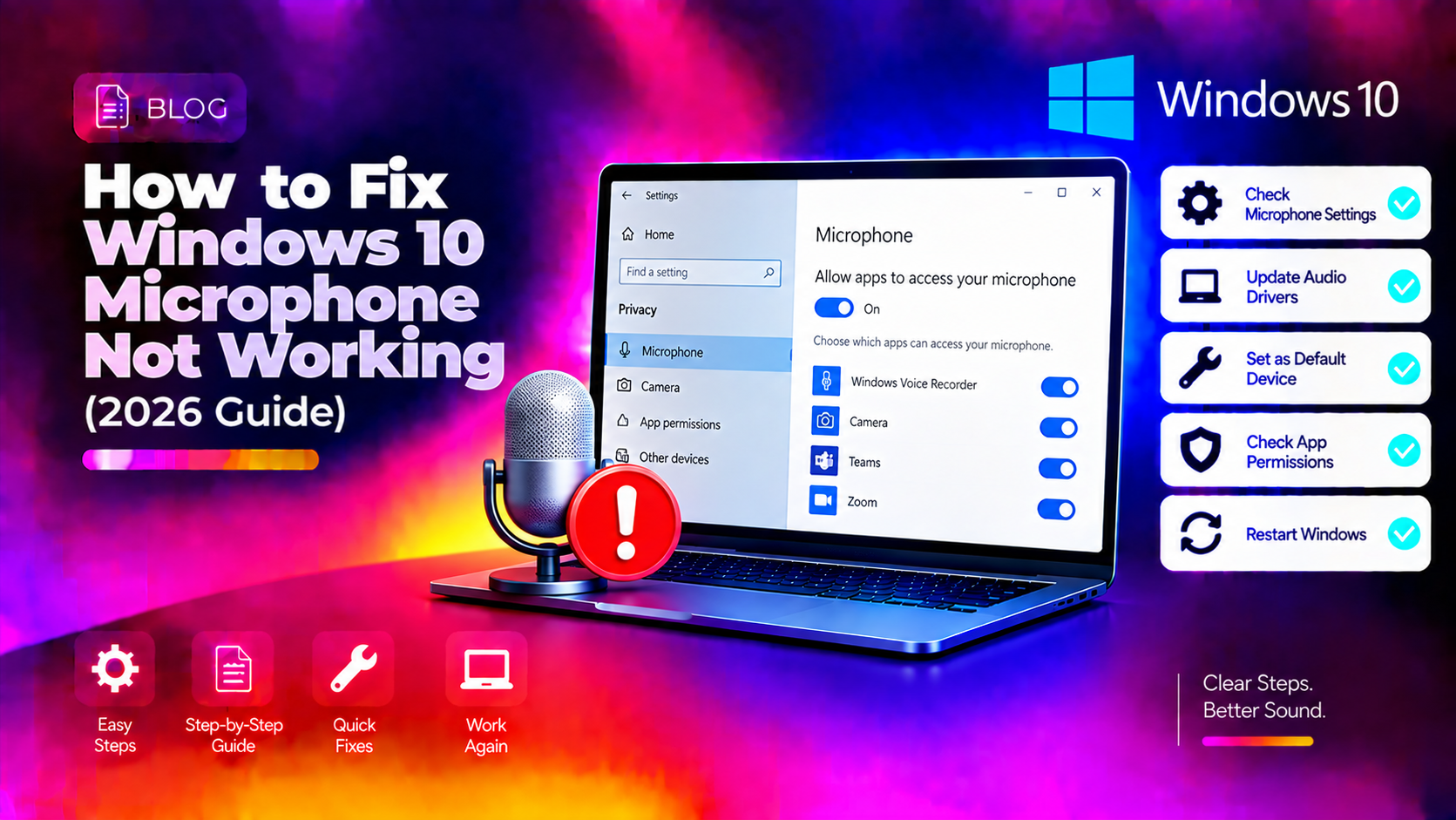
Why Is Your Windows 10 Microphone Not Working?
A microphone that suddenly stops working on Windows 10 is frustrating — especially mid-meeting or gaming session. The good news: this is one of the most fixable Windows problems out there. In most cases, the culprit is one of five things: a privacy setting blocking mic access, the wrong input device selected, muted volume levels, an outdated or corrupt audio driver, or an app claiming exclusive mic control.
This guide walks you through every fix in the right order, from the fastest 30-second checks to the deeper driver-level repairs, so you can get your microphone working again without reinstalling Windows.
Fix 1: Check Windows 10 Privacy Settings for Microphone Access
After Windows updates, privacy settings sometimes reset and block all microphone access entirely. This is the number-one cause of a microphone suddenly stopping — and it's a 60-second fix.
- Press Windows + I to open Settings.
- Go to Privacy.
- In the left panel, click Microphone.
- Under "Allow access to the microphone on this device," click Change and turn it On.
- Also turn on Allow apps to access your microphone.
- Scroll down and turn on access for Allow desktop apps to access your microphone.
All three toggles must be enabled. If any are off, your mic will be completely blocked — even if the hardware is fine.
Fix 2: Set the Correct Default Microphone Device
Windows 10 may have switched to a different audio input after an update or when new hardware was connected. If your mic is working but apps can't hear you, this is likely the issue.
- Right-click the speaker icon in your taskbar and select Sounds.
- Click the Recording tab.
- Right-click your microphone from the list and select Set as Default Device.
- Also right-click it and select Set as Default Communication Device.
- Click OK.
If you see multiple microphone entries (e.g., "Microphone Array" and "Stereo Mix"), make sure you're setting the correct physical mic as default.
Fix 3: Check and Adjust Microphone Volume Levels
A microphone set to 0% volume or muted will appear to "not work" even though Windows detects it perfectly. Always check volume levels before diving into drivers.
- Right-click the speaker icon → Sounds → Recording tab.
- Double-click your microphone to open its properties.
- Click the Levels tab.
- Set the microphone volume to 80–100.
- If you see a Microphone Boost slider, set it to +10 dB or higher for weak signals.
- Click Apply, then OK.
Fix 4: Run the Windows 10 Recording Audio Troubleshooter
Windows 10 includes a built-in recording troubleshooter that catches common driver and service failures automatically.
- Press Windows + I → Update & Security.
- Click Troubleshoot in the left panel.
- Click Additional troubleshooters.
- Find Recording Audio and click Run the troubleshooter.
- Follow the prompts and apply any fixes it suggests.
- Restart your PC after the troubleshooter completes.
Fix 5: Update or Reinstall the Microphone Driver
An outdated, missing, or corrupted audio driver is the second most common cause of Windows 10 microphone problems, especially after major Windows updates.
Update the driver automatically:
- Press Windows + X → Device Manager.
- Expand Audio inputs and outputs.
- Right-click your microphone (look for "Microphone Array," "Realtek Audio," or your device name).
- Select Update driver → Search automatically for drivers.
- Restart your PC if prompted.
Reinstall the driver if updating doesn't help:
- In Device Manager, right-click the microphone → Uninstall device.
- Check Delete the driver software for this device if the option appears.
- Restart your PC — Windows will automatically reinstall the driver on reboot.
If Windows can't find the right driver, visit your laptop or motherboard manufacturer's website and download the latest audio driver manually.
Fix 6: Disable Exclusive Mode for the Microphone
Some apps (Discord, Zoom, games) request "exclusive mode," which prevents other applications from using the mic simultaneously. If your mic only works in one app at a time, this is the fix.
- Right-click the speaker icon → Sounds → Recording tab.
- Double-click your microphone → Advanced tab.
- Uncheck Allow applications to take exclusive control of this device.
- Click Apply → OK.
Fix 7: Restart the Windows Audio Service
The Windows Audio service can crash or hang, causing all audio devices — including microphones — to stop responding without any obvious error message.
- Press Windows + R, type
services.msc, and press Enter. - Scroll down to Windows Audio.
- Right-click it and select Restart.
- Also restart Windows Audio Endpoint Builder.
- Test your microphone immediately after.
Fix 8: Check Application-Specific Microphone Permissions
Modern apps like Teams, Zoom, Chrome, and Discord have their own in-app microphone permission settings that are separate from Windows privacy settings. If your mic works in one app but not another, check the app itself.
For Google Chrome: Settings → Privacy and security → Site Settings → Microphone → make sure the site is allowed.
For Microsoft Teams: Settings → Permissions → Microphone → turn on access.
For Discord: User Settings → Voice & Video → set Input Device to your microphone explicitly.
Fix 9: Check for Windows Updates
Microsoft frequently releases audio driver fixes via Windows Update. A pending cumulative update may already contain the fix for your microphone issue.
- Press Windows + I → Update & Security → Windows Update.
- Click Check for updates.
- Install all available updates and restart.
- Test the microphone after restarting.
Fix 10: Test the Microphone on Another Device
If none of the software fixes above work, test your microphone on a different PC or plug a different microphone into the same port. This tells you whether the issue is hardware (the mic itself or the audio port) or software (Windows configuration).
If the mic doesn't work on another PC either, the microphone is likely physically damaged. If it works fine elsewhere, the issue is Windows-specific — consider running a system file check:
sfc /scannowRun this command in an elevated Command Prompt (right-click Start → Windows PowerShell (Admin)) to repair any corrupted Windows system files affecting audio.
Still Having Microphone Problems on Windows 10?
If you've worked through all these steps and your microphone still isn't working, the issue may be deeper — a conflicting audio driver from a third-party app, a faulty USB hub, or a BIOS-level audio toggle that's been disabled. At that point, it's faster to get an expert to diagnose your specific setup rather than continuing to guess. CloudHouse Technologies offers pay-per-ticket remote support — a technician can connect to your PC, run advanced diagnostics, and resolve the issue in a single session without requiring a full-service contract.
Frequently Asked Questions
Why did my Windows 10 microphone stop working after an update?
Windows updates occasionally reset privacy settings, replace audio drivers, or change default device selections. After any Windows update, go to Settings → Privacy → Microphone and verify all three permission toggles are still enabled, then check that your mic is still set as the default recording device.
How do I test if my microphone is working on Windows 10?
Go to Settings → System → Sound, scroll to Input, and select your microphone. Speak normally — you should see the blue bar under "Test your microphone" move. If it doesn't move, your mic is either not detecting input (wrong device selected or muted) or the driver is failing.
Why can apps not hear me even though my microphone volume is high?
The most likely cause is a privacy setting blocking app access. Go to Settings → Privacy → Microphone and make sure "Allow apps to access your microphone" and "Allow desktop apps to access your microphone" are both enabled. Also check the individual app's own microphone permission in its settings.
Can I fix a Windows 10 microphone not working without restarting?
Yes — restarting the Windows Audio service in services.msc (without rebooting the whole PC) fixes many microphone issues instantly. Updating privacy settings and changing the default device also take effect immediately without a restart.
What is Microphone Boost in Windows 10 and should I use it?
Microphone Boost amplifies the mic signal if it's too quiet — useful for headset mics or weak laptop microphones. Access it via Sounds → Recording → double-click your mic → Levels tab. Set Microphone Boost to +10 dB as a starting point; go higher only if you're still hard to hear, as too much boost introduces background noise.