
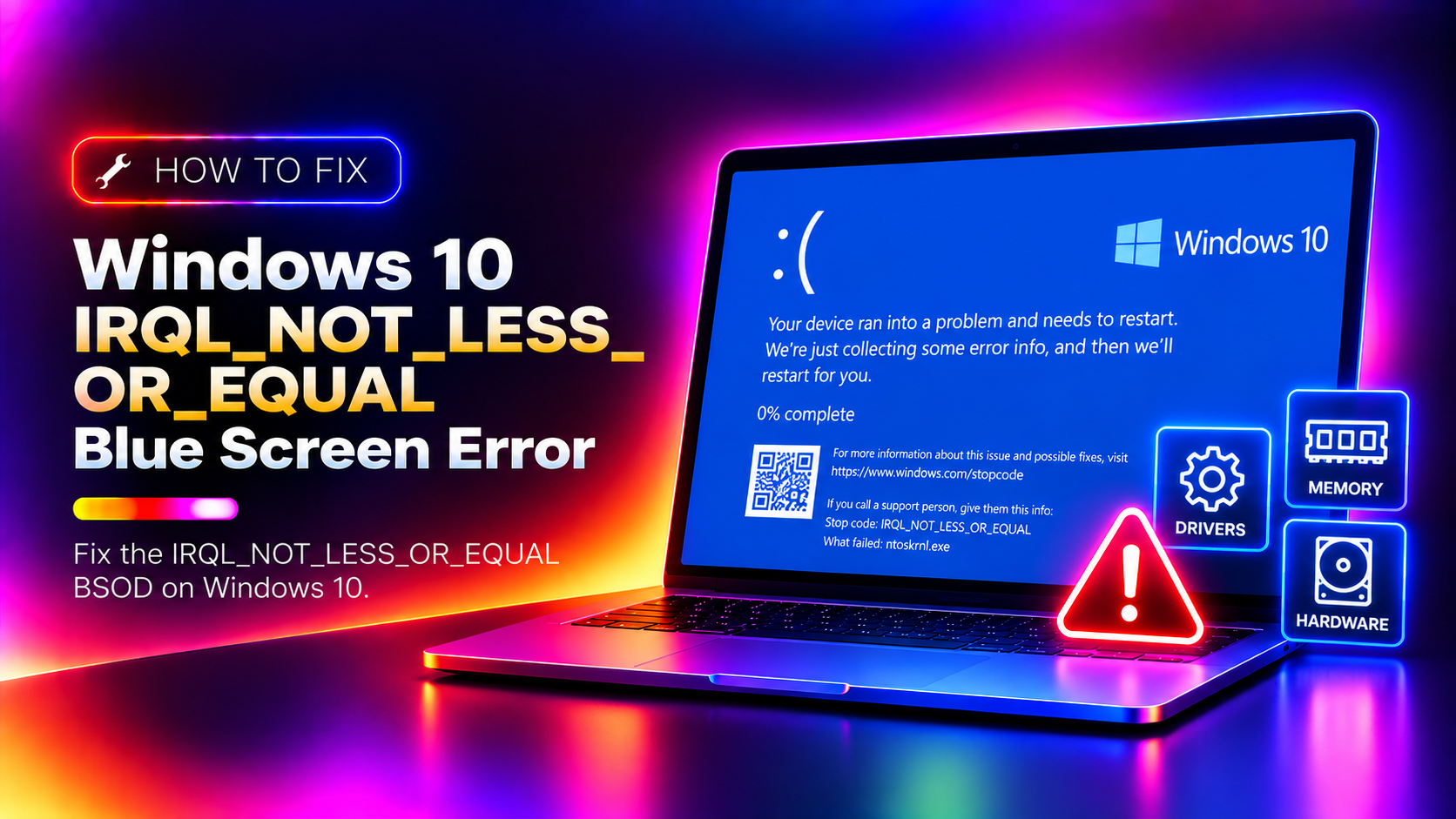
Few things are more frustrating than sitting down to work and watching your Windows 10 PC crash into a blue screen that reads IRQL_NOT_LESS_OR_EQUAL. The screen flashes, your work disappears, and Windows restarts — sometimes over and over again. This stop code (also listed as 0x0000000A) is one of the most common BSODs on Windows 10, and the good news is that it is almost always fixable without reinstalling Windows.
This guide walks you through every proven fix in order — from the quick wins to the more thorough repairs — so you can stop the crashes and get back to a stable PC.
What Causes IRQL_NOT_LESS_OR_EQUAL on Windows 10?
The IRQL_NOT_LESS_OR_EQUAL error occurs when a driver or system process tries to access a memory address at an interrupt request level (IRQL) that is too high. In plain English: some piece of software — usually a hardware driver — is reaching into memory it has no business touching, and Windows shuts everything down to prevent data corruption.
The most common culprits are:
- Outdated, corrupt, or incompatible device drivers — network adapters, graphics cards, and USB controllers are frequent offenders
- Faulty or incompatible RAM — a bad memory stick can cause random kernel-level crashes
- Recently installed third-party software — antivirus tools, VPN clients, and system utilities that hook deep into Windows
- Corrupted Windows system files — a failed update or interrupted installation can leave critical files damaged
- Overclocking — pushing the CPU or RAM beyond rated speeds can destabilise kernel memory operations
- Hard drive errors or bad sectors — especially on older HDDs or drives that are beginning to fail
The stop code almost always leaves a minidump file at C:\Windows\Minidump. If you see a filename like nvlddmkm.sys (NVIDIA) or atikmdag.sys (AMD) in the crash log, that points directly to the driver responsible.
Method 1 – Update or Roll Back the Problematic Driver
Because a faulty driver is the number-one cause of IRQL_NOT_LESS_OR_EQUAL, this is always the first place to look.
Step 1 — Read the minidump. Open File Explorer and navigate to C:\Windows\Minidump. If you see crash files there, the filename often contains the offending driver name. You can also right-click This PC > Manage > Event Viewer > Windows Logs > System and look for critical errors near the time of the crash.
Step 2 — Open Device Manager. Press Win + X and choose Device Manager. Look for any device with a yellow exclamation mark — that flags a driver problem.
Step 3 — Update the driver. Right-click the suspected device and choose Update driver > Search automatically for drivers. For graphics cards and network adapters, it is better to download the latest driver directly from the manufacturer's website (NVIDIA, AMD, Intel, Realtek) rather than relying on Windows Update.
Step 4 — Roll back if the crash started after a driver update. Right-click the device in Device Manager, choose Properties > Driver tab > Roll Back Driver. This restores the previous working version.
Pro tip: If the system crashes before you can get into Windows normally, boot into Safe Mode (hold Shift while clicking Restart > Troubleshoot > Advanced Options > Startup Settings > Enable Safe Mode) and perform the driver steps from there.
Method 2 – Run Windows Memory Diagnostic (Check RAM)
Bad RAM causes a surprising number of IRQL_NOT_LESS_OR_EQUAL crashes. Windows has a built-in tool to test your memory — no third-party software needed.
Step 1. Press Win + R, type mdsched.exe, and press Enter.
Step 2. Choose Restart now and check for problems. Save any open work first — the PC will reboot immediately.
Step 3. The memory diagnostic runs automatically on boot. It performs two passes by default (Extended mode runs four passes for a deeper check). The scan takes 10–30 minutes depending on how much RAM you have.
Step 4. After the test, Windows reboots back to the desktop. Results appear in a notification bubble near the system clock. To view them later, open Event Viewer > Windows Logs > System and search for the source MemoryDiagnostics-Results.
If the test reports errors, try reseating the RAM sticks (remove and firmly reinsert them). If errors persist, the RAM needs to be replaced. For a more thorough check, download MemTest86 and run it from a USB drive — it tests memory before Windows even loads, which gives more reliable results.
Method 3 – Check for Disk Errors with CHKDSK
A failing or error-riddled hard drive can cause Windows to read corrupt data into kernel memory, triggering an IRQL crash. CHKDSK scans the drive and repairs file-system errors and bad sectors.
Step 1. Right-click the Start button and choose Windows PowerShell (Admin) or Command Prompt (Admin).
Step 2. Run the following command:
chkdsk C: /f /rThe /f flag fixes file-system errors. The /r flag locates bad sectors and recovers readable data. Because the C: drive is in use, Windows will schedule the scan for the next restart.
Step 3. Type Y when prompted and restart your PC. The scan runs before Windows loads and can take anywhere from 20 minutes to over an hour on large or heavily-used drives.
Step 4. After the restart, check the results in Event Viewer > Windows Logs > Application, source Wininit. If CHKDSK reports a large number of bad sectors, the drive is likely failing and should be replaced soon.
Method 4 – Disable or Uninstall Recently Installed Software
Third-party software that runs at the kernel level — VPN clients, antivirus engines, disk tools, overclocking utilities — can introduce exactly the kind of memory access violations that trigger IRQL_NOT_LESS_OR_EQUAL. If the crashes started after installing something new, that software is the prime suspect.
Step 1 — Identify recent installs. Go to Settings > Apps > Apps & features and sort by Install date (newest first). Look for anything installed in the days before the crashes began.
Step 2 — Uninstall the suspect software. Click the application and choose Uninstall. For antivirus or security tools, use the vendor's dedicated removal tool (most publish these on their support pages) rather than the standard uninstaller, to ensure all kernel-level components are fully removed.
Step 3 — If you cannot boot normally, boot into Safe Mode (as described in Method 1) and uninstall from there — Safe Mode loads only essential drivers, so conflicting software cannot block the removal.
Step 4 — Reboot and monitor. Use your PC normally for a day and see if the BSOD returns. If it does not, the uninstalled software was the cause. Contact the vendor for a compatible version or choose an alternative tool.
Method 5 – Run SFC and DISM to Repair System Files
Corrupted Windows system files — whether from a bad update, sudden power loss, or malware — can corrupt the files that manage memory and interrupt handling. System File Checker (SFC) and DISM fix these without a Windows reinstall.
Step 1 — Open an elevated Command Prompt. Right-click Start, choose Windows PowerShell (Admin) or Command Prompt (Admin).
Step 2 — Run SFC. Type the following command and press Enter:
sfc /scannowSFC scans all protected system files and replaces any corrupted versions from a local cache. The scan takes 10–20 minutes. Do not close the window until it completes. When it finishes, look for one of three messages: no integrity violations found, repaired successfully, or unable to repair (in which case proceed to DISM).
Step 3 — Run DISM to repair the repair tool itself. If SFC found issues it could not fix — or as a best practice after any SFC run — run DISM to restore the Windows image that SFC draws from:
DISM /Online /Cleanup-Image /RestoreHealthDISM downloads replacement files directly from Windows Update, so an active internet connection is required. This can take 20–30 minutes. Once it completes, run sfc /scannow again to apply any remaining repairs.
Step 4 — Restart and check whether the BSOD has stopped.
Method 6 – Perform a Clean Boot to Isolate the Cause
A clean boot starts Windows with only Microsoft services and drivers — no third-party software. If the system is stable after a clean boot, you know a background application or service is causing the IRQL crash, and you can narrow it down systematically.
Step 1. Press Win + R, type msconfig, and press Enter.
Step 2. On the Services tab, check Hide all Microsoft services, then click Disable all. This leaves only Windows's own services running.
Step 3. On the Startup tab, click Open Task Manager. In the Startup tab of Task Manager, right-click each item and choose Disable. Close Task Manager.
Step 4. Click OK in System Configuration and restart the PC.
Step 5 — Test for stability. Use the PC for a few hours. If no crash occurs, begin re-enabling services and startup items in small groups (re-enable half, restart, test; if still stable, re-enable the other half). When the crash returns, the last group you re-enabled contains the culprit. Narrow it down to the single service or application.
Step 6 — Restore normal startup. Once you have identified the cause, go back to msconfig and re-enable everything except the offending item. Uninstall or update that specific application.
Method 7 – Check for Windows Update and Patch Errors
Sometimes Microsoft ships a cumulative update that conflicts with certain hardware configurations and causes IRQL crashes. On the other hand, running an outdated version of Windows can leave known driver bugs unpatched. Either way, checking your update status is important.
Step 1 — Install pending updates. Go to Settings > Update & Security > Windows Update and click Check for updates. Install all available updates, including optional driver updates (click View optional updates).
Step 2 — Check for failed updates. If an update is stuck or failing, open an elevated PowerShell and run:
net stop wuauserv
net stop bits
net start wuauserv
net start bits
Then try Windows Update again. This resets the update service without touching your files.
Step 3 — Roll back a bad update. If crashes started after a specific Windows update, go to Settings > Update & Security > View update history > Uninstall updates. Find the update installed around the time the crashes began, right-click it, and choose Uninstall. You can also pause future updates for up to 35 days while you wait for a fix from Microsoft.
Step 4 — Check the Windows Update log for errors at C:\Windows\WindowsUpdate.log if you want to dig deeper into what went wrong.
When to Seek Professional Help
Most IRQL_NOT_LESS_OR_EQUAL crashes are resolved by following the methods above — especially driver updates, RAM testing, and SFC/DISM repairs. However, sometimes the problem points to a hardware failure that cannot be fixed with software:
- Windows Memory Diagnostic and MemTest86 both report persistent errors — the RAM is physically failing
- CHKDSK finds hundreds of bad sectors — the hard drive is failing and should be replaced before data is lost
- The crash happens in Safe Mode and after a clean reinstall of Windows — a hardware component (motherboard, CPU, RAM slot) is likely defective
- The PC is overclocked — restore all clock speeds to stock settings in BIOS first, then retest
- You are not comfortable running diagnostic commands or editing BIOS settings
In any of these situations, reaching out to a specialist saves time and prevents accidental data loss. CloudHouse expert Windows support can remotely diagnose and resolve most BSOD crashes — including hardware-linked issues — usually within a single session. Our technicians use professional dump analysis tools and have direct experience with hundreds of IRQL crash scenarios.
FAQ
Q: What causes IRQL_NOT_LESS_OR_EQUAL on Windows 10?
A: The IRQL_NOT_LESS_OR_EQUAL error (0x0000000A) is typically caused by a faulty or incompatible device driver, bad RAM, corrupted system files, or a recently installed program that conflicts with Windows kernel memory management.
Q: How do I find which driver is causing IRQL_NOT_LESS_OR_EQUAL?
A: Open Event Viewer > Windows Logs > System and look for critical errors near the crash time. You can also use WinDbg or WhoCrashed to analyze the minidump file at C:\Windows\Minidump to identify the specific driver (e.g., ntfs.sys, nvlddmkm.sys).
Q: Can bad RAM cause IRQL_NOT_LESS_OR_EQUAL blue screen?
A: Yes. Faulty RAM is a common cause. Run Windows Memory Diagnostic (press Win+R, type mdsched.exe) or MemTest86 to test your RAM. If errors are found, replace the defective RAM stick.
Q: Does IRQL_NOT_LESS_OR_EQUAL mean my hard drive is failing?
A: Not necessarily, but a failing drive can contribute to this BSOD. Run CHKDSK with chkdsk C: /f /r to check for disk errors. If CHKDSK finds and cannot repair bad sectors, the drive may need replacement.
Q: How do I fix IRQL_NOT_LESS_OR_EQUAL without reinstalling Windows?
A: Start with driver updates and rollbacks, then run sfc /scannow and DISM /Online /Cleanup-Image /RestoreHealth to repair system files. A clean boot can help isolate third-party software conflicts. Most cases are resolved without a full Windows reinstall.