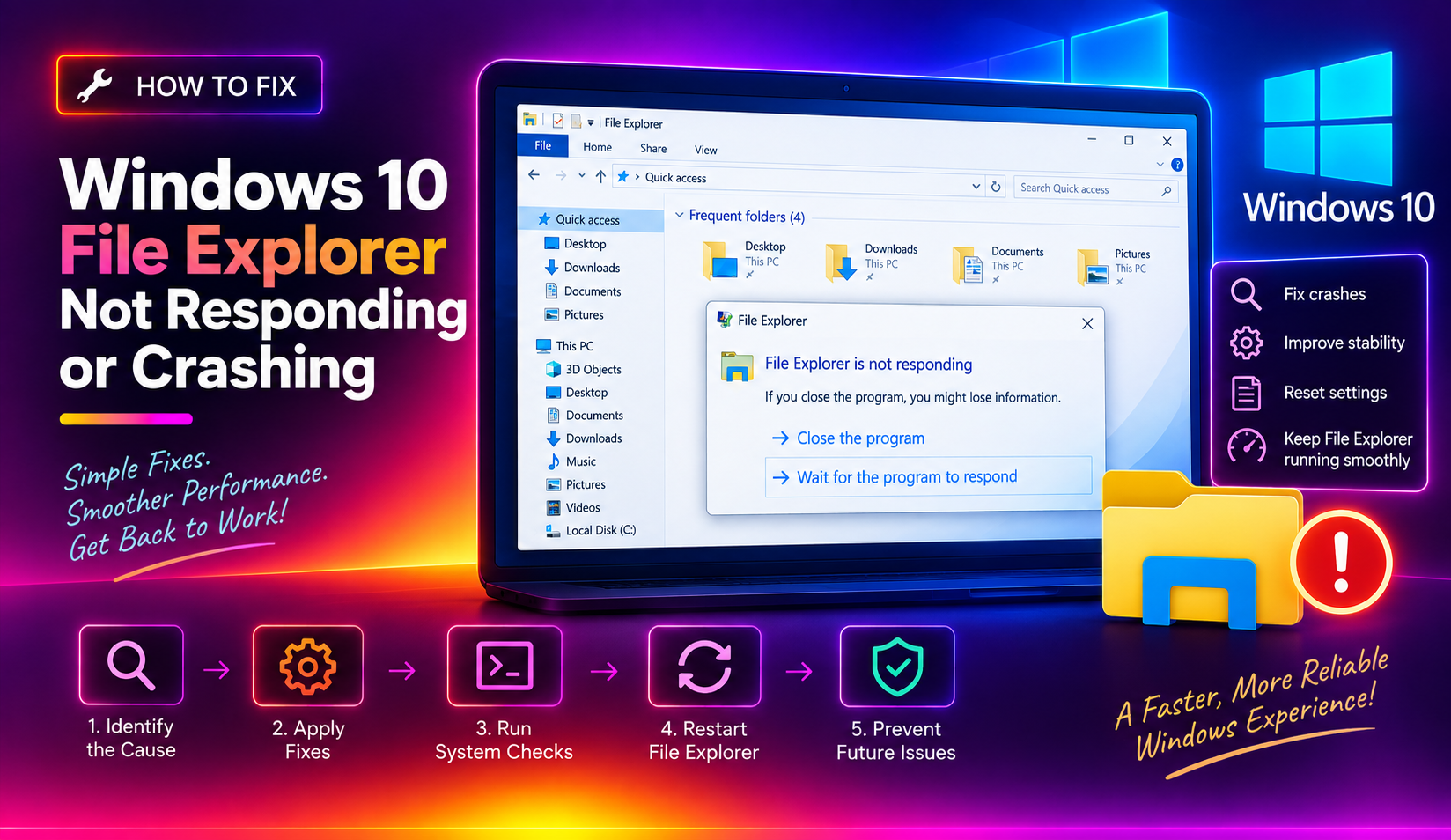
Why Does Windows 10 File Explorer Keep Crashing?
File Explorer (explorer.exe) is one of Windows 10's most critical processes — it powers the Start menu, taskbar, desktop, and every file browsing window. When it crashes or stops responding, you lose access to virtually everything on your PC.
Common causes include a corrupt thumbnail cache, bad shell extensions, a bloated search index, outdated display drivers, and corrupted system files. Here are 9 fixes that address each root cause systematically.
Fix 1: Restart Windows Explorer
A quick Explorer restart clears transient crashes without rebooting your PC.
- Press Ctrl + Shift + Esc to open Task Manager.
- Find Windows Explorer in the list (under Processes).
- Right-click it → Restart.
The desktop and taskbar will briefly disappear and reappear. This often resolves one-off crashes immediately.
If Task Manager won't open, press Ctrl + Alt + Del → Task Manager, or run this in an elevated Command Prompt:
taskkill /f /im explorer.exe && start explorer.exeFix 2: Clear the Thumbnail Cache
A corrupted thumbnail cache is one of the most common causes of File Explorer freezing — particularly when navigating folders containing images, videos, or documents.
- Press Win + R, type
cleanmgr, press Enter. - Select your system drive (C:) → OK.
- Check Thumbnails and Temporary files.
- Click OK → Delete Files.
Alternatively, open a Command Prompt as Administrator and run:
ie4uinit.exe -showThen navigate to %LocalAppData%\Microsoft\Windows\Explorer and delete all thumbcache_*.db files manually.
Fix 3: Disable Thumbnail Previews
If the thumbnail cache keeps getting corrupted, disable thumbnails entirely to stop File Explorer from generating them.
- Open File Explorer → View tab → Options → Change folder and search options.
- Click the View tab.
- Check Always show icons, never thumbnails.
- Click Apply → OK.
This trades visual previews for stability and is particularly useful on older HDDs where thumbnail generation causes disk thrashing.
Fix 4: Run SFC and DISM
Corrupted Windows system files can cause explorer.exe to crash repeatedly. SFC repairs them from a local cache; DISM fetches replacements from Microsoft's servers.
- Open Command Prompt as Administrator (search for cmd → right-click → Run as administrator).
- Run:
sfc /scannowand wait for it to complete. - Then run:
DISM /Online /Cleanup-Image /RestoreHealth - Reboot after both finish.
Fix 5: Rebuild the Search Index
A bloated or corrupted Windows Search index causes File Explorer to hang — especially in the Downloads folder or when using the search bar.
- Open Settings → Search → Searching Windows.
- Scroll down to Advanced Search Indexer Settings.
- Click Advanced → Rebuild and confirm.
The rebuild may take 30–60 minutes but dramatically improves stability for search-heavy workflows.
Fix 6: Disable Shell Extensions with ShellExView
Third-party shell extensions — added by programs like 7-Zip, WinRAR, Dropbox, OneDrive, or antivirus tools — integrate into File Explorer's context menu and can cause crashes when they're buggy or outdated.
- Download ShellExView from NirSoft (free utility).
- Run it, click Options → Filter by Extension Type → select Context Menu.
- Select all non-Microsoft entries (highlighted in pink) → right-click → Disable Selected Items.
- Test File Explorer.
Re-enable extensions one by one to identify which program is causing the crash.
Fix 7: Update Display Drivers
Outdated or corrupt GPU drivers cause explorer.exe to crash particularly when rendering thumbnails or navigating large folders. This is common after Windows 10 feature updates.
- Press Win + X → Device Manager.
- Expand Display adapters.
- Right-click your GPU → Update driver → Search automatically.
For NVIDIA and AMD GPUs, download drivers directly from the manufacturer's website for the most current version.
Fix 8: Change File Explorer Launch Destination
File Explorer defaults to opening "Quick Access" — which aggregates recent files and frequent folders. If any of those locations are on a slow or disconnected network drive, Explorer freezes on launch.
- Open File Explorer → View → Options.
- Under "Open File Explorer to:" change to This PC instead of Quick Access.
- Under the Privacy section, click Clear to remove Quick Access history.
- Click Apply → OK.
Fix 9: Create a New User Account
If explorer.exe only crashes under your user profile and not others, the issue is in your user-specific settings or AppData.
- Go to Settings → Accounts → Family & other users → Add someone else to this PC.
- Create a local account and log in to test File Explorer.
If Explorer is stable in the new account, copy your files to the new profile and use it going forward, or investigate which file in %AppData%\Microsoft\Windows is causing the issue.
Need More Help?
If File Explorer continues to crash after trying all these fixes, a hardware issue or deep system corruption may be involved. CloudHouse Technologies offers Pay-Per-Ticket Windows support — get expert diagnosis without any ongoing commitment.
FAQs
Why does Windows 10 File Explorer keep freezing?
The most common causes are a corrupted thumbnail cache, bad shell extensions from third-party software, a bloated search index, or corrupted system files. Run SFC /scannow and clear the thumbnail cache as a first step.
How do I restart Windows Explorer without rebooting?
Open Task Manager (Ctrl + Shift + Esc), find Windows Explorer, right-click, and select Restart. The desktop will briefly flicker and return without needing a full reboot.
Why does File Explorer crash when I right-click a file?
Right-click crashes are almost always caused by a buggy shell extension. Use ShellExView to disable non-Microsoft context menu extensions one by one to find the culprit.
Does a full drive cause File Explorer to crash?
Yes — when your C: drive is nearly full, Windows can't write temporary files needed for thumbnail generation and search indexing, which causes Explorer to freeze or crash.
How do I stop File Explorer from opening to Quick Access?
Go to File Explorer → View → Options. Change "Open File Explorer to:" from Quick Access to This PC. This prevents delays caused by loading recent files from slow or disconnected locations.