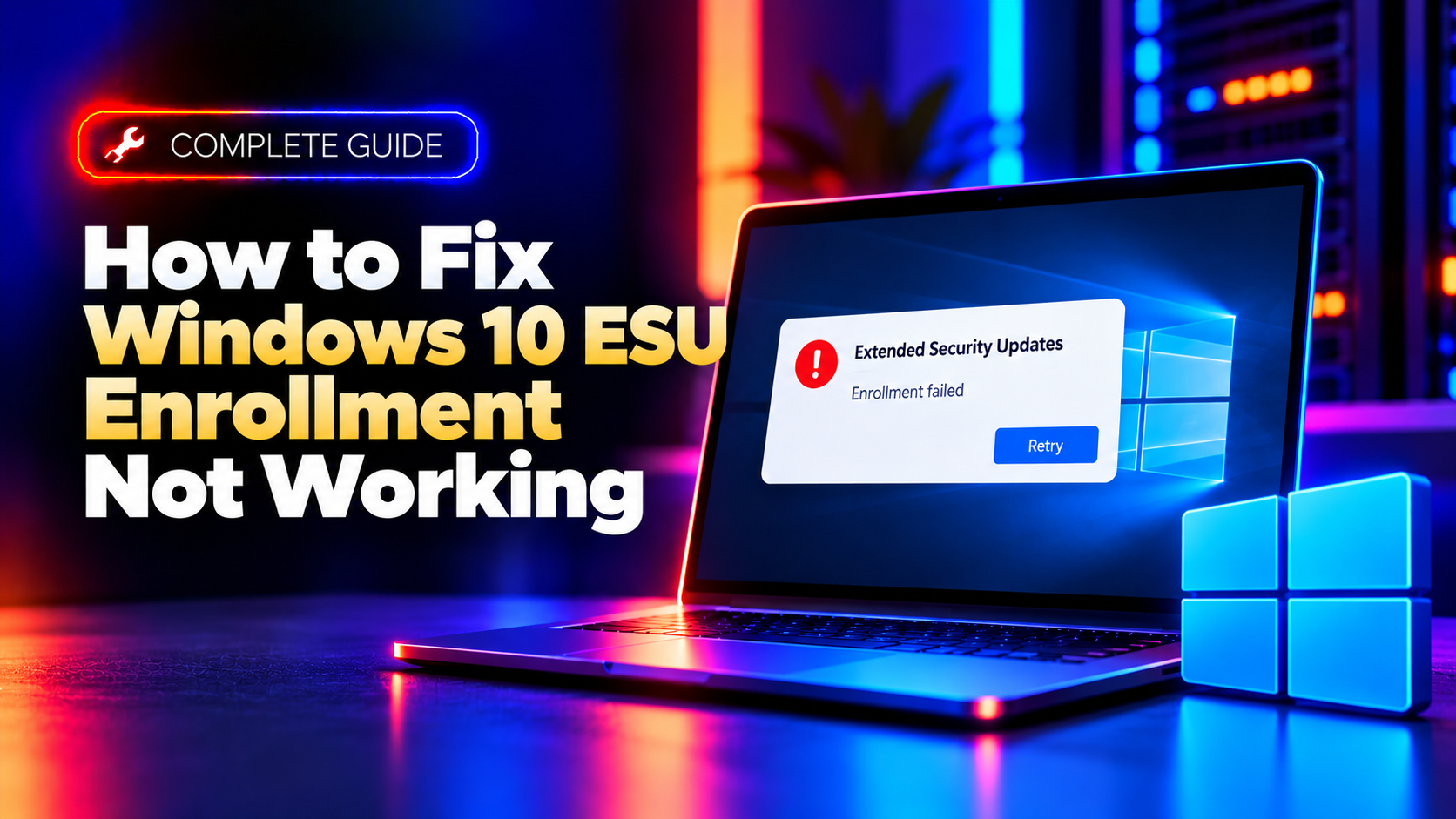
If you tried to claim your free (or paid) year of security patches after Windows 10's October 14, 2025 end-of-support date and got stuck on "Something went wrong - We can't enroll you in Extended Security Updates right now", you're not alone. Thousands of Windows 10 users hit this exact wall in late 2025 and into 2026, and in most cases the cause isn't your PC — it's a Microsoft-side bug that has a documented fix.
This guide walks through the real root causes (not just "restart your PC") and gives you the exact steps to get the Enroll now button working, including the out-of-band patch Microsoft shipped specifically for this issue.
What's Causing the ESU Enrollment Failure
Windows 10 Extended Security Updates (ESU) enrollment failures generally trace back to one of four causes:
- A Microsoft enrollment-wizard bug that shipped in the original ESU rollout, causing the wizard to throw "Something went wrong" or a region-gating error even on fully eligible PCs.
- Signing in with a local account instead of a Microsoft Account (MSA). ESU enrollment cannot verify or license a device that isn't tied to an MSA.
- A broken or stale device-to-account link, which Find My Device can force Windows to re-sync.
- Leftover work or school (Azure AD / Entra ID) account metadata on a PC that used to be managed by an organization. Windows misreads this and classifies the machine as "enterprise-managed," which blocks it from the consumer ESU path entirely.
You also need to confirm baseline eligibility first: your PC must be running Windows 10, version 22H2, on Home, Pro, Pro Education, or Pro for Workstations edition, and be fully updated. Enterprise, Education, IoT Enterprise, and LTSC editions use a different (business) ESU channel and won't see the consumer enrollment wizard at all.
Quick Fix: Install the Latest Cumulative Update (KB5071959+)
The single most common fix is also the easiest: Microsoft acknowledged that a bug in the initial ESU enrollment wizard was blocking eligible consumer PCs, and shipped an out-of-band cumulative update, KB5071959, on November 11, 2025, specifically to resolve it. If you enrolled (or tried to) before installing this update, that's almost certainly your issue.
- Go to Settings > Update & Security > Windows Update (on some builds this appears as Settings > Windows Update).
- Click Check for updates and let Windows download anything pending, including KB5071959 or any newer cumulative update.
- Install the update and restart your PC — this step matters, the fix doesn't fully apply until after a reboot.
- Return to Settings > Update & Security > Windows Update and look for the Enroll now link under the Extended Security Updates section.
- Click Enroll now and walk through the wizard again.
If Enroll now still doesn't appear after the update and reboot, move on to the account-related fixes below — these address the two next most common causes.
Method 2: Sign In With a Microsoft Account (Not Local)
ESU enrollment is tied to a Microsoft Account, full stop. If your PC is set up with a local account (no @outlook.com, @hotmail.com, @live.com, or custom domain tied to an MSA), the enrollment wizard will fail or simply never show the option.
- Go to Settings > Accounts > Your info.
- If you see Sign in with a Microsoft account instead, click it and complete the sign-in with an existing MSA (or create one for free).
- Make sure the account is also set as an administrator on the device — standard (non-admin) accounts can hit the same enrollment error.
- Restart the PC, then revisit Settings > Update & Security > Windows Update and try Enroll now again.
If you're already signed in with an MSA and still see the error, double-check that you're signed in with the same Microsoft Account across Windows and any linked Microsoft 365 or Rewards account you intend to use for enrollment — mismatched accounts are a frequent, easy-to-miss cause.
Method 3: Turn On Find My Device to Refresh Account Link
This one sounds unrelated, but it has fixed enrollment for a large number of affected users. Turning on Find My Device forces Windows to re-verify and re-sync the link between your device and your Microsoft Account, which is exactly the handshake the ESU wizard checks before it will let you enroll.
- Go to Settings > Update & Security > Find My Device (or Settings > Privacy & security > Find my device on newer builds).
- If it's already On, toggle it Off, wait about 30 seconds, then toggle it back On.
- If it's Off, simply turn it On.
- Wait a minute or two for the setting to sync with your Microsoft Account, then go back to Windows Update and try enrolling again.
This works because it forces a fresh device-identity check-in with Microsoft's servers, clearing out whatever stale token or cached state was causing the ESU wizard to reject your device.
Method 4: Remove Stale Work/School Accounts
If your PC was ever joined to a company or school's Azure AD / Entra ID environment — even briefly, even years ago — leftover account metadata can make Windows treat your personal PC as an enterprise-managed device. Enterprise-managed devices are routed to a business ESU channel (which requires a volume license), so they never see the consumer Enroll now button, and the wizard often fails silently or with a generic error instead of explaining why.
- Go to Settings > Accounts > Access work or school.
- Look for any listed organization, tenant, or "Connected to [company/school] Azure AD" entries.
- Select each one and click Disconnect, then confirm and restart when prompted.
- After the restart, check Settings > Accounts > Your info to confirm your device now shows only your personal Microsoft Account with no organizational connection.
- Return to Windows Update and retry Enroll now.
This is the fix most generic troubleshooting guides skip entirely, but it's a real and common cause — especially on personal laptops that were once used for remote work or school and never fully disconnected from that organization's identity system.
Still Stuck? Get Expert Help
If you've installed KB5071959, confirmed you're on 22H2, switched to a Microsoft Account, toggled Find My Device, and removed any stale work/school accounts — and the ESU enrollment error still won't clear — the remaining causes usually involve corrupted Windows Update components, licensing service errors, or account-sync issues that are faster to diagnose remotely than to keep guessing at. Our engineers can take a direct look at your device and get ESU enrollment (or a full upgrade path) sorted in one session. Get one-on-one expert support for your Windows 10 PC and stop losing time to enrollment errors.
Frequently Asked Questions
Why does the ESU enrollment wizard say "Something went wrong"?
In most cases this was caused by a Microsoft-side bug in the original enrollment wizard, fixed by the out-of-band update KB5071959 released November 11, 2025. Installing the latest cumulative update and restarting resolves it for the majority of affected users.
Is Windows 10 ESU really free?
Yes, one enrollment path is free if you sync your PC settings (including your Documents and Desktop) to your Microsoft Account via Windows Backup. The other options are redeeming 1,000 Microsoft Rewards points or a one-time $30 USD purchase, and any option covers up to 10 devices tied to that Microsoft Account.
Do I need a Microsoft Account to get ESU?
Yes. ESU enrollment cannot be completed on a local account under any of the three enrollment methods. You must sign in with (or switch to) a Microsoft Account before the Enroll now option will fully work.
How long does Windows 10 ESU coverage last?
Consumer ESU coverage runs through October 12, 2027 (later than the originally announced one-year window, which Microsoft quietly extended). It covers critical and important security fixes only — not new features or general technical support.
What Windows 10 version do I need for ESU eligibility?
You need Windows 10, version 22H2, fully updated, on the Home, Pro, Pro Education, or Pro for Workstations edition. If you're on an older version like 21H2 or 20H2, update to 22H2 first through Windows Update before attempting ESU enrollment.