What Does "Disk Not Initialized" Mean in Windows 10?
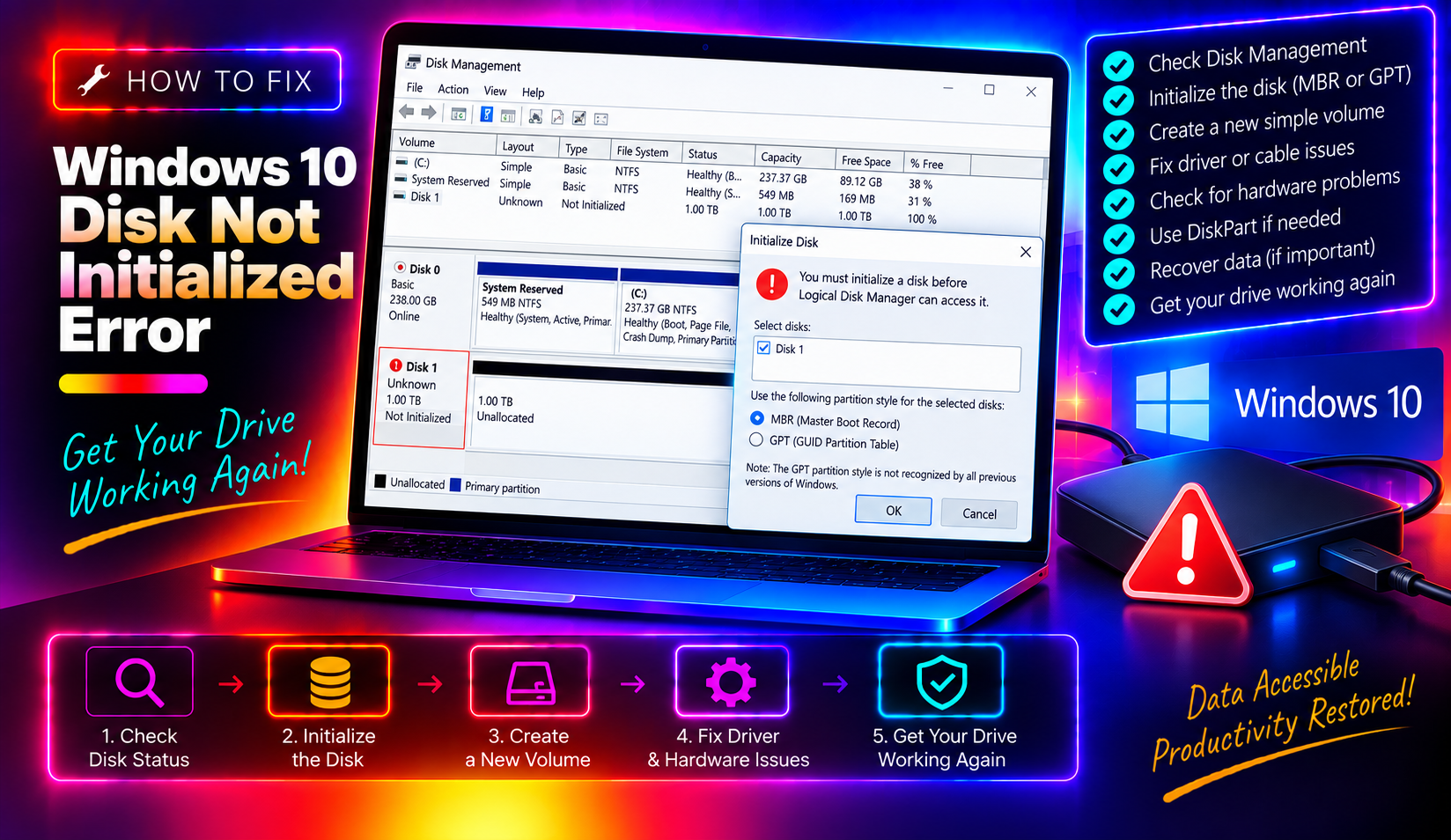
When you open Disk Management in Windows 10 and see a drive listed as Unknown, Not Initialized or Unallocated, Windows is telling you it can read that a physical disk exists but cannot read its partition table or filesystem. The disk appears but its space shows as completely unavailable.
This error occurs in several situations:
- A brand-new hard drive or SSD that has never been partitioned and formatted
- A corrupted Master Boot Record (MBR) or GUID Partition Table (GPT) on an existing drive
- A drive with bad sectors near the beginning of the disk where partition table data lives
- Loose or failing SATA/power cables causing intermittent detection
- A drive removed from another operating system (Linux, macOS) using an incompatible partition scheme
- Disk driver failure — Windows loaded an incorrect or corrupted driver for the controller
Critical warning before you proceed: If this is an existing drive with data on it that suddenly shows as Not Initialized — do not initialize it yet. Initializing an existing drive wipes the partition table and makes data recovery significantly harder. Follow the data-safe troubleshooting steps first.
Step 1: Check Physical Connections First
Before any software fix, rule out the most common hardware cause: a loose cable.
- Shut down your PC and unplug it from power.
- Open the case and reseat both the SATA data cable and SATA power cable at both ends — the drive and the motherboard/PSU.
- Try a different SATA port on the motherboard and a different SATA cable if available.
- For external drives: try a different USB port, preferably USB 3.0 directly on the PC (not through a hub), and try a different cable.
- Boot Windows and check Disk Management again.
This simple step fixes the issue in roughly 20% of cases.
Step 2: Update or Reinstall the Disk Controller Driver
A corrupted storage controller driver can prevent Windows from reading a drive's partition table correctly.
- Right-click the Start button and select Device Manager.
- Expand Disk drives — find the unknown disk (may show with a yellow warning icon).
- Right-click it and select Update driver → Search automatically for drivers.
- Also expand Storage controllers and update the Intel RST or AMD StoreMI driver if present.
- Restart your PC.
If the driver update doesn't help, right-click the disk in Device Manager and select Uninstall device, then restart — Windows will reinstall the driver automatically.
Step 3: Run CHKDSK to Repair Disk Errors
If Windows can partially see the disk, CHKDSK can repair logical filesystem errors that prevent proper mounting:
- Press Windows + X and select Command Prompt (Admin) or Windows PowerShell (Admin).
- Find the disk's drive letter first (if it has one) using:
diskpart, thenlist disk, thenexit. - Run CHKDSK:
chkdsk D: /f /r /xReplace D: with the actual drive letter. The /f flag fixes errors, /r locates bad sectors and recovers readable data, /x forces the volume to dismount first. This can take hours on large drives — let it complete.
Step 4: Rebuild the MBR Using Command Prompt
For drives using the older MBR (Master Boot Record) partition scheme, a corrupted MBR is a common cause of the "Not Initialized" error. You can rebuild it without losing data:
- Open Command Prompt as Administrator.
- Launch DiskPart:
diskpart- Identify the disk number of the affected drive:
list disk- Select the disk (replace
1with your disk number):
select disk 1- View current partition state:
list partitionIf you see partitions listed, your data may still be intact — the issue is the partition table pointer, not the data. If no partitions are listed, the partition table itself is gone.
- Exit DiskPart:
exit- Attempt MBR repair using bootrec (for system/boot drives only):
bootrec /fixmbr
bootrec /fixboot
bootrec /rebuildbcd
Restart and check Disk Management.
Step 5: Use TestDisk to Recover Lost Partitions
If the above steps haven't worked and you have data to recover, TestDisk is a free, powerful tool that can recover lost partition tables without overwriting your data.
- Download TestDisk from cgsecurity.org (the official site — it's completely free).
- Run
testdisk_win.exeas Administrator. - Select Create (to create a new log file) and press Enter.
- Select the uninitialized disk from the list and press Enter.
- Select the partition table type: Intel for MBR disks, EFI GPT for GPT disks. If you're unsure, try Intel first.
- Select Analyse → Quick Search. TestDisk will search for lost partitions.
- If it finds your partition, select Write to restore the partition table.
- Restart Windows — the drive should now appear as a normal drive in Disk Management.
Step 6: Initialize a Brand-New Drive (Safe to Do on New Disks Only)
If this is a new drive with no data, initialization is the correct next step. A new SSD or HDD must be initialized before Windows can create partitions on it.
- Open Disk Management (right-click Start → Disk Management).
- Right-click the disk marked Not Initialized and select Initialize Disk.
- Choose the partition style:
- GPT (GUID Partition Table) — recommended for drives larger than 2TB and all modern PCs with UEFI firmware
- MBR (Master Boot Record) — for older PCs with BIOS firmware or drives that must be compatible with older systems
- Click OK.
- Right-click the now-unallocated space and select New Simple Volume.
- Follow the wizard to assign a drive letter and format the drive (NTFS is recommended for Windows).
Step 7: Run Windows Hardware Troubleshooter
For persistent issues, run the built-in hardware and devices troubleshooter:
msdt.exe -id DeviceDiagnosticRun this in an elevated Command Prompt. Windows will automatically check for driver problems, conflicting devices, and hardware detection issues.
When the Disk Has Physically Failed
If none of the above fixes work, the drive itself may have failed. Check for clicking or grinding noises from the drive — these indicate mechanical failure (head crash or motor failure). At this point, data recovery requires professional forensic tools in a cleanroom environment.
For critical data recovery or if you're unsure how to proceed without risking data loss, contact our Windows support team before attempting further repairs.
Frequently Asked Questions
Will initializing a disk delete my data?
Yes — initializing a disk wipes the partition table, making existing data inaccessible and very difficult to recover. Only initialize a drive if it is brand new with no data on it. For existing drives showing "Not Initialized," use TestDisk to attempt partition table recovery first.
Why does my new SSD show as Not Initialized in Windows 10?
New SSDs ship without a partition table — they need to be initialized before Windows can use them. Open Disk Management, right-click the disk, select Initialize Disk, choose GPT (for modern PCs), then create a new volume in the unallocated space.
Can I fix the Disk Not Initialized error without losing data?
Often yes — if the issue is a corrupted partition table rather than physically bad sectors. Use CHKDSK first, then TestDisk to scan for and restore lost partition entries. Avoid initializing the disk until you've attempted partition recovery.
What is the difference between MBR and GPT when initializing a disk?
MBR (Master Boot Record) supports disks up to 2TB and up to 4 primary partitions. GPT (GUID Partition Table) supports disks up to 9.4ZB and up to 128 partitions. For any modern PC with UEFI firmware and any drive over 2TB, choose GPT. For legacy BIOS systems, choose MBR.
Why does my external hard drive show as Unknown and Not Initialized?
External drive cases (enclosures) sometimes fail even when the internal drive is fine. Try removing the drive from the enclosure and connecting it directly to a SATA port inside your PC. Also try the drive on another computer — if it appears normally there, the USB controller in the enclosure has failed.