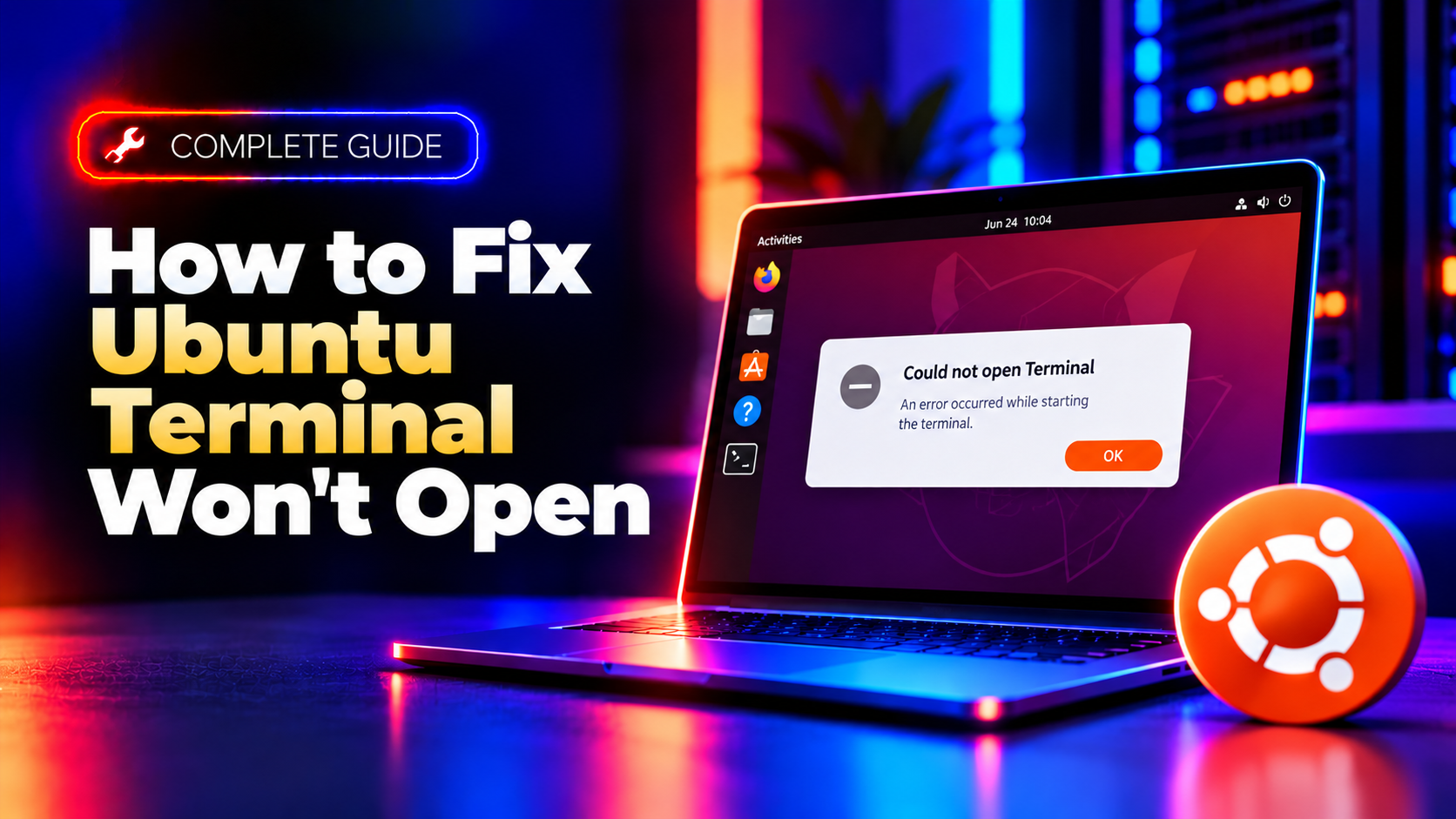
Why Ubuntu Terminal Won't Open
Nothing is more frustrating than clicking the Terminal icon (or mashing Ctrl+Alt+T) and getting silence. On Ubuntu Desktop, this usually comes down to one of a handful of causes: a corrupted ~/.bashrc or ~/.profile file that crashes your shell before it can render a window, a broken or partially updated GNOME Terminal package, a dconf database that's gone corrupt, or a keyboard shortcut that got reset or reassigned by another app.
The tricky part is that most troubleshooting guides assume you already have a working terminal open. This guide is different — it covers what to do when the terminal application itself refuses to launch, flashes and disappears, or the keyboard shortcut does absolutely nothing. We'll walk through TTY workarounds, shell profile repair, a clean GNOME Terminal reinstall, and a keybinding fix, in the order most likely to solve your problem fastest.
Quick Fix: Launch Terminal via a Workaround (TTY / File Manager)
Before diagnosing anything, you need a way to run commands. Ubuntu gives you a few escape hatches even when the desktop terminal is completely dead.
Option 1: Switch to a TTY (virtual console)
Press Ctrl+Alt+F3 (or F2 through F6) to switch to a full-screen virtual terminal outside your graphical session. Log in with your username and password. From here you have a fully functional shell to run diagnostic and repair commands. When you're done, press Ctrl+Alt+F1 or Ctrl+Alt+F2 to return to your desktop session.
Option 2: Open Terminal from the Files app
Open the Files (Nautilus) app, navigate to any folder, right-click inside it, and choose Open Terminal Here. If this works but the Terminal icon or shortcut doesn't, the problem is isolated to the launcher or keybinding rather than GNOME Terminal itself.
Option 3: Use a different terminal emulator
If GNOME Terminal specifically is broken, install an alternative from a TTY session:
sudo apt update
sudo apt install xterm
Run xterm from your applications menu as a temporary workaround while you fix GNOME Terminal.
Method 2: Fix a Broken .bashrc or .profile
By far the most common cause of a terminal that flashes open and instantly closes is a syntax error or bad command in your shell startup files. Every time bash launches, it reads ~/.bashrc and ~/.profile — if either file contains an error (a broken alias, an unclosed quote, a command that exits with a nonzero status), the shell process can terminate immediately, taking the terminal window with it.
From a TTY or an alternative terminal, isolate the problem by temporarily renaming your configuration files:
mv ~/.bashrc ~/.bashrc.bak
mv ~/.profile ~/.profile.bak
Now try opening GNOME Terminal again from your desktop. If it opens normally, you've confirmed the issue is inside one of those files. Open the backup in a text editor from your working terminal to inspect it:
nano ~/.bashrc.bakLook for anything you added recently — a custom alias, an export PATH line pointing to a missing directory, or a sourced script that no longer exists. Common culprits include:
- An alias or function with a missing closing quote or bracket
- A line like
source /some/deleted/script.shreferencing a file that was removed - A conda/nvm/rbenv initialization block left in a broken state after an uninstall
- Copy-pasted terminal customization snippets with invisible or malformed characters
Fix the offending line, then restore the file:
mv ~/.bashrc.bak ~/.bashrcIf you can't find the specific error, you can also start from a clean default by copying the system template:
cp /etc/skel/.bashrc ~/.bashrcThis gives you Ubuntu's stock configuration, and you can re-add your customizations one at a time to find the exact line that was breaking things.
Method 3: Reinstall or Reset GNOME Terminal
If your shell profile files are clean but GNOME Terminal still won't launch, crashes silently, or throws an error about missing schemas, the package itself or its settings database is likely corrupted.
Step 1: Reinstall the GNOME Terminal package
sudo apt update
sudo apt install --reinstall gnome-terminal
This replaces any corrupted binaries or configuration schemas without touching your personal files.
Step 2: Reset the GNOME Terminal dconf settings
GNOME Terminal stores its profiles, colors, and window settings in the dconf database. A corrupted entry here can prevent the app from launching at all. Reset it with:
dconf reset -f /org/gnome/terminal/This wipes GNOME Terminal's saved preferences and profiles back to defaults, which resolves most launch failures caused by a broken profile entry. You'll need to reconfigure any custom terminal colors or fonts afterward, but the app should open normally again.
Step 3: Check for locale errors
A broken or missing system locale can also cause the terminal to exit immediately on launch, since it can't determine how to render text. Check and regenerate your locales with:
locale
sudo locale-gen en_US.UTF-8
sudo update-locale LANG=en_US.UTF-8
Step 4: Check for a stuck or crashed process
Sometimes a zombie GNOME Terminal server process prevents new windows from spawning. Kill it and try again:
killall gnome-terminal-server
gnome-terminal
Method 4: Fix the Ctrl+Alt+T Keyboard Shortcut
If Terminal opens fine from the Files app or applications menu but Ctrl+Alt+T does nothing, the keybinding itself has been unset, reassigned, or is conflicting with another application (common after installing certain screenshot tools, window managers, or third-party keyboard utilities).
Reset the shortcut via Settings
- Open Settings and go to Keyboard (or Keyboard Shortcuts).
- Scroll to find "Launch Terminal" under system shortcuts, or check the Custom Shortcuts section.
- Click the entry and press Ctrl+Alt+T again to reassign it. If it says the shortcut is already in use by another action, disable that conflicting binding first.
Reset the shortcut via dconf
If the Settings app itself doesn't fix it, reset the keybinding schema directly:
dconf reset -f /org/gnome/settings-daemon/plugins/media-keys/Then reopen Settings and reassign Ctrl+Alt+T from a clean slate.
Add it back manually as a custom shortcut
If the default binding is missing entirely, add it yourself: go to Settings > Keyboard > Custom Shortcuts > Add Shortcut, set the command to gnome-terminal, and assign the key combination Ctrl+Alt+T.
If you manage several Ubuntu desktops or servers and don't want to burn hours chasing shell configuration bugs and dconf corruption every time something breaks, CloudHouse Technologies' pay-per-ticket Linux support can diagnose and fix issues like this remotely, usually within the same day.
Frequently Asked Questions
Why does my Ubuntu terminal open and then instantly close?
This almost always means your shell is crashing on startup, usually due to a syntax error in ~/.bashrc or ~/.profile. Rename those files temporarily with mv ~/.bashrc ~/.bashrc.bak and try again — if the terminal stays open, the bug is in that file.
How do I open a terminal if the Terminal icon doesn't respond at all?
Use a virtual console by pressing Ctrl+Alt+F3, log in, and run your repair commands from there. You can also right-click inside any folder in the Files app and choose "Open Terminal Here."
Why did my Ctrl+Alt+T shortcut stop working?
The keybinding may have been unset or overridden by another app. Check Settings > Keyboard Shortcuts, or reset the media-keys dconf schema with dconf reset -f /org/gnome/settings-daemon/plugins/media-keys/ and reassign it.
Will reinstalling GNOME Terminal delete my saved profiles and history?
sudo apt install --reinstall gnome-terminal only replaces the application package, not your personal dconf settings. However, if you also run dconf reset -f /org/gnome/terminal/, your custom profiles, colors, and fonts will be reset to default and will need to be reconfigured.
I get a "command not found" error even though the terminal opens fine — is that related?
That's a separate issue from the terminal app failing to launch. It usually means your PATH variable is misconfigured or a package isn't installed. Check with echo $PATH and reinstall the missing utility with sudo apt install <package-name>.