
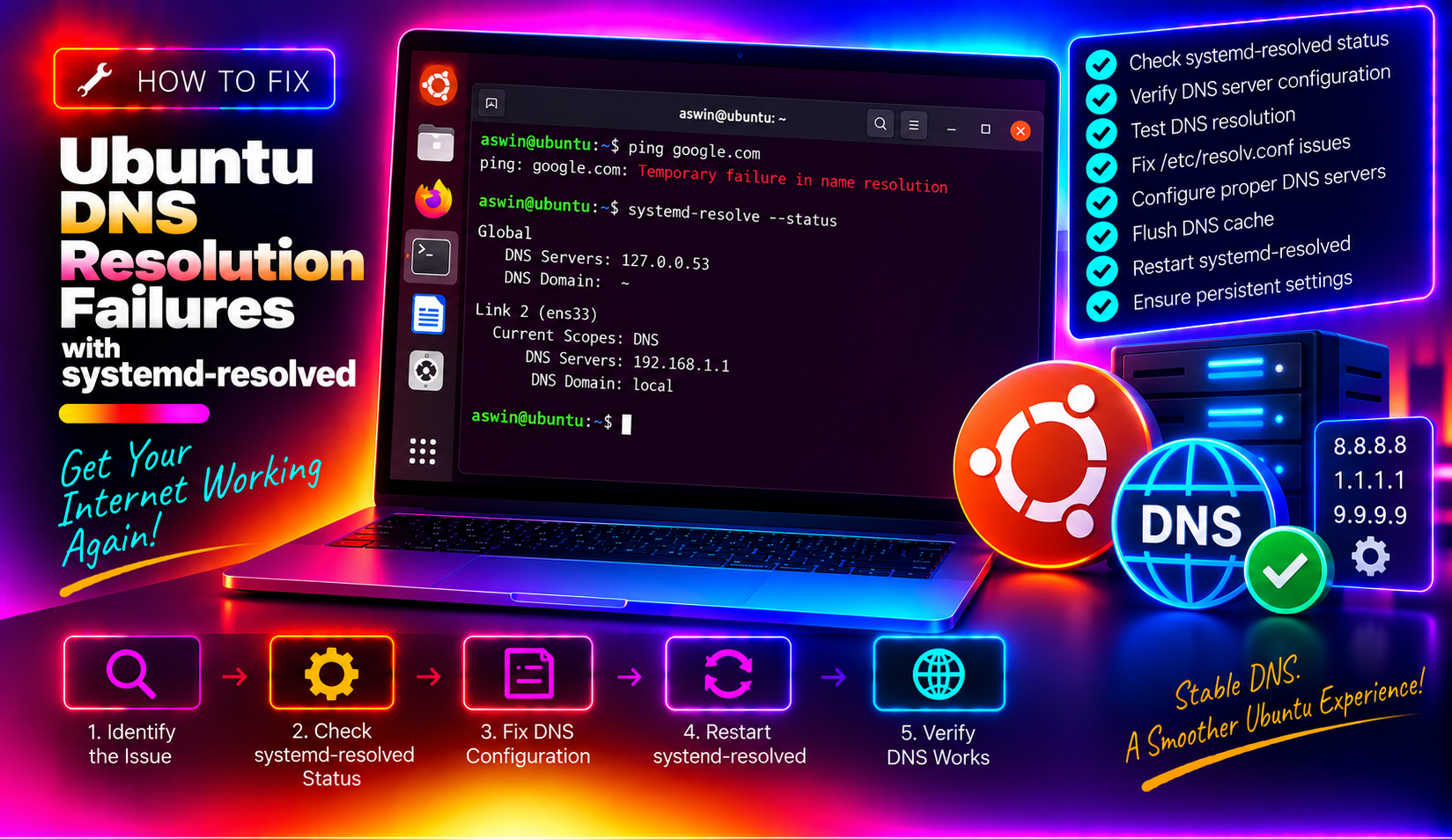
What Is systemd-resolved and Why Ubuntu Relies on It
Since Ubuntu 18.04, the operating system has shipped with systemd-resolved as its default DNS resolver. On Ubuntu 24.04 and 26.04 LTS, it is even more deeply integrated — handling DNS caching, DNSSEC validation, multicast DNS (mDNS), and split-DNS routing for VPN tunnels, all from a single service.
At its core, systemd-resolved runs a stub DNS listener on the loopback address 127.0.0.53. Applications send their DNS queries to that address, resolved forwards them to the real upstream DNS servers (provided by your router or configured manually), caches the answers, and returns results.
The critical link between your applications and systemd-resolved is the file /etc/resolv.conf. It should be a symbolic link pointing to /run/systemd/resolve/stub-resolv.conf, which contains a single line: nameserver 127.0.0.53. When that symlink is correct and the service is running, DNS resolution is invisible. When either breaks, every domain lookup fails — even though your network interface shows as fully connected and you can still ping 8.8.8.8 by IP.
This is the exact symptom that confuses most users: the internet works for IP addresses but every browser request, apt update, or curl to a hostname fails with errors like Temporary failure in name resolution or Name or service not known.
How to Diagnose a DNS Resolution Failure on Ubuntu (Step-by-Step)
Before applying any fix, identify which layer is broken. Run these commands in sequence and note where things go wrong.
Step 1: Confirm DNS is the actual problem
ping -c 2 8.8.8.8
ping -c 2 google.com
If the first succeeds and the second fails with Name or service not known, DNS resolution is broken — not your network connection.
Step 2: Check systemd-resolved service status
systemctl status systemd-resolvedLook for active (running). If you see failed or inactive, the service has crashed or was never started — jump to Fix 2.
Step 3: Inspect the /etc/resolv.conf symlink
ls -la /etc/resolv.confHealthy output looks like this:
lrwxrwxrwx 1 root root 39 ... /etc/resolv.conf -> /run/systemd/resolve/stub-resolv.confIf instead you see a regular file, a broken link, or a symlink pointing to /run/resolvconf/resolv.conf or /etc/resolv.conf.bak, the symlink is the culprit — jump to Fix 1.
Step 4: Query DNS via resolvectl
resolvectl status
resolvectl query google.com
The first command shows which DNS servers are assigned per network interface. The second performs a test lookup. If resolvectl query succeeds but ping google.com still fails, the issue is with /etc/resolv.conf not routing to systemd-resolved. If resolvectl query also fails, either the upstream DNS is unreachable or the service has lost its configuration.
Step 5: Review recent logs
journalctl -u systemd-resolved -n 50 --no-pagerLook for error messages referencing Failed to start Name Service Cache Daemon, DNSSEC validation failed, or Temporary failure. These narrow down whether the problem is a crashed service, a DNSSEC mismatch, or a missing upstream DNS assignment.
Fix 1: Restore the /etc/resolv.conf Symlink
This is the most common root cause after a system upgrade from Ubuntu 22.04 to 24.04, after a VPN client installation, or after Docker installs its own networking stack.
sudo ln -sf /run/systemd/resolve/stub-resolv.conf /etc/resolv.confThe -f flag forces the replacement of whatever currently exists at that path — whether it is a regular file or a wrong symlink. After running this command, test immediately:
ping -c 2 google.com
resolvectl query ubuntu.com
If both succeed, DNS is restored. No reboot is required.
Why this breaks in the first place
Several programs are known to overwrite /etc/resolv.conf during installation or connection:
- OpenVPN and some WireGuard clients replace the file with their own DNS configuration.
- Docker can generate its own
resolv.confand overwrite the symlink on the host. - resolvconf (the legacy package) redirects the symlink to
/run/resolvconf/resolv.confif installed alongside systemd-resolved. - Ubuntu 22.04 → 24.04 upgrades have been reported to leave a stale plain-text file instead of the correct symlink.
Fix 2: Restart and Re-enable systemd-resolved
If the service itself has stopped or entered a failed state, restarting it recovers the stub listener on 127.0.0.53.
sudo systemctl restart systemd-resolved
sudo systemctl enable systemd-resolved
The enable command ensures the service starts automatically on every boot — important if it was somehow disabled during an upgrade. Verify it is running:
systemctl is-active systemd-resolvedExpected output: active.
If the service fails to start, check for conflicts with legacy packages:
dpkg -l | grep resolvconfIf resolvconf is installed, it may conflict. You can either remove it (sudo apt remove resolvconf) or configure both to coexist — but for most desktop setups, removing the legacy package and relying entirely on systemd-resolved is the cleanest path.
Fix 3: Set Static DNS Servers via Netplan
If your router is not providing DNS server addresses reliably — or if you prefer a known-good public resolver — set static DNS in Netplan, Ubuntu's network configuration layer. This ensures systemd-resolved always has upstream servers even when DHCP offers no DNS option.
Open your Netplan configuration file (the name varies; list them with ls /etc/netplan/):
sudo nano /etc/netplan/01-network-manager-all.yamlAdd or modify the DNS section under your interface. A minimal example for a wired connection:
network:
  version: 2
  renderer: NetworkManager
  ethernets:
    enp3s0:
      dhcp4: true
      nameservers:
        addresses: [1.1.1.1, 8.8.8.8]
For WiFi, the interface name will differ (check with ip link). Apply the change:
sudo netplan apply
sudo systemctl restart systemd-resolved
resolvectl status
The resolvectl status output should now show 1.1.1.1 and 8.8.8.8 listed under your interface's DNS servers.
Fix 4: Flush the DNS Cache After VPN or Profile Changes
After disconnecting from a VPN, changing network profiles, or resuming from sleep, systemd-resolved can hold stale cached entries that prevent lookups from working correctly — even when the underlying DNS configuration is intact. Flush the cache:
sudo resolvectl flush-cachesVerify the cache is clear:
resolvectl statisticsLook for Current Cache Size: 0 in the output. If DNS starts working immediately after a flush, your issue is a stale cache caused by VPN split-DNS state not being cleaned up on disconnect. This is especially common with OpenVPN and GlobalProtect on Ubuntu 24.04.
The VPN split-DNS edge case
When a VPN client connects, it may push DNS servers to systemd-resolved scoped to the VPN interface (e.g., tun0). When the VPN disconnects without properly notifying systemd-resolved, those per-interface DNS assignments linger. Subsequent DNS queries for corporate domains get routed to the now-dead VPN interface and time out, while public DNS for that interface also appears broken because the cache holds stale negative responses.
The full recovery sequence after a VPN disconnect leaves DNS broken:
sudo resolvectl flush-caches
sudo resolvectl dns tun0         # clear DNS for VPN interface if it still exists
sudo systemctl restart systemd-resolved
If this keeps happening after every VPN session, configure your VPN client to use resolvconf hooks or the NetworkManager VPN plugin, which handle cleanup automatically.
For persistent or difficult-to-diagnose DNS problems, professional desktop support can audit your full network and VPN configuration remotely.
How to Prevent DNS Failures from Coming Back
Once DNS is working, a few changes reduce the chance of it breaking again.
Lock the resolv.conf symlink
If a VPN client or third-party tool keeps overwriting /etc/resolv.conf, you can make the file immutable after setting the correct symlink:
sudo chattr +i /etc/resolv.confThis prevents any process — even root — from modifying or unlinking the file without first removing the immutable flag. Note: this will also prevent legitimate network management tools from updating it, so use it only if you have a stable DNS setup and a misbehaving VPN client.
Set fallback DNS in resolved.conf
Edit /etc/systemd/resolved.conf to add fallback DNS servers that systemd-resolved uses when the interface-provided DNS is unavailable:
sudo nano /etc/systemd/resolved.confUncomment and set:
[Resolve]
DNS=1.1.1.1 8.8.8.8
FallbackDNS=9.9.9.9 8.8.4.4
DNSSEC=allow-downgrade
Then reload:
sudo systemctl restart systemd-resolvedThe allow-downgrade setting for DNSSEC prevents resolution failures on DNS servers that do not support DNSSEC validation — a common cause of broken lookups on home routers and some ISP resolvers.
Monitor for future failures
Add a quick alias to your ~/.bashrc for fast DNS diagnostics whenever you notice connectivity issues:
alias dnscheck='resolvectl status && resolvectl query google.com'Frequently Asked Questions
Q: Why does Ubuntu show connected in the network indicator but websites won't load?
A: The network indicator only checks whether a physical or wireless link is established and an IP address has been assigned. It does not test DNS resolution. You can have a fully connected network interface and still have zero working DNS if systemd-resolved is down or /etc/resolv.conf is broken. Use ping 8.8.8.8 to test connectivity by IP and ping google.com to test DNS separately.
Q: Is it safe to use 8.8.8.8 as my DNS server on Ubuntu?
A: Yes, for most users. Google's 8.8.8.8 and Cloudflare's 1.1.1.1 are reliable, fast, and widely used public resolvers. If privacy is a concern, Cloudflare offers 1.1.1.1 with a no-logging policy. For enterprise environments, check with your IT policy — corporate networks often require using internal DNS servers for access to private hostnames.
Q: After upgrading from Ubuntu 22.04 to 24.04, why did DNS break?
A: The upgrade process can leave /etc/resolv.conf as a plain text file rather than the correct symlink to /run/systemd/resolve/stub-resolv.conf. This is a known regression reported by multiple users on Cloudron Forum and Ubuntu bug trackers. The fix is a single command: sudo ln -sf /run/systemd/resolve/stub-resolv.conf /etc/resolv.conf. No reboot required.
Q: How do I tell if DNSSEC is causing my DNS failures?
A: Run resolvectl query google.com and look for a DNSSEC field in the output. If you see DNSSEC: no or DNSSEC validation errors in journalctl -u systemd-resolved, set DNSSEC=allow-downgrade in /etc/systemd/resolved.conf and restart the service. This relaxes strict validation without disabling DNSSEC entirely.
Q: My DNS breaks every time I connect or disconnect from my VPN. Is there a permanent fix?
A: Yes. The cleanest solution is to use a VPN client that integrates with NetworkManager and properly calls resolvconf hooks on connect and disconnect. For OpenVPN, install network-manager-openvpn-gnome and import your config through the NetworkManager GUI rather than running openvpn directly from the terminal. This ensures DNS state is cleaned up automatically. Alternatively, add a post-disconnect script that runs sudo resolvectl flush-caches && sudo systemctl restart systemd-resolved.