Why Is Ubuntu Desktop Using So Much CPU?
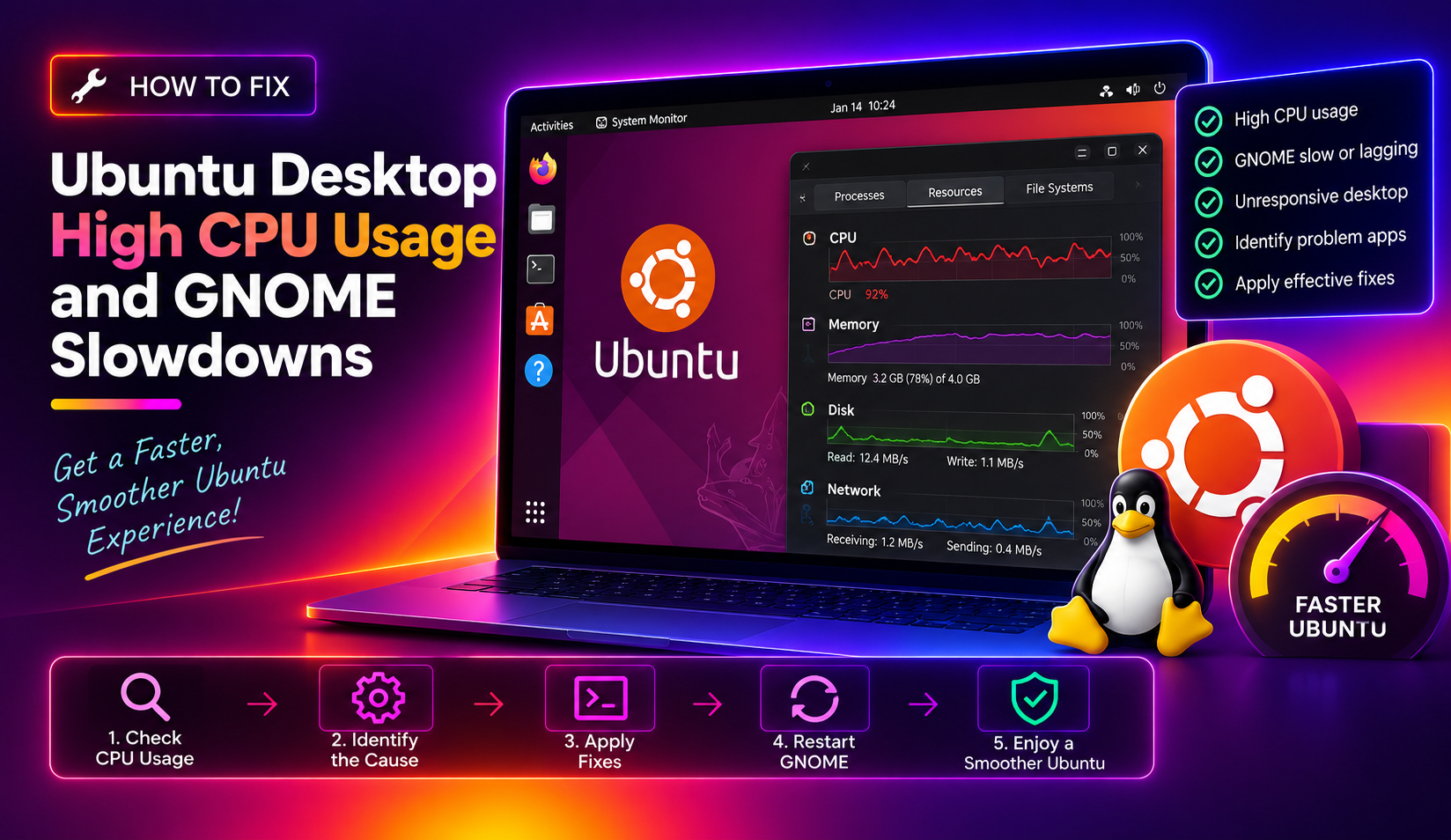
High CPU usage on Ubuntu Desktop is frustrating — your machine heats up, fans spin, and everything feels sluggish. In 2026, the most common culprits on Ubuntu 22.04 and 24.04 are gnome-shell getting stuck in a render loop, a faulty GNOME extension, an outdated or mis-matched graphics driver, or a background service like tracker-miner-fs indexing your files in the background.
This guide gives you 8 targeted fixes ordered from fastest to most involved.
Fix 1: Identify the CPU Hog with Top/htop
Before fixing anything, confirm which process is consuming the CPU.
top -o %CPUOr install and use htop for a better view:
sudo apt install htop && htopLook at the top processes. Common offenders:
- gnome-shell — GNOME compositor/UI; often triggered by a bad extension
- tracker-miner-fs-3 — file indexer; spikes after large file operations
- systemd-journald — log daemon; spikes if a service is crash-looping
- Xorg / kms — graphics subsystem; indicates a driver issue
- snapd — Snap package manager; can use significant CPU during updates
Fix 2: Disable All GNOME Extensions and Test
A misbehaving GNOME Shell extension is one of the most common causes of sustained gnome-shell CPU spikes — especially after system updates that leave extensions on an incompatible API version.
- Press Super and search for Extensions (or install GNOME Extensions app).
- Toggle all extensions OFF.
- Monitor CPU with top for 2–3 minutes.
If CPU drops significantly, re-enable extensions one at a time to identify which one is the culprit.
You can also disable all extensions from Terminal:
gnome-extensions list --enabled | xargs -I{} gnome-extensions disable {}Fix 3: Restart GNOME Shell
On Xorg (X11) sessions, you can restart GNOME Shell without logging out:
Alt + F2Type r and press Enter. This restarts the GNOME compositor and clears render loops.
Note: This shortcut only works on X11 sessions, not Wayland. On Wayland, you must log out and log back in.
To check which display server you're using:
echo $XDG_SESSION_TYPEFix 4: Stop and Disable Tracker Miners
Tracker is GNOME's file indexing system. It's useful for desktop search but can peg CPU at 100% for extended periods after adding large amounts of files.
systemctl --user stop tracker-miner-fs-3.service
systemctl --user disable tracker-miner-fs-3.service
tracker3 reset --filesystem
If you don't use GNOME Files' search feature, disabling Tracker permanently saves both CPU and RAM.
To stop all Tracker processes immediately:
tracker3 daemon --killFix 5: Update or Reinstall Graphics Drivers
On Ubuntu 24.04, a mismatch between the kernel and GPU drivers (especially NVIDIA) causes Xorg or kms to consume excessive CPU due to failed hardware acceleration fallbacks.
- Open Software & Updates → Additional Drivers.
- Switch to the recommended proprietary driver if available.
- Apply changes and reboot.
For NVIDIA cards via terminal:
sudo ubuntu-drivers install
sudo reboot
For Intel/AMD integrated graphics, ensure the latest mesa packages are installed:
sudo apt update && sudo apt install --install-recommends linux-generic-hwe-24.04Fix 6: Check for Crash-Looping Services
A service that keeps crashing and restarting will spike CPU and cause journal disk writes in a tight loop.
journalctl -b --priority=err | tail -50Look for services showing repeated "Failed" messages. To find the most active journal writers:
sudo journalctl -b | awk '{print $5}' | sort | uniq -c | sort -rn | head -20To stop a specific crashing service (replace service-name):
sudo systemctl stop service-name
sudo systemctl disable service-name
Fix 7: Reduce Snapd CPU Usage
Snapd periodically refreshes all installed Snap packages in the background — this can cause significant CPU and disk spikes, especially on lower-end hardware.
snap refresh --listTo schedule refreshes to off-hours only:
sudo snap set system refresh.timer=00:00-04:00Or remove Snap packages you don't use and replace them with apt/flatpak equivalents:
snap list
sudo snap remove package-name
Fix 8: Switch to a Lighter Desktop Environment
GNOME is feature-rich but heavyweight. If your hardware has less than 4 GB RAM or uses integrated graphics, consider switching to a lighter DE that delivers dramatically better performance.
- XFCE:
sudo apt install xfce4 xfce4-goodies— extremely lightweight, full-featured - MATE:
sudo apt install ubuntu-mate-desktop— familiar, well-optimized - LXQt:
sudo apt install lxqt— minimal resource footprint
At the login screen, click the gear icon next to your username to select the alternative desktop environment.
Need Expert Ubuntu Help?
If your Ubuntu desktop is still consuming excessive CPU after trying all these steps, there may be a hardware defect, driver conflict, or deep system misconfiguration at play. CloudHouse Technologies provides Linux support on a Pay-Per-Ticket basis — no subscription, just direct expert help.
FAQs
Why is gnome-shell using 100% CPU on Ubuntu?
The most common causes are a buggy GNOME extension or a render loop triggered by a graphics driver mismatch. Disable all extensions and update your GPU drivers as first steps.
How do I check CPU usage in Ubuntu without a GUI?
Run top -o %CPU in a terminal. Press q to exit. For more detail, install htop with sudo apt install htop.
Does tracker-miner-fs cause high CPU usage on Ubuntu?
Yes — tracker-miner-fs indexes files for desktop search and can peg CPU at 80–100% for minutes or hours after large file operations. You can safely disable it with systemctl --user disable tracker-miner-fs-3.service if you don't use GNOME search.
How do I restart GNOME Shell without logging out?
On X11 sessions: press Alt + F2, type r, and press Enter. On Wayland, this shortcut doesn't work — you must log out and back in to restart GNOME Shell.
Will switching from GNOME to XFCE improve Ubuntu performance?
Significantly — XFCE uses roughly 300–500 MB less RAM than GNOME and has a much lighter CPU footprint. It's the best option if your hardware has less than 4 GB RAM or uses Intel integrated graphics.