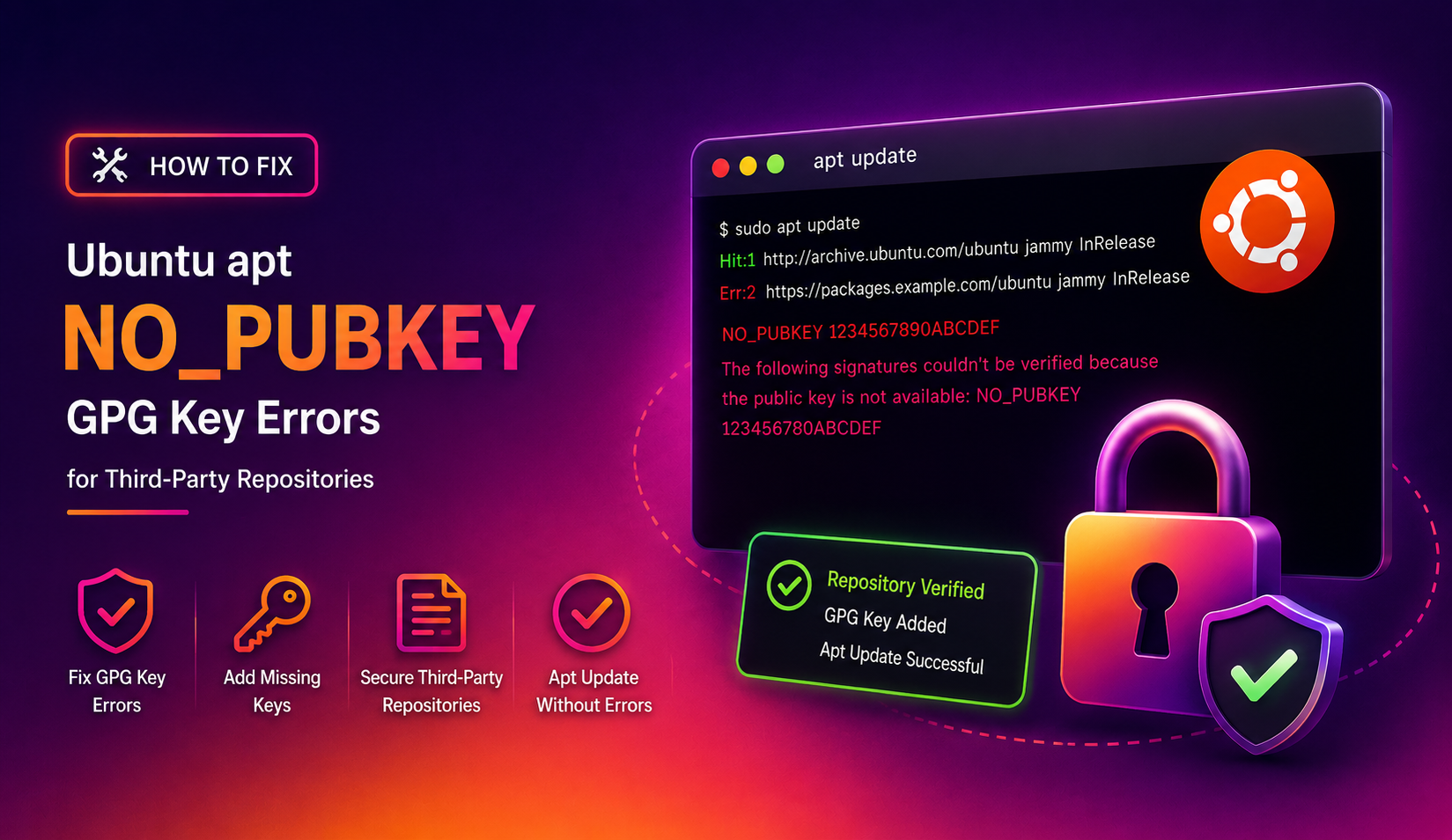
How to Fix Ubuntu apt NO_PUBKEY GPG Key Errors for Third-Party Repositories (2026 Guide)
You run sudo apt update and suddenly your terminal fills with alarming red text:
W: GPG error: https://download.docker.com/linux/ubuntu noble InRelease: The following signatures couldn't be verified because the public key is not available: NO_PUBKEY 7EA0A9C3F273FCD8
E: The repository 'https://download.docker.com/linux/ubuntu noble InRelease' is not signed.
Everything grinds to a halt. You cannot install updates, pull new packages, or upgrade software. This is one of the most common pain points for Ubuntu Desktop users who have added third-party repositories for tools like Docker, Google Chrome, VS Code, or Spotify — and it has become far more frequent since Ubuntu 24.04 enforced a stricter GPG key model. This guide walks you through exactly what is happening, why the old fix no longer works, and how to resolve it properly using the modern /etc/apt/keyrings approach that actually works in 2026.
What Does the NO_PUBKEY Error Actually Mean?
When APT downloads package metadata from a repository, it verifies that the metadata is cryptographically signed by a trusted key. The signing key acts as proof that the packages come from the genuine software vendor and have not been tampered with in transit.
The NO_PUBKEY error means APT cannot find the public GPG key needed to verify the repository's signature. This can happen for three reasons:
- You added a repository manually but never imported its GPG key
- You imported the key using the old
apt-key addmethod, which no longer works on Ubuntu 24.04 and later - The vendor rotated their signing key and the old key on your system is now invalid
The eight-character hex string after NO_PUBKEY (e.g., 7EA0A9C3F273FCD8) is the key fingerprint APT is looking for. You will use this to identify which repository is causing the problem.
Why apt-key is Gone in Ubuntu 24.04 and 26.04 (and What Replaced It)
For years, the standard way to add a repository key was:
curl -fsSL https://example.com/repo.gpg | sudo apt-key add -This method placed every third-party key into a single global keyring: /etc/apt/trusted.gpg. The problem is that a key in that global keyring is trusted for every repository on your system — not just the one it was intended for. This is a significant security vulnerability: a malicious repository key could theoretically be used to sign packages from other sources.
Ubuntu began deprecating apt-key in version 20.10. By Ubuntu 22.04 it generated warnings. In Ubuntu 24.04 (Noble Numbat) and 26.04 (Plucky Puffin), the command is fully removed and the global keyring model is no longer honoured. APT now requires every repository to have its own isolated key stored in /etc/apt/keyrings/ or /usr/share/keyrings/, and the repository's source file must explicitly reference that key using the signed-by parameter.
This is the security-first design that the modern fix is built on.
Step-by-Step Fix: Import the GPG Key Correctly Using /etc/apt/keyrings
The universal fix for any NO_PUBKEY error on Ubuntu 24.04 or 26.04 follows the same four-step pattern regardless of which repository is affected.
Step 1: Identify the broken repository
Run sudo apt update and note the domain name in the error and the key fingerprint after NO_PUBKEY. For example:
W: GPG error: https://packages.microsoft.com/repos/code stable InRelease: The following signatures couldn't be verified because the public key is not available: NO_PUBKEY EB3E94ADBE1229CFHere the broken repository is Microsoft's VS Code repo and the missing key ends in EB3E94ADBE1229CF.
Step 2: Create the keyrings directory
sudo mkdir -p /etc/apt/keyringsThis directory exists by default on Ubuntu 22.04+ but running the command is harmless if it already exists.
Step 3: Download and import the GPG key
Fetch the key from the vendor's official URL and convert it to the binary format APT expects using gpg --dearmor:
curl -fsSL https://packages.microsoft.com/keys/microsoft.asc | sudo gpg --dearmor -o /etc/apt/keyrings/microsoft.gpgReplace the URL with the vendor's actual key URL. Most vendors publish their key URL in their installation documentation.
Step 4: Update the repository source file to use signed-by
Find the relevant file in /etc/apt/sources.list.d/:
ls /etc/apt/sources.list.d/Open the file for the broken repository and update the deb line to include the signed-by parameter:
# Old (broken) format:
deb [arch=amd64] https://packages.microsoft.com/repos/code stable main

# New (correct) format:
deb [arch=amd64 signed-by=/etc/apt/keyrings/microsoft.gpg] https://packages.microsoft.com/repos/code stable main
You can edit the file directly:
sudo nano /etc/apt/sources.list.d/vscode.listStep 5: Run apt update to verify the fix
sudo apt updateThe NO_PUBKEY warning for that repository should be gone.
Fix for Common Repos: Docker, Google Chrome, VS Code, and More
Here are the exact commands for the most commonly broken repositories on Ubuntu 24.04 and 26.04.
Docker
sudo mkdir -p /etc/apt/keyrings

curl -fsSL https://download.docker.com/linux/ubuntu/gpg |   sudo gpg --dearmor -o /etc/apt/keyrings/docker.gpg

sudo chmod a+r /etc/apt/keyrings/docker.gpg

echo   "deb [arch=$(dpkg --print-architecture) signed-by=/etc/apt/keyrings/docker.gpg]   https://download.docker.com/linux/ubuntu   $(. /etc/os-release && echo "$VERSION_CODENAME") stable" |   sudo tee /etc/apt/sources.list.d/docker.list > /dev/null

sudo apt update
Google Chrome
curl -fsSL https://dl.google.com/linux/linux_signing_key.pub |   sudo gpg --dearmor -o /etc/apt/keyrings/google-chrome.gpg

echo "deb [arch=amd64 signed-by=/etc/apt/keyrings/google-chrome.gpg]   https://dl.google.com/linux/chrome/deb/ stable main" |   sudo tee /etc/apt/sources.list.d/google-chrome.list > /dev/null

sudo apt update
Visual Studio Code
curl -fsSL https://packages.microsoft.com/keys/microsoft.asc |   sudo gpg --dearmor -o /etc/apt/keyrings/microsoft-vscode.gpg

echo "deb [arch=amd64 signed-by=/etc/apt/keyrings/microsoft-vscode.gpg]   https://packages.microsoft.com/repos/code stable main" |   sudo tee /etc/apt/sources.list.d/vscode.list > /dev/null

sudo apt update
Spotify
curl -fsSL https://download.spotify.com/debian/pubkey_C85668DF69375001.gpg |   sudo gpg --dearmor -o /etc/apt/keyrings/spotify.gpg

echo "deb [signed-by=/etc/apt/keyrings/spotify.gpg]   https://repository.spotify.com stable non-free" |   sudo tee /etc/apt/sources.list.d/spotify.list > /dev/null

sudo apt update
If you are still hitting errors after running these commands, or if the vendor has not yet published updated installation instructions, you can get expert help from CloudHouse Technologies — our certified Linux technicians resolve repository and GPG key issues fast.
How to Audit and Clean Up Legacy trusted.gpg Entries
If you upgraded from an older Ubuntu release or installed several third-party apps over the years, you likely have leftover keys in the deprecated global keyring. These produce a different but related warning:
W: http://archive.ubuntu.com/ubuntu: Key is stored in legacy trusted.gpg keyring (/etc/apt/trusted.gpg), see the DEPRECATION section in apt-key(8) for details.List all keys in the legacy keyring
sudo apt-key listThis shows every key in /etc/apt/trusted.gpg along with its fingerprint and the email or name associated with it.
Export a legacy key to the modern location
For each legacy key you want to preserve, export it using the last eight characters of its fingerprint (shown in the apt-key list output):
# Replace XXXXXXXX with the last 8 characters of the key fingerprint
sudo apt-key export XXXXXXXX | sudo gpg --dearmor -o /etc/apt/keyrings/legacy-key-XXXXXXXX.gpg
Then update the corresponding .list file in /etc/apt/sources.list.d/ to reference the new keyring path with signed-by, and delete the old key from the global keyring:
sudo apt-key del XXXXXXXXRemove repositories you no longer use
If you have sources in /etc/apt/sources.list.d/ for software you no longer use, remove both the source file and its keyring:
sudo rm /etc/apt/sources.list.d/old-repo.list
sudo rm /etc/apt/keyrings/old-repo.gpg
sudo apt update
FAQ
Can I use sudo apt-key adv --keyserver to fix NO_PUBKEY errors on Ubuntu 24.04?
No. The apt-key command including apt-key adv was fully removed in Ubuntu 24.04. Running it will return a "command not found" error. You must use the modern gpg --dearmor and signed-by method described in this guide.
What is the difference between /etc/apt/keyrings and /usr/share/keyrings?
Both locations are valid for storing GPG keys. The convention is: /usr/share/keyrings/ is for keys installed by packages (the software vendor's installer puts the key here), while /etc/apt/keyrings/ is for keys added manually by the system administrator. Either will work with APT's signed-by parameter.
Why does the error say NO_PUBKEY even though I previously imported the key?
If you imported the key using the old apt-key add or apt-key adv commands, it was placed in the global /etc/apt/trusted.gpg keyring. On Ubuntu 24.04+, APT ignores keys in this location unless your repository's signed-by field explicitly points to it. Re-import the key into /etc/apt/keyrings/ and update the source file to fix this.
Is it safe to add the --allow-insecure-repositories flag as a temporary workaround?
No. The --allow-insecure-repositories flag bypasses all signature verification, meaning APT will accept packages from any source without checking authenticity. This is a serious security risk and should never be used as a workaround on a system you care about. Always fix the underlying key issue instead.
How do I know which .list file corresponds to the broken repository?
Run grep -r "the-domain-in-the-error" /etc/apt/sources.list.d/, replacing the-domain-in-the-error with the domain shown in the NO_PUBKEY warning (e.g., download.docker.com). This will show you exactly which file needs to be updated with the signed-by parameter.