
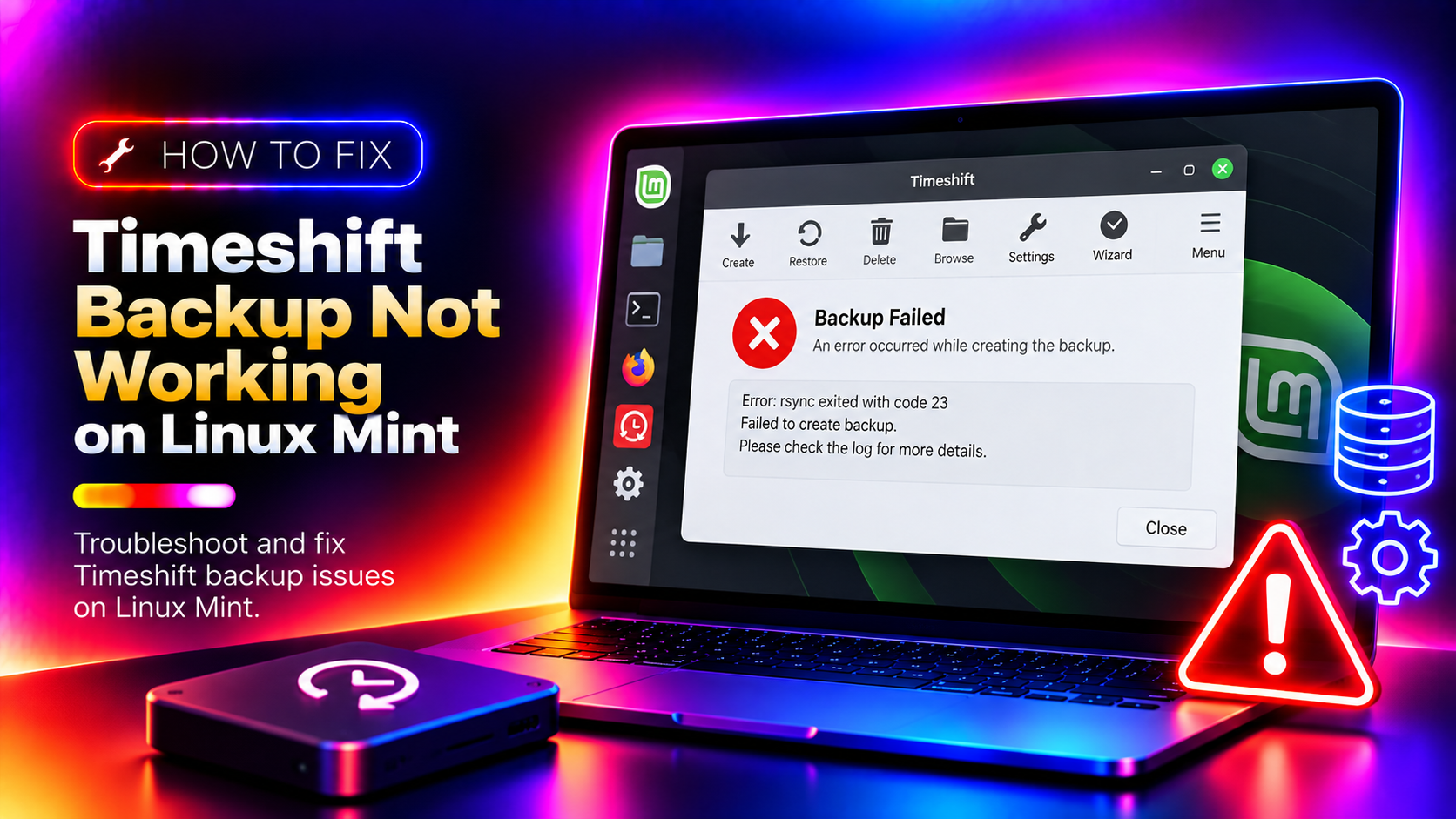
Timeshift is Linux Mint's built-in system restore tool — the equivalent of Windows System Restore. When it works, it's a lifesaver. When it doesn't, you're left with no safety net the next time a bad update or misconfiguration breaks your system. This guide covers every common reason Timeshift fails on Linux Mint and gives you terminal commands to fix each one fast.
Why Timeshift Fails on Linux Mint
Timeshift snapshot failures on Linux Mint fall into a handful of root causes. Understanding which one you're dealing with makes the fix straightforward:
- Insufficient disk space — Timeshift needs room for multiple snapshots. If your root or backup partition is nearly full, it refuses to create new ones.
- Wrong snapshot mode — Timeshift supports two modes: RSYNC (works on any filesystem) and BTRFS (requires a BTRFS-formatted partition). Choosing the wrong one causes immediate failure.
- Snapshot destination not set or unmounted — If the target drive isn't mounted or the path changed, Timeshift can't write snapshots.
- Permission or ownership errors — Incorrect permissions on the snapshot directory block Timeshift from writing files.
- Corrupt Timeshift configuration — A broken
/etc/timeshift/timeshift.jsoncauses unpredictable failures. - Scheduling conflicts — Overlapping scheduled snapshots or a disabled cron service prevent automatic backups.
Let's go through each fix methodically. If you want a professional to diagnose and fix this remotely, CloudHouse expert Linux support is available on a per-ticket basis.
Method 1 – Check Available Disk Space for Snapshots
This is the most common culprit. Timeshift won't create a snapshot if there isn't enough free space on the destination partition. Open a terminal and run:
df -hLook at the filesystem where you're storing snapshots (usually / or an external drive). You need at least 10–15% free space, and ideally 30–50 GB if you want to keep multiple snapshot versions. A typical Linux Mint installation is 10–18 GB per snapshot.
To see how much space your existing Timeshift snapshots are consuming, run:
sudo timeshift --listThis shows every snapshot, its size, and its tag (daily, weekly, monthly, or manual). If you have too many old snapshots piling up, delete the oldest ones:
sudo timeshift --delete --snapshot '2026-05-01_00-00-01'Replace the date-time string with the actual snapshot name shown in the list output. After deleting old snapshots, rerun df -h to confirm you've recovered sufficient space, then try creating a new snapshot.
Method 2 – Change Snapshot Location to a Different Partition/Drive
Storing Timeshift snapshots on the same partition as your root filesystem is risky — if the drive fills up, both your system and your backups are compromised. Moving snapshots to a dedicated partition or external drive is better practice and often fixes space-related failures.
Open Timeshift from the application menu (Settings icon → Snapshot Location tab) and select a different drive or partition. Alternatively, edit the configuration file directly:
sudo nano /etc/timeshift/timeshift.jsonFind the backup_device_uuid field and update it with the UUID of your target partition. Get the UUID of available partitions with:
blkidCopy the UUID of your target partition (e.g., a large data partition or external drive) and paste it into the config file. Save with Ctrl+O, exit with Ctrl+X, then test snapshot creation:
sudo timeshift --create --comments "test after location change" --tags DMethod 3 – Fix Timeshift BTRFS vs RSYNC Mode Mismatch
This error trips up many Linux Mint users who installed on a standard ext4 partition but somehow have Timeshift configured for BTRFS mode (or vice versa). The error message often reads something like: "Cannot find a BTRFS device" or "The selected device is not a BTRFS volume."
Check your current filesystem type:
df -T /The output shows the filesystem type in the second column. Linux Mint typically installs on ext4. If you see ext4 (or xfs, ntfs), you must use RSYNC mode in Timeshift.
Open Timeshift → Settings → Type tab and switch to RSYNC. Or fix it in the config file:
sudo nano /etc/timeshift/timeshift.jsonFind "backup_type" and set it to "RSYNC":
"backup_type" : "RSYNC"Save the file, then attempt a manual snapshot again:
sudo timeshift --create --comments "manual backup" --tags DBTRFS mode is only appropriate if your root partition was intentionally formatted as BTRFS at installation time — a non-default choice in Linux Mint's installer.
Method 4 – Run Timeshift from Terminal to See Full Error Output
The Timeshift GUI often shows a vague "Snapshot failed" message with no useful details. Running Timeshift from the terminal reveals the full error log, which is essential for diagnosing unusual failures.
First, check existing snapshots and their status:
sudo timeshift --listThen attempt a manual backup with verbose output:
sudo timeshift --create --comments "manual backup" --tags DWatch the terminal output carefully. Common errors you'll see and what they mean:
- rsync: [sender] write error to (socket): Broken pipe — Network mount or drive disconnected mid-snapshot. Check your target drive's connection.
- ERROR: Disk space is not sufficient — Confirms a space issue. Go back to Method 1.
- ERROR: Cannot find a device with UUID — Your configured snapshot partition is missing or unmounted. Check
lsblkand ensure the target drive is mounted. - rsync error: some files/attrs were not transferred — Usually permission errors on specific files. See Method 5.
You can also check the Timeshift log files directly:
ls /var/log/timeshift/sudo tail -100 /var/log/timeshift/*.logMethod 5 – Fix Permissions and Ownership Issues
Timeshift must run as root and write to its snapshot directory. If permissions on the snapshot destination are incorrect, or if a previous failed snapshot left behind a locked directory, new snapshots will fail.
Check if the Timeshift snapshot directory exists and who owns it:
ls -la /run/timeshift/If the snapshot drive is mounted externally, check its mount point permissions:
ls -la /media/$(whoami)/For ext4 partitions, ensure the mount options don't include noexec or nosuid, which can interfere with Timeshift's rsync process. Check your fstab:
cat /etc/fstabIf you find a locked or incomplete snapshot directory (from a previous failed backup), remove it manually:
sudo rm -rf /path/to/snapshots/timeshift/snapshots/YYYY-MM-DD_HH-MM-SSThen fix ownership of the snapshots folder:
sudo chown -R root:root /path/to/snapshots/timeshift/Replace /path/to/snapshots/ with your actual snapshot destination path. After correcting permissions, retry the snapshot creation command.
Method 6 – Reinstall Timeshift and Reset Configuration
If you've tried the above methods and Timeshift still won't create snapshots, the most reliable fix is a clean reinstall. This removes any corrupt configuration files or broken package state.
First, back up your current configuration (in case you want to reference it later):
sudo cp /etc/timeshift/timeshift.json /etc/timeshift/timeshift.json.bakReinstall Timeshift:
sudo apt reinstall timeshiftIf reinstall doesn't resolve the issue, do a full purge and reinstall:
sudo apt purge timeshift
sudo rm -rf /etc/timeshift/
sudo apt install timeshift
After reinstallation, open Timeshift from the menu and go through the setup wizard again. Reconfigure your snapshot type (RSYNC for ext4), select the snapshot location, and set the retention policy (how many daily/weekly/monthly snapshots to keep). Then test with a manual snapshot:
sudo timeshift --create --comments "post-reinstall test" --tags DA successful reinstall usually produces output ending with "Snapshot saved successfully" and shows the snapshot size.
Method 7 – Set Up Automated Snapshot Schedule Correctly
Timeshift relies on cron (specifically the cronie service) to run scheduled snapshots. If cron isn't running, or if Timeshift's schedule settings are misconfigured, automated backups silently stop working — you won't notice until you need to restore and find no snapshots exist.
Check if cron is running on your system:
systemctl status cronIf it shows inactive or failed, enable and start it:
sudo systemctl enable cron
sudo systemctl start cron
Then verify Timeshift's scheduled tasks are registered in cron:
sudo crontab -lYou should see entries added by Timeshift. If the list is empty, open Timeshift GUI → Settings → Schedule tab and re-enable your desired backup frequency (daily is recommended for most users).
For production systems or critical workstations, a sensible schedule is:
- Daily snapshots: Keep 5
- Weekly snapshots: Keep 3
- Monthly snapshots: Keep 2
This gives you roughly 3 months of restore points without consuming excessive disk space. To manually verify the automated schedule works, wait for the next scheduled run time or force a test:
sudo timeshift --create --comments "scheduled test" --tags DAlso verify restore functionality occasionally:
sudo timeshift --restoreThe restore command launches an interactive wizard — you don't have to complete it, but running it confirms Timeshift can locate and read your snapshots correctly.
FAQ
Why is Timeshift not creating snapshots on Linux Mint?
Timeshift fails to create snapshots most commonly due to insufficient disk space (Timeshift needs at least 10–15% free space on the snapshot partition), incorrect snapshot location settings, BTRFS/RSYNC mode mismatch, or permission errors on the destination drive. Run sudo timeshift --create --comments "test" --tags D in a terminal to see the exact error message.
How much disk space does Timeshift need on Linux Mint?
Timeshift needs enough space for at least 2–3 full snapshots. A typical Linux Mint installation is 8–15 GB per snapshot, so you need at least 30–50 GB free on the snapshot partition. Check available space with df -h and clean up old snapshots with sudo timeshift --delete --snapshot 'SNAPSHOT-NAME' to reclaim space.
What is the difference between RSYNC and BTRFS mode in Timeshift?
RSYNC mode works on any filesystem (ext4, NTFS, XFS) and stores snapshots as hard-linked directories — this is what most Linux Mint users should use. BTRFS mode uses the BTRFS filesystem's native subvolume snapshot capability and is faster but requires your root partition to be formatted as BTRFS, which is not the default in Linux Mint. If your system uses ext4, you must use RSYNC mode.
How do I run Timeshift from the command line on Linux Mint?
Open Terminal and run: sudo timeshift --create --comments "test backup" --tags D. This creates a manual daily snapshot and shows the full error output if it fails. Use sudo timeshift --list to see existing snapshots and sudo timeshift --delete --snapshot 'YYYY-MM-DD_HH-MM-SS' to remove old ones. Terminal output is far more informative than the GUI when diagnosing failures.
How do I restore Linux Mint from a Timeshift snapshot?
Open Terminal and run sudo timeshift --restore to launch the interactive restore wizard. Select the snapshot you want to restore, confirm the target partition, and Timeshift will restore your system files. For a system that won't boot, boot from a Linux Mint live USB, install Timeshift in the live session if needed, and run the same restore command pointing to your installed system partition. Avoid restoring /home unless you specifically included it in the snapshot settings.