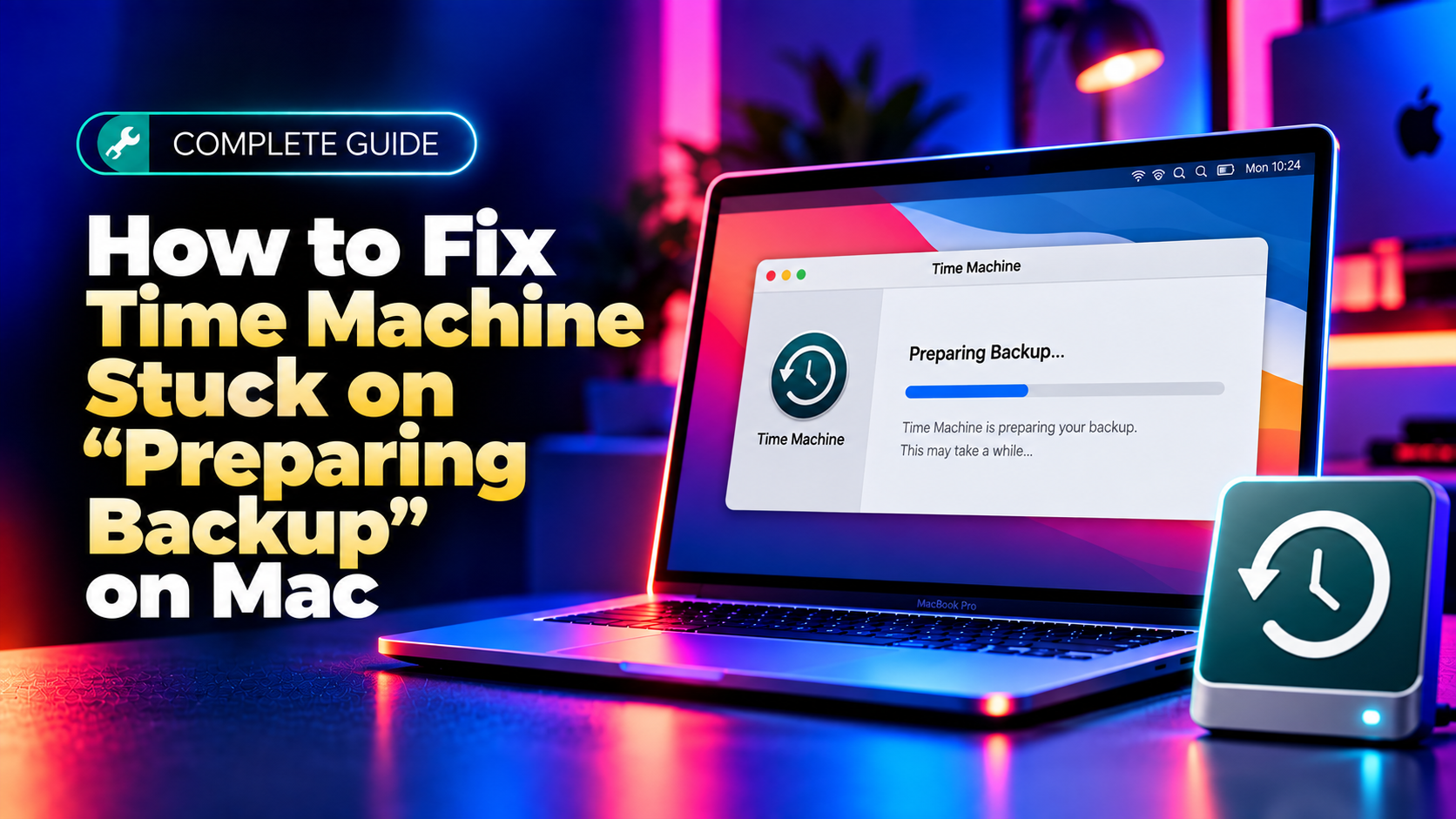
Why Time Machine Gets Stuck Preparing a Backup
If Time Machine has been sitting on "Preparing Backup" for 30 minutes or longer without any progress, something in the backup process has hit a snag before the actual file copy even begins. This "preparing" stage is where macOS compares your current disk state against the last successful backup, calculates which files changed, and builds a list of what needs to be copied. When that step stalls, it's almost always one of a handful of root causes.
The most common culprits are a nearly-full startup disk that leaves no room for temporary snapshot data, a backup disk being actively scanned by antivirus software, an enormous number of small files (like node_modules folders, Mail caches, or Photos libraries) that slow down the comparison step, or a corrupted backup file left over from a previous interrupted backup. A stuck ".inProgress" file from a backup that failed partway through is one of the single most frequent reasons Time Machine appears to hang indefinitely on later attempts.
Below are four methods, in order of effort, that resolve the vast majority of "stuck preparing backup" cases. Start with the quick fix, and only move down the list if the problem persists.
Quick Fix: Cancel and Retry the Backup
Before touching any files, try the simplest fix first: cancel the stuck backup and let Time Machine start fresh.
- Click the Time Machine icon in the menu bar (or open System Settings > General > Time Machine).
- Select Skip This Backup or click the small "x" next to the progress bar to cancel the current backup attempt.
- Wait about a minute for the backup disk to fully unmount its lock, then open Time Machine again and choose Back Up Now.
- If the backup disk is external, disconnect it, wait 10 seconds, and reconnect it before retrying.
This resolves the issue when the stall was caused by a temporary hiccup — a sleep/wake cycle interrupting the disk connection, a brief Spotlight indexing conflict, or a network blip on a Time Capsule/NAS backup. If the backup gets stuck on "Preparing Backup" again at roughly the same point, move on to Method 2.
Method 2: Remove the Corrupted .inProgress File
When a Time Machine backup is interrupted mid-copy — due to a sleep event, disk disconnect, or crash — it leaves behind a folder with a .inProgress suffix inside your backup structure. On subsequent runs, Time Machine tries to resume or validate that partial backup, and if it's corrupted, the whole process can hang forever on "Preparing Backup."
To find and remove it:
- Connect your Time Machine backup disk and mount it in Finder.
- Open the disk and navigate to the Backups.backupdb folder (on APFS-formatted backup disks running recent macOS versions, backups may instead live inside a sparse bundle or be shown directly in Finder as snapshots — if you don't see
Backups.backupdb, check for a folder named after your Mac). - Inside, look for a folder ending in .inProgress — for example,
2026-07-01-143022.inProgress. - For network backups (Time Capsule or a shared drive), use Finder > Go > Go to Folder and enter the SMB or AFP path to the backup share to locate the same folder structure.
You can try dragging the .inProgress folder straight to the Trash. If Finder refuses (a common outcome, since Time Machine sets special protections on these folders), open Terminal and use the following command — but proceed carefully, since it deletes data permanently with no undo:
sudo rm -rf /Volumes/YourBackupDiskName/Backups.backupdb/YourMacName/2026-07-01-143022.inProgress
Replace the path with the exact name of your backup disk, Mac, and the specific .inProgress folder you found. Double- and triple-check the path before pressing Enter — sudo rm -rf deletes recursively with no confirmation prompt, and pointing it at the wrong folder (or leaving the path incomplete) can wipe far more than intended. Only ever target the exact .inProgress folder, never the parent Backups.backupdb directory itself.
Once the corrupted folder is gone, disconnect and reconnect the backup disk, then start a new backup. Time Machine should now build a fresh backup chain without trying to reconcile the broken one.
Method 3: Exclude Large Files and Free Up Disk Space
Time Machine needs breathing room on both your startup disk and your backup disk to build its file comparison index. If your startup disk is nearly full, macOS may not have enough scratch space to prepare the backup, and the process can appear to freeze indefinitely.
First, check your available startup disk space via Apple menu > About This Mac > Storage. If you're below 10-15% free space, clear out large files, empty the Trash, and offload old downloads before continuing.
Next, reduce what Time Machine actually has to process by excluding folders that don't need backing up — large virtual machine images, local Docker volumes, cache-heavy development folders, or a Downloads folder full of installers:
- Go to System Settings > General > Time Machine > Options.
- Click the + button under "Exclude these items from backups."
- Select the folders or files you want to skip, then click Save.
It's also worth confirming your backup disk itself isn't nearly full — Time Machine needs free space to write new snapshots, and a disk sitting above 90% capacity can stall during preparation. If space is tight, consider deleting older backups via Time Machine's built-in browser or moving to a larger backup drive.
Finally, if you run antivirus or endpoint security software, add your Time Machine backup disk (and the Backups.backupdb path) to its exclusion list. Real-time scanning of a backup volume while Time Machine is trying to read and write to it is a well-known cause of indefinite "Preparing Backup" stalls, since the two processes end up competing for the same files.
Method 4: Run Disk Utility First Aid on the Backup Disk
If the backup still won't get past "Preparing Backup" after removing the .inProgress folder and freeing up space, the backup disk's filesystem itself may have errors. Running First Aid checks the disk structure and repairs common issues that can block Time Machine from reading its own backup index correctly.
- Open Disk Utility (via Spotlight or Applications > Utilities).
- In the sidebar, select your Time Machine backup disk — click the actual volume (not just the physical disk icon above it) if there are sub-items listed.
- Click First Aid in the toolbar, then click Run to confirm.
- Let the scan complete; this can take anywhere from a few minutes to over an hour depending on the disk size and backup history.
- If Disk Utility reports errors it can't repair, or the process fails, you may need to back up any critical existing snapshots you can still access, then erase and reformat the disk (APFS or Mac OS Extended, GUID partition map) and start a new backup chain from scratch.
Reformatting is a last resort since it removes your entire backup history, but a persistently corrupted backup disk will keep causing the same "stuck preparing backup" symptom no matter how many times you clear the .inProgress folder.
If you've worked through all four methods and Time Machine still won't complete a backup, the issue may be deeper — failing disk hardware, a flaky USB/Thunderbolt connection, or a macOS bug tied to a specific update. At that point it's worth getting a second set of eyes on it rather than losing more backup cycles. CloudHouse's Mac troubleshooting support can diagnose stubborn Time Machine failures remotely and get your backup schedule reliable again.
Frequently Asked Questions
How long should Time Machine normally take to prepare a backup?
For a routine hourly backup, "Preparing Backup" usually finishes in under a minute. The very first backup, or one after a long gap, can take several minutes to a few hours since it has more changes to index. Anything stuck at the same point for 30+ minutes with no progress bar movement is abnormal.
Is it safe to force-quit Time Machine while it's preparing a backup?
Yes. Canceling via the menu bar icon or System Settings is the safest way to stop a stuck backup. Avoid pulling the power or unplugging an external backup disk mid-process, since that's more likely to leave behind a corrupted .inProgress file that causes the same problem again.
Will deleting the .inProgress file delete my other backups?
No. The .inProgress folder only contains the incomplete, in-flight backup attempt. Your previous completed backups inside Backups.backupdb remain untouched as long as you delete only the specific folder ending in .inProgress and nothing else.
Why does this keep happening even after I free up disk space?
If the stall returns after freeing space and clearing the .inProgress file, check for antivirus software actively scanning the backup disk, a flaky cable or USB hub causing intermittent disconnects, or a backup disk nearing the end of its usable life. Running Disk Utility First Aid (Method 4) usually surfaces hardware-related causes.
Can I switch to a new backup disk without losing my old backup history?
Time Machine can't merge two separate backup histories onto one disk automatically. You can keep the old backup disk as a read-only archive for browsing past snapshots while starting a fresh backup chain on a new disk — just don't erase the old one until you're sure you don't need anything from it.