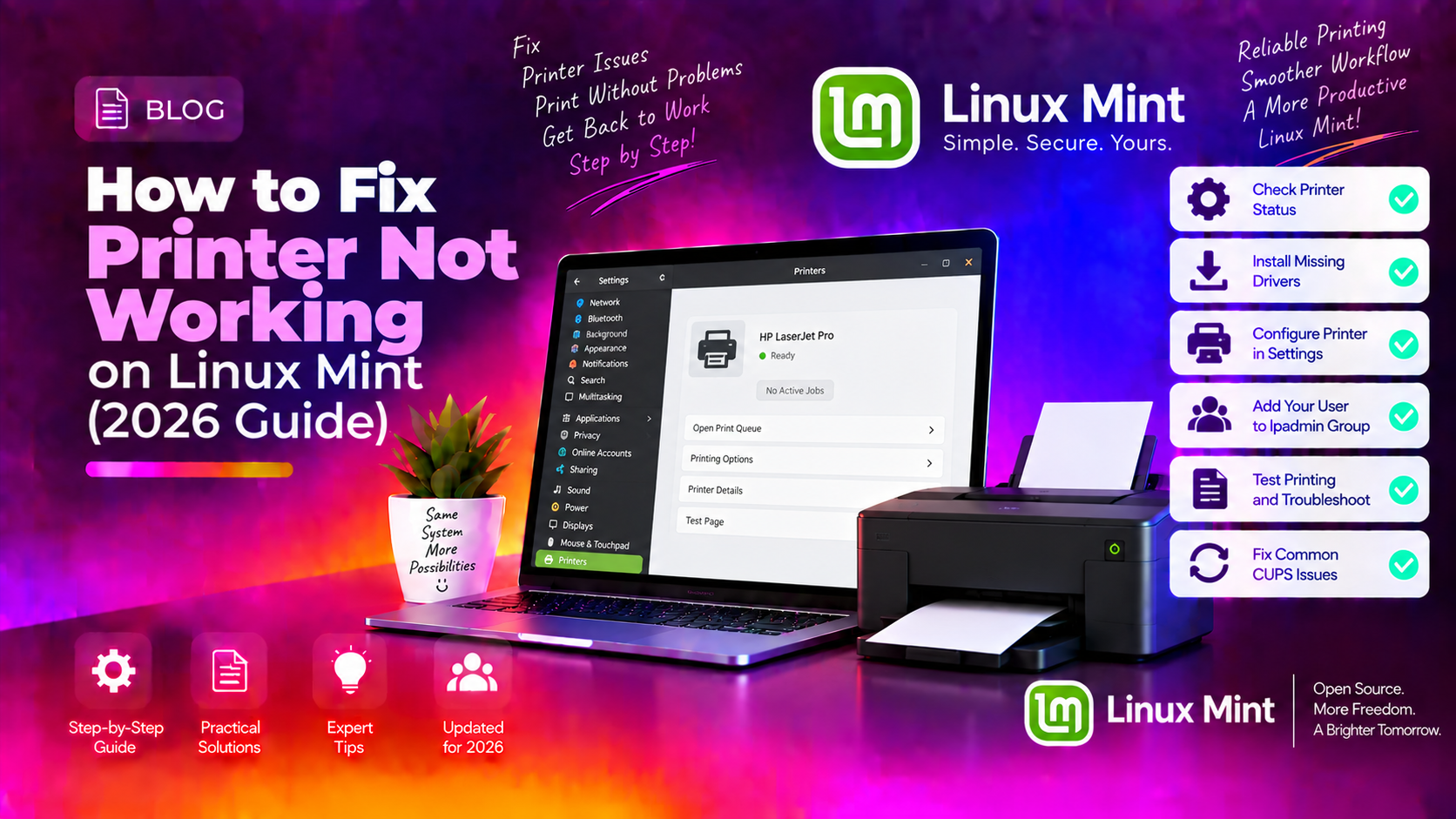
Why Printers Often Fail on Linux Mint
Printing on Linux Mint is reliable once set up correctly — but getting there can be frustrating if you don't know where to look. The most common causes of printer failures on Linux Mint in 2026 are:
- Missing or incorrect printer driver — especially for HP, Canon, and Epson printers that require manufacturer-provided drivers
- CUPS (Common Unix Printing System) service not running or in a broken state
- Network printer discovery failure — printer is on the network but Linux Mint can't find it via Avahi/mDNS
- Incorrect connection protocol — using IPP instead of LPD or vice versa
- SELinux/AppArmor policy blocking CUPS from accessing the USB device
Work through this guide in order — each section is a progressively deeper fix.
Step 1: Check and Restart the CUPS Service
CUPS is the printing daemon that handles all print jobs on Linux Mint. If it's not running, no printing will work.
Check if CUPS is active:
systemctl status cupsIf it shows inactive or failed, start it:
sudo systemctl start cups
sudo systemctl enable cups
If CUPS is running but printing still fails, restart it to clear any hung jobs:
sudo systemctl restart cupsAlso clear the print queue if jobs are stuck:
sudo cancel -aStep 2: Open the CUPS Web Interface
The CUPS web interface at http://localhost:631 gives you full control over printers, drivers, and job queues. Open it in your browser:
- Go to
http://localhost:631/admin. - Click Add Printer.
- Select your printer from the detected list (USB printers appear as "Local Printers," network printers appear under "Discovered Network Printers").
- Follow the wizard to select a driver PPD file and complete setup.
If your printer isn't listed in the detected section, it means Linux hasn't detected the USB connection or the network printer isn't broadcasting. Proceed to the relevant section below.
Step 3: Add Printer via System Settings (GUI Method)
Linux Mint's graphical printer setup tool is easier for most users:
- Open the Menu → Administration → Printers (or search for "Printers" in the application menu).
- Click Add a Printer.
- If your printer appears in the list, select it and follow the prompts.
- Print a test page to confirm it works.
If your printer doesn't appear, install the driver first (see brand-specific sections below) and then try adding it again.
Step 4: HP Printers — Install HPLIP
HP printers on Linux require the HPLIP (HP Linux Imaging and Printing) package for full functionality including scanning, ink level monitoring, and print quality settings.
sudo apt update
sudo apt install hplip hplip-gui
After installation, run the HP Device Manager:
hp-setupThis wizard automatically detects your HP printer (USB or network) and installs the correct driver. Select your printer model and complete the setup.
For network HP printers, also try:
hp-probe -bnetThis scans your network for HP printers and returns their IP addresses and model numbers. Use the discovered IP address when adding the printer in CUPS.
If HPLIP shows an error about a missing plugin for your specific model (common with HP LaserJet Pro and OfficeJet Pro):
sudo hp-plugin -iThis downloads and installs the proprietary plugin required for those models.
Step 5: Brother Printers — Use Brother's Linux Driver Tool
Brother provides a dedicated Linux Driver Install Tool that works well on Linux Mint. Do not use outdated RPM-based drivers — they require additional conversion steps.
- Visit support.brother.com, search for your model, and download the Linux Driver Install Tool (a bash script called
linux-brprinter-installer-X.X.X.sh). - Make it executable and run it:
chmod +x linux-brprinter-installer-*.sh
sudo bash linux-brprinter-installer-*.sh- Enter your printer model when prompted (e.g.,
HL-L2350DW). - The script automatically downloads the correct driver DEB files, installs them, and adds the printer to CUPS.
- For USB printers: when asked for a device URI, enter
usb://Brother/YourModel. For network printers, enter the printer's IP address when prompted.
Step 6: Canon Printers — Install cnijfilter or gutenprint
Canon printers on Linux require one of two driver systems depending on the model:
For Canon PIXMA and other inkjet models: Canon provides cnijfilter DEB packages on their support website. Download the package for your model and install:
sudo dpkg -i cnijfilter2-*.deb
sudo apt install -f
For older Canon models or if cnijfilter isn't available: Use Gutenprint, an open-source driver package with broad Canon support:
sudo apt install printer-driver-gutenprintAfter installing, restart CUPS and add the printer again through the Printers application. Select Gutenprint as the driver source and find your Canon model in the list.
Known CUPS bug with Canon IPP printers: After CUPS 2.4.6, some Canon printers that use the IPP protocol fail to print. The workaround is to add the printer using the socket:// protocol instead:
# Find printer IP, then in CUPS:
# Use URI: socket://192.168.1.xxx:9100
Step 7: Network Printer Not Discovered — Manual IP Configuration
If your network printer doesn't appear in the automatic discovery list:
- Find your printer's IP address from its control panel (typically under Network → TCP/IP Settings → IP Address).
- Open CUPS at
http://localhost:631/admin→ Add Printer. - Select AppSocket/HP JetDirect and enter:
socket://192.168.1.xxx:9100(replace with your printer's IP). - Or use the IPP protocol:
ipp://192.168.1.xxx/ipp/print. - Select the correct driver (manufacturer-provided or Gutenprint).
Also check that your firewall isn't blocking printer discovery (UDP port 5353 for mDNS/Avahi):
sudo ufw allow 5353/udp
sudo ufw allow 631/tcp
Step 8: Check USB Printer Permissions
If a USB printer is detected in lsusb output but not in CUPS, a permissions issue may be preventing CUPS from accessing the USB device.
lsusb | grep -i printAdd your user to the lp group:
sudo usermod -aG lp $USERLog out and back in for the group change to take effect. Also add CUPS to the group:
sudo usermod -aG lp cupsRestart CUPS:
sudo systemctl restart cupsGetting Expert Linux Printing Help
If none of these steps resolve your printer issue, especially for unusual or enterprise printers, our Linux support team can diagnose and fix printing issues remotely.
Frequently Asked Questions
Why does my printer show as "idle" but won't print in Linux Mint?
An "idle" printer in CUPS that doesn't print usually has a stuck job in the queue or a driver/filter error. Clear the queue with sudo cancel -a, then check CUPS error log: sudo tail -50 /var/log/cups/error_log. The log will show exactly which filter or driver step is failing.
How do I check printer drivers in Linux Mint?
Run lpinfo -m 2>/dev/null | grep -i "your-brand" to list available drivers. Or visit http://localhost:631/admin, click Add Printer, select your printer, and review the driver options available. The OpenPrinting database at openprinting.org lists compatibility ratings for thousands of printers.
Can I use a wireless printer without installing extra drivers on Linux Mint?
Some modern printers support Mopria (an open printing standard) or AirPrint-compatible IPP Everywhere, which work in Linux Mint without any additional drivers. Go to Printers → Add Printer — if your wireless printer appears with "driverless" or "IPP Everywhere" in the description, it will work without extra software.
Why does my HP printer scan but not print on Linux Mint?
If scanning works (via SANE/XSane) but printing doesn't, the print driver is the issue — not the hardware connection. Reinstall HPLIP: sudo apt install --reinstall hplip. If the printer needs a plugin, run sudo hp-plugin -i. Then re-add the printer in CUPS.
How do I share a printer on Linux Mint to other computers on the network?
In the CUPS web interface (http://localhost:631), go to Administration → Server Settings → check "Share printers connected to this system." Then in each printer's settings, enable "Share This Printer." Windows computers can connect to it as a network printer using the CUPS URL. Linux computers will discover it automatically via Avahi.