What Does "Printer Driver is Unavailable" Mean on Windows 10?
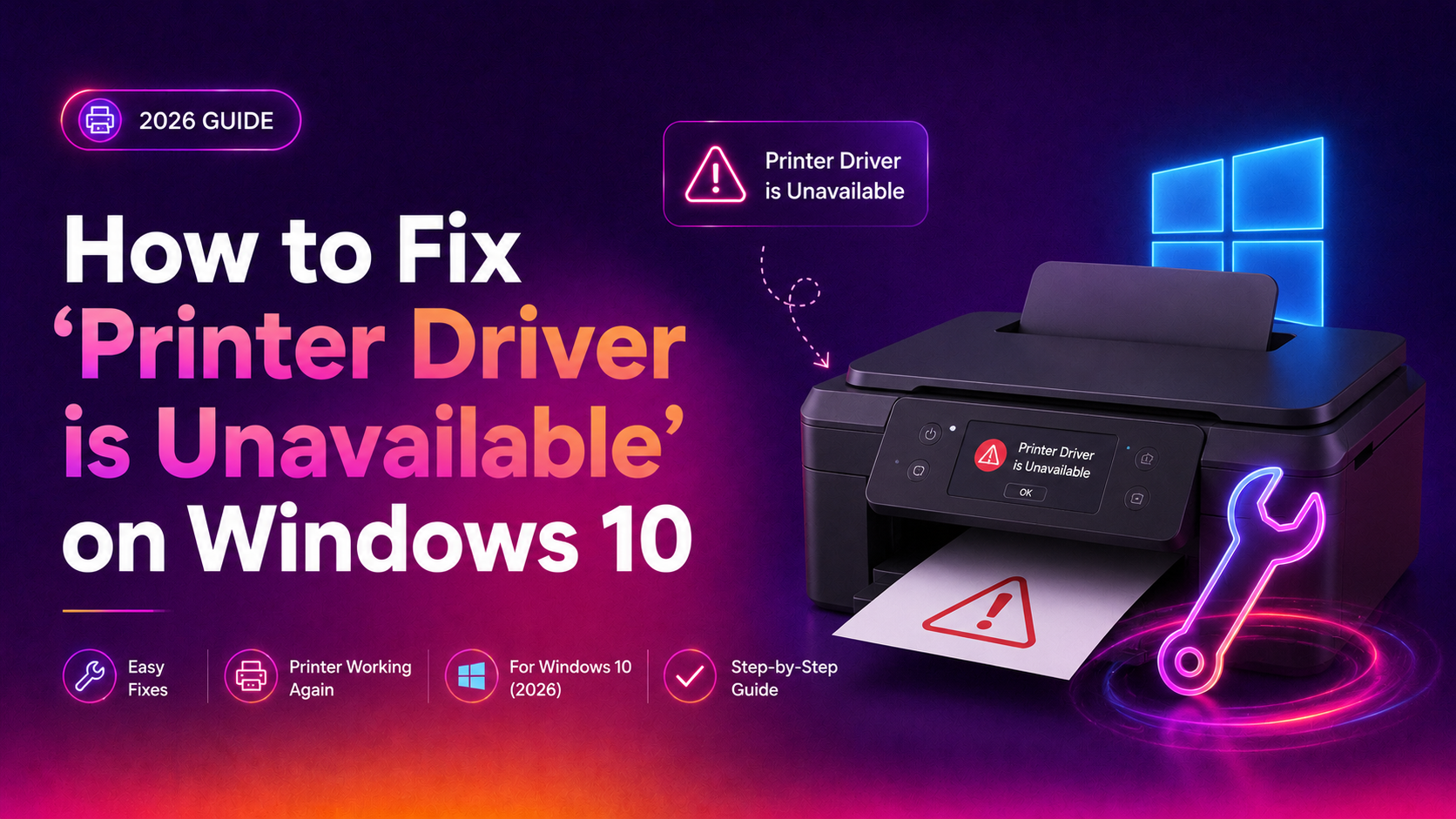
When Windows 10 shows "Driver is unavailable" next to your printer in Settings or Device Manager, it means the operating system either can't find the printer driver, has found a corrupted version, or the installed driver is incompatible with the current version of Windows 10. This error is one of the most commonly searched Windows 10 hardware problems in 2026, often triggered by a Windows Update that replaces or removes printer drivers.
Common causes:
- A Windows Update removed or replaced the compatible driver
- The printer driver was corrupted during installation or an update
- The driver is outdated and incompatible with the current Windows 10 build
- Spooler service conflict or stuck print queue
- The printer is connected to a different USB port than originally installed
- Generic Windows driver substituted for a manufacturer-specific one
Fix 1: Run the Windows Printer Troubleshooter
Start with the built-in troubleshooter — it detects and automatically fixes driver conflicts in most straightforward cases:
- Go to Settings → Update & Security → Troubleshoot → Additional troubleshooters
- Click Printer → Run the troubleshooter
- Follow the prompts and apply any recommended fixes
- Restart your PC and test printing
The troubleshooter commonly fixes Print Spooler issues and re-registers printer drivers with Windows automatically.
Fix 2: Update the Printer Driver via Device Manager
Windows Update sometimes installs a generic driver instead of your printer's specific one. Force an update:
- Right-click the Start button → Device Manager
- Expand Printers (or Print queues)
- Right-click your printer → Update driver
- Select "Search automatically for drivers"
- If Windows finds an update, install it and restart
If Device Manager finds nothing, visit the manufacturer's website and download the driver manually:
- HP: support.hp.com → enter your printer model
- Canon: usa.canon.com/support
- Epson: epson.com/support
- Brother: support.brother.com
Download the full driver package for Windows 10 x64, run the installer, and restart.
Fix 3: Uninstall and Reinstall the Printer Driver Completely
A corrupted driver that keeps showing "unavailable" won't be fixed by updating — it needs to be removed entirely and reinstalled cleanly:
- Open Device Manager → Printers
- Right-click your printer → Uninstall device
- Check "Delete the driver software for this device" if available
- Click Uninstall
Now remove remaining driver files using Print Management:
- Press Win + R → type
printmanagement.msc→ press Enter - In the left panel, expand Print Servers → [Your Computer] → Drivers
- Right-click your printer's driver → Remove Driver Package
After removing everything, turn off your printer, disconnect the USB cable, restart Windows, reconnect the printer, and install a fresh driver from the manufacturer's website.
Fix 4: Restart the Print Spooler Service
The Print Spooler service manages all print jobs. If it's stuck or crashed, printers show as unavailable even with valid drivers:
- Press Win + R → type
services.msc→ press Enter - Scroll down to Print Spooler, right-click → Restart
- If it won't restart, right-click → Stop
- Open File Explorer and navigate to:
C:\Windows\System32\spool\PRINTERS - Delete all files inside the PRINTERS folder (do NOT delete the folder itself)
- Go back to Services and right-click Print Spooler → Start
This clears stuck print jobs that can corrupt the spooler queue and cause driver unavailability errors.
Fix 5: Roll Back a Printer Driver That Broke After Update
If the "driver unavailable" error appeared immediately after a Windows Update, rolling back the driver restores the previously working version:
- Open Device Manager → Printers
- Right-click your printer → Properties → Driver tab
- Click Roll Back Driver
- Select a reason and click Yes
- Restart your PC
If "Roll Back Driver" is greyed out, no previous driver version is stored — proceed with Fix 3 (uninstall and reinstall from the manufacturer).
Fix 6: Add the Printer Manually Using the Correct Driver
If automatic detection keeps installing the wrong driver, add the printer manually and specify the correct driver:
- Go to Settings → Devices → Printers & Scanners
- Click Add a printer or scanner
- Click "The printer that I want isn't listed"
- Select "Add a local printer or network printer with manual settings"
- Choose Use an existing port (typically USB001 for USB printers)
- Click Have Disk and browse to the extracted manufacturer driver folder
- Select the .inf file and follow the prompts
Fix 7: Check for Windows Update Issues
In 2026, several Windows 10 cumulative updates have been known to break printer drivers. If your printer worked before a specific update:
- Go to Settings → Update & Security → Windows Update → View Update History
- Click Uninstall updates
- Find the most recently installed update and uninstall it
- Restart your PC and test the printer
After confirming the printer works, pause updates temporarily while waiting for Microsoft to release a fix: Settings → Windows Update → Advanced Options → Pause Updates.
Fix 8: Use a Generic Windows Driver as a Temporary Fix
If you need to print urgently while troubleshooting, a generic Windows driver often works for basic printing:
- Open Device Manager → Printers → right-click your printer → Update driver
- Select "Browse my computer for drivers"
- Select "Let me pick from a list of available drivers on my computer"
- Choose "Generic / Text Only" or "Microsoft Print to PDF" as a test
This confirms whether the issue is driver-specific or a deeper hardware/spooler problem.
If your printer continues to show "Driver is unavailable" after all methods, or if you're managing multiple printers on a Windows 10 business network, CloudHouse Technologies provides expert Windows 10 printer and driver support on a pay-per-ticket basis — no subscription required.
Frequently Asked Questions
Why does Windows 10 say my printer driver is unavailable after an update?
Windows Updates sometimes replace manufacturer-specific drivers with generic versions, or remove drivers entirely during major builds. Download the latest driver directly from your printer manufacturer's website and reinstall it to restore full functionality.
How do I know which printer driver to download for Windows 10?
Check your printer model on the label on the front or back of the printer. Then visit the manufacturer's support site (HP, Canon, Epson, Brother) and search for your model. Download the "Full Driver Package" for Windows 10 64-bit.
Can I print without installing a driver on Windows 10?
For modern printers supporting Mopria or Windows IPP, Windows 10 may print using a built-in driverless standard — but features like scanning, duplex printing, and quality settings require the full manufacturer driver.
Why is the Print Spooler causing my printer to show as unavailable?
A corrupted or stuck print job in the spooler queue can lock the driver in an error state. Stop the spooler, delete all files in C:\Windows\System32\spool\PRINTERS, restart the spooler, and retest.
My printer worked yesterday and shows driver unavailable today — what changed?
Check Windows Update history (Settings → Update History) for updates installed overnight. A cumulative update commonly causes this. Try rolling back the driver or uninstalling the problematic Windows Update.