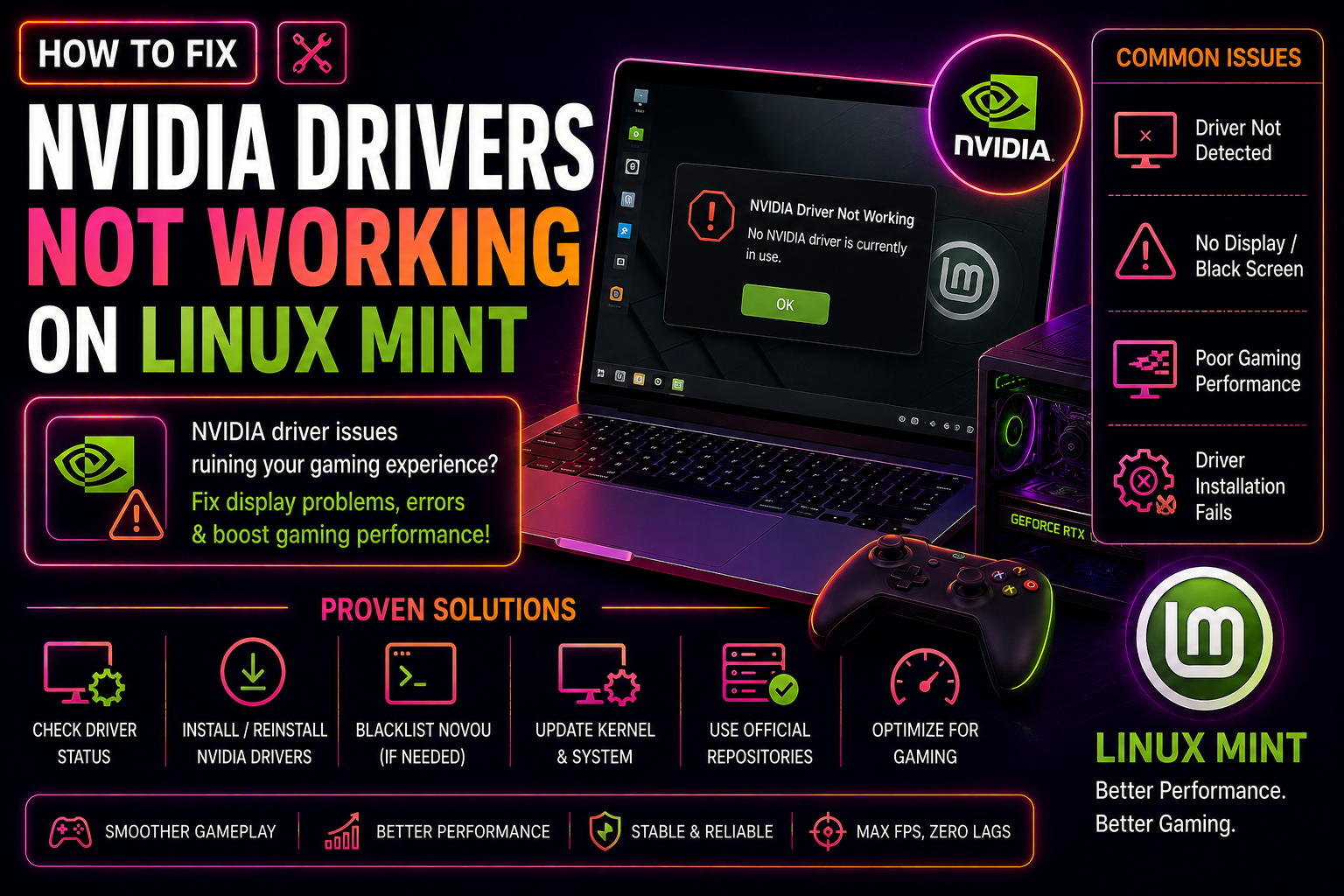
You installed NVIDIA drivers on Linux Mint, fired up your favourite game, and found it crawling at single-digit frame rates — or worse, the system booted to a black screen. When you dig a little deeper, glxinfo | grep renderer shows llvmpipe instead of your NVIDIA card. This means your CPU is doing the rendering work your GPU was built for. It is a frustrating but fully fixable problem, and this guide walks you through every scenario: a bad driver install, a hybrid-GPU laptop stuck on the wrong chip, missing 32-bit libraries that break Steam, and how to confirm the GPU is actually being used once you are done.
Why NVIDIA Drivers Fail on Linux Mint (Root Causes)
Before jumping into fixes, understanding the root cause saves time. The four most common culprits are:
- Secure Boot blocking kernel modules — NVIDIA kernel modules must be signed with a Machine Owner Key (MOK) or Secure Boot must be disabled. Without this, the module silently fails to load at boot and the system falls back to the open-source
nouveauor the softwarellvmpiperenderer. - Kernel/driver version mismatch — Mainline kernels installed via ukuu or manually are not supported by the packaged NVIDIA drivers in Driver Manager. Only the kernels shipped with Linux Mint (currently 6.8 and 6.14) are fully compatible.
- Missing
nvidia_drm.fbdev=1kernel parameter — Since late 2024, NVIDIA display drivers require this parameter or the Xorg driver fails to initialise and falls back to nouveau/llvmpipe. - PRIME offload not configured on hybrid-GPU laptops — On laptops with both an Intel/AMD iGPU and an NVIDIA dGPU, games run on the iGPU by default unless explicitly told to use the NVIDIA chip.
Method 1: Reinstall Drivers via Driver Manager (Recommended)
This is the safest first step and resolves the majority of broken-driver scenarios.
Step 1 — Take a Timeshift snapshot
Open Timeshift from the application menu and create a snapshot before making any driver changes. If something goes wrong, you can restore in minutes.
Step 2 — Remove the current driver
Open Driver Manager (Menu → Administration → Driver Manager). Select the X.Org X server — Nouveau display driver (open-source) option to temporarily fall back to nouveau, then click Apply Changes and reboot.
Step 3 — Run all system updates
sudo apt update && sudo apt full-upgrade -y
sudo reboot
Step 4 — Reinstall the recommended proprietary driver
Reopen Driver Manager after the reboot. Select the driver marked recommended (typically nvidia-driver-550 or later). Click Apply Changes. When prompted, set a MOK password — you will need to enter it once during the next boot to enrol the key.
Step 5 — Add the required kernel parameter
sudo nano /etc/default/grubFind the line GRUB_CMDLINE_LINUX_DEFAULT and add nvidia_drm.fbdev=1 inside the quotes:
GRUB_CMDLINE_LINUX_DEFAULT="quiet splash nvidia_drm.fbdev=1"Save, then update GRUB and reboot:
sudo update-grub
sudo reboot
Method 2: Purge and Clean Install NVIDIA Drivers via Terminal
Use this method when Driver Manager installations repeatedly fail or the driver shows as installed but the GPU is still not detected.
Step 1 — Purge all NVIDIA packages
sudo apt purge ~nnvidia
sudo apt autoremove --purge
sudo apt autoclean
Note for hybrid-GPU laptop users: Do not run sudo apt purge nvidia* with a wildcard — this will also remove the Linux Mint nvidia-prime-applet. The ~nnvidia regex is safer.
Step 2 — Reinstall the driver and required tools
sudo apt update
sudo apt install nvidia-driver-550 nvidia-settings nvidia-prime
Replace 550 with the latest version available in the repositories. Check with apt-cache search nvidia-driver.
Step 3 — Rebuild initramfs and update GRUB
sudo update-initramfs -u
sudo update-grub
sudo reboot
Step 4 — Check Secure Boot status
mokutil --sb-stateIf the output is SecureBoot enabled, enrol the driver signing key:
sudo mokutil --import /var/lib/shim-signed/mok/MOK.derSet a one-time password when prompted. On the next reboot, the blue MOK Manager screen will appear — select Enroll MOK, confirm with your password, and continue booting. Alternatively, disable Secure Boot entirely in your UEFI firmware settings (usually under Security → Secure Boot → Disabled).
Method 3: Fix PRIME Offload for Hybrid GPU Laptops
On laptops with Intel + NVIDIA or AMD + NVIDIA (Optimus), the system uses the integrated GPU by default to save battery. Games must explicitly request the NVIDIA chip.
Check which GPU is active
prime-select queryIf this returns intel or on-demand, games are running on the iGPU.
Option A — Switch to NVIDIA mode (desktop/plugged-in use)
sudo prime-select nvidia
sudo reboot
This forces all rendering through the NVIDIA GPU. Performance is maximised but battery life decreases.
Option B — Use PRIME Render Offload per application (on-demand)
Keep on-demand mode and prefix game launches with:
__NV_PRIME_RENDER_OFFLOAD=1 __GLX_VENDOR_LIBRARY_NAME=nvidia __VK_LAYER_NV_optimus=NVIDIA_only %command%In Steam, right-click the game → Properties → Launch Options, and paste exactly:
__NV_PRIME_RENDER_OFFLOAD=1 __GLX_VENDOR_LIBRARY_NAME=nvidia __VK_LAYER_NV_optimus=NVIDIA_only %command%This wakes the dGPU only when the game runs and returns it to sleep afterwards, preserving battery life for everything else.
Option C — Use the NVIDIA Prime Applet
Right-click the NVIDIA applet in the system tray → select NVIDIA Performance Mode. Users report FPS increases of 2–3x compared to On-Demand mode for demanding games.
Method 4: Enable 32-bit Libraries for Steam and Vulkan
Steam is a 32-bit application. Even if you only play 64-bit games, Steam itself requires 32-bit NVIDIA libraries. Missing these causes games to fall back to llvmpipe or refuse to launch entirely.
Step 1 — Enable the i386 architecture
sudo dpkg --add-architecture i386
sudo apt update
Step 2 — Install 32-bit NVIDIA and Vulkan libraries
sudo apt install nvidia-driver-libs:i386 libvulkan1 libvulkan1:i386 mesa-vulkan-drivers mesa-vulkan-drivers:i386Step 3 — Fix the Vulkan ICD if nvidia_icd.json is missing
ls /usr/share/vulkan/icd.d/If you see nvidia_icd.disabled_by_nv_vulkan_wrapper but no nvidia_icd.json, restore it:
sudo cp /usr/share/vulkan/icd.d/nvidia_icd.disabled_by_nv_vulkan_wrapper /usr/share/vulkan/icd.d/nvidia_icd.jsonStep 4 — Update Flatpak NVIDIA drivers (if using Flatpak games)
flatpak updateA mismatch between the host NVIDIA driver version and the Flatpak NVIDIA runtime is a common cause of games running on llvmpipe inside Flatpak containers.
How to Verify Your GPU Is Actually Being Used
After applying any fix, confirm the GPU is rendering before assuming the problem is solved.
Check the active renderer
glxinfo | grep -i rendererThe output should show your NVIDIA card name, for example:
OpenGL renderer string: NVIDIA GeForce RTX 4060 Laptop GPU/PCIe/SSE2If it shows llvmpipe, the driver is still not loading.
Check kernel module is loaded
lsmod | grep nvidiaYou should see entries for nvidia, nvidia_modeset, nvidia_drm, and nvidia_uvm. An empty result means the module failed to load — revisit the Secure Boot steps above.
Monitor GPU utilisation during gaming
watch -n 1 nvidia-smiLaunch a game in another window. The GPU utilisation percentage should climb above 0%. If it stays at 0% while the game is running, PRIME offload is not configured correctly.
Check the Xorg log for errors
grep -i "nvidia\|error\|fail" /var/log/Xorg.0.log | head -40Prevention Tips: Keeping NVIDIA Drivers Stable on Linux Mint
- Always take a Timeshift snapshot before updating drivers. A five-minute snapshot prevents hours of recovery work.
- Stick to Linux Mint's packaged kernels. Kernels 6.8 and 6.14 (available via Update Manager → View → Linux Kernels) are tested with the packaged NVIDIA drivers. Mainline kernels break the driver build.
- Run
flatpak updateafter every NVIDIA driver update. The Flatpak NVIDIA runtime must match the host driver version exactly. - Keep the
nvidia_drm.fbdev=1kernel parameter in GRUB. This parameter is required since NVIDIA driver 545+ and prevents the Xorg driver from silently falling back. - Do not mix PPAs with Driver Manager. The
graphics-drivers/ppaPPA can install a driver version that conflicts with the Mint-packagednvidia-primepackage.
Need expert help? CloudHouse Technologies offers Pay-Per-Ticket Support — get a specialist to fix this for you.
Frequently Asked Questions
Why does glxinfo show llvmpipe even after installing NVIDIA drivers on Linux Mint?
The most common causes are Secure Boot blocking the NVIDIA kernel module from loading, a missing nvidia_drm.fbdev=1 kernel parameter in GRUB, or a kernel version incompatible with the packaged drivers. Check lsmod | grep nvidia — if the module is absent, start with the Secure Boot and GRUB parameter fixes in this guide.
Do I need to disable Secure Boot to use NVIDIA drivers on Linux Mint?
Not necessarily. You can enrol a Machine Owner Key (MOK) using mokutil --import so the NVIDIA kernel module is signed and trusted by Secure Boot. However, disabling Secure Boot in UEFI firmware is the simpler and more reliable option if MOK enrolment fails.
How do I know if my laptop has a hybrid GPU setup requiring PRIME?
Run lspci | grep -E "VGA|3D". If you see two entries — one for Intel or AMD and one for NVIDIA — your laptop uses hybrid graphics. You will need to configure PRIME offload or switch to NVIDIA-only mode using sudo prime-select nvidia to use the NVIDIA GPU for gaming.
Why do Steam games use llvmpipe on Linux Mint even with NVIDIA drivers installed?
Steam requires 32-bit NVIDIA libraries (nvidia-driver-libs:i386) to render games through the GPU. If these are missing, Steam falls back to the software renderer. Additionally, if you use Flatpak versions of games or Steam, the Flatpak NVIDIA runtime version must exactly match the host driver — run flatpak update to sync them.
What is the safest way to reinstall NVIDIA drivers without breaking Linux Mint?
Use Driver Manager rather than manual terminal installs. If a full purge is needed, use sudo apt purge ~nnvidia (with the tilde-n prefix) rather than sudo apt purge nvidia* with a wildcard, as the wildcard removes the nvidia-prime-applet package that Linux Mint uses to manage hybrid GPU switching. Always take a Timeshift snapshot before any driver change.