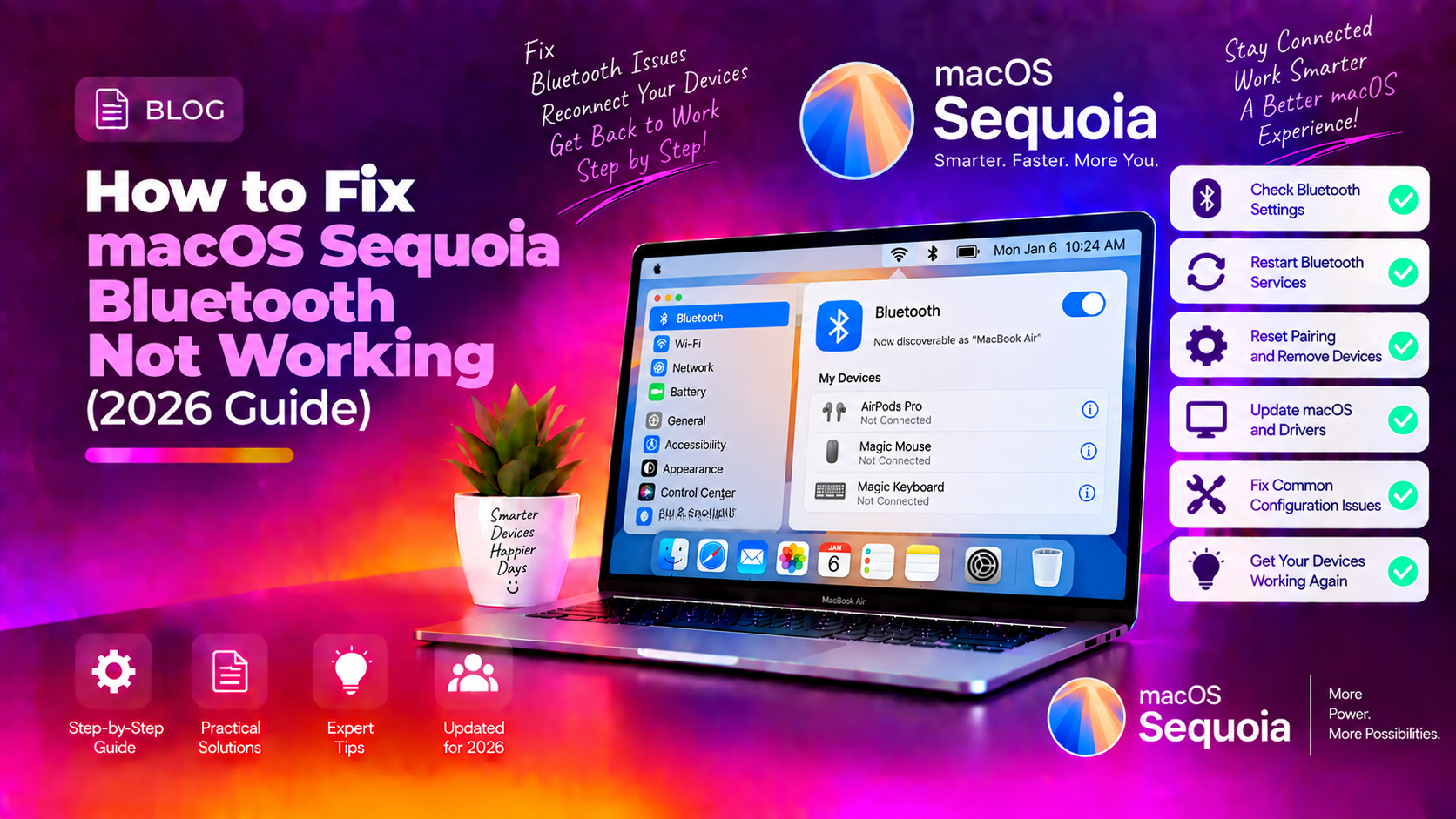
Why Is macOS Sequoia Bluetooth Not Working?
If Bluetooth on your Mac won't pair, is greyed out in System Settings, or keeps disconnecting, the cause is usually a crashed Bluetooth daemon, corrupted preference files, or stale pairing data. Each of these can be fixed in a few minutes without a trip to the repair shop, and the steps below are ordered from quickest to most involved.
Bluetooth problems on macOS Sequoia are common. Many Mac users have reported devices that refuse to pair, a Bluetooth toggle that appears greyed out in System Settings, and peripherals that randomly disconnect mid-session. These fixes still apply in 2026, and most of the same steps also work on newer macOS releases such as macOS Tahoe.
The root causes usually fall into one of these buckets:
- Corrupted Bluetooth preference files (plist) left over from previous macOS versions
- A crashed Bluetooth daemon (
bluetoothd) that needs to be restarted - Stale device pairing data that conflicts with the new Sequoia Bluetooth stack
- NVRAM/PRAM holding old Bluetooth state that survives reboots
- Interference from other 2.4 GHz devices — especially USB 3.0 hubs, monitors, and routers
Work through the fixes below in order, testing Bluetooth after each one. Most users resolve the issue by Fix 3 or Fix 4, so you rarely need to go all the way down the list.
Fix 1: Toggle Bluetooth Off and On
This sounds obvious, but it resolves temporary daemon glitches instantly. Here's the right way to do it:
- Click the Control Center icon in the top-right menu bar (the two toggle-switch icon).
- Click the Bluetooth toggle to turn it Off. Wait 10 seconds.
- Turn it back On.
- Try re-pairing your device.
If Bluetooth appears greyed out and won't toggle, proceed directly to Fix 3 (Restart the Bluetooth Daemon).
Fix 2: Forget and Re-Pair Your Bluetooth Device
Stale pairing data is one of the most common causes of Bluetooth devices that connect but immediately disconnect, or fail to pair after a macOS Sequoia upgrade. Removing the device and pairing it again creates a fresh, clean connection record.
- Go to System Settings → Bluetooth.
- Hover over the problematic device and click the Info (i) button.
- Click Forget This Device and confirm.
- Put your Bluetooth device back into pairing mode (consult its manual — usually hold a button until an LED flashes).
- On your Mac, click Connect when the device appears in the Bluetooth list.
Tip: If you're troubleshooting AirPods, also forget them from your iPhone and iPad, then re-pair from scratch on your Mac.
Fix 3: Restart the Bluetooth Daemon (bluetoothd)
The bluetoothd process manages all Bluetooth communication on macOS. When it crashes or hangs — which happens after long system uptimes or aggressive macOS updates — you need to kill and restart it without rebooting your Mac.
- Open Terminal (Applications → Utilities → Terminal, or Spotlight →
terminal). - Run this command:
sudo pkill bluetoothd- Enter your admin password when prompted. The daemon will restart automatically within a few seconds.
- Check Bluetooth in System Settings — it should now be toggleable and functional.
If the command produces no output and returns to the prompt, that's normal — it means the process was successfully killed and macOS has already restarted it.
Fix 4: Delete Corrupted Bluetooth Preference Files
macOS stores Bluetooth device pairing data and preferences in plist files. If these become corrupted during a Sequoia upgrade, Bluetooth can behave erratically. Deleting them forces macOS to rebuild them clean.
- Open Finder.
- In the menu bar, click Go → Go to Folder (or press
⇧⌘G). - Type
/Library/Preferencesand press Enter. - Find and delete these files if they exist:
com.apple.Bluetooth.plistcom.apple.Bluetooth.plist.lockfile
- Now navigate to
/Library/Preferences/ByHost. - Delete any files that start with
com.apple.Bluetoothfollowed by a UUID string. - Also check
~/Library/Preferences(your user library) for the same files. - Restart your Mac. macOS will regenerate these files automatically.
Note: You'll need to re-pair all Bluetooth devices after this step since the pairing data is stored in these files. If you want a safety net, copy the files to your Desktop before deleting them so you can restore them if something goes wrong.
Fix 5: Reset NVRAM / PRAM (Intel Macs)
NVRAM stores low-level hardware settings including Bluetooth configuration. On Intel-based Macs, resetting it can clear Bluetooth state that persists across reboots.
- Shut down your Mac completely.
- Press the power button, then immediately hold Option + Command + P + R simultaneously.
- Keep holding for about 20 seconds. Your Mac will appear to restart — you may see the Apple logo appear and disappear twice.
- Release the keys and let your Mac boot normally.
Apple Silicon Macs (M1, M2, M3, M4 and later): There is no NVRAM reset shortcut on Apple Silicon. Instead, perform a full shutdown (not restart), wait 30 seconds, then power on. This achieves a similar effect.
Fix 6: Reset SMC (Intel Macs Only)
The System Management Controller handles hardware-level power and communication functions. On Intel MacBooks, resetting the SMC can resolve persistent Bluetooth hardware failures.
For Intel MacBook Pro/Air (non-removable battery):
- Shut down your Mac.
- Press and hold Control (left) + Option (left) + Shift (left) + Power for 10 seconds.
- Release all keys.
- Press the Power button to start your Mac normally.
For iMac, Mac Mini, Mac Pro (Intel):
- Shut down and unplug the power cable.
- Wait 15 seconds.
- Plug back in, wait 5 seconds, then power on.
Apple Silicon Macs do not have an SMC — these steps do not apply, so skip this fix if you're on an M-series Mac.
Fix 7: Reduce Wireless Interference
Bluetooth operates on the 2.4 GHz band — the same frequency used by many Wi-Fi routers, USB 3.0 devices, microwave ovens, and baby monitors. If your Mac is surrounded by these devices, Bluetooth signal quality degrades significantly.
Try these steps:
- Move USB 3.0 hubs and drives away from your Mac — USB 3.0 is notorious for generating 2.4 GHz interference.
- Switch your Wi-Fi router to 5 GHz — this removes a competing signal from the same band.
- Move Bluetooth devices closer to your Mac — within 3 metres is ideal.
- Remove USB extension cables that may act as antennas amplifying interference.
Fix 8: Update macOS to the Latest Version
Apple has released multiple Bluetooth-related fixes for macOS Sequoia through its point releases since launch. Running an outdated Sequoia version means you may be hitting a bug that's already fixed upstream.
- Go to System Settings → General → Software Update.
- Download and install any available updates.
- After updating, restart and test Bluetooth before trying other fixes.
Make sure you are on the latest Sequoia 15.x point release, since it carries the most recent Bluetooth stack fixes for Sequoia. macOS Tahoe is now Apple's newest major release, and Software Update may offer it as an upgrade. If your Mac is compatible, upgrading is a reasonable option, but back up first and re-test Bluetooth afterwards, as paired devices sometimes need to be re-added after a major upgrade.
Fix 9: Create a New User Account (Diagnostic Step)
If Bluetooth works in a fresh user account but not in yours, the problem is isolated to your user profile's preferences — not system-level hardware. This rules out hardware failure and narrows the fix to plist file or configuration cleanup.
- Go to System Settings → Users & Groups.
- Click the + button to add a new account.
- Log out of your current account and log into the new one.
- Test Bluetooth — if it works, return to your main account and follow Fix 4 (delete plist files) more aggressively, clearing all Bluetooth-related preferences from both
/Library/Preferencesand~/Library/Preferences.
When to Contact Apple Support
If none of the above fixes resolve the issue, your Mac's Bluetooth hardware module may have a physical fault. This is rare but does occur, especially on older MacBook Pros and Mac Minis. Signs of hardware failure include:
- Bluetooth disappears from System Settings entirely with no toggle
- Terminal shows
bluetoothdcrashing repeatedly - The issue persists across a full macOS reinstall
In these cases, contact a professional Mac support technician or book a Genius Bar appointment. Hardware replacement is typically required for antenna or module failures.
Frequently Asked Questions
Why did my Mac's Bluetooth stop working after the Sequoia update?
macOS Sequoia changed how the Bluetooth daemon manages device connections and updated the Bluetooth stack. If old plist preference files or stale pairing data from a previous macOS version conflict with the new stack, Bluetooth can fail. Deleting the plist files (Fix 4) and re-pairing your devices resolves this in most cases.
Can I reset Bluetooth on a Mac with Apple Silicon?
Apple Silicon Macs (M1 and later) don't support the NVRAM reset shortcut or SMC reset. Instead, perform a complete shutdown — not a restart — wait 30 seconds, and power on again. If the issue persists, deleting Bluetooth plist files and restarting the bluetoothd daemon are your best options.
Why is Bluetooth greyed out on my Mac?
A greyed-out Bluetooth toggle usually means the bluetoothd daemon has crashed or the Bluetooth hardware module isn't responding. Run sudo pkill bluetoothd in Terminal to restart the daemon. If that doesn't work, reboot your Mac and check System Settings again.
How do I fix Bluetooth headphones that keep disconnecting on Mac?
Disconnect interference sources (USB 3.0 hubs, other wireless devices), forget and re-pair the headphones, and delete the Bluetooth plist files. For AirPods specifically, make sure your Mac is running the latest macOS update available for your model, as Apple has patched several AirPods disconnection bugs in point releases.
Does reinstalling macOS fix Bluetooth problems?
A macOS reinstall (via Recovery Mode → Reinstall macOS) can fix Bluetooth issues caused by corrupted system files. It preserves your data and apps. However, it's a time-consuming step — exhaust all the fixes above before attempting it. A fresh reinstall without migration is most effective if the issue follows you across user accounts.