Why macOS Screen Recording Stops Working After an Update
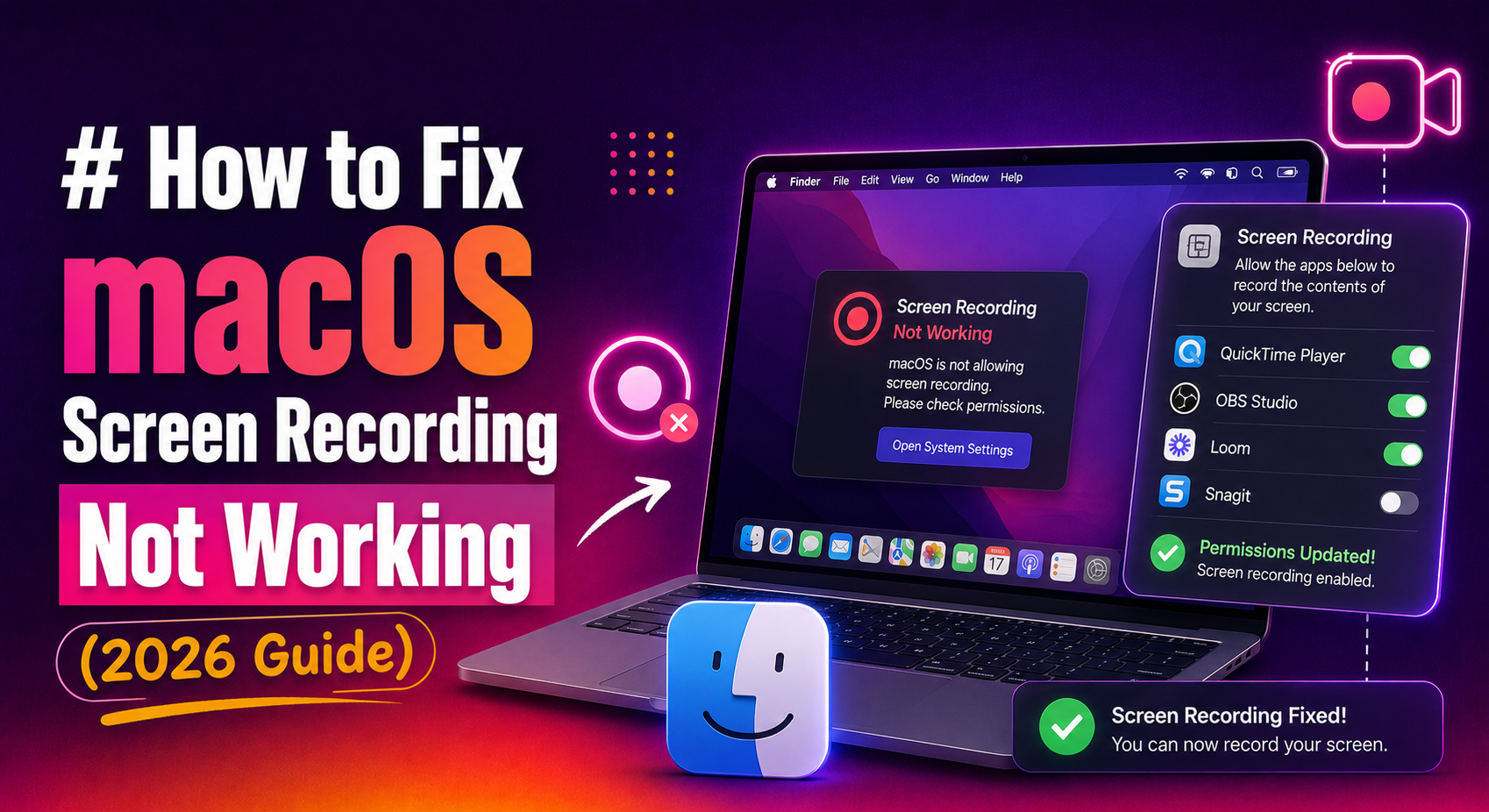
If your Mac screen recording suddenly stopped working — producing a black screen, recording silence, failing to start at all, or crashing mid-session — you are not alone. This is one of the most common support requests following every major macOS release, including macOS Tahoe and Sequoia.
The core reason is Apple's ever-tightening privacy framework. Every major macOS update can silently revoke screen recording permissions that were previously granted. In macOS Sequoia and later, Apple introduced a rolling 30-day re-consent model: your Mac will periodically ask whether each app should continue to have screen capture access. If you dismiss that prompt, recording stops without any obvious error message.
Beyond permission resets, several other factors cause screen recording to break in 2026:
- DRM content protection — streaming apps like Netflix and Apple TV+ route video through a GPU-level pipeline that deliberately excludes the screen capture API.
- Conflicting apps — virtual meeting tools (Zoom, Teams) can hold exclusive access to your display capture pipeline.
- Low disk space — macOS silently aborts recordings when storage runs out, leaving a 0 KB file.
- Missing virtual audio driver — macOS's native tools cannot capture system audio without a third-party audio loopback device.
- Corrupted QuickTime preferences — a bad preference file causes QuickTime to hang or produce no output.
Work through the fixes below in order. Most users resolve the issue within the first two steps.
Fix 1: Grant or Reset Screen Recording Permissions in System Settings
This is the most common cause and the first place to look. After any macOS update, screen recording permissions are frequently reset to "denied" with no warning.
Step 1 — Open the correct permission panel
- Click the Apple menu and choose System Settings.
- Go to Privacy & Security.
- Scroll down and click Screen & System Audio Recording.
Step 2 — Enable your recording app
Find the app you use to record (QuickTime Player, OBS, Loom, etc.) and flip its toggle to the on position. If the app is not listed, open it and attempt to start a recording — macOS will then prompt you to grant access and add the app to the list.
Step 3 — Fully quit and relaunch the app
Closing the window is not enough. Press Cmd + Q to fully quit the app, then reopen it. Permission changes do not take effect in a running process.
Force-reset all screen recording permissions via Terminal
If the toggle does not stick or the permission keeps reverting, reset the privacy database for the app with this command (replace com.apple.QuickTimePlayerX with your app's bundle ID if needed):
tccutil reset ScreenCapture com.apple.QuickTimePlayerXTo reset permissions for all apps at once:
tccutil reset ScreenCaptureAfter running this command, relaunch your recording app and grant permission when the system prompt appears.
Fix 2: Resolve Black Screen in Screen Recordings (DRM and App Conflicts)
If your recording plays back as a black rectangle where a video window should be, the cause is almost always DRM content protection or a conflicting process holding the capture pipeline.
DRM-protected content (Netflix, Apple TV+, Disney+)
There is no setting to bypass this. DRM routes video frames through a GPU pipeline that is intentionally invisible to ScreenCaptureKit and QuickTime. The black area is macOS respecting content protection, not a bug. The only workaround is to use a screen recorder that captures at the display hardware level — some professional tools offer this — but those methods may violate a streaming service's terms of use.
Close conflicting capture apps
Zoom, Teams, and other video-conferencing apps can hold exclusive access to the display capture session. Quit all other apps that might use the camera or screen, then attempt your recording again.
Disable hardware acceleration in browsers
Some browsers use GPU-accelerated rendering that can appear black in recordings. In Chrome or Edge:
- Open Settings → System.
- Turn off Use hardware acceleration when available.
- Relaunch the browser and retry recording.
Check display connection and refresh rate
External monitors connected over HDCP-compliant cables (some HDMI and DisplayPort cables) can trigger copy-protection black screens. Try switching to a different cable or port, or set your display refresh rate to 60 Hz in System Settings → Displays.
Fix 3: Fix No Audio in macOS Screen Recordings
macOS natively cannot capture system audio (the sound playing through your speakers) using QuickTime or the built-in Screenshot toolbar. This is a deliberate OS-level restriction, not a bug. To record system audio, you need a virtual audio driver.
Check that a microphone is selected
In QuickTime Player, click File → New Screen Recording. Before hitting the record button, click the small arrow next to it and confirm a microphone is selected under the Microphone heading. If "None" is selected, QuickTime records video only.
Grant microphone permission
- Open System Settings → Privacy & Security → Microphone.
- Enable the toggle for your recording app.
- Quit and relaunch the app.
Install BlackHole for system audio capture
BlackHole is a free, open-source virtual audio driver that routes system sound to a recordable input. Installation steps:
- Download BlackHole from existential.audio/blackhole and install it.
- Open Audio MIDI Setup (search Spotlight).
- Click the + button at the bottom left and choose Create Multi-Output Device.
- Check both BlackHole 2ch and your speakers/headphones.
- In System Settings → Sound → Output, select the new Multi-Output Device.
- In QuickTime New Screen Recording, select BlackHole 2ch as the microphone input.
Your system audio will now be captured alongside your recording.
Check microphone permission via Terminal
tccutil reset Microphone com.apple.QuickTimePlayerXFix 4: Stop Screen Recordings From Cutting Out Unexpectedly
Recordings that start normally but stop mid-session, produce a corrupt file, or save as 0 KB are almost always caused by storage exhaustion or a thermal throttle event.
Free up disk space before recording
Check available storage in Apple menu → About This Mac → More Info → Storage. As a rule of thumb, keep at least 10 GB free before any recording session. A 1080p screen recording at standard quality consumes roughly 100–200 MB per minute.
Remove large files or empty the Trash to reclaim space:
# Find files larger than 1 GB on your Mac
find ~ -size +1G -type f 2>/dev/null
Change the save location
If your home folder is on a nearly full internal drive, redirect recordings to an external SSD. In the Screenshot toolbar (Shift + Cmd + 5), click Options → Other Location and choose your external drive.
Prevent sleep during recording
macOS can interrupt a recording when the display sleeps. Temporarily prevent sleep using caffeinate:
caffeinate -dRun this in Terminal before you start recording. Press Ctrl + C to cancel it when you are done.
Check Activity Monitor for memory pressure
Open Activity Monitor → Memory tab. If the Memory Pressure graph is red, close background apps to free RAM before recording.
Fix 5: Repair QuickTime Screen Recording Not Working on Mac
If QuickTime Player specifically refuses to start a recording, hangs on the record button, or crashes immediately, the issue is usually a corrupted preferences file or a stale process lock.
Delete QuickTime preferences
Quit QuickTime completely, then run:
rm ~/Library/Preferences/com.apple.QuickTimePlayerX.plistRelaunch QuickTime. macOS will rebuild the preferences file fresh.
Reset QuickTime via Terminal
defaults delete com.apple.QuickTimePlayerXKill stuck QuickTime processes
pkill -x "QuickTime Player"Then reopen QuickTime from Applications or Spotlight.
Update macOS
Go to System Settings → General → Software Update. Known screen recording bugs in earlier Sequoia and Tahoe point releases have been patched in subsequent updates. Running the latest version is the quickest way to rule out a fixed bug.
Re-install QuickTime as a last resort
QuickTime Player is bundled with macOS and cannot be reinstalled in isolation, but reinstalling macOS over itself (without erasing data) refreshes system app binaries. Boot into Recovery Mode (hold Power on Apple Silicon, or Cmd + R on Intel) and choose Reinstall macOS.
Consider a dedicated third-party recorder
If QuickTime continues to misbehave, tools such as OBS Studio (free) or Screenflow give you more control over permissions, audio routing, and output formats. They register their own capture sessions independently of QuickTime, bypassing any stale QuickTime state.
If you have worked through all of the fixes above and screen recording is still broken on your Mac, the issue may involve a deeper system integrity problem, conflicting kernel extensions, or hardware. Get expert desktop support from our macOS specialists who can diagnose the root cause remotely in a single session.
Frequently Asked Questions
Why does my Mac screen recording show a black screen?
A black screen in a recording is almost always caused by either DRM content protection (Netflix, Apple TV+, Disney+) or a missing screen recording permission. Check System Settings → Privacy & Security → Screen & System Audio Recording and ensure your recorder is enabled. For streaming services, the black screen is intentional and cannot be bypassed through settings.
Why is there no sound in my macOS screen recording?
macOS does not natively support system audio capture in QuickTime or the built-in Screenshot tool. You need a virtual audio driver such as BlackHole to route system sound to a recordable input. Also verify that a microphone is selected in QuickTime's recording options and that microphone permission is granted in System Settings → Privacy & Security → Microphone.
How do I reset screen recording permissions on Mac?
Open Terminal and run tccutil reset ScreenCapture to reset permissions for all apps, or tccutil reset ScreenCapture com.apple.QuickTimePlayerX for QuickTime only. After the reset, relaunch your recording app and grant permission when macOS prompts you.
Why did screen recording stop working after a macOS update?
Every major macOS update resets privacy permissions, including screen recording access. Go to System Settings → Privacy & Security → Screen & System Audio Recording and re-enable every app that was previously authorized. Starting with macOS Sequoia, Apple also introduced a 30-day rolling re-consent prompt that can silently revoke access if dismissed.
Does macOS Tahoe support screen recording with system audio built in?
As of macOS Tahoe, Apple still requires a virtual audio driver (like BlackHole) or a third-party app to capture system audio. The built-in Screenshot toolbar and QuickTime Player can only record microphone input natively. However, some third-party apps such as Screenflow and OBS use Apple's ScreenCaptureKit framework and can capture system audio without an additional driver when properly configured.