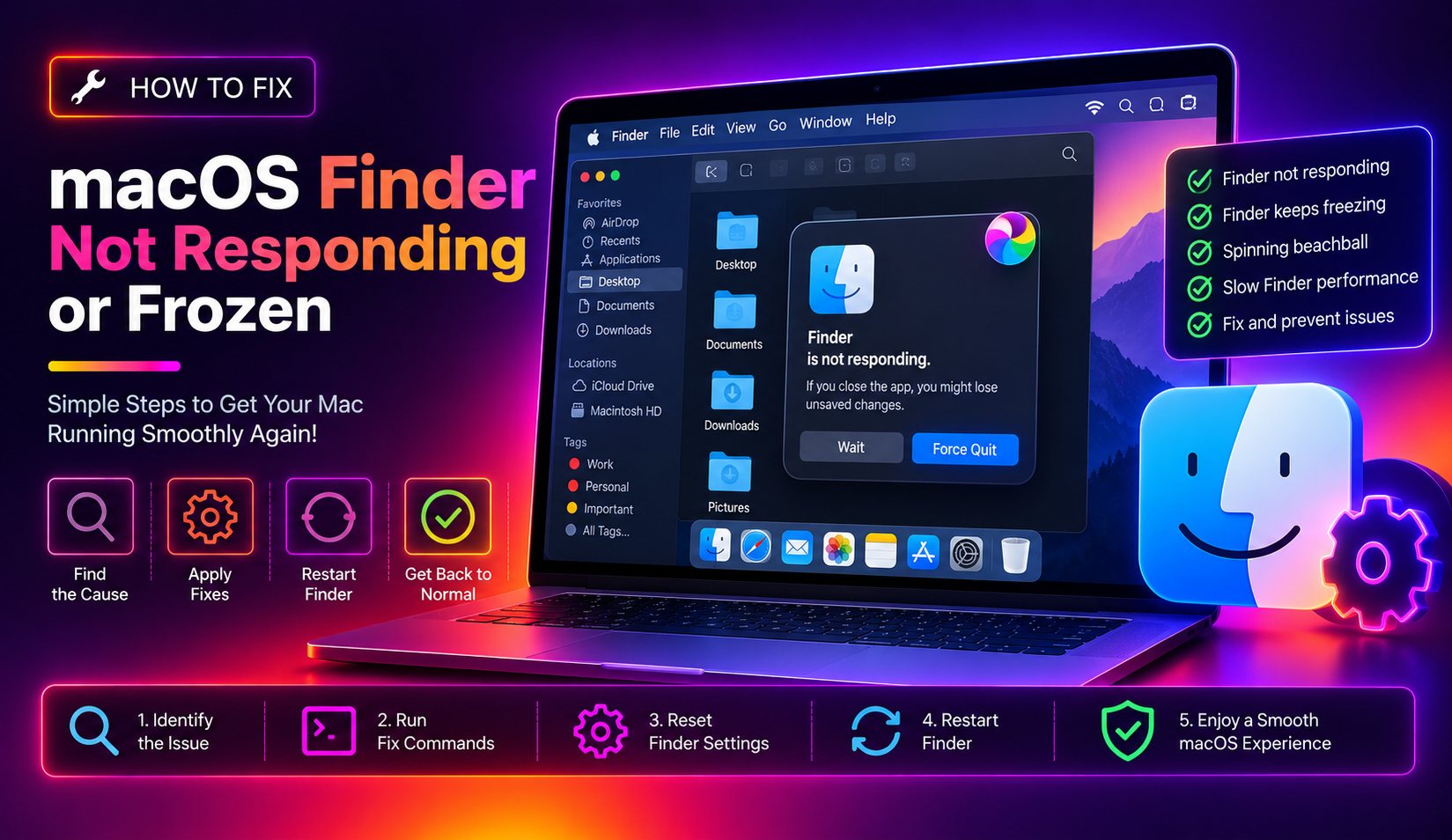
Why Does macOS Finder Stop Responding?
Finder is the cornerstone of the macOS desktop experience — it manages your files, folders, desktop, and sidebar. When it freezes or stops responding, your entire workflow grinds to a halt. The spinning rainbow beachball appears, clicks go unregistered, and sometimes the whole desktop becomes unresponsive.
Finder freezes in 2026 are typically caused by low disk space, corrupted preference files, too many items on the desktop, network-mounted drives timing out, or conflicts after a macOS update. Here are 9 proven fixes, starting with the quickest.
Fix 1: Force Relaunch Finder (30 Seconds)
This is the fastest fix and resolves most temporary Finder freezes instantly.
- Hold Option (⌥) and right-click the Finder icon in the Dock.
- Select Relaunch from the context menu.
If you can't right-click the Dock, use the Apple menu → Force Quit → select Finder → click Relaunch.
Alternatively, open Terminal and run: killall Finder
Finder will restart in seconds. This clears any stuck processes without rebooting your Mac.
Fix 2: Restart Your Mac
A full restart clears memory pressure, resets all services, and resolves issues that a Finder relaunch alone can't fix.
- Click the Apple menu () → Restart.
- Uncheck "Reopen windows when logging back in" to start fresh.
If your Mac is completely frozen and won't respond to the menu, hold the power button for 5–10 seconds to force a shutdown, then restart.
Fix 3: Free Up Disk Space
macOS Finder slows dramatically and can freeze when your startup disk is nearly full. Apple recommends keeping at least 10–15% free.
- Click the Apple menu → System Settings → General → Storage.
- Review the breakdown and remove large unused files, downloads, or apps.
- Empty the Trash: right-click the Trash icon → Empty Trash.
Terminal command to see the largest files: du -sh ~/Downloads/* | sort -rh | head -20
Fix 4: Delete Finder's Preference File
A corrupted Finder preferences file (com.apple.finder.plist) is a common cause of persistent freezes and crashes.
- Open Terminal (Applications → Utilities → Terminal).
- Run:
defaults delete com.apple.finder - Then:
killall Finder
Finder will restart with factory-default settings, losing your sidebar customizations but resolving preference-file corruption.
Fix 5: Reduce Items on Your Desktop
This is one of the most overlooked causes. Finder renders every desktop icon as a live preview. If you have hundreds of files on your desktop — especially videos, RAW photos, or large documents — Finder generates thumbnails for all of them simultaneously, which can cause it to freeze.
- Move files off the desktop into organized folders.
- Or enable Stacks: right-click the desktop → Use Stacks to group items automatically and reduce rendering overhead.
Keeping fewer than 50 items on your desktop is a good rule of thumb.
Fix 6: Disconnect Network Drives
If Finder is slow to open or consistently freezes at launch, a disconnected network share or SMB drive it's trying to reconnect to is often the cause.
- In Finder sidebar, look for any network drives with a grayed-out icon.
- Right-click → Eject or click the eject button next to the drive name.
- To stop a network location from auto-connecting, remove it via System Settings → General → Sharing.
Fix 7: Clear Finder's Thumbnail Cache
A corrupt thumbnail cache causes Finder to freeze while trying to display file previews.
- Open Terminal and run these commands one at a time:
sudo find /private/var/folders/ -name "com.apple.dock.iconcache" -exec rm {} \;
sudo find /private/var/folders/ -name "*.db" -exec rm {} \;
killall Dock
killall Finder
This forces macOS to rebuild all icon and thumbnail caches from scratch.
Fix 8: Update macOS
Apple regularly patches Finder bugs in minor macOS updates. If Finder started freezing after a recent update, a subsequent patch likely already fixes it.
- Go to Apple menu → System Settings → General → Software Update.
- Install any available updates.
Check the update release notes (linked on Apple's website) — they often specifically mention Finder stability fixes.
Fix 9: Create a New User Account to Test
If Finder freezes only under your user account and not others, the problem is isolated to your user profile — likely a corrupted preference or Launch Agent.
- Go to System Settings → Users & Groups → Add Account.
- Create a new Standard account.
- Log in to the new account and test if Finder works normally.
If Finder works in the new account, migrate your data to a fresh profile or selectively delete Launch Agents from ~/Library/LaunchAgents/.
Still Having Issues? Get Expert Mac Support
If Finder keeps freezing after trying all these steps, there may be a deeper macOS system file issue or hardware problem. CloudHouse Technologies offers Pay-Per-Ticket Mac support — get a certified technician to diagnose your specific issue without any subscription commitment.
FAQs
How do I force quit Finder on Mac?
Press Option + Command + Escape to open Force Quit Applications. Select Finder and click Relaunch. Unlike other apps, Finder will restart rather than close entirely.
Why does Finder keep freezing after a macOS update?
macOS updates can create conflicts with Finder's preference files or cached data from the previous version. Deleting com.apple.finder.plist and clearing thumbnail caches usually resolves post-update Finder freezes.
Can too many files on the desktop cause Finder to freeze?
Yes — Finder renders live previews for every item on the desktop. Having hundreds of large files (especially videos or RAW photos) can overwhelm Finder's rendering engine and cause it to freeze or become unresponsive.
How do I clear the Finder cache on Mac?
Open Terminal and run sudo find /private/var/folders/ -name "*.db" -exec rm {} \; followed by killall Finder. This clears the icon and thumbnail database and forces a fresh rebuild.
Will deleting Finder preferences lose my data?
No — deleting com.apple.finder.plist only resets Finder's display preferences (sidebar layout, view options, window positions). Your files and folders are not affected.