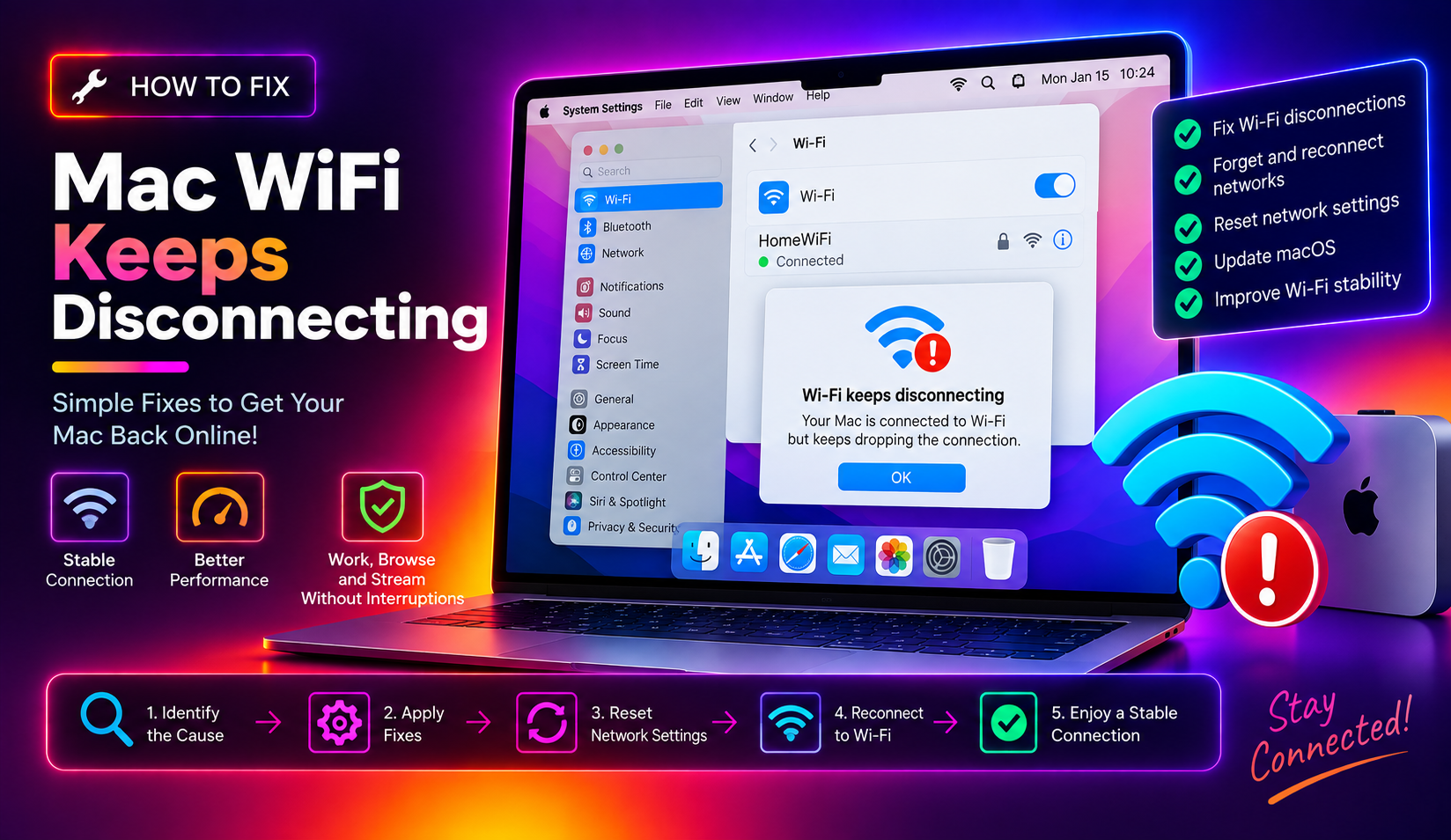
Why Does Mac WiFi Keep Disconnecting?
Few things are more frustrating than a MacBook that drops WiFi every few minutes — especially when other devices on the same network stay connected without issue. In 2026, Mac WiFi disconnection issues typically fall into three categories: corrupted network configuration files, software bugs in macOS, and interference or router compatibility issues.
The good news is that roughly 80% of Mac WiFi drops are software-related and fixable without any hardware intervention. Here are 10 fixes ordered from fastest to most thorough.
Fix 1: Forget and Reconnect to the Network
This is the most effective first step — it clears any corrupt credential or connection data stored for your WiFi network.
- Go to Apple menu → System Settings → Wi-Fi.
- Click the info (i) button next to your network name.
- Click Forget This Network and confirm.
- Reconnect by selecting the network and entering your password.
This resolves the majority of random WiFi drops caused by stale authentication tokens or mismatched network profiles.
Fix 2: Restart Your Mac and Router
Both the Mac's WiFi stack and your router accumulate state that can cause dropped connections. A clean restart of both often resolves intermittent issues immediately.
- Click Apple menu → Restart on your Mac.
- Unplug your router/modem for 30 seconds, then plug it back in.
- Wait 2 minutes for the router to fully restart before reconnecting.
Fix 3: Renew DHCP Lease
If your Mac's IP lease has expired or conflicted with another device, WiFi may appear connected but deliver no traffic — or drop entirely when the router rejects the stale lease.
- Go to System Settings → Network → Wi-Fi.
- Click Details next to your connected network.
- Select the TCP/IP tab.
- Click Renew DHCP Lease.
Fix 4: Change DNS Servers
Default ISP DNS servers can be slow or temporarily unavailable. When a DNS lookup times out, macOS may report the WiFi as dropped even though the radio link is fine.
- Go to System Settings → Network → Wi-Fi → Details.
- Select the DNS tab.
- Click + and add:
8.8.8.8and1.1.1.1 - Remove any existing ISP DNS entries.
- Click OK.
Using public DNS servers (Google 8.8.8.8 or Cloudflare 1.1.1.1) is often faster and more reliable than your ISP's default servers.
Fix 5: Delete Network Preference Files
Corrupt network preference files in macOS can cause persistent WiFi instability. Deleting them forces macOS to recreate them cleanly.
- Open Finder → Go → Go to Folder (Shift + Cmd + G).
- Enter:
/Library/Preferences/SystemConfiguration/ - Delete these files (move to Trash):
com.apple.airport.preferences.plistcom.apple.network.identification.plistNetworkInterfaces.plistpreferences.plist
- Restart your Mac. macOS will recreate these files with factory defaults.
You'll need to re-enter your WiFi password after this.
Fix 6: Disable WiFi and Re-enable It
A quick toggle of the WiFi adapter resets the wireless radio and clears transient connection issues.
networksetup -setairportpower en0 off
networksetup -setairportpower en0 on
Run these in Terminal. Replace en0 with your WiFi interface name if different (check with networksetup -listallhardwareports).
Fix 7: Check for Bluetooth Interference
Bluetooth and 2.4 GHz WiFi operate on overlapping frequencies. Active Bluetooth devices — especially audio peripherals — can interfere with 2.4 GHz WiFi and cause intermittent drops.
- Turn Bluetooth OFF temporarily via System Settings → Bluetooth.
- Test WiFi stability for 15–30 minutes.
If stability improves, connect your Mac to your router's 5 GHz band (typically labeled as "NetworkName_5G") to avoid the interference entirely. 5 GHz is faster and doesn't conflict with Bluetooth.
Fix 8: Update macOS
Apple releases WiFi driver fixes in regular macOS updates. If WiFi drops started after a specific update, a subsequent patch usually addresses it.
- Go to Apple menu → System Settings → General → Software Update.
- Install any available updates.
Check Apple's update notes at Apple.com/macos — they often specifically call out networking bug fixes.
Fix 9: Disable "Limit IP Address Tracking"
Introduced with iOS 15 and macOS Monterey, "Limit IP Address Tracking" uses Apple's iCloud Private Relay for DNS/traffic routing. On some routers, this feature causes intermittent disconnects.
- Go to System Settings → Network → Wi-Fi → Details (for your network).
- Toggle off Limit IP Address Tracking.
Fix 10: Reset the Network Stack via Terminal
For persistent issues that survive all the above, a full network stack reset via Terminal often resolves them:
sudo ifconfig en0 down
sudo route flush
sudo ifconfig en0 up
sudo dscacheutil -flushcache
sudo killall -HUP mDNSResponder
Enter your admin password when prompted. This flushes ARP tables, DNS cache, and reinitializes the WiFi interface.
Still Dropping WiFi?
If none of these fixes resolves the problem, the Mac's WiFi hardware (AirPort card or antenna) may be failing, or there's a deeper macOS system file issue. CloudHouse Technologies offers Pay-Per-Ticket Mac support — get expert help without a subscription.
FAQs
Why does my MacBook keep disconnecting from WiFi randomly?
The most common causes are corrupted network preference files, a stale DHCP lease, DNS server failures, Bluetooth interference on 2.4 GHz, or a macOS bug. Start by forgetting the network and reconnecting, then renewing your DHCP lease.
How do I flush DNS cache on Mac?
Open Terminal and run: sudo dscacheutil -flushcache && sudo killall -HUP mDNSResponder. This clears the DNS resolver cache and restarts the mDNS daemon.
Will deleting network preference files erase my WiFi passwords?
Yes — you'll need to re-enter your WiFi password after deleting the preference files. Saved passwords in iCloud Keychain are not affected, but locally stored ones will be cleared.
Why does my Mac disconnect from WiFi when it goes to sleep?
This is controlled by macOS's Power Nap setting. Go to System Settings → Battery → Options and enable "Enable Power Nap." Alternatively, go to System Settings → Network → Wi-Fi → Details and check that your network isn't configured to disconnect on sleep.
Does resetting the PRAM/NVRAM fix WiFi issues on Mac?
On Intel Macs, resetting NVRAM (hold Option + Command + P + R during startup) can resolve persistent wireless issues. On Apple Silicon Macs (M1/M2/M3/M4), there is no manual NVRAM reset — the system manages it automatically.