
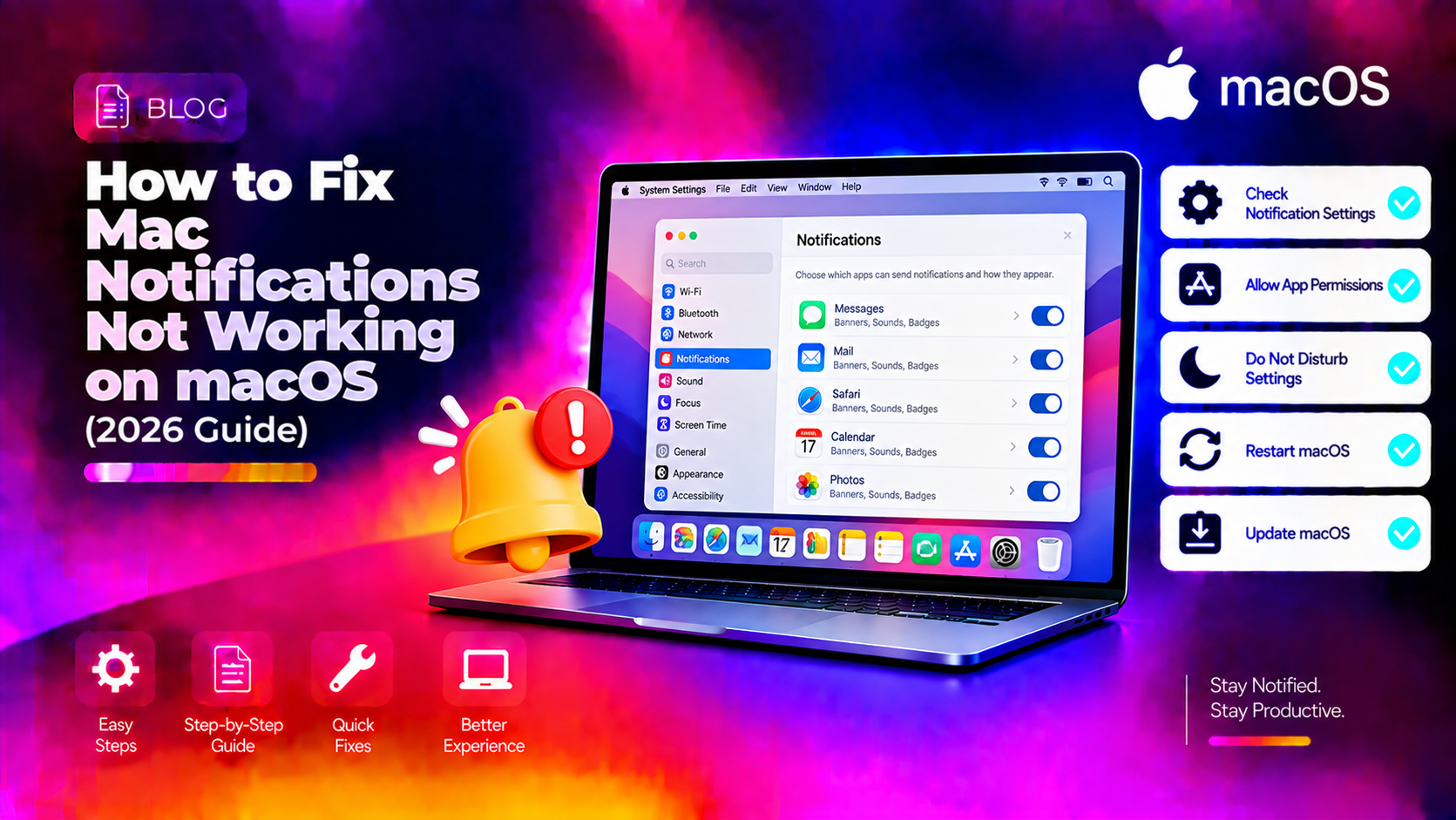
Why Are Mac Notifications Not Working?
Notifications suddenly stop appearing on Mac for a handful of well-known reasons: an active Focus or Do Not Disturb mode silencing everything, an app's notification permissions set to "None," a scheduled Focus filter that turns on automatically, or a sync conflict if you share Focus settings with your iPhone. Less commonly, a corrupt notification database or a macOS update bug is to blame.
This guide walks you through all the fixes — from the fastest checks (a 10-second Focus toggle) to deeper repairs involving the notification daemon restart and database reset.
Fix 1: Turn Off Focus Mode or Do Not Disturb
The most common reason for no Mac notifications is an active Focus mode (including Do Not Disturb). Check the menu bar for a purple crescent moon or a coloured Focus icon — that means all or some notifications are silenced.
- Click the Control Center icon in the menu bar (top-right).
- Click Focus.
- If a Focus mode (Do Not Disturb, Work, Personal, Sleep, etc.) is highlighted, click it to turn it off.
Alternatively, open System Settings → Focus and check whether any Focus mode is scheduled or linked to a location that may be triggering automatically.
Fix 2: Check Per-App Notification Settings
Each app has its own notification permission. If notifications from a specific app are missing, that app's alert style may be set to "None":
- Go to System Settings (or System Preferences on older macOS) → Notifications.
- Find the app in the list and click it.
- Make sure Allow Notifications is turned on.
- Set Alert style to Banners or Alerts (not None).
- Check that Sounds and Badges are also enabled if you need them.
Fix 3: Disable "Share Across Devices" Focus Sync
If Focus settings sync from your iPhone (where you may have Do Not Disturb scheduled), notifications on your Mac will be blocked by your phone's settings:
- Go to System Settings → Focus.
- At the top, look for Share Across Devices.
- Toggle it Off to stop your Mac from inheriting Focus states from your iPhone or iPad.
Fix 4: Check That Notification Centre Is Not Hidden
Notifications may be arriving but not displaying as banners because the Notification Centre is open. Press Escape or click elsewhere to close it. Also confirm you haven't accidentally clicked "Clear All" in Notification Centre, which removes pending notifications.
Fix 5: Make Sure the App Is Open
On macOS, most apps can only send notifications when they are running. Unlike iOS, background push notifications are limited on Mac unless the app explicitly supports them. Check that the app showing no notifications is actually open in the Dock or in the background (look for a dot under the app icon).
Fix 6: Restart the Notification Centre Process
If notifications stopped suddenly for all apps, the notification daemon (NotificationCenter) may have crashed. Restart it without rebooting:
- Open Terminal (Applications → Utilities → Terminal).
- Run:
killall NotificationCentermacOS will restart the process automatically within a few seconds. Test whether notifications reappear.
Fix 7: Delete the Notification Database (Full Reset)
If the notification database becomes corrupt, no amount of settings changes will fix it. Deleting it forces macOS to rebuild it from scratch:
- Quit all applications.
- Open Terminal and run:
rm -rf ~/Library/Caches/com.apple.notificationcenterrm -rf ~/Library/Application\ Support/NotificationCenter- Restart your Mac.
- You may need to re-grant notification permissions to apps after the restart — go to System Settings → Notifications if any app prompts you.
Fix 8: Check Focus Allowed Apps List
Focus modes can be configured to allow specific apps through even while active. If you're in a Focus mode and need one app's notifications (e.g., Messages), add it to the allowed list:
- Go to System Settings → Focus.
- Select the active Focus mode.
- Click Apps under "Allowed Notifications."
- Click Add Apps and add the apps whose notifications you need.
Fix 9: Update macOS
Notification bugs are fixed regularly in macOS updates. If you're running an older version of Sequoia or Tahoe, a pending update may already include the fix:
- Go to System Settings → General → Software Update.
- Install any available updates.
- Restart and test notifications.
Still Not Getting Mac Notifications?
If you've tried everything above and notifications still aren't appearing, the issue may be a more obscure macOS configuration conflict or a third-party app interfering with the notification system. CloudHouse Technologies offers pay-per-ticket remote Mac support — a specialist can inspect your notification settings, Focus configuration, and system processes to find exactly what's blocking notifications and fix it in one session.
Frequently Asked Questions
Why are my Mac notifications not showing even with Do Not Disturb off?
Check individual app notification settings in System Settings → Notifications. Each app needs "Allow Notifications" on and an Alert style of Banners or Alerts. Also verify no scheduled Focus mode is activating automatically based on time or location.
How do I stop Focus mode from activating automatically on my Mac?
Go to System Settings → Focus, select each Focus mode, and check the Automations tab. Remove any time-based, location-based, or app-based triggers. Also disable "Share Across Devices" to prevent your iPhone's Focus schedule from syncing to your Mac.
Why did my Mac notifications stop working after a macOS update?
macOS updates occasionally reset notification permissions or introduce bugs in the notification daemon. Try running killall NotificationCenter in Terminal and re-check app permissions in System Settings → Notifications after the update.
Why do I only get notifications from some apps and not others on Mac?
This is usually because the missing apps have their Alert style set to "None" in System Settings → Notifications. Click each app in the list and set the style to Banners or Alerts. Also make sure those apps are open — most Mac apps can't send notifications when closed.
How do I completely reset notification settings on Mac?
Delete the notification database by running these Terminal commands and restarting: rm -rf ~/Library/Caches/com.apple.notificationcenter and rm -rf ~/Library/Application\ Support/NotificationCenter. macOS rebuilds the notification database fresh on next login.